
livery.cfg
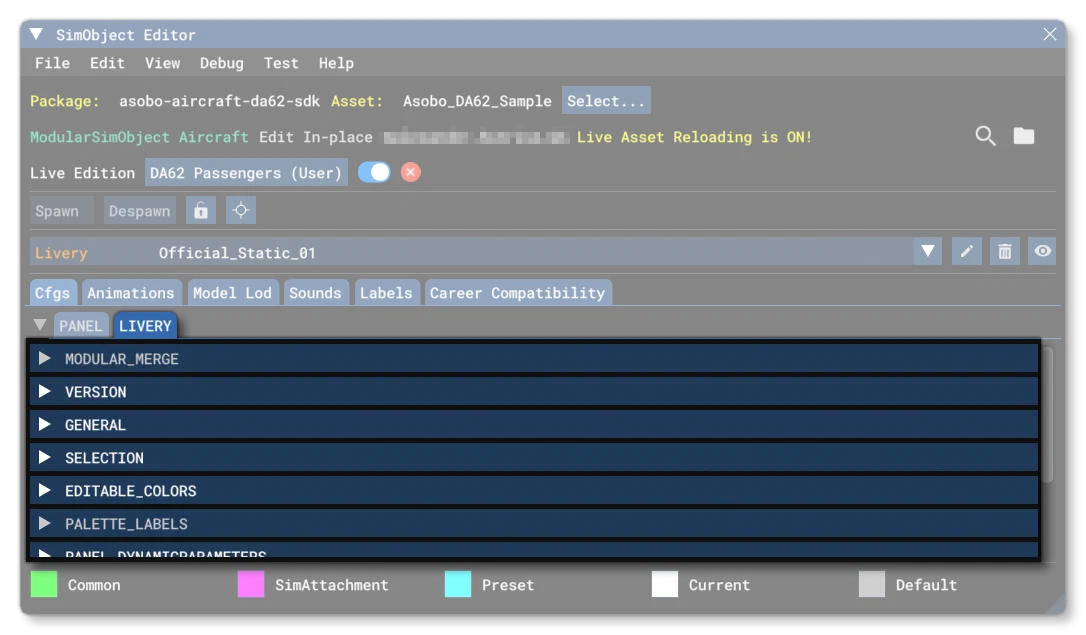
The livery.cfg is an optional file for modular SimObjects, and is not used by non-modular SImObjects. This file should be placed within the individual liveries folders of the SimObject project, with specifically one version of the file per-livery. The full description of the files used in the livery folders can be found on the modular SimObject page here:
For information on how to set up the assets to be able to use this file, please see the following page:
For information on how an individual livery should be set up to make use of adaptive elements, please see here:
For information on how liveries are applied when in Career Mode, please see here:
[Version]
The [Version] section provides version information for the configuration file. In Microsoft Flight Simulator 2024, major versions should always be at least equal to 1.
Note that this section information is mandatory and should always be included.
| Parameter | Description | Type | Required |
|---|---|---|---|
major | Major CFG file version number, values must be greater than 0. | Integer | Yes |
minor | Minor CFG file version number, values must be greater than 0. | Integer | Yes |
[General]
The parameters in this section are used to provide some general information about the livery.
| Parameter | Description | Type | Required |
|---|---|---|---|
name | The name of the livery, as a localisable string. This will be displayed to the user on the Aircraft Configurator screen in the simulation | String | Yes |
[Selection]
The parameters in this section are used to define under which circumstances the livery will be available to the user for selection, or for a mission to apply automatically. It has the following parameters:
| Parameter | Description | Type | Required |
|---|---|---|---|
required_tags | This defines which tags are required for this livery to show up for a given Preset. This parameter lets you disable a livery if it is not compatible when a tag is missing. Multiple tags can be specified by separating them using a comma. Tags are defined in the attachment.cfg so, for example, if you have two attachments and want to use the livery on both, you would set the Tag.N in the attachment.cfg files, then list both the tags in this parameter:<span></span>required_tags = node_default, nose_cargo<span></span> | String | No |
[EDITABLE_COLORS]
This section is used to define the base editable colour (and optional material) for the livery. For more information, please see the Liveries page.
| Parameter | Description | Type | Required |
|---|---|---|---|
editable_color.N | Each editable_colour.N entry in the section is used to define a base colour and an optional material and fallback colour for the editable colour. Colours are indexed from 0 and should be incremented by 1 for each new colour that is added.The colour hash map is comprised of the following multiple key:value pairs, separated by the # symbol:<span></span>editable_color.N = color:<R, G, B> #materials:<material_name>, <material_name>, ... #fallback:<fallback_index><span></span>The colour value is defined using three values for the RGB components, and will be the default colour for the livery adaptive colour “slot” corresponding to the index. This key is the only required key in the hash map.The material name given is a flightsim material to target with this colour, as defined in one of the livery glTF files. When giving the material name, it can be formatted in any one of the following ways depending on the requirements of the SimObject:1. "<material_name>" - this simply looks for material_name in the exterior model (excluding attachments)2. "<tag>:<material_name>" - this looks for material_name on all attachments with the given tag3. "<material_name>@<alias>" - this looks for material_name on the attachment with the given alias4. "no_material" - this can be used if there is no material assigned to the editable colour.The fallback index that you give is the index of the editable_colour.N entry to use if there are not enough custom colors for the number of adaptative colors defined in the livery. If not included, the initial colour value will be used.A full example of a single colour definition would be like this:<span></span>editable_color.0 = color: 158, 158, 158 #materials: "airframe:CustomColor_01_Base", "airframe:CustomColor_01_DoorTail"<span></span> | Hash Map | No |
[PALETTE_LABELS]
This section is used to define a number of key/value pairs which will be used as “labels” to filter colour palettes. The idea is that the labels given hear will narrow the selection of a colour palette down to just one from the palette.lbl file. For more information, please see the Liveries page.
| Parameter | Description | Type | Required |
|---|---|---|---|
label_key.N | This defines a label key to search for as part of the palette filtering. Keys are indexed from 0 and should increment by 1 for every new key added. You may have keys with no associated value (see Geographic Keys, for more information). For example:<span></span>label_key.0 = "Activity"<span></span>label_value.0 = "AAD"<span></span>label_key.1 = "Country"<span></span>You have access to a number of built-in palettes using specific keys and values, as outlined here: Labels / Keys For Included Palettes. You may also create your own palettes and then supply your own key/value pairs, as explained here: Palettes | String | Yes |
label_value.N | This defines the value for the associated key. The N index should be the same as that of the label_key it corresponds to, and you cannot have a value without an associated key. Values should always be expressed inside quotation marks, even if it’s a float or integer. | String | No |
[Panel_DynamicParameters]
This section lets you define a number of dynamic parameters which will be used to override those found in the attached_objects.cfg of any attachments that are loaded as part of the modular aircraft.
| Parameter | Description | Type | Required |
|---|---|---|---|
param.N | This parameter can be used to create a list of dynamic parameters which will override any value created using the vcockpit_parameter.N or vpainting_parameter.N attachment parameters. The value for the parameter is a string, and within the string you give two pieces of data, separated by a comma:1. “the parameter name,the parameter value”Parameters indexed from 0 and should be incremented by 1 for each new parameter that is added. A full example of a single parameter definition would be like this:<span></span>param.0 = "exterior_registration_number_color,0x080808"<span></span> | String | No |
[Specialization]
The parameters in this section are used to define under which circumstances the livery will be available to the user for selection, or for a mission to apply automatically. It has the following parameters:
| Parameter | Description | Type | Required |
|---|---|---|---|
dressing_codes | This parameter specifies for which career specialisations the livery is applicable. If the livery is applicable to multiple different specialisations, these can be added as a comma separated list, for example:dressing_codes = "CAR-PSO, CAR-PLC, CAR-PCC, CAR-PVO"The default value is an empty string "" which means the livery can be used in all careers. | List of strings | Yes |
The table below lists all the available career specialisation codes:
| Specialisation | Dressing Code | Cabin Code |
|---|---|---|
| Medevac - Plane | MED-PLN | MED_Cabin |
| Cargo Transport (Light) - Plane | CAR-PSO | CAR_Cabin |
| Cargo Transport (Medium) - Plane | CAR-PLC | CAR_Cabin |
| Cargo Transport (Heavy) - Plane | CAR-PCC | CAR_Cabin |
| Cargo Transport (Super Heavy) - Plane | CAR-PVO | CAR_Cabin |
| Remote Cargo Ops - Plane | CAR-PLM | CAR_Cabin |
| Cargo Transport - Rotorcraft | CHT-ROH | CHT_Cabin |
| Aerial Construction - Rotorcraft | CHT-AEC | CHT_Cabin |
| Scientific Research - Plane | DIC-SCR | DIC_Cabin |
| Passenger Transport - Plane | COF-PCC | COF_Cabin |
| Passenger Transport - Rotorcraft | COF-ROT | COF_Cabin |
| Charter Service (Private) - Plane | PRC-PSO | COF_Cabin / PRC_Cabin |
| Charter Service (VIP) - Plane | PRC-PLC | PRC_Cabin |
| Charter Service (VIP Airliner) - Plane | PRC-PCC | PRC_Cabin |
| Search & Rescue - Plane | SAR-PLN | N/A |
| Search & Rescue - Rotorcraft | SAR-ROT | SAR_Cabin |
| Search & Rescue (Hoist) - Rotorcraft | SAR-ROI | SAR_Cabin |
| Aerial Firefighting (Initial Attack) - Plane | FIR-INA | FIR_Cabin |
| Aerial Firefighting (Extended Attack) - Plane | FIR-EXA | FIR_Cabin |
| Skydive Aviation - Plane | SKP-PLN | SKP_Cabin |
| Agricultural Aviation - Plane | AEA-PLN | AEA_Cabin |
| Agricultural Aviation - Rotorcraft | AEA-ROT | AEA_Cabin |
| Aerial Advertising - Plane | AAD-PLN | AAD_Cabin |
| First Flight - Plane | FIF-PLN | COF_Cabin |
| Flightseeing - Plane | TOR-PLN | AAD_Cabin |
| Flightseeing - Rotorcraft | TOR-ROT | AAD_Cabin |
| Ferry Flight - Plane | FEF-PLN | DEFAULT |
[Tags]
This section is used to list any tags that you wish to be associated with the livery being defined. These tags are used to make the livery available in specific activities, in career mode, and to group liveries together. Note that these tags are independent of the ones defined in the attachment.cfg file.
| Parameter | Description | Type | Required |
|---|---|---|---|
tag.N | A single tag string to be associated with the livery. Tags are indexed from 0 and should be incremented by 1 for each new tag that is added, for example:tag.0 = “Freelance”tag.1 = “Licence_Firefighting”The tags available are as follows:" Freelance" “Licence_Tour”" Licence_SkydiveSport"" Licence_CargoTransport"" Licence_AgriculturalAviation"" Licence_AerialAdvertising"" Licence_Airline"" Licence_PrivateCharter"" Licence_Firefighting"" Licence_SearchAndRescue"" Licence_Medevac"" Licence_AerialConstruction" | String | No |
[FLTSIM.N]
This section is used to override the corresponding [FLTSIM.N] section in the aircraft.cfg file, permitting extra customisation options for the livery.
| Parameter | Description | Type | Required |
|---|---|---|---|
icao_airline | Non-localized ICAO designator of the airline if the variation is a livery for a real airline. Please see the Aircraft.cfg - Air Traffic section for additional information related to this setting. | String | No |
atc_parking_types | List of types of parking permitted for the aircraft. This is a single string containing a comma separated list of possible parking types, eg: "GATE,RAMP,CARGO". Possible values: ANY, RAMP, CARGO, MIL_CARGO, MIL_COMBAT, GATE, DOCK | String | No |
atc_parking_codes | A single string containing a comma separated list of parking codes, eg: "F18,A" | String | No |
atc_id | This gives the registration number of the aircraft (note that it can be modified in the simulation options by the user). The options for how this is displayed will depend on the [VPaintingN] settings of the panel.cfg file. For more information please see here: Registration Numbers. | String | No |