
Included Attachments
When it comes to creating your own Modular SimObjects, the Microsoft Flight Simulator 2024 includes a number of “pre-made” attachments that can be used in your own projects. Using these attachments not only saves you time and effort, but helps maintain consistency within the simulation and also makes certain setups and interactions easier. On this page, you can find the full list of available attachments, split into two groups: general attachments and instruments. Note that many of these attachments can be used to prepare an aircraft for different Career Activities.
General Attachments
The attachments listed below are all available for use in your aircraft. Most of them are specific to certain careers so you should ensure that you add them as part of the relevant Presets for the career the presets are designed for.
Asobo_Cargo_HoistHelicopter_Bag
Asobo_Chocks_02_L300_W570_H120
Asobo_Chocks_02_L440_W400_H120
Asobo_Chocks_02_L520_W370_H120
Asobo_Chocks_03_L520_W950_H150
Asobo_Chocks_03_L700_W1500_H150
Asobo_Firefighting_BambiBucket
Instruments
The attachments listed here are all cockpit instruments that can be used in your own aircraft. Most of them can be used in most aircraft, regardless of the career path.
Asobo_Attitude_Indicator_AS2610
Asobo_Attitude_Indicator_AS321
Asobo_Autopilot_G307_NoYawDamper
Asobo_Autopilot_G307_YawDamper
Asobo_Heading_Indicator_Two_Knobs
Asobo_Lever_LandingGearFloats_Box
Asobo_Lever_LandingGearFloats_Round
Asobo_Lever_LandingGearSafetyPump
Asobo_Lever_LandingGearSkis_Box
Asobo_Light_NavStrobe_Right_01
Asobo_Monitoring_ASMiniVigilus
Asobo_Monitoring_GenericSquare
Asobo_Monitoring_OilTemp_Press_01
Asobo_Monitoring_Temperature_ASTM1R
Asobo_Monitoring_Vaccum_Amp_01
Asobo_MPA_G1000_Autopilot_NoYawDamper
Asobo_MPA_G1000_Autopilot_YawDamper
Asobo_MPA_G1000_NoAutopilot_Alt_Hdg_Knobs
Adding An Included Attachment
When you create an aircraft preset you can setup the attached_objects.cfg to reference any of the attachments listed above by doing the following:
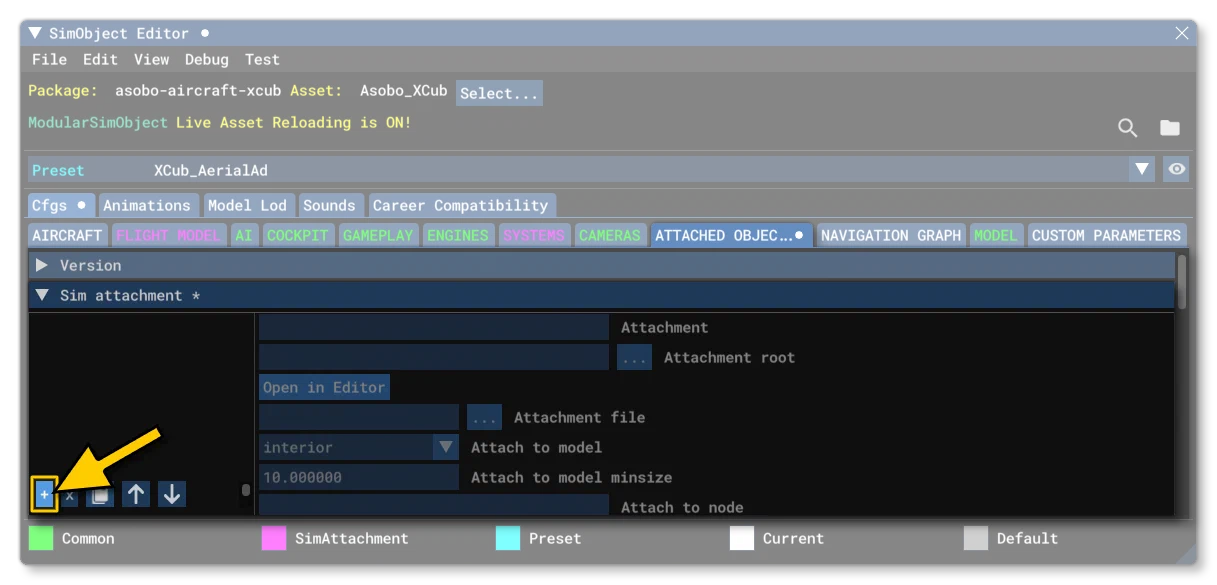
On the page for the attached objects, select the Sim Attachment section, then click on the to add a new attachment.
The next step is to select the Attachment Root, which requires you to click on the button to open the SimAttachment Explorer. This new window will show all the SimAttachments you have registered for the package as well as all the pre-made included attachments. In the image below we are adding the
Asobo_Banner_Hookattachment: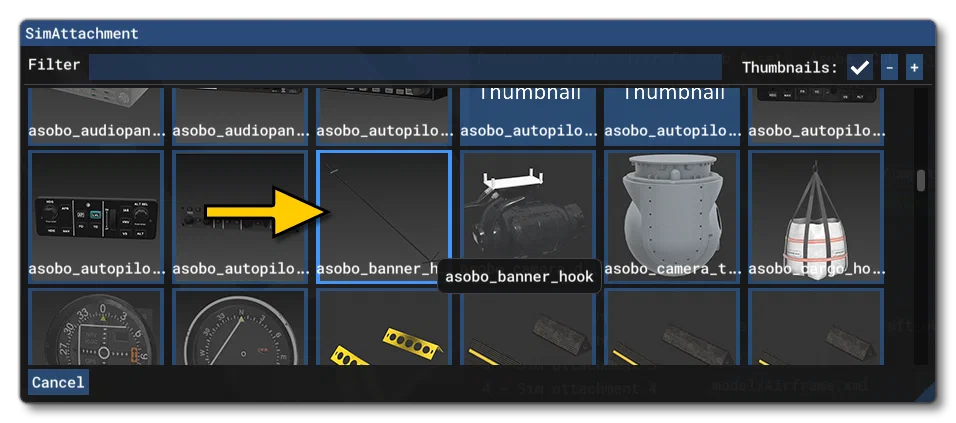
Having selected the attachment root folder, you can then select the file that governs what the attachment does. This is done from the Attachment File parameter and, again, clicking the will open an explorer where you can select the
model.xmlto use: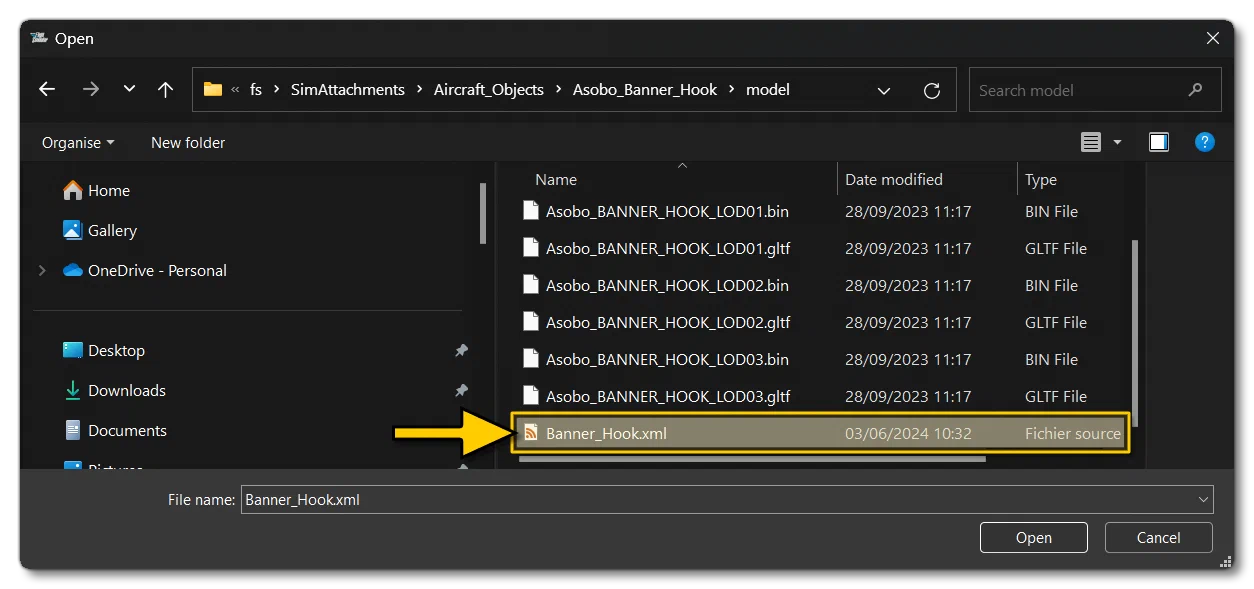
Having selected the SimAttachment, you will need to select whether it should be attached to the interior or exterior model, and then select where it should be attached. You can do this manually using the X/Y/Z coordinates relative to the Datum Reference Point, or by specifying a node or helper in the glTF.
Some included SimAttachments may require additional setup in the form of dynamic parameters and VCockpit parameters. If a SimAttachment requires this extra step then it will be listed beside the attachment on the appropriate page of the documentation.