
Cockpit Reflection Cubemap Capture Tool
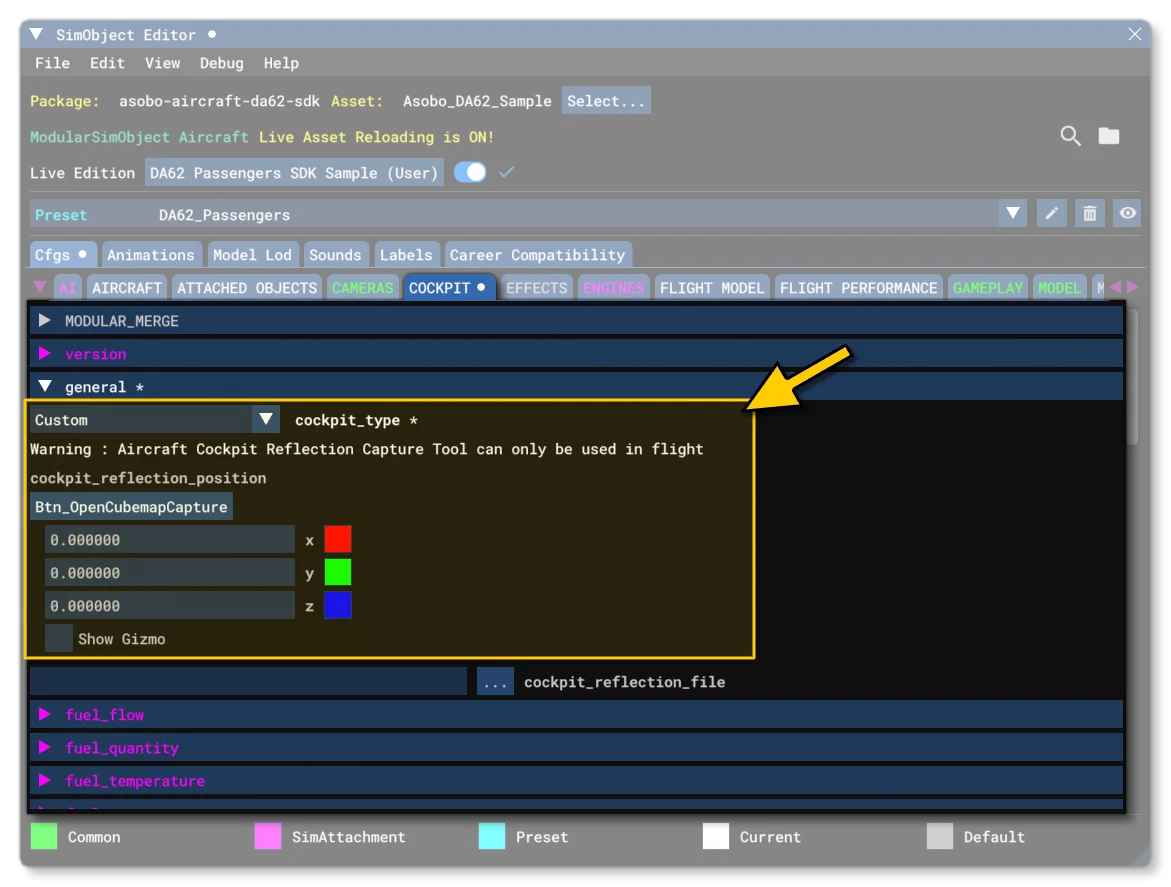
The Cockpit Reflection Cubemap Tool can be opened from the SimObject Editor when you are on the cockpit.cfg tab and have selected the “Custom” cockpit_type:
The cubemap images created with the tool are authored as *.dds files with a resolution of 256px \(\times\) 256px per face with mipmaps going to 1px \(\times\) 1px.
Using The Cockpit Reflection CubeMap Tool
To use the tool you must first start a flight with the aircraft you wish to create the cockpit cubemap from, and then open the SimObject Editor and click the button. This will do the following:
Move the aircraft to a “void” with no scenery for the capture process.
Set the camera to the default cubemap position - 0, 0, 0 with reference to the model center.
Open the Cubemap Capture Tool itself:
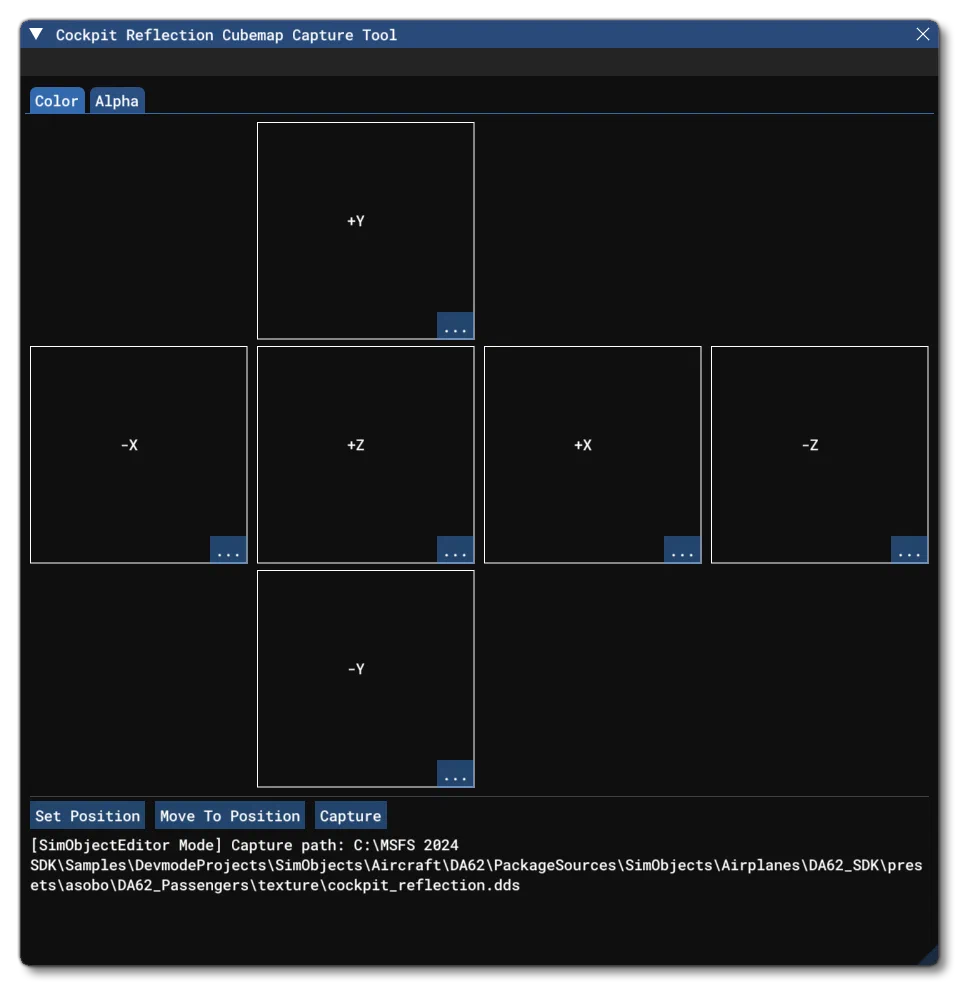
With the tool open, the first thing you must do is position the camera at an appropriate position within the cockpit - which can be done using the keyboard/mouse or gamepad - and then click the button, which will store the position in the cockpit_reflection_position parameter. Once you have place the camera, you can go ahead and click the button. This will result in the window resizing and the tool taking control for a moment to run through the different camera angles required to make the cubemap relative to the camera position. When finished, the editor will show the cubemap images over two tabs, the Color (Albedo) tab which shows the RGB channels, and the Alpha tab which shows the alpha channel (mouse over the image below to see an example of each):
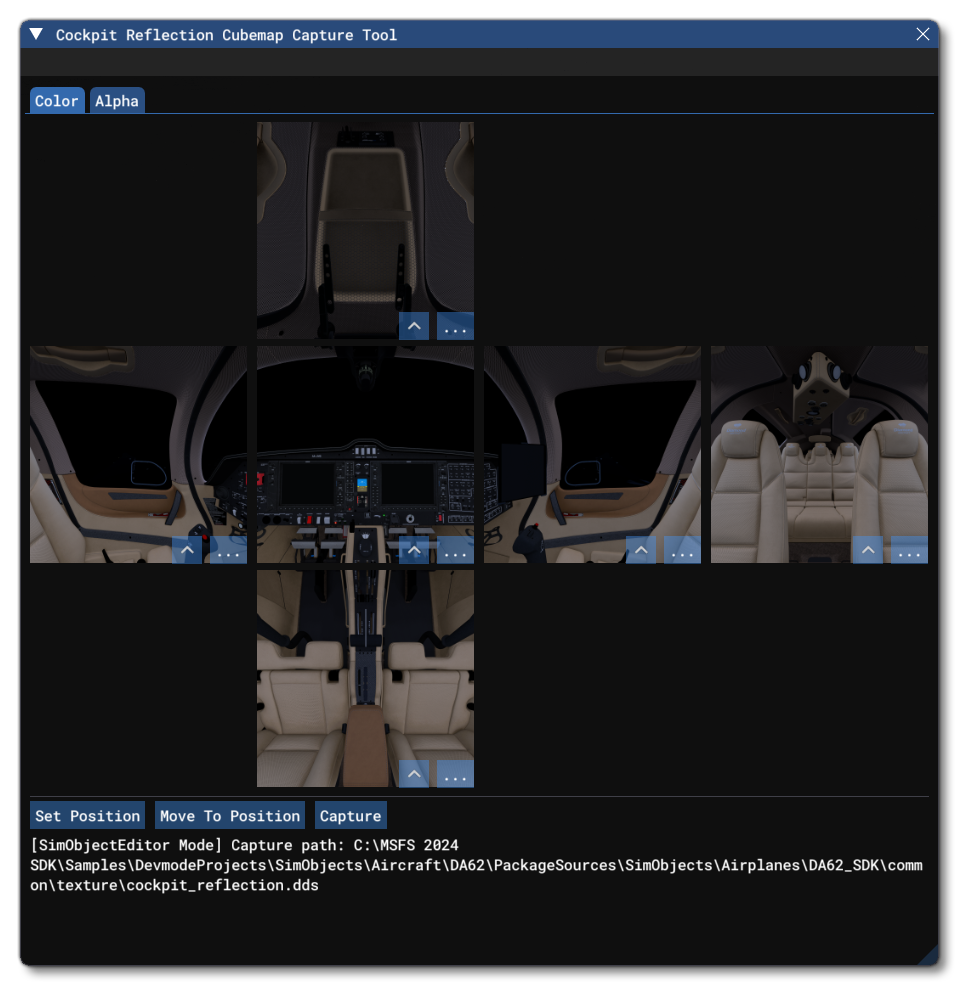
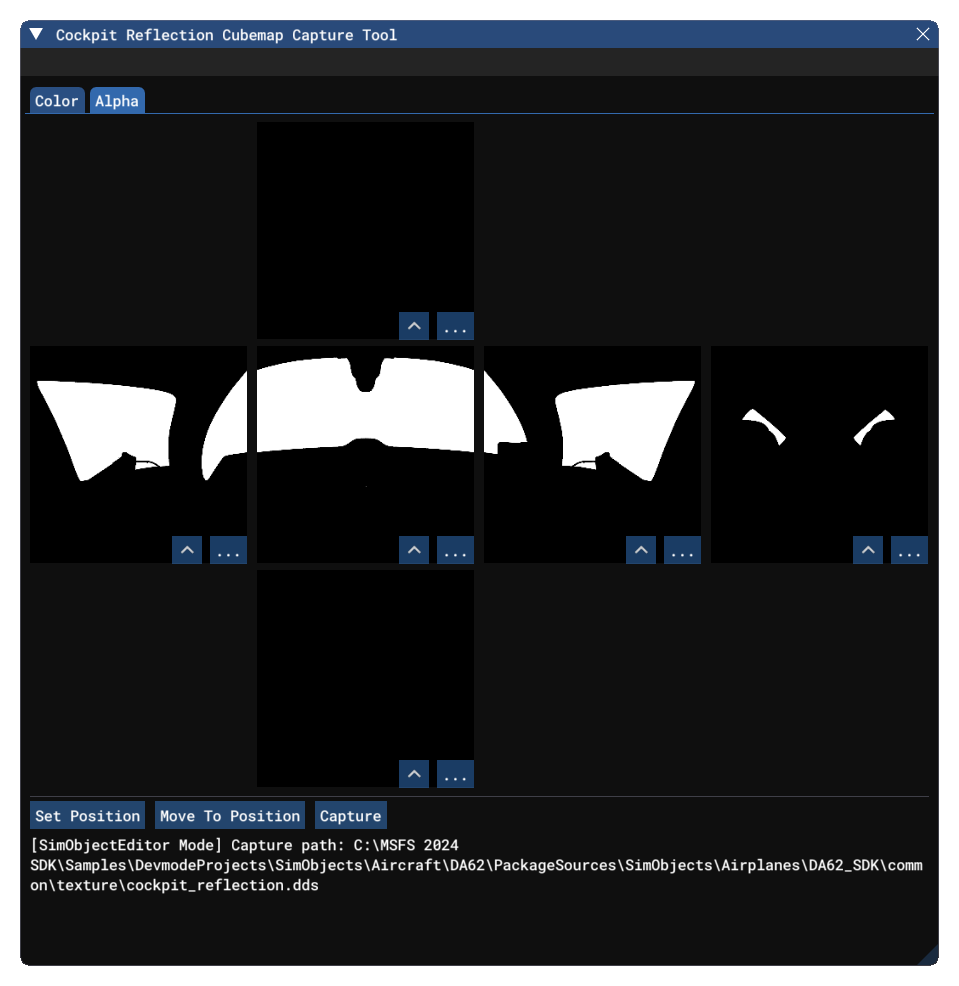
It should be noted that at this point you may export the individual images that comprise the cubemap by clicking the Export button, which allows you to perform any manual edding that you consider necessary. Edited files can then be re-added by clicking the Import button. Note that edited files you import must be *.png files, square (preferrably 256px \(\times\) 256px), and should be 32bit (8 bits per channel, including alpha) otherwise there may be image quality issues.
Once you are satisfied with the capture process, you should note the Capture Path given at the bottom of the window. This is where the tool has saved the *.dds file along with the texture.json associated with it. By default this will be in the “Texture” folder of the folder currently being edited in the SimObject editor (Common, Preset, etc…).
When finished, you can simply close the editor, and the *.dds file path will be added into the cockpit_reflection_file parameter, so if you change the location of the files, you will need to update this parameter too. The new cubemap will be applied to all Glass materials to simulate interior reflections.
Using Pre-Rendered Images
The recommendation is to have the Capture Tool create the images itself to maximise compatibility with the simulation and the aircraft, however you may also supply your own images and have the tool generate a cubemap from them. The first thing you’ll have to do is create the images yourself in some external tool and save them as *.png files. These images should be square, preferrably 256px \(\times\) 256px , and should be 32bit (8 bits per channel, including alpha) otherwise there may be image quality issues.
Adding the images you have created is simply a question of opening the Cockpit Reflection CubeMap Tool and then clicking the Import button on each of the 6 “sides” of the cubemap and browsing to the appropriate image. You should also position the camera at an appropriate position within the cockpit - which can be done using the keyboard/mouse or gamepad - and then click the button, which will store the position in the cockpit_reflection_position parameter.
When finished, closing the tool will automatically save the *.dds file and the associated texture.json, and the cockpit_reflection_file parameter will contain the path to these files.