Camera Controls
By default when you enter Developer Mode the camera will set to the cockpit camera, as used by the simulator for general use. However enabling the Developer Camera or Slew Mode from the Camera menu will take the camera outside of the aircraft and permit you to move around with much more freedom. The default controls for these modes are listed below.
Developer Camera
The Developer Camera is a special camera that is used to move around the world, and is especially useful when creating scenery or airports. When enabled you can use the gamepad to move the camera around, or use a combination of the keyboard and mouse (which is the recommended, as you get far more control). The table shows all the available controls and their inputs:
The developer camera “piggy backs” off of the in-sim Drone Camera controls, and as such - if you have edited these controls in the sim Options - the keys listed here may be different. What is shown here is the default controls only.
| Camera Movement | Keyboard/Mouse Input | GamePad Input |
|---|---|---|
| “Look At” Camera Rotate | ⎇ Alt + left mouse button | N/A |
| “Look At” Camera Zoom | ⎇ Alt + right mouse button / Mouse Wheel Up/Down | N/A |
| “Look At” Camera Move | ⎇ Alt + middle mouse button | N/A |
| Translate Up | R |  |
| Translate Down | F | |
| Translate Left | A | |
| Translate Right | D | |
| Translate Forward | W | |
| Translate Backwards | S | |
| Pitch Up | Numpad 8 | |
| Pitch Down | Numpad 2 | |
| Roll Left | Numpad 7 | |
| Roll Right | Numpad 9 | |
| Yaw Left | Numpad 4 | |
| Yaw Right | Numpad 6 | |
| Reset To Horizontal | ␣ Space | + |
| Set Camera To Top Down Perspective | ⌃ Ctrl + ␣ Space | + |
| Reset Camera To Aircraft | Numpad 5 | N/A |
Top Down Camera
The top down camera is similar to the Developer Camera, only it is fixed in an orthographic top down view. This camera view is ideal for creating taxiways, aprons, vegetation, etc…, and makes planning out airports in particular a lot easier. When enabled you can use the gamepad to move the camera around, or use a combination of the keyboard and mouse (which is the recommended, as you get far more control). The table shows all the available controls and their inputs:
The top down camera can not be rotated and the “up” direction will always be oriented towards True North.
| Camera Movement | Keyboard/Mouse Input | GamePad Input |
|---|---|---|
| Translate Up | R right mouse button + Move Mouse Wheel Up | |
| Translate Down | F right mouse button + Move Mouse Wheel Down | |
| Translate Left | A middle mouse button + Move | |
| Translate Right | D middle mouse button + Move | |
| Translate Forward | W middle mouse button + Move | |
| Translate Backwards | S middle mouse button + Move | |
Slew Mode
The slew mode controls are defined by the in-sim options, which can be changed from the Controls > Camera > Slew Mode menu:
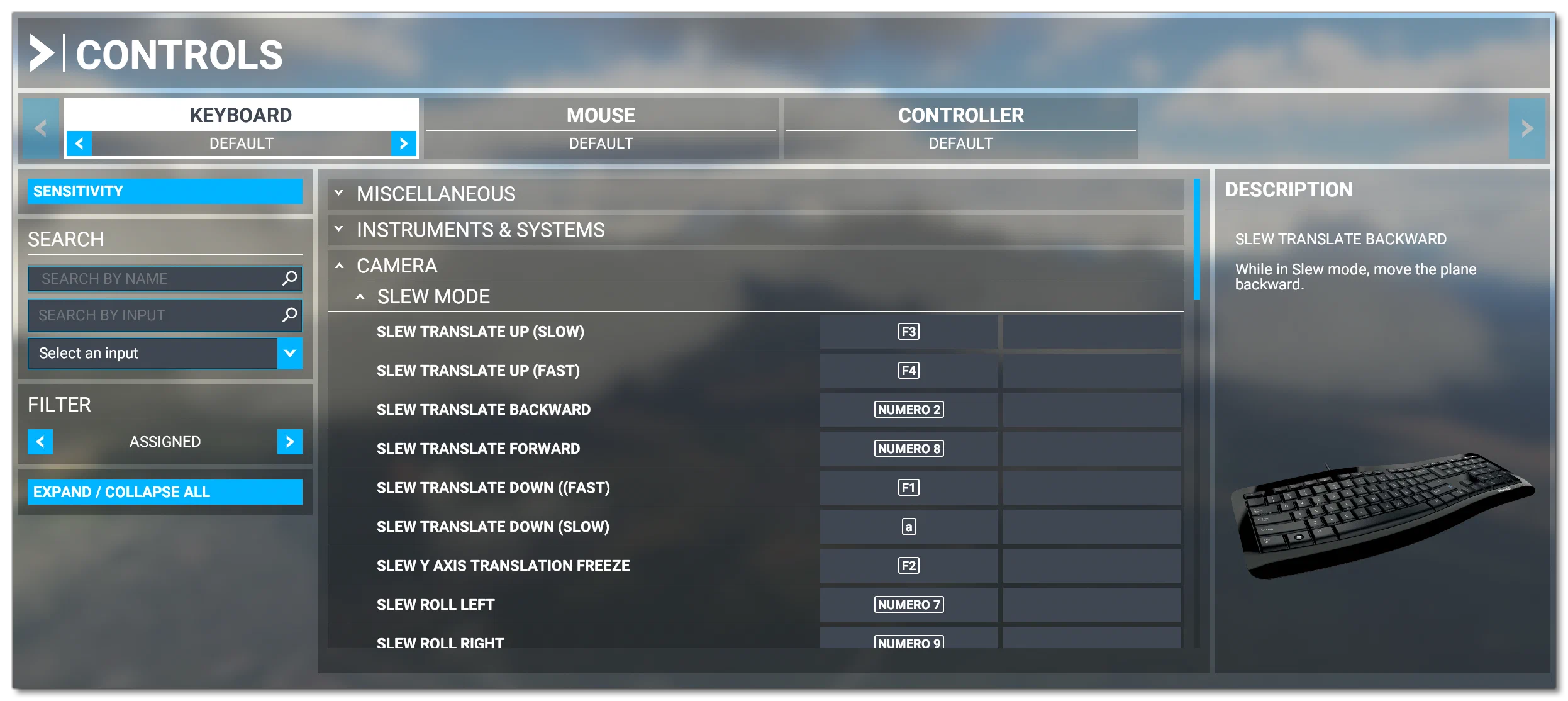
By default these are:
| Camera Movement | Keyboard/Mouse Input | GamePad Input |
|---|---|---|
| Slew Translate Up (Slow) | f3 | |
| Slew Translate Up (Fast) | f4 | - |
| Slew Translate Down (Slow) | f1 | |
| Slew Translate Down (Fast) | A | - |
| Slew Translate Forward | Numpad 8 | |
| Slew Translate Backward | Numpad 2 | |
| Slew X-Axis Translation Freeze | Numpad 5 | - |
| Slew Y-Axis Translation Freeze | S | - |
| Slew Translate Left | Numpad 4 | |
| Slew Translate Right | Numpad 6 | |
| Slew Roll Left | Numpad 7 | - |
| Slew Roll Right | Numpad 9 | - |
| Slew Yaw Left | Numpad 1 | |
| Slew Yaw Right | Numpad 3 | |
| Slew Pitch Up (Slow) | f7 | - |
| Slew Pitch Up (Fast) | f5 | - |
| Slew Pitch Down (Slow) | f8 | - |
| Slew Pitch Up | 9 | |
| Slew Pitch Down | Numpad 0 | |
| Slew Pitch Freeze | f6 | - |