
The Career Tool
The career tool is opened from the Tools menu. This tool is designed to help aircraft creators test their work in the various activities available in the simulation Career Mode.
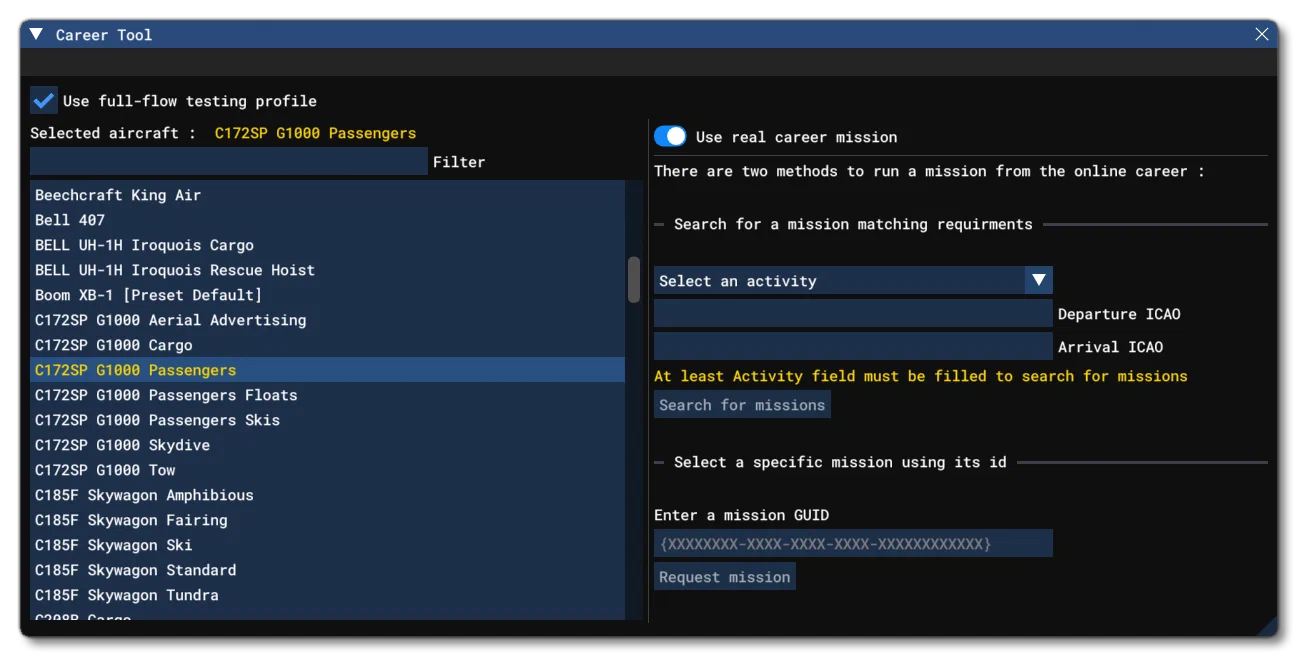
On the left side of the window you will find the list of all aircraft currently loaded in the simulator. Your current aircraft is selected by default but you can choose another one if needed.
On the right side is the activity selection area, the contents of which will change depending on whether the Use Real Career Mission toggle is on or off.
It should be noted that regardless of the aircraft and activity you select in this window, before starting the flight you will be presented with a warning message, indicating that using a non compatible aircraft in these missions may lead to unexpected results. This is important, and you should ensure the aircraft you use is as compatible as possible with the activity being flown.
If you have selected the pre-release track using the Content Creator Testing Tool then any testing done will use the Retail version of your packages (if any are available).
Full Flow Testing Profile
If you are a Microsoft registered partner, not only will you have access to the Content Creator Testing Tool, but you will have access to an extra option at the top of this tool: Use full flow testing profile.
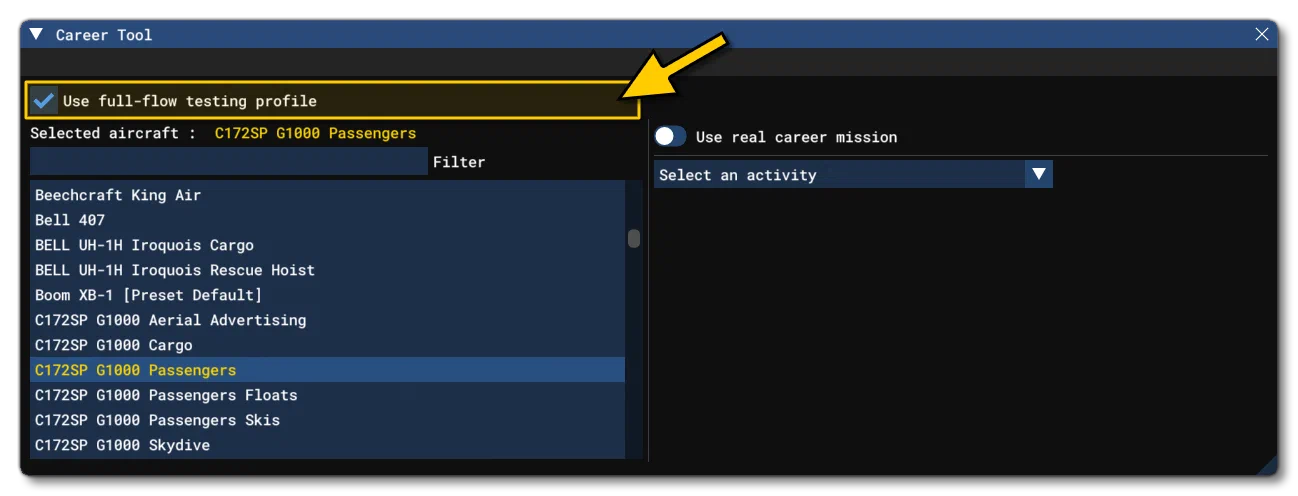
This option can only be checked when you are on the main menu of the simulation.
When this option is checked, the next time you enter Career Mode, the simulation will load a Flight Simulator developer save which has everything unlocked. This safe is separate to the “retail” save file, and permits the testing of your aircraft in the “full flow” of the simulation career mode. The save will give you a large sum of money with which to buy aircraft, and will also unlock all the different career certifications, companies, and missions.
It should be noted that the first time you enable this option during a run of the simulation, loading the career may take some time initially. Also, if you wish to test your own aircraft while using this developer save file, you will need to have uploaded the package to the marketplace, ie: it will need to be at least on the pre-release track, since only streamed packages can be used. Packages built using The Project Editor or placed in the Community folder, will not be available using the developer save.
If you wish to return to your own “retail” save, simply uncheck the option at the top of the window again.
How to use the tool
Use Real Career Mission - OFF
When Use Real Career Mission is toggled off, the window will simply show a list of aircraft and a choice of “test” activities. You should select an aircraft and an activity, and then select one of the available missions for that activity from the list provided. Note that selecting an activity will also cause a Parameters section to appear, allowing you to set some variables used within the activity (each activity has its own set of parameters which you can find listed in the Activity Parameters table below).
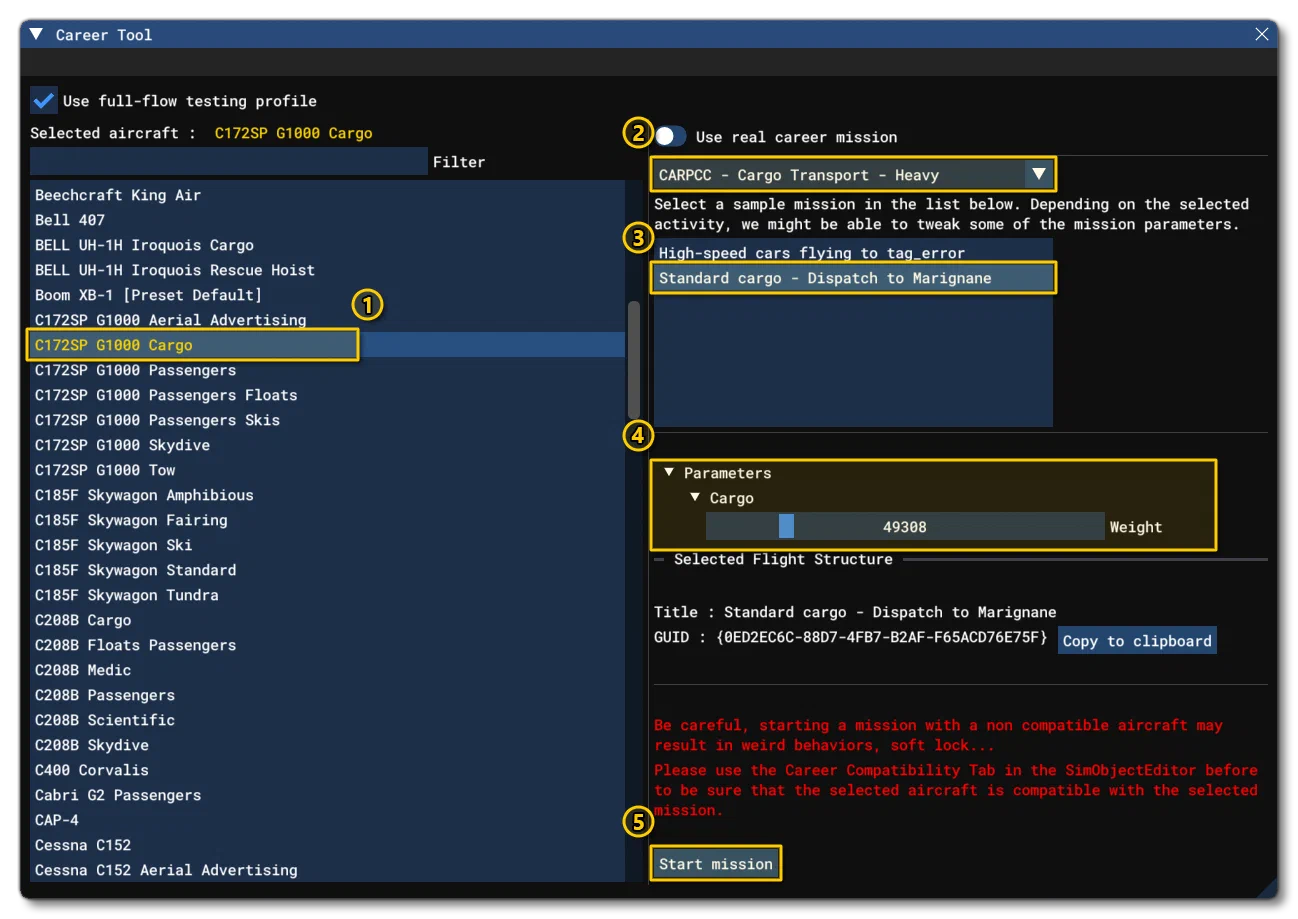
When ready, you can click the button to begin. See the section Flying An Activity Mission, below, for some pointers on what you should be doing to ensure the aircraft is compatible.
Activity Parameters
The table below lists the parameters available for any given activity in the tool. Note that these parameters are those that the tool lets you manipulate, but they are not the only ones required by an aircraft for any given mission. You can find a full list of those parameters directly on the linked mission pages.
When setting up the career parameters, you should also take into account the maximum number of passengers and/or loads the aircraft can carry, since this tool does not check or validate these things (however they will be validated on package creation and upload). Therefor, try to ensure you set the parameters to the appropriate values for the aircraft and the career mission.
| Activity | Career Code | Parameters |
|---|---|---|
| Medevac - Plane | MED-PLN | N-A |
| Cargo Transport (Light) - Plane | CAR-PSO | Cargo (weight, lbs ) |
| Cargo Transport (Medium) - Plane | CAR-PLC | Cargo (weight, lbs) |
| Cargo Transport (Heavy) - Plane | CAR-PCC | Cargo (weight, lbs ) |
| Cargo Transport (Oversized) - Plane | CAR-PVO | Cargo (weight, lbs ) |
| Remote Cargo Ops - Plane | CAR-PLM | Cargo (weight, lbs ) |
| Cargo Transport - Rotorcraft | CHT-ROH | Cargo (weight, lbs ) |
| Aerial Construction - Rotorcraft | CHT-AEC | Cargo (weight, lbs ) |
| Scientific Research - Plane | DIC-SCR | N/A |
| Passenger Transport - Plane | COF-PCC | Number of passenger seats |
| Passenger Transport - Rotorcraft | COF-ROT | Number of passenger seats |
| Charter Service (Private) - Plane | PRC-PSO | Number of passenger seats |
| Charter Service (VIP) - Plane | PRC-PLC | Number of passenger seats |
| Charter Service (VIP Airliner) - Plane | PRC-PCC | Number of passenger seats |
| Search & Rescue - Plane | SAR-PLN | N/A |
| Search & Rescue - Rotorcraft | SAR-ROT | N/A |
| Search & Rescue (Hoist) - Rotorcraft | SAR-ROI | N/A |
| Aerial Firefighting (Initial Attack) - Plane | FIR-INA | N/A |
| Aerial Firefighting (Extended Attack) - Plane | FIR-EXA | N/A |
| Skydive Aviation - Plane | SKP-PLN | Number of passenger seats |
| Agricultural Aviation - Plane | AEA-PLN | N/A |
| Agricultural Aviation - Rotorcraft | AEA-ROT | N/A |
| Aerial Advertising - Plane | AAD-PLN | N/A |
| First Flight - Plane | FIF-PLN | Number of passenger seats |
| Flightseeing - Plane | TOR-PLN | Number of passenger seats |
| Flightseeing - Rotorcraft | TOR-ROT | Number of passenger seats |
| Ferry Flight - Plane | FEF-PLN | Cargo (weight, lbs ) |
Use Real Career Mission - ON
When Use Real Career Mission is toggled on, you will have access to the base activities and missions that users will actually fly within the simulation career mode.
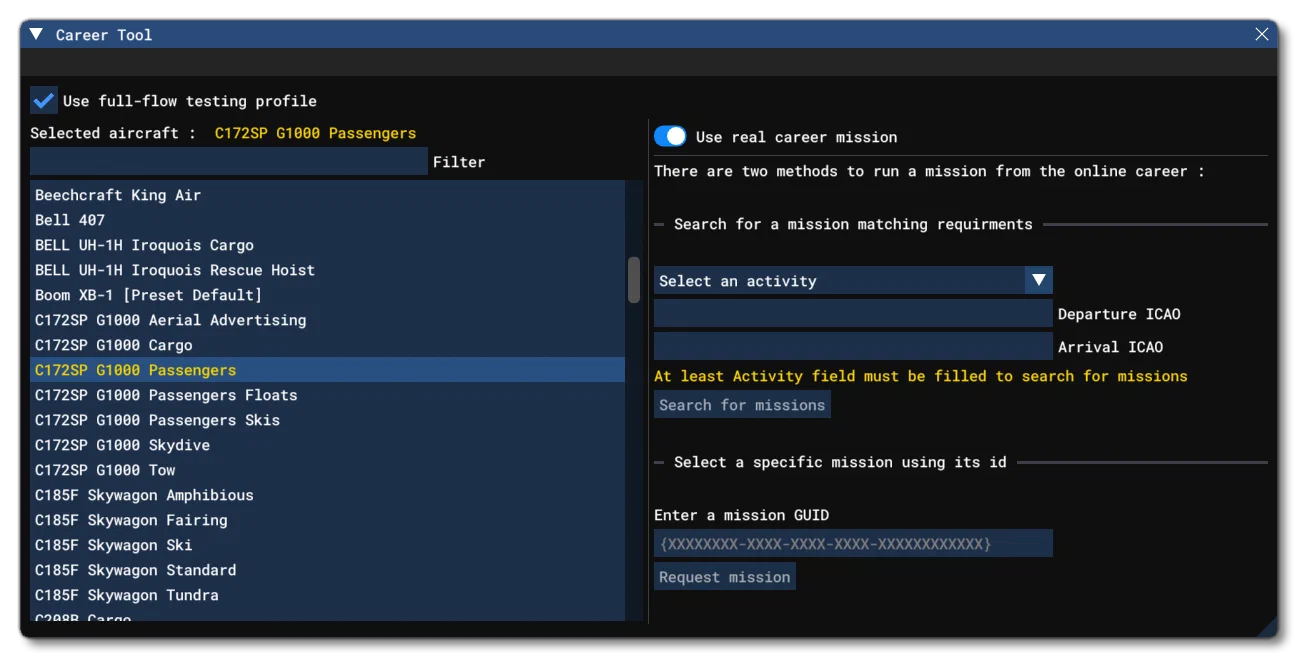
You can access these missions in two ways:
Search For A Mission Matching Requirements
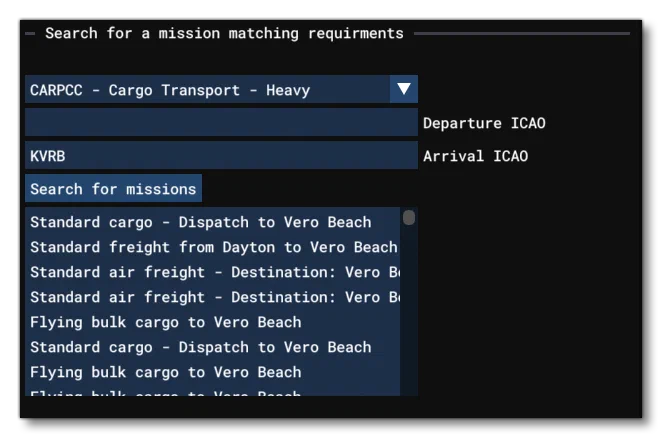
Here you have three filters which can be used to find a specific applicable mission. The first is the activity list, which shows the various available activities. This alone will show a list of all applicable missions for the activity, but this list can be further filtered by supplying a departure and/or arrival ICAO code. Once you have found the mission you wish to fly, you can then go to the bottom of the window and click the button. See the section Flying An Activity Mission, below, for some pointers on what you should be doing to ensure the aircraft is compatible when in a mission.
Note that selecting any activity mission will show the Selected Flight Structure section:
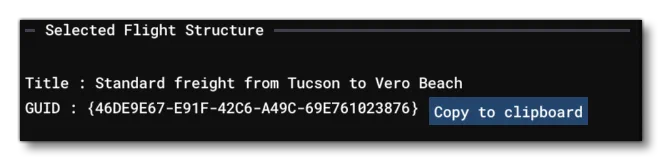
This shows the full name of the mission as it will be displayed to the user, as well as the unique GUID for the mission. This GUID can be copied easily using the button. The copied GUID can be used to quickly reach the mission using the Select A Specific Mission Using Its ID section, instead of having to use all the filters.
Select A Specific Mission Using Its ID
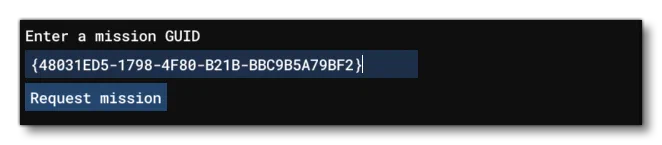
This section simply requires a mission GUID, which can be found from the Selected Flight Structure. You only need to paste the GUID and then click the button, which - if the GUID is valid - will show the at the bottom of the window so you can start the mission. See the section Flying An Activity Mission, below, for some pointers on what you should be doing to ensure the aircraft is compatible when in a mission.
Flying An Activity Mission
When you start an activity mission you should In order to ensure that the aircraft you are testing is fully compatible with the selected activity we advise you to:
First go through the mission without skipping any stage and:
- Ensure all NPCs are correctly located.
- Ensure all RTCs are played correctly.
- Ensure you can play the mission from start to finish.
Then go through the mission once more, skipping any of the stages that can be skipped while:
- Ensuring your aircraft is properly configured after each skipped step.
- Ensuring you can play the mission from start to finish.
You should also be sure that your aircraft has been set up to follow the General Career Mode Requirements, in particular the various FLT files that should be supplied with the aircraft package.
It should also be noted that this tool uses shortcuts in the normal Career Flow which will teleport the aircraft almost instantly to the start of the mission. This means that you may experience initial stutters and rendering issues as the environment around your aircraft loads when you start an activity mission.