
Report An Issue
To help streamline the processing, testing and fixing of any issues found within the simulation, Developer Mode incorporates a Report An Issue (RAI) window. This window can be opened from the Report-An-Issue menu in the top-right of the DevMode bar at the top of the screen:
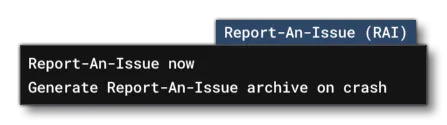
This menu has two options:
- Report-An-Issue Now: This will open the RAI window.
- Generate Report-An-Issue Archive On Crash: This option toggles the creation of a crash archive. This is disabled by default since enabling it requires explicit user administrator permission. You can enable this immediately - since the setting will be saved between runs of the simulation, even if there is a crash - or you can only enable it when you have a reproducible crash and then disable it again after the report has been sent.
The RAI window looks like this:
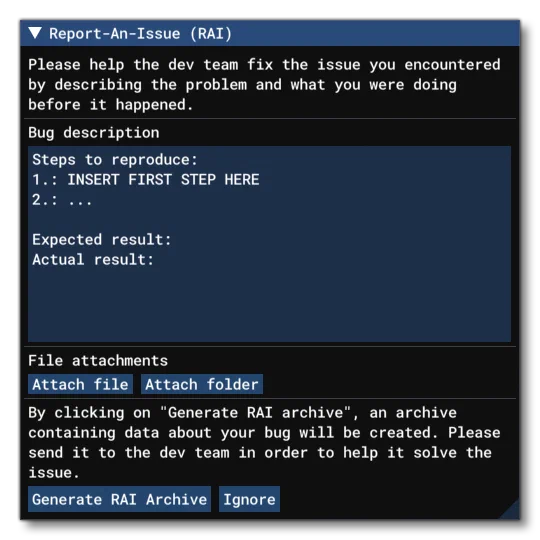
The Bug Description section is pre-filled with a recommended setup for the issue description, which should always includ the following:
- Reproduction Steps: The exact steps that you followed to get the issue/crash
- Expected Result: If it’s not a crash, then you should add what the expected result of your actions was.
- Actual Result: If it’s not a crash, you should add in what exactly happened and why it’s an issue.
You also have two buttons:
- : Clicking this will open the file explorer and you can select a file (like a screenshot or an XML file) to include in the RAI.
- : Clicking this will open the file explorer and you can select a folder (like a package) to include in the RAI.
Note that if you have enabled the Generate Report-An-Issue Archive On Crash option, this will be included in the final RAI automatically. Once you have added the relevant files, folders, and information, you can click on the . This will create a ZIP file with all the relevant information inside, and open the file explorer on the folder location.
When you have a generated the RIA archive, you should upload it to an external platform which you can generate a link from (like Dropbox, or Google Drive), ensuring that no sign-in is required to access it. This link can then be privately shared on DevSupport to be processed. The exact procedure expected is outlined on the following DevSupport page:
If you do not wish to report an issue and want to close the window, simply click the button.