BIOME DEBUG
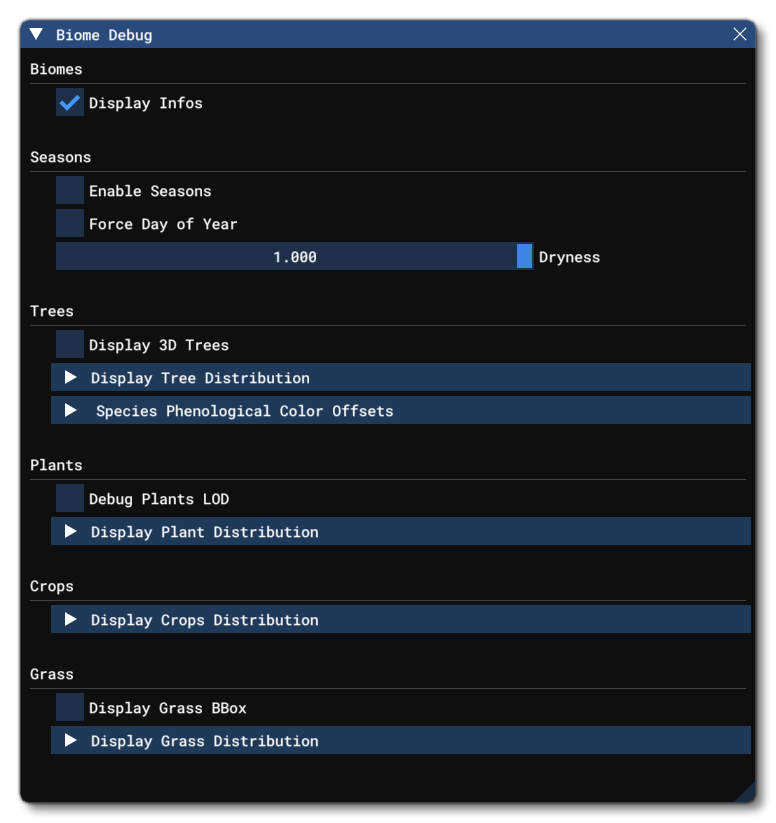
This window offers multiple debug tools related to the different biomes in the world. It is designed to be used in conjunction with the Biomes Editor and is split into multiple sections related to the different plant groups and associated weather events that affect them.
Note that in all sections of this debug window, the data shown is taken from the biome found at the point directly under the DevMode camera, and you can move the it around and see the data update in real-time as you change between biomes.
Biomes
This section is for global options that are related to biomes. It currently only has the following option:
-
Display Infos
Checking this box will show information about the biome found in the area of the world where the camera is currently placed.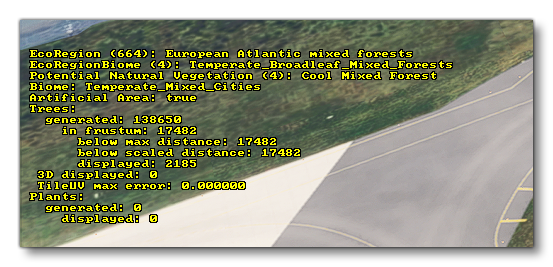
Seasons
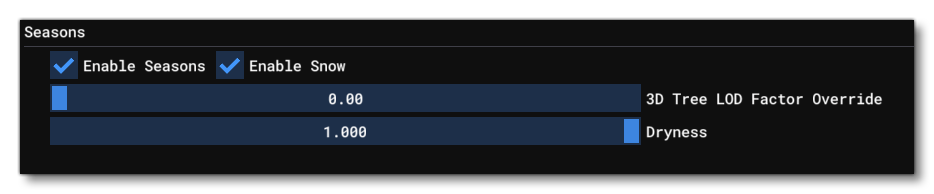
This section is used to modify some of the seasonal options which affect how the plants in a biome are displayed. It has the following options:
-
Enable Seasons
This can be checked / unchecked to enable / disable seasons in the simulation. When enabled changing the Date And Time may affect the way plants are displayed in the biome (note that this will depend on the biome and the part of the world the camera is in).
-
Enable Snow
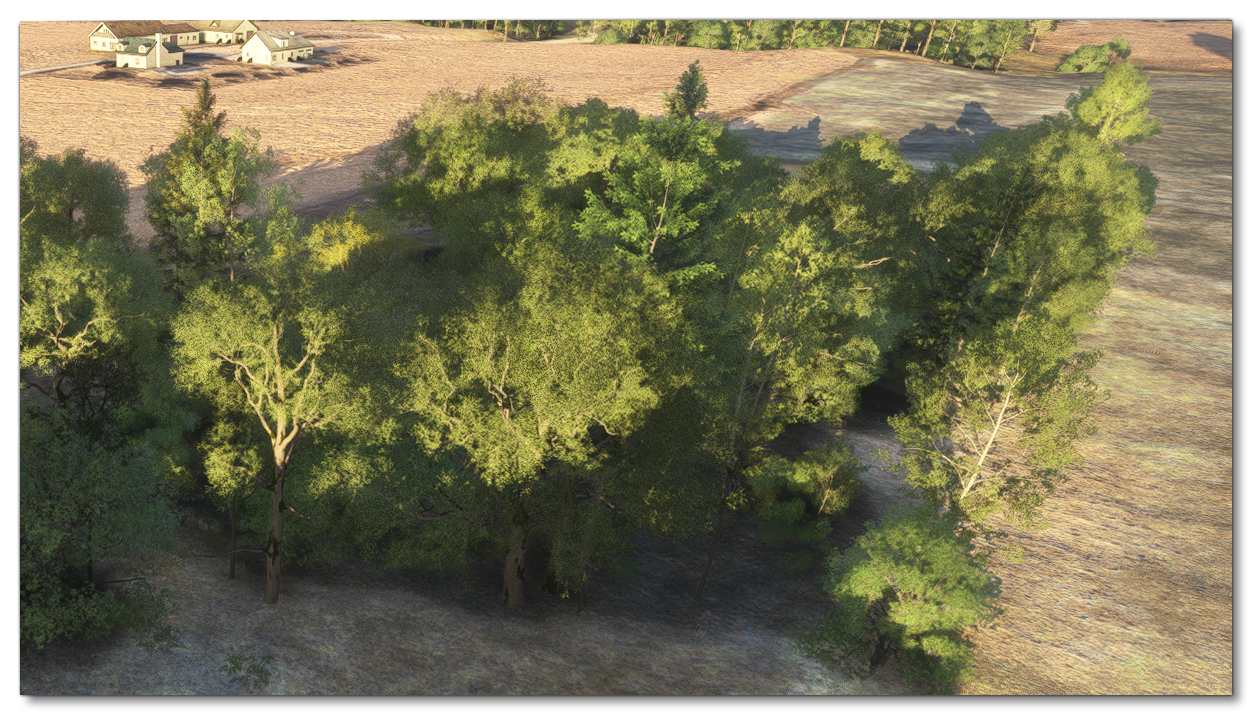
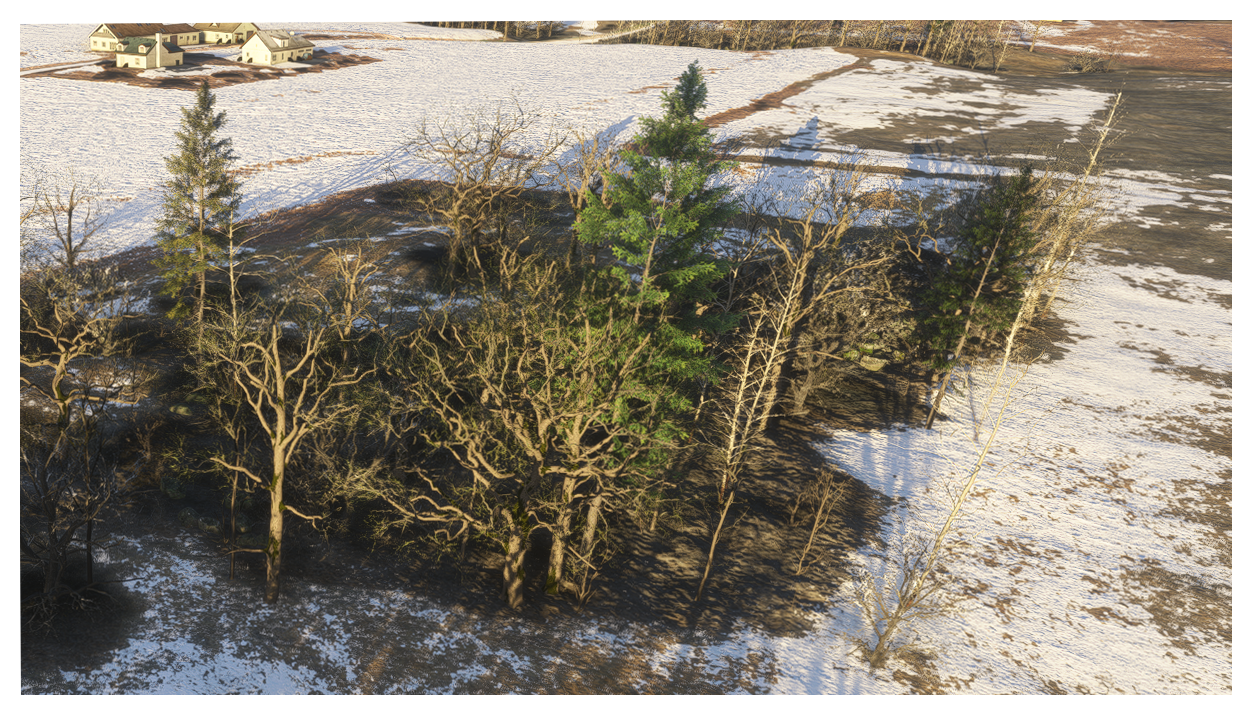
This option is only available when the Enable Seasons option is checked. When checked it will show snow on the ground and the plants, depending on the location of the camera, the Date And Time, and the biome being viewed. Note that this option will also affect how some plants may be displayed (ie: with or without leaves). You can mouse over the image below to see how it looks when enabled / disabled:
-
3D Tree LOD Factor Override
This option can be used to override the current LOD factor and force trees closer to the camera to be displayed in 3D (ie: they will be full models, and not based on impostors) as well as change their LOD level based on the factor value. Note that it is not always immediately obvious when LOD levels change, however you can enable the Wireframe option to get a better idea of what is being rendered.
-
Dryness
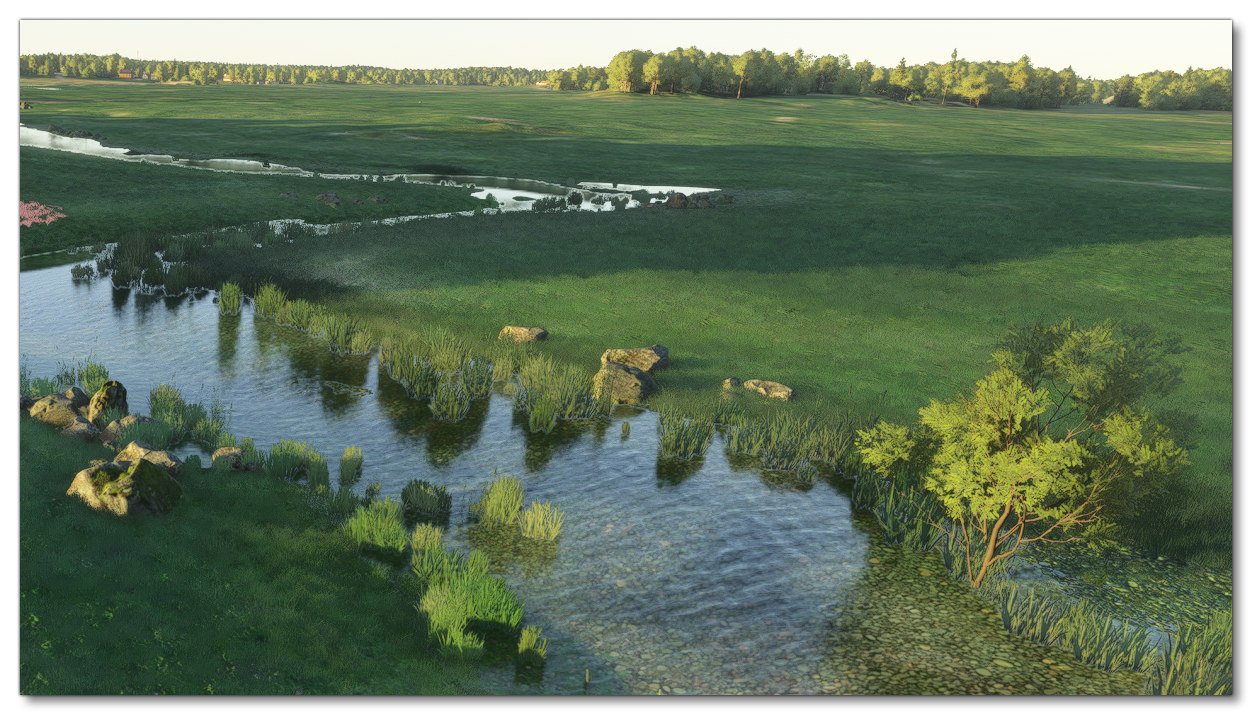
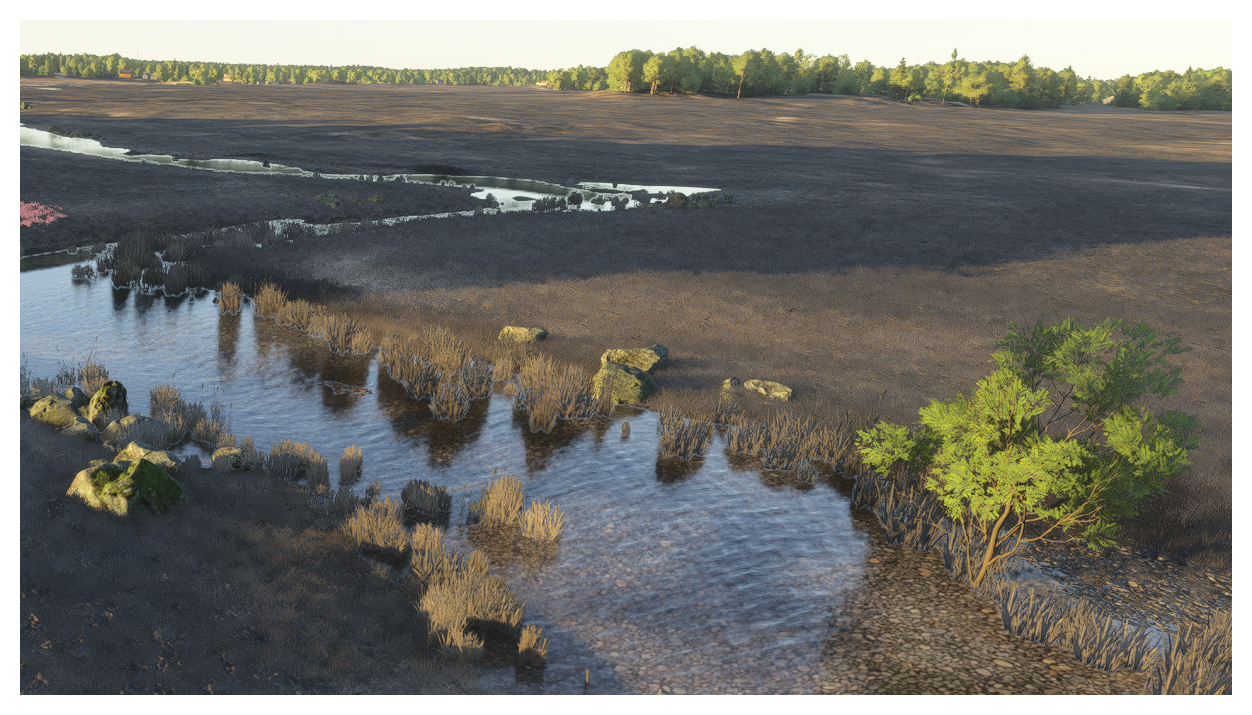
This slider can be used to change how "dry" the biome is. In general, this is primarily going to affect how the grass on the ground is displayed, but may affect some of the smaller vegetation too. You can mouse over the image below to see how it looks when fully enabled / disabled:
Trees
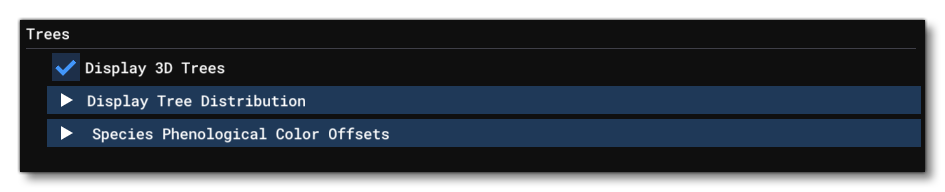
The trees section of the biome Debug Window has a number of different options which can be used to see how the various different trees are displayed, as well as the quantity of each different type in the area.
-
Display 3D Trees
This option is checked by default and enables the simulation to display 3D trees. Unchecking this will instead show impostors for all trees, regardless of their distance from the camera.
-
Display Tree Distribution
This section can be expanded, causing colours to be applied to all the trees in the scene, where each colour represents a specific tree species. These colours can also be seen in a distribution graph, with the altitude on the Y-axis, and the quantity (normalised between 0 to 1) on the X-axis.
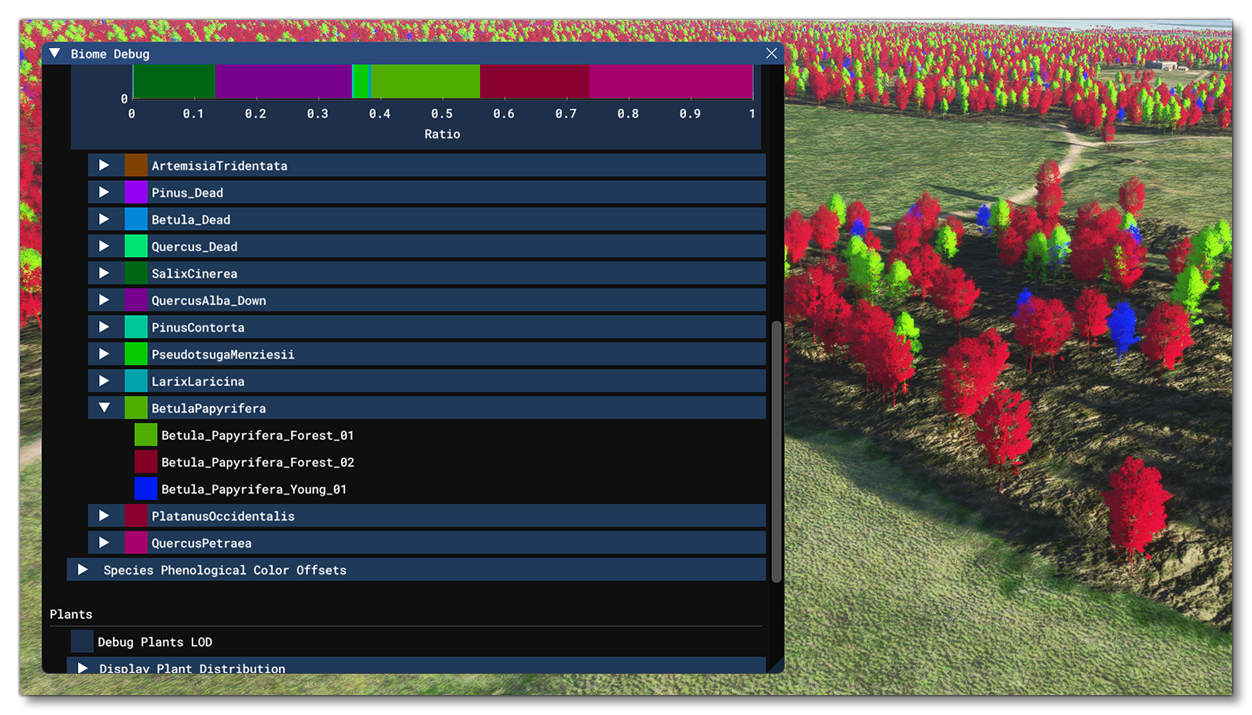
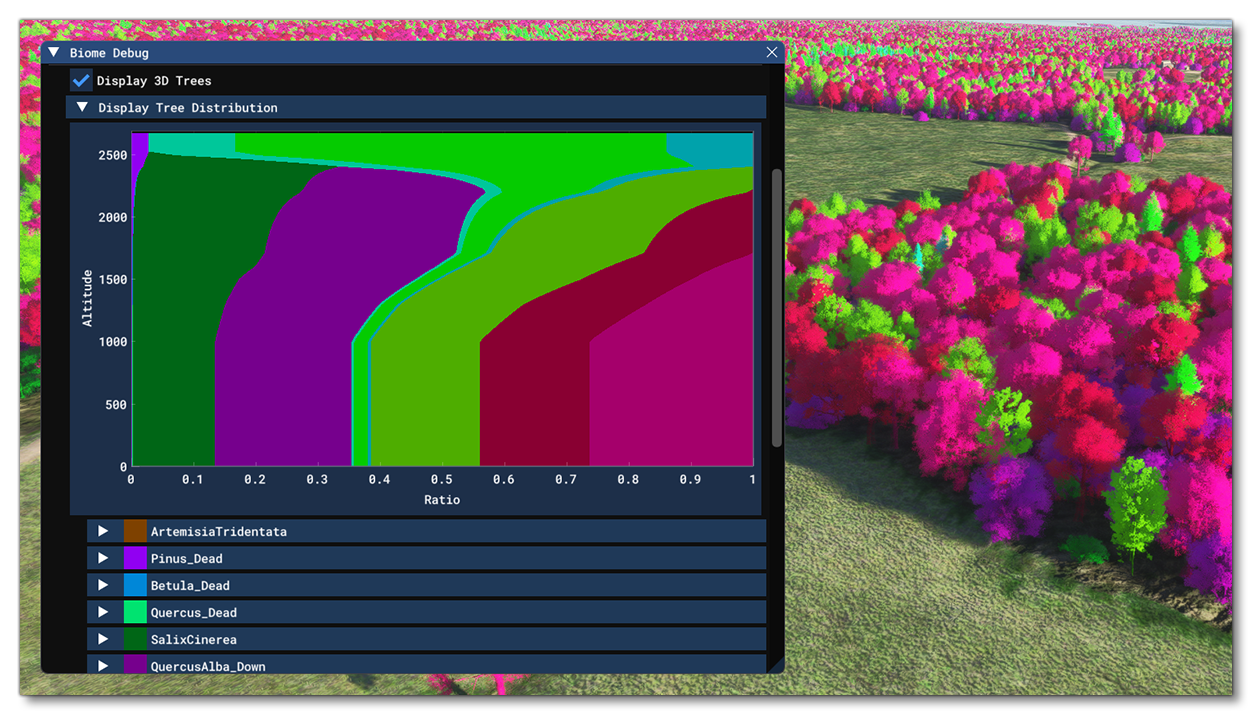 Beneath the graph, each tree species and it's assigned colour is shown, and you can click on each of them to isolate those trees in the scene. The isolated trees will be recoloured to show the different types of trees that fall under the selected species (small, large, young, old, etc...):
-
Species Phenological Colour Offsets
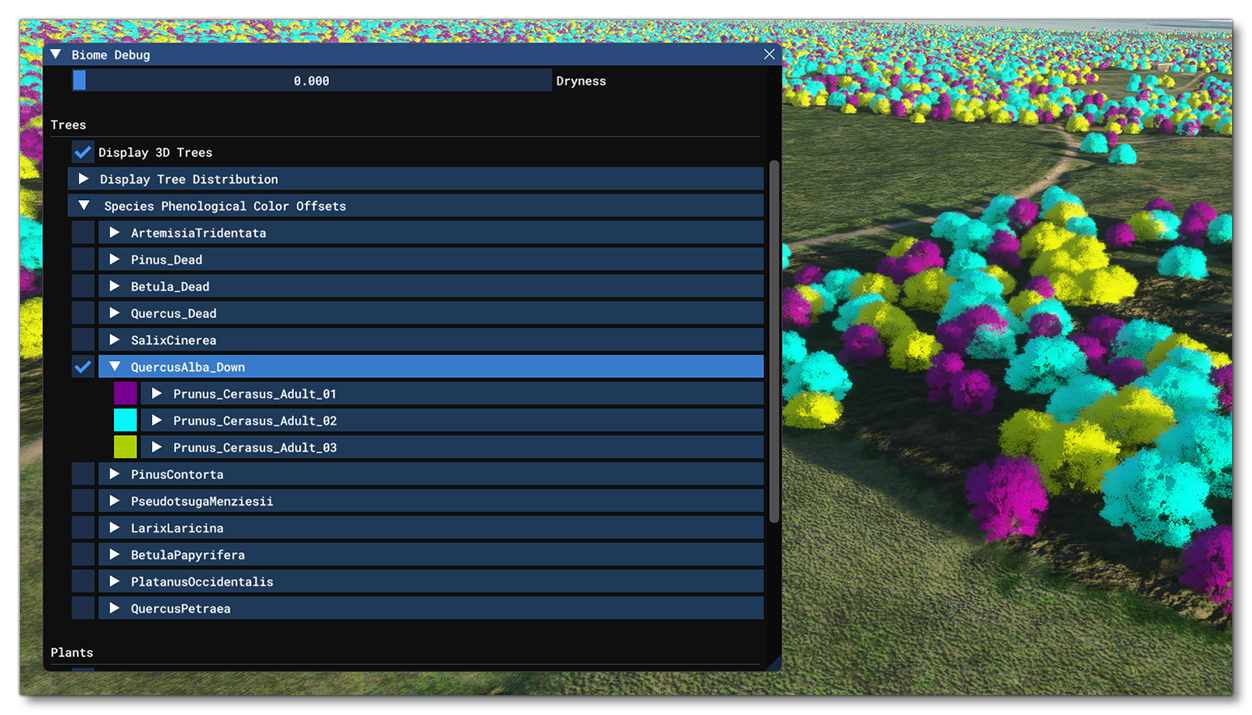
This section is used to debug and test the different ways in which a tree can be coloured depending on many different circumstances, like the season, or natural variation, etc... On opening this section you will be presented with a list of all tree species that can be found at the camera projection point. You can check one or more of these species and the scene will isolate them and colour them based on the available variations:
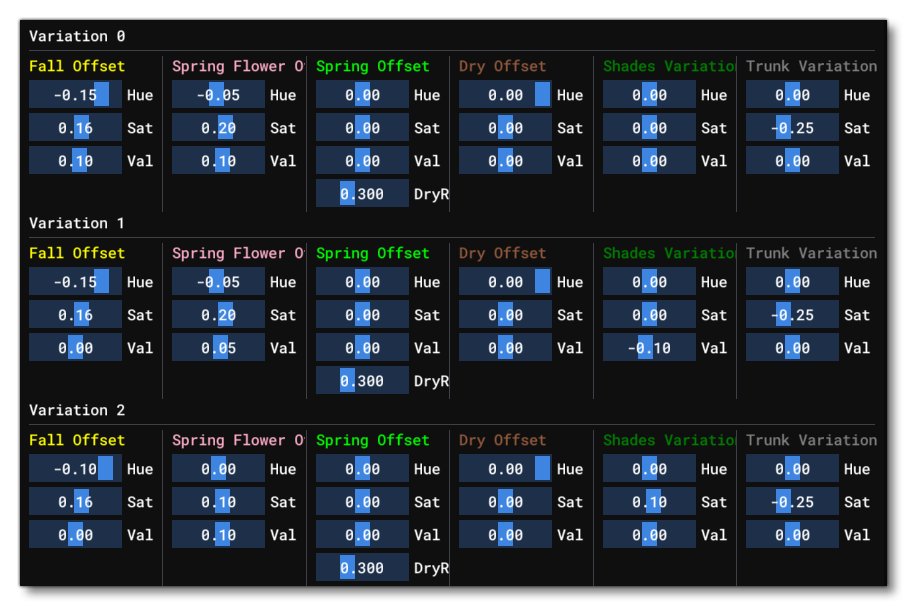
 Each variety can be expanded to show multiple sections related to the way in which the variety will be coloured under different circumstances, like the time of year, how dry it is, etc... Each section has a set of sliders to adjust the Hue, Saturation, and Value used to tint the tree when the appropriate circumstances are met:
Plants

The plants section of the biome Debug Window has debug options for all plants that are neither trees, nor crops, nor grass.
-
Debug Plants LOD
Checking this will colour all plants in the scene based on their LOD, which will change depending on their distance from the camera:
 The colours here are as follows:
LOD Level Colour LOD Level Colour 0 BLUE 6 DARKRED 1 CYAN 7 PURPLE 2 GREEN 8 PINK 3 YELLOW 9 MAGENTA 4 LIGHTRED 10 ORANGE 5 RED 11 BROWN
-
Display Plant Distribution
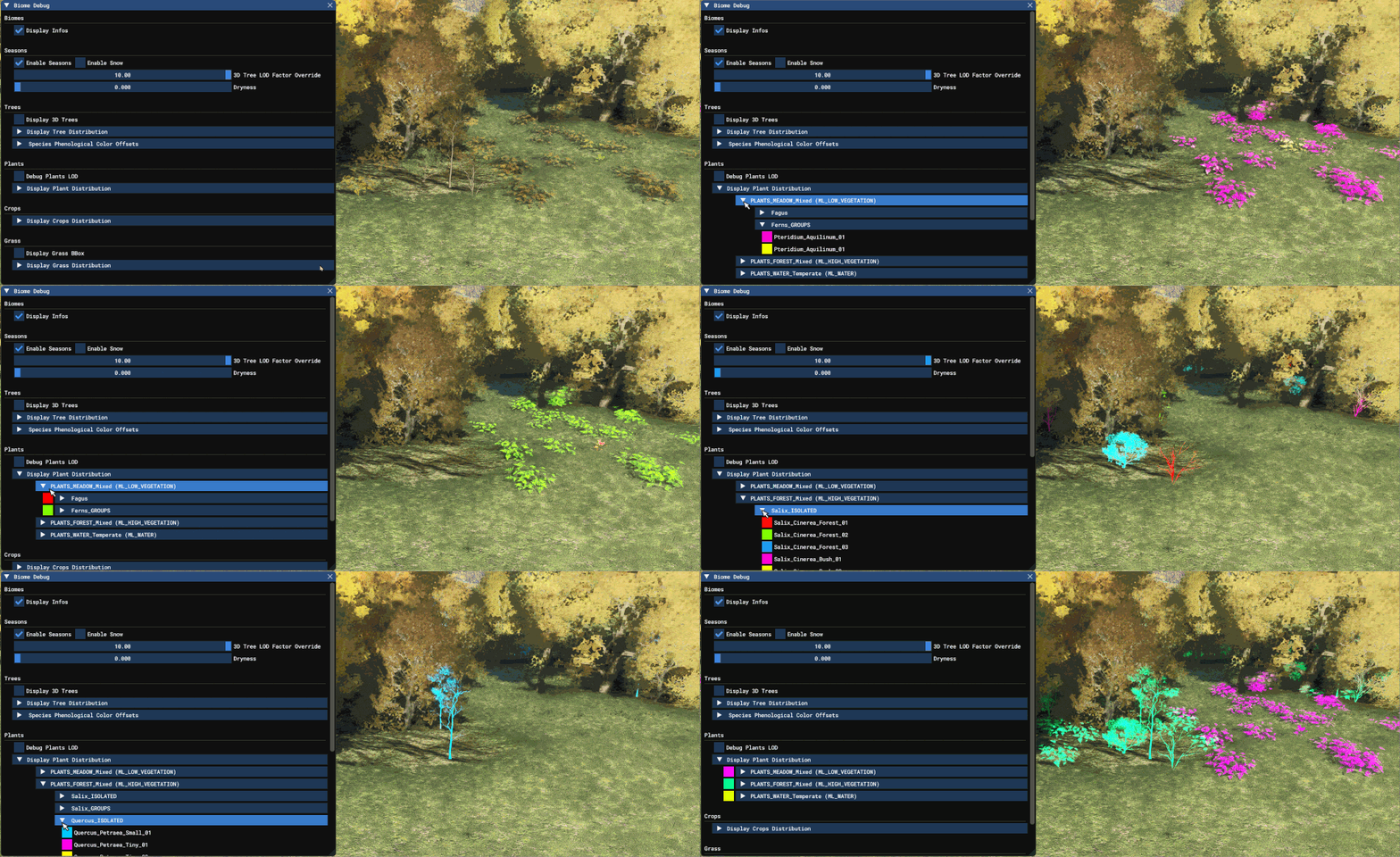
Expanding this section will colour all the different plants in the scene based on their type (overriding any LOD colouring if Debug Plants LOD is also active). You can then further expand the different sections to isolate specific species, and then the different variations within that species:
Crops
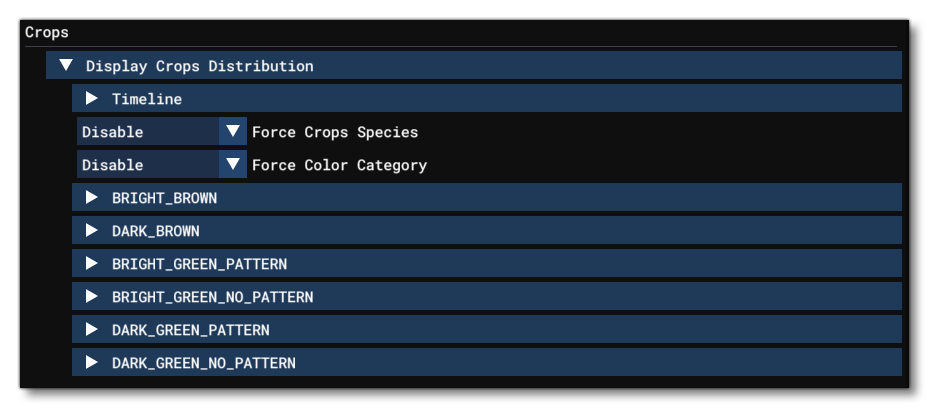
The crops sectionm is used to debug the different crops that are displayed at various times of the year, based on the terrain they are found on. This only has one main section, Display Crops Distribution, which can be expanded to see the distribution debug options.
-
Timeline
Expanding this section will show a graphical representation of the different crop types for the biome, and when they are shown within the simulation based on the time of year:
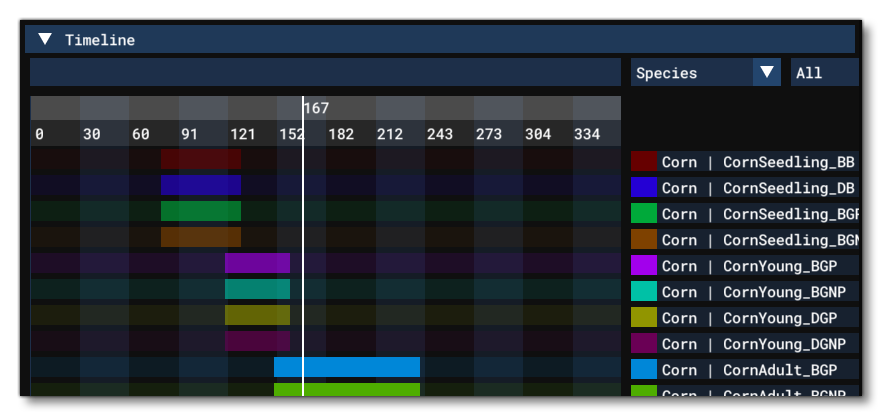
At the top you can select whether the graph shows the crops ordered by Species or by Colour Category, as well as a filter to select the crop type to show. You can edit the Date And Time to select a specific day/month of the year and the graph will update accordingly, as will the actual crops shown in the fields.
-
Terrain Colours
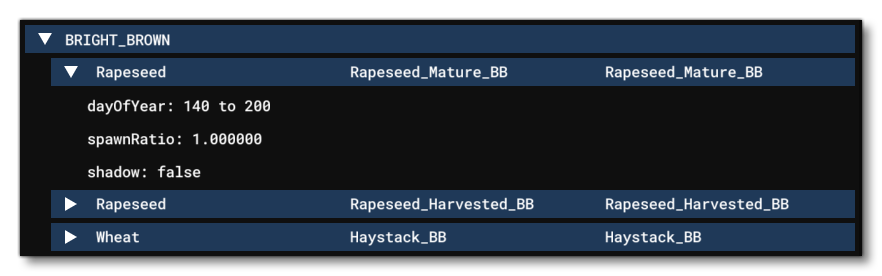
The rest of the Crops debug section is taken up with the terrain colour categories. These colour categories are derived from machine learning sampling of the terrain map data, and each one is configured to show different types of crops. You can expand each terrain colour catgeory to see what crops it currently supports (if no appropriate crops or terrain is found in the current biome, then they will not expand), and expanding each crop will give you furter data about it:
Grass

This section, like the Plants section, allows you to filter, view, and debug all the different grasses shown in the simulation world.
-
Display Grass BBox
Checking this option will add a "bounding box" sprite to each "face" of the grass mesh.
-
Display Grass Distribution
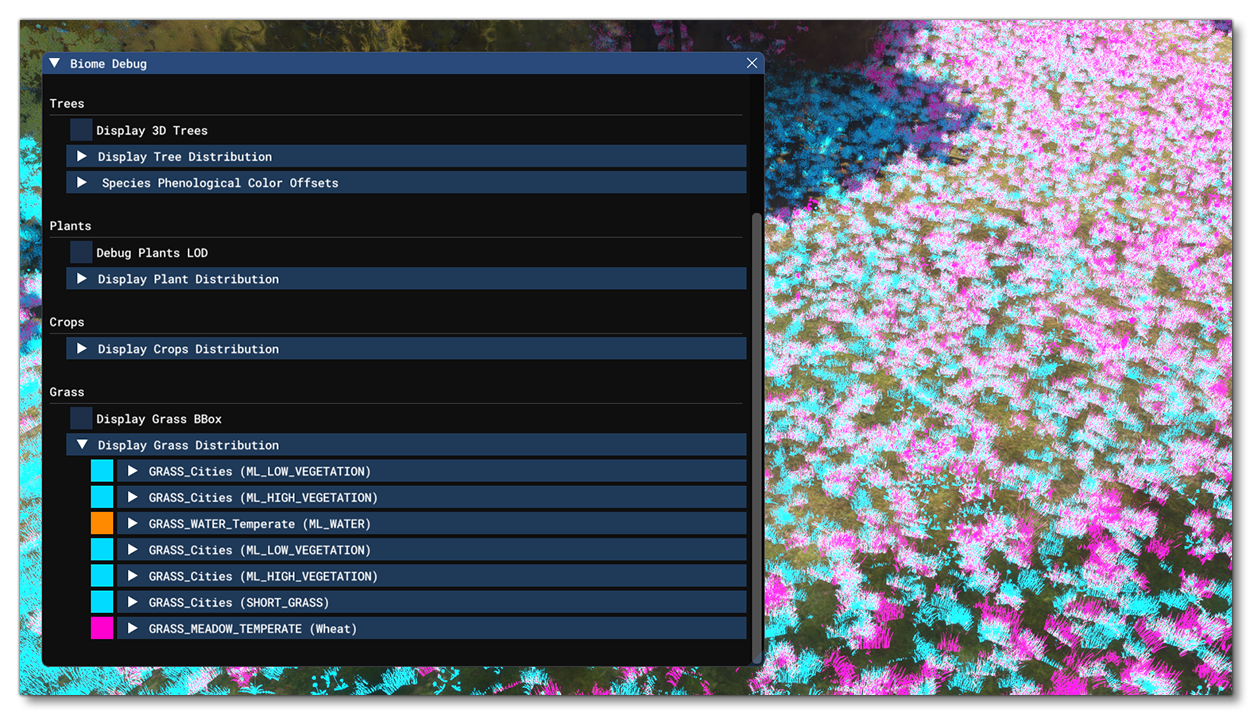
Expanding this section will show a list of all the different grass types in the current biome. These grass types will be assigned a colour, and if you move the camera close enough to the ground, you will see that they have been coloured in the scene as well:
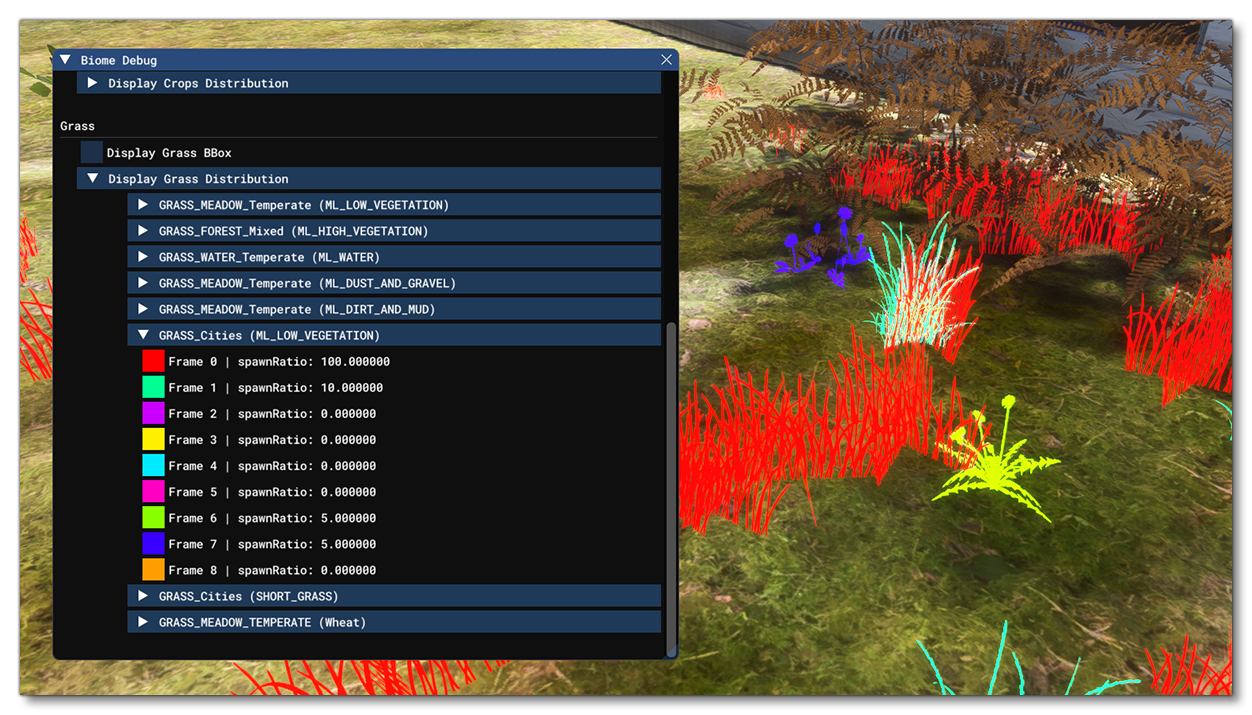
 You can further expand the grass types to see the different frames which are used to create variation within the grass type (grass textures can have up to 16 different frames, and each frame is a "species" or "variation" of grass, selected based on pre-defined weights). Again, each frame is coloured, and the scene will be filtered to only show the frames for the selected grass type:
Related Topics