SIMOBJECT SPAWNER
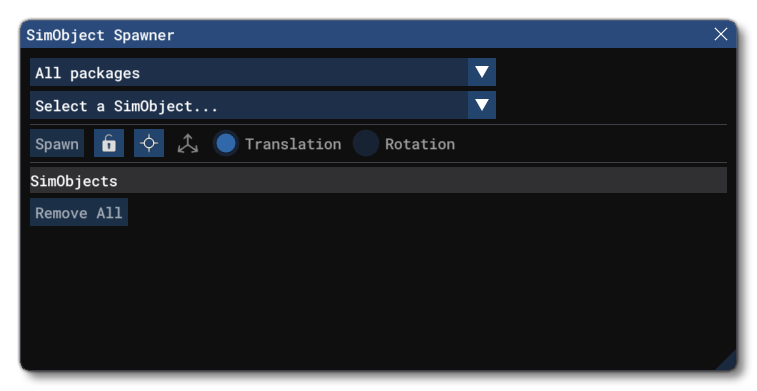
This tool can be used to spawn any SimObject that is mounted in the VFS. The top of this window is taken up with the following filter options:
- Packages - By default this is set to All Packages, but you can filter to any package that is used in the VFS from here.
- Objects - This menu lets you select the SimObject to spawn. Depending on the SimObject selected, additional options may be visible.

- Simple Sim - If this is checked, the object will be spawned with instructions to use the "simplified" simulation, which is what is used by passive aircraft.
- Create WASM - If this is checked, the SimObject will be spawned with a flag to use WebAssembly modules. It should always be checked if the SimObject contains any WASM.
Having selected an aircraft, you can then used the spawn toolbar to spawn it and position it:

Spawn: Click this button to spawn the SimObject at the given position.
- Lock Position: When this is checked, the current spawn position is "locked", such that moving the developer camera will not change the spawn position.
- Display Position Debug: When this is checked, a debug sphere will be shown to indicate where the SimObject(s) will be spawned.
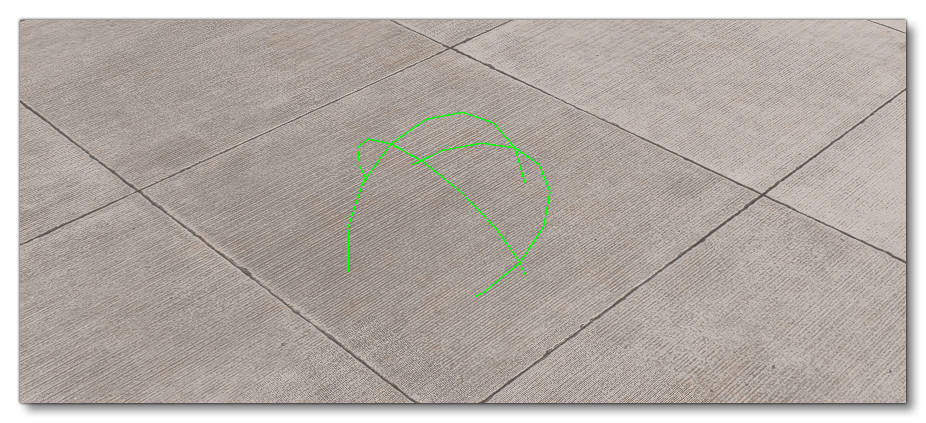
Note that this position is always placed on the ground, and can only be moved by ensuring the Lock Position option is unchecked and moving the developer camera.
- Translation / Rotation: When you select a spawned SimObject, you can select one of these options to show the translation/rotation gizmo, which allows you to change the position and orientation of the object in the world.
Finally the window shows a list of the SimObjects that have been spawned in the world. You can select each one in the list and it will be highlighted in the simulation with a wire-frame box (you can also click on the objects in the simulation to select them).

All objects will have the same three options:
 Edit In SimObject Editor - This button will open the SimObject in The SimObject Editor, if the object can be edited (ie: the package is loaded in the project editor).
 Center Camera on Object - Clicking this will pan the camera to the SimObject (requires the Developer Camera to be enabled)
 Delete Sim Object - Clicking this button will delete the SimObject from the world. Note that you can delete all spawned SimObjects using the
 Remove Allbutton at the bottom of the window.
Certain SimObjects will show an additional option:
- Play Animation - Selecting this will list any animations that are available for playing, letting you view the SimObject animated in different ways.
Related Topics
0/255