SOUND OPTIMISATIONS
Audio optimisation is an essential practice to avoid audio stuttering and ensure the overall stability of Microsoft Flight Simulator 2024. Note that the goal with these optimisations is not to constrain creativity, but rather to encourage you to create responsibly so that the simulation platform remains healthy throughout the entire user experience. As such, the rest of this page has a series of guidelines to help you master the SDK and WWise tools so you can deliver high-quality and optimised audio that avoids issues when played in the simulation.
The Wwise Profiler
The Wwise Profiler is an essential set of tools that will be used when optimising your aircraft audio. To use the profiler tools - and guarantee that your aircraft audio is the only sound being processed - we recommend that you start a flight with your aircraft in a remote area like the middle of the ocean or a grand desert, somewhere without any multiplayer aircraft or AI aircraft traffic. This will allow you to visualize what your aircraft alone represents in terms of performance (CPU, number of virtual and physical voices) without including any other sounds (or as few as possible). Once in the test area, you can connect to the WWise Profiler.
Once you are connected the first thing to do is open the Performance Monitor and the Capture Log and check:
- the Number of Voices (Physical): Physical voices are sounds that are actively playing at a given moment, that have a direct impact on the audio thread resources.
- the Number of Voices (Virtual): Virtual voices are the sounds that are played virtually, they are inaudible and consume much less CPU power than physical voices, but whose resources are available at a given moment.
- the Voice Starvation errors.
These are the main metrics that will be used to work out what optimisations are required for your aircraft, and will be discussed in more detail in the rest of the sections on this page.
Advanced Profiler
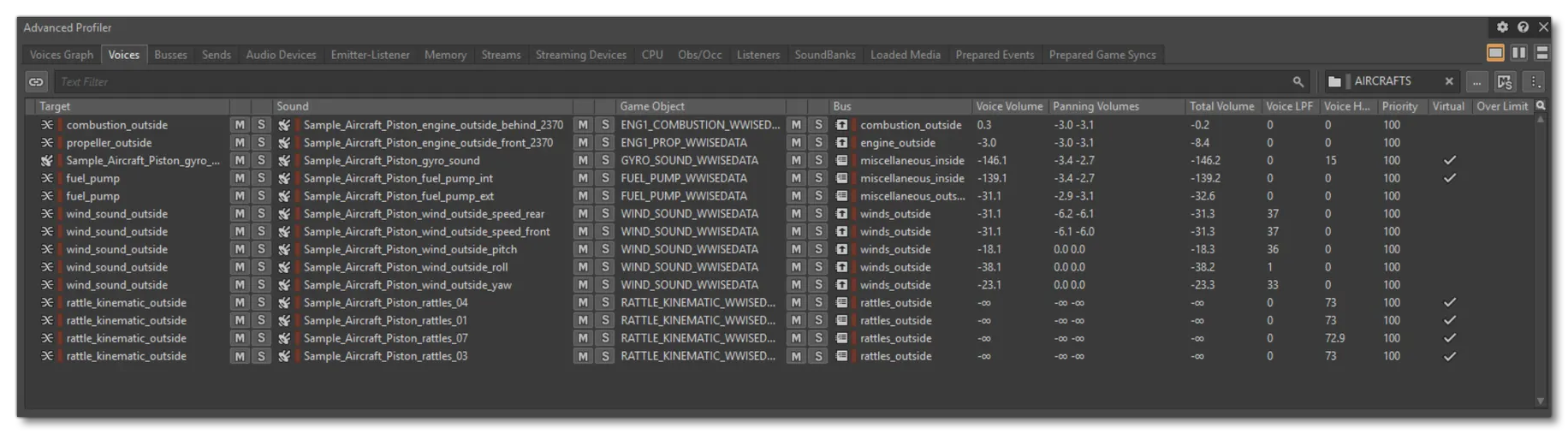
To examine the performance of your implementation in greater detail, you can consult the Advanced Profile window/tab to see which sources are being read, which sources are virtual or physical, which ones are unnecessary, and which sources are the most recurrent, in order to optimise accordingly. Note that at the top right of the advanced profiler, you have a filter which can be used to reduce the hierarchy to display only the sounds from your aircraft.
Audio Stuttering
Audio stuttering is related to audio thread overload, which is often related to a lack of control over the number of voices playing simultaneously in the simulation. When the audio thread exceeds 100% CPU usage, Wwise is no longer able to render the next audio frame correctly, which results in audio "clicks" that can be observed in the Wwise capture log as “Voice Starvation” errors. This is not a memory issue due to the number of sounds loaded in a soundbank, but rather how the sounds are configured and implemented. That's why it's essential for every audio content creator to optimise and control the number of voices played simultaneously in their content.
As an example, here is the Wwise Profiler where the CPU audio thread capacity is significantly exceeded (152%). The SimObject records a total of 767 voices playing simultaneously, including approximately 200 physical voices and 570 virtual voices.
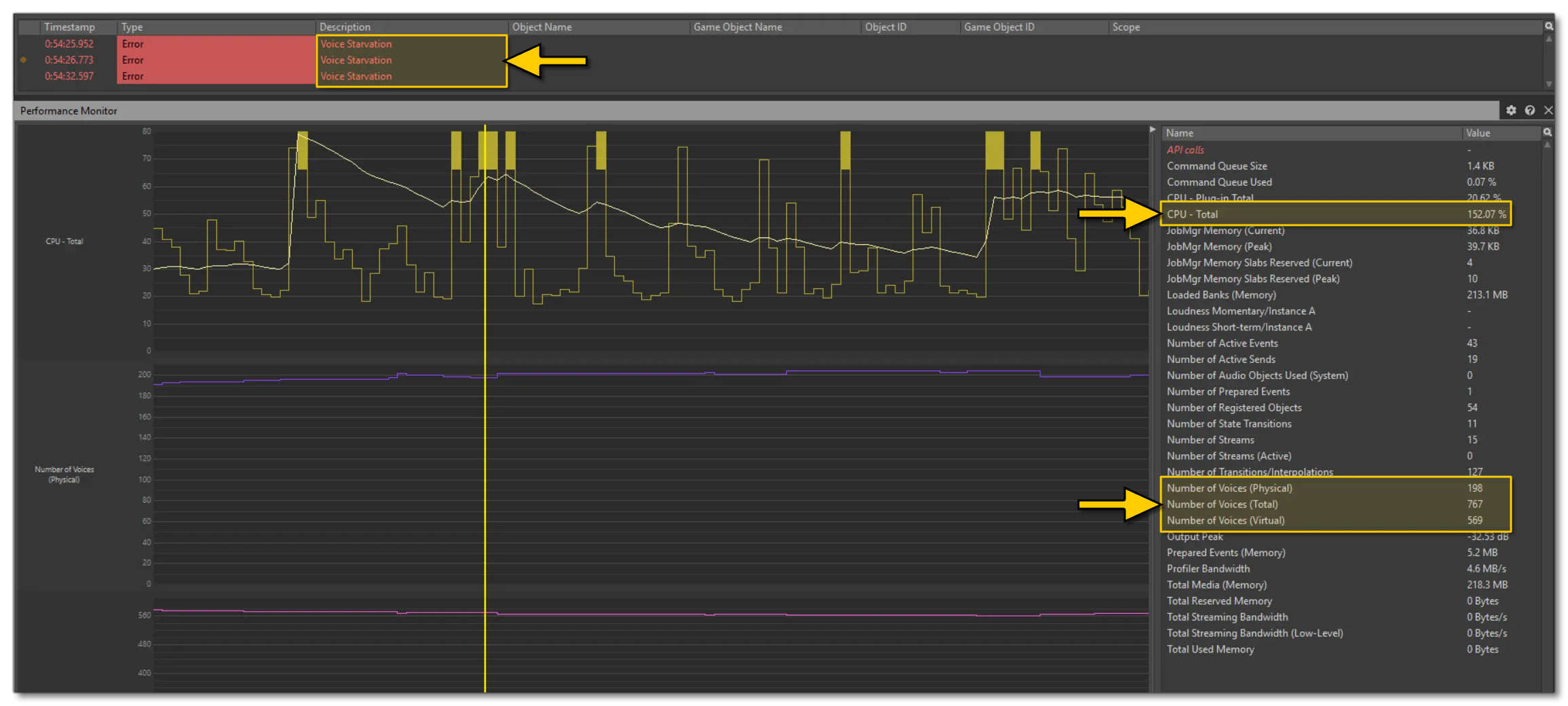
As you can see, this creates Voice Starvation errors, resulting in micro cuts in the audio signal flow which is what we are referring to when we talk about "Audio Stuttering".
The number of voices can vary considerably depending on various parameters. For example, a multi-engine aircraft on the runway of a large airport with air traffic enabled and AI-simulated objects set to maximum, in a multiplayer session, will require many more sounds to be played than a session in a glider parked at an airport in the middle of the desert. However, since the user aircraft is the object that most often uses the largest number of voices, good optimisation significantly limits audio thread overload and thus voice starvation.
To give you an idea of what is expected, on average the number of physical voices on MSFS 2024 aircraft, across all content creators, ranges from 30 to 50 physical voices and from 50 to 100 virtual voices. Therefor, to ensure that the content does not affect performance and to avoid audio stuttering, be sure not to exceed:
- 70 physical voices
- 120 virtual voices
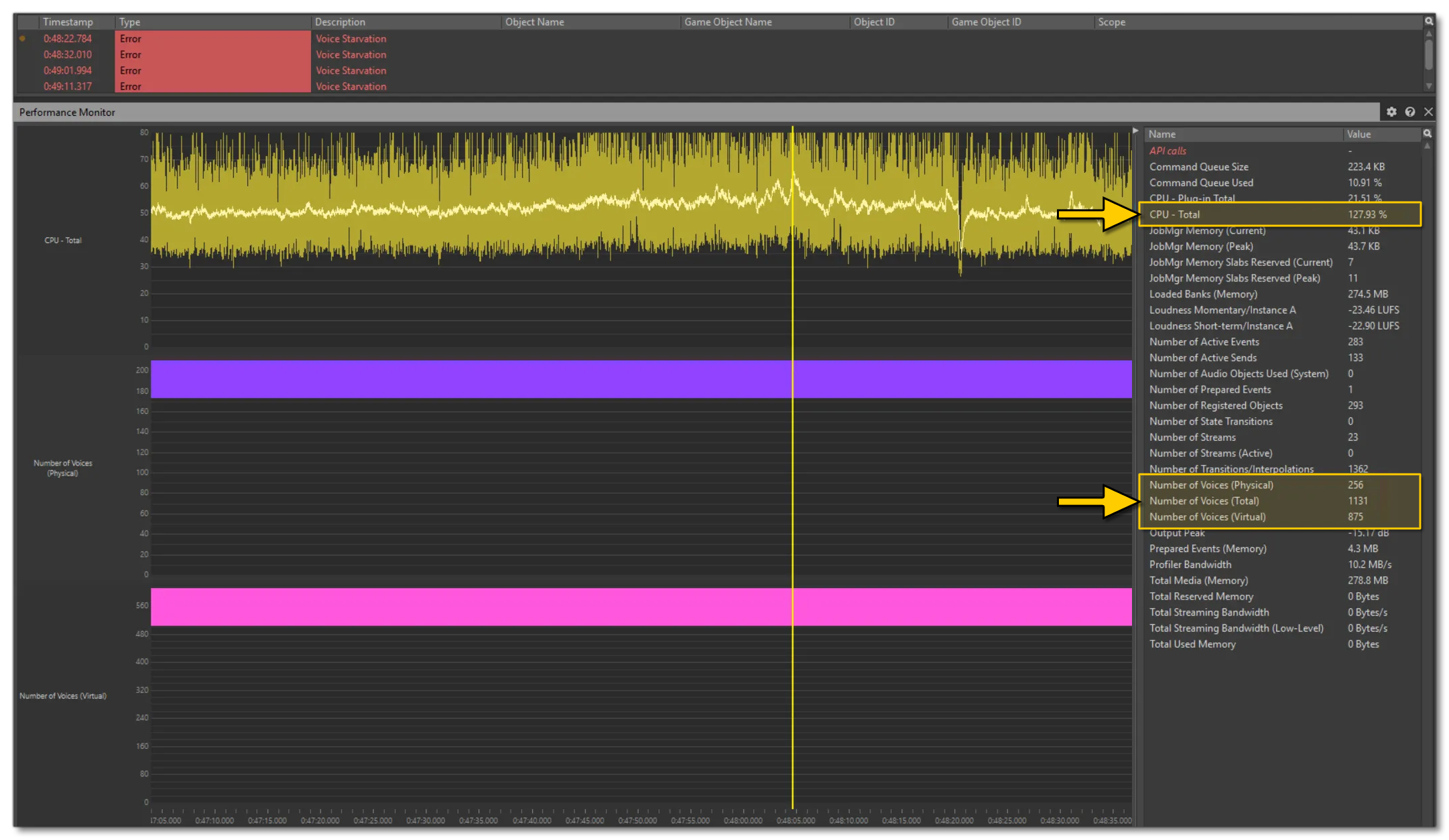
Anything above that for your aircraft and you should consider your content insufficiently optimised to be released and you will need to adjust your sound implementation and sound optimisation. Here is an example of bad audio optimisation on a user aircraft above KLAX airport, which is a very large airport with a lot of air and ground AI traffic:
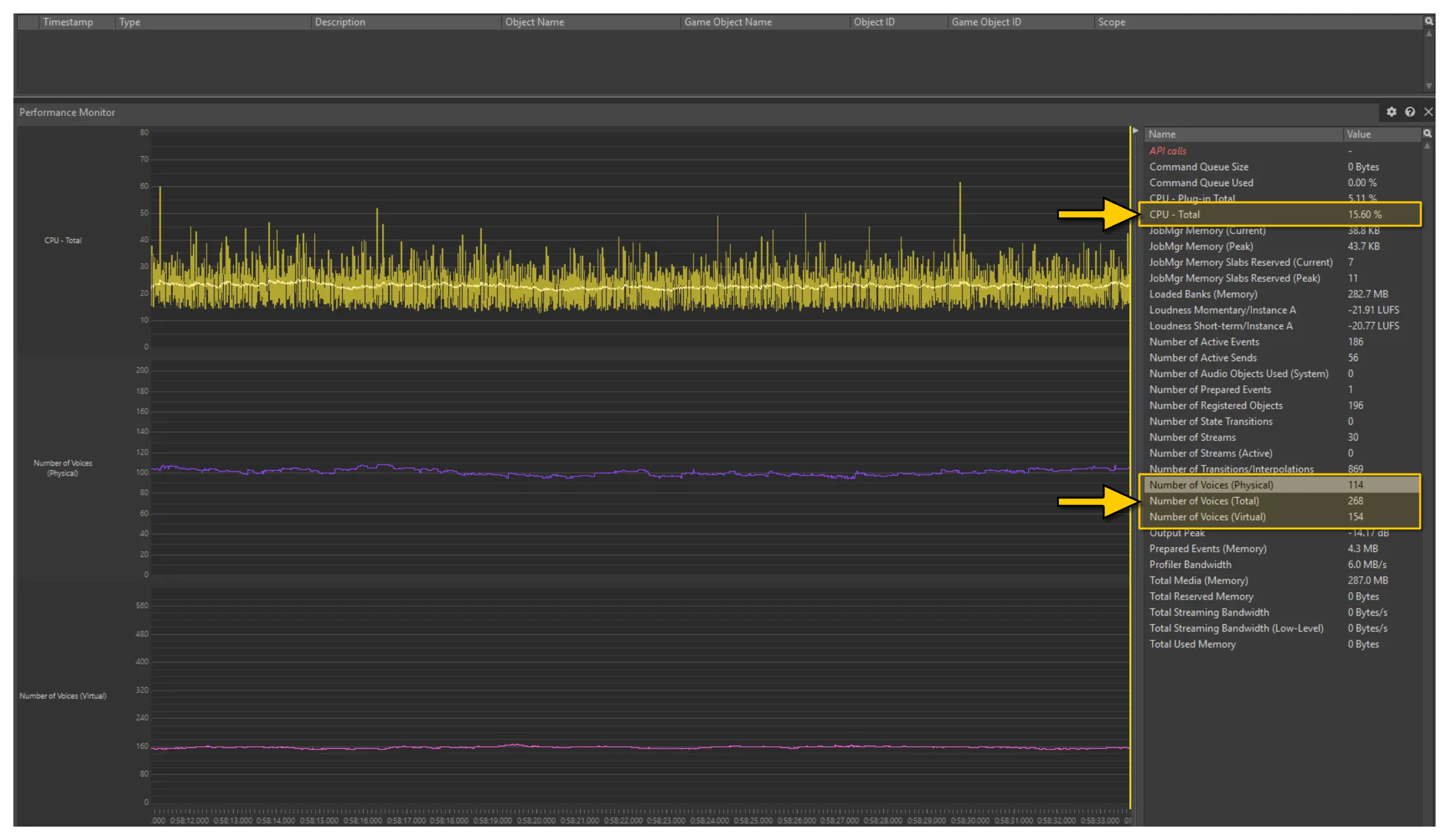
- CPU - Total: average approx. 50% , max peak 127%
- Number of Voices (Physical): approx. 256
- Number of Voices (Virtual): approx. 876
The audio thread (CPU curve) in this example is heavily loaded as the aircraft requires many physical voices at the same time. This means that it is much more likely to be overloaded, which happens frequently in this session. Let's compare that to an aircraft under the same circumstances with a "healthy" audio implementation, which would look something like this:
- CPU - Total: average approx. 23% , max peak 62%
- Number of Voices (Physical): approx. 114
- Number of Voices (Virtual): approx. 154
In this second "healthy" example, the aircraft is well optimised, and leaves more room for the CPU and limiting overloads - thereby reducing the risk of voice starvation. The image below shows the "unhealthy" audio implementation in the Wwise Capture Log and if you mouse over it, you can see the "healthy" comparison:
AI SimObjects
AI objects can be spawned multiple times at runtime depending on air traffic parameters and airport size, as well as whether it's a multiplayer session or not. As such, AI aircraft can also cause audio stuttering if the number of voices are not controlled and it is important to pay attention to the number of voices that AI SimObjects use. They should be limited to the essentials only, ie:
- external engines sounds from the front and rear.
- ground roll and touchdown sounds.
In general, it is recommended that AI Simobjects should not exceed the following values:
- 20 physical voices for a twin-engine airliner
- 10 physical voices for piston aircraft
Optimisation Guidelines - Sources
-
Only use layers when necessary.
If several layers in a single event use the same game parameters with the sames RTPCs, curves, the same attenuation shareset, etc... then there is often little point in keeping everything on different layers. It is generally better to render a single mixed sound from your DAW instead. For example, this:
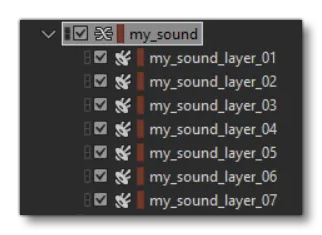
Will become this:
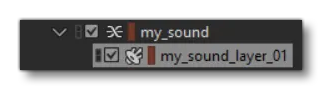
Which is obviously an effective optimisation of resources.
-
Prefer Mono Sources for 3D Spatialisations
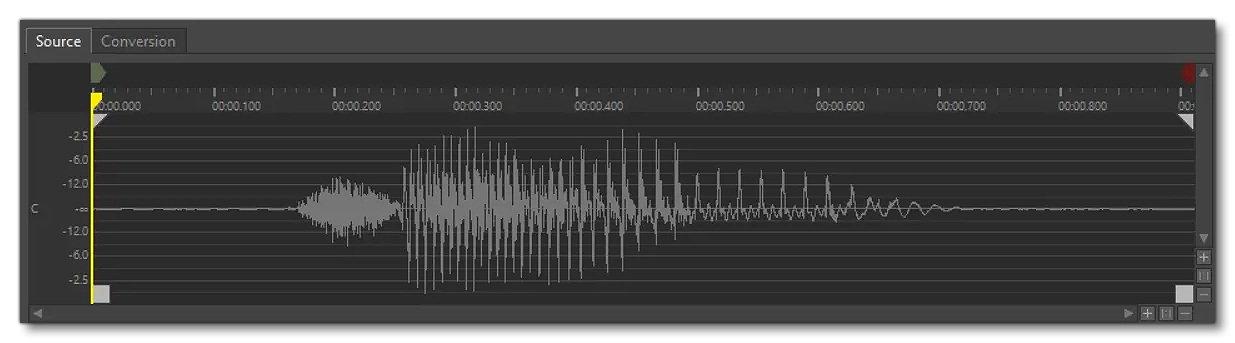
If you are using sources in 3D spatialisation with a low spread and focus, there is no point in using multi-channel sources, and you should opt for a mono source instead. This has two main advantages:
-
it avoids phase issues caused by summing multiple channels.
-
it saves unnecessary channels, since each channel of a multi-channel source is counted as a single voice and treated as such.
-
Optimisation Guidelines - SimVarSounds Setup
In your Sound XML file, we recommend that you use the <Range /> and <Requires> elements within your various <SimVarSounds> as much as possible to optimise sound playback. For example, if a sound is muted with an RTPC, then make sure that the sound is not played within the range of the variable where it is muted. For example, consider the following:
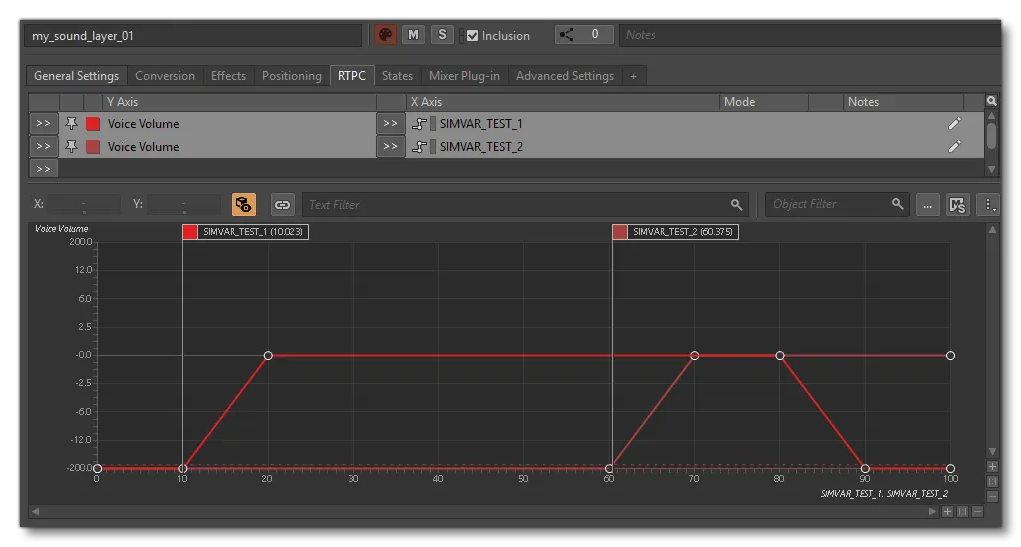
In this case, it is better to add sound playback conditions into the sound.xml to avoid unnecessary virtual voice stacking, something like this:
<SimVarSounds>
    <!--This sound will play if :
        - SIMVAR TEST 1 value is between 10 and 90,
        - SIMVAR TEST 2 value is above 60,  -->
    <Sound WwiseEvent="Sound_For_Test_2" WwiseData="true" SimVar="SIMVAR TEST 1" Units="PERCENT" Index="0" >
        <Range LowerBound="10.0" UpperBound="90.0"/>
        <Requires SimVar="SIMVAR TEST 2" Units="PERCENT" Index="0">
            <Range LowerBound="60" />
        </Requires>
    </Sound>
</SimVarSounds>
Optimisation Guidelines - Dynamic Playback Based On Viewpoint
In the following example you can see that this user SimObject is playing both inside and outside combustion sounds while the camera is in the outside view. In this case, even if the voices are virtualised, it would make more sense and be more optimised to not play interior sounds when outside (and vice-versa).
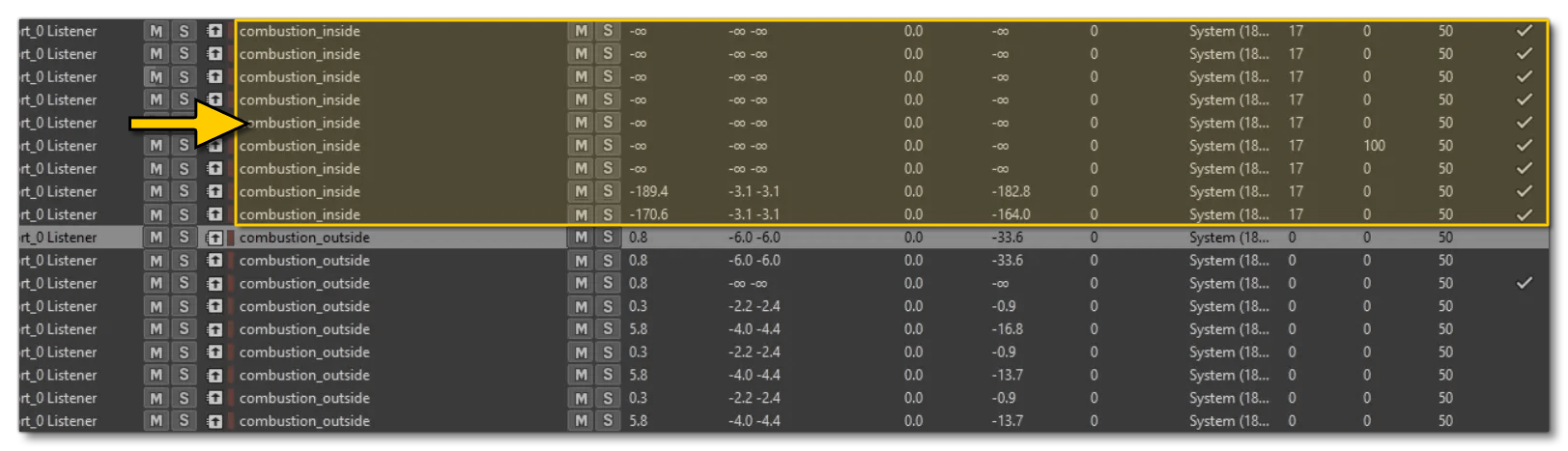
To resolve this you can do the following:
-
Use The Viewpoint Attribute
You can use the
ViewPointattribute of the<Sound>element in the Sound XML file to allow playback only inside, only outside, or in both (when the attribute isn't specifiednot specified). This attribute is available for each sound type and you can therefore use it at any time and it can greatly help in optimising your audio:<SimVarSounds> <!--This sound will play if : - ViewPoint is Inside, - SIMVAR TEST 1 value is greater than 5 --> <Sound WwiseEvent="Sound_For_Test_2" WwiseData="true" SimVar="SIMVAR TEST 1" Units="PERCENT" Index="0" Viewpoint="Inside"> <Range LowerBound="5.0"/> </Sound> </SimVarSounds>
-
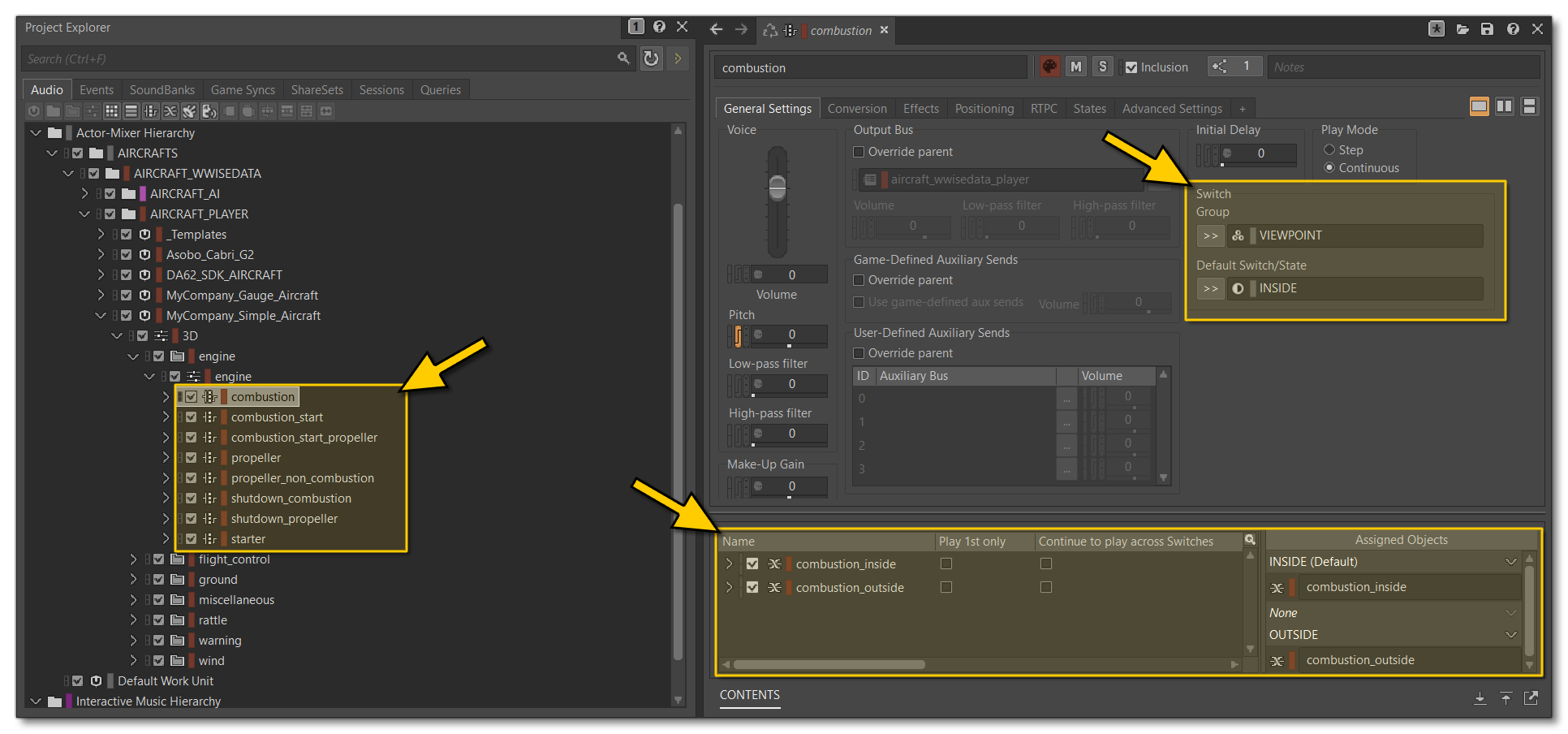
Use Switch Containers
Within Wwise, you can use Switch Containers to very effectively separate interior and exterior sounds using the INSIDE/OUTSIDE states of the VIEWPOINT state family, as shown in the image below:
-
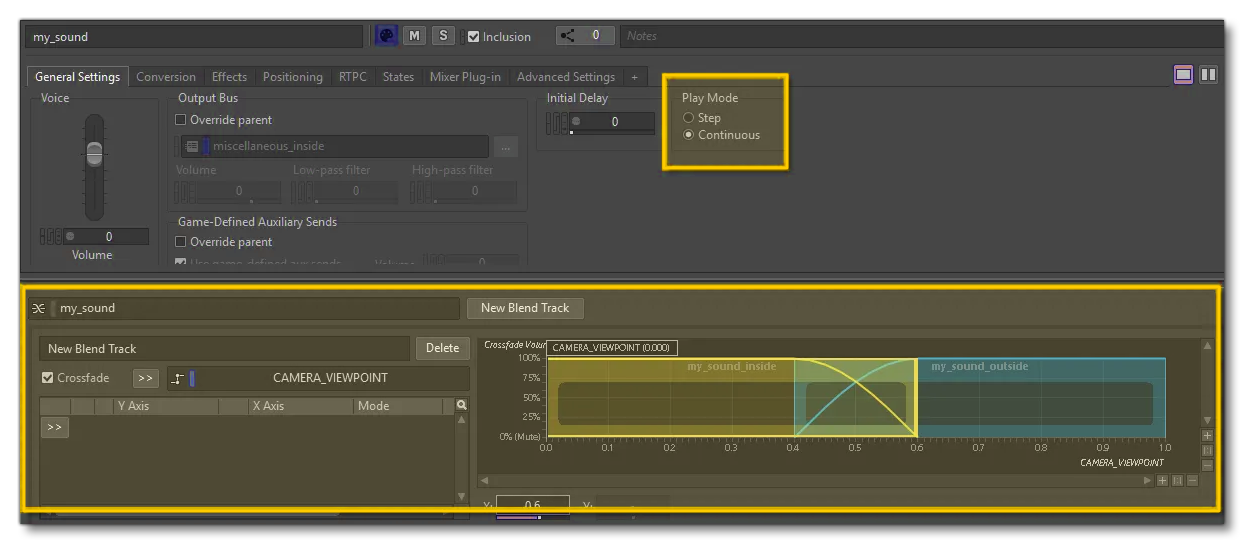
Use Blend Tracks
Another technique to ensure that sounds are played correctly based on the view is to use blend tracks to switch between inside/outside sounds. For this, you would use a blend track with theCAMERA_VIEWPOINTRTPC to switch between interior and exterior sounds, eg:
Optimisation Guidelines - Continuous Mode Blend Tracks
For all audio loops driven by RTPC, it is preferrable to use blend tracks in continuous mode. This mode dynamically manages when voices inserted into the blend tracks play and stop, greatly reducing the number of voices - depending on the simulation parameter values - by limiting playback to only two voices during crossfades. This allows only the expected voices to be played and dynamically stops any unnecessary ones.
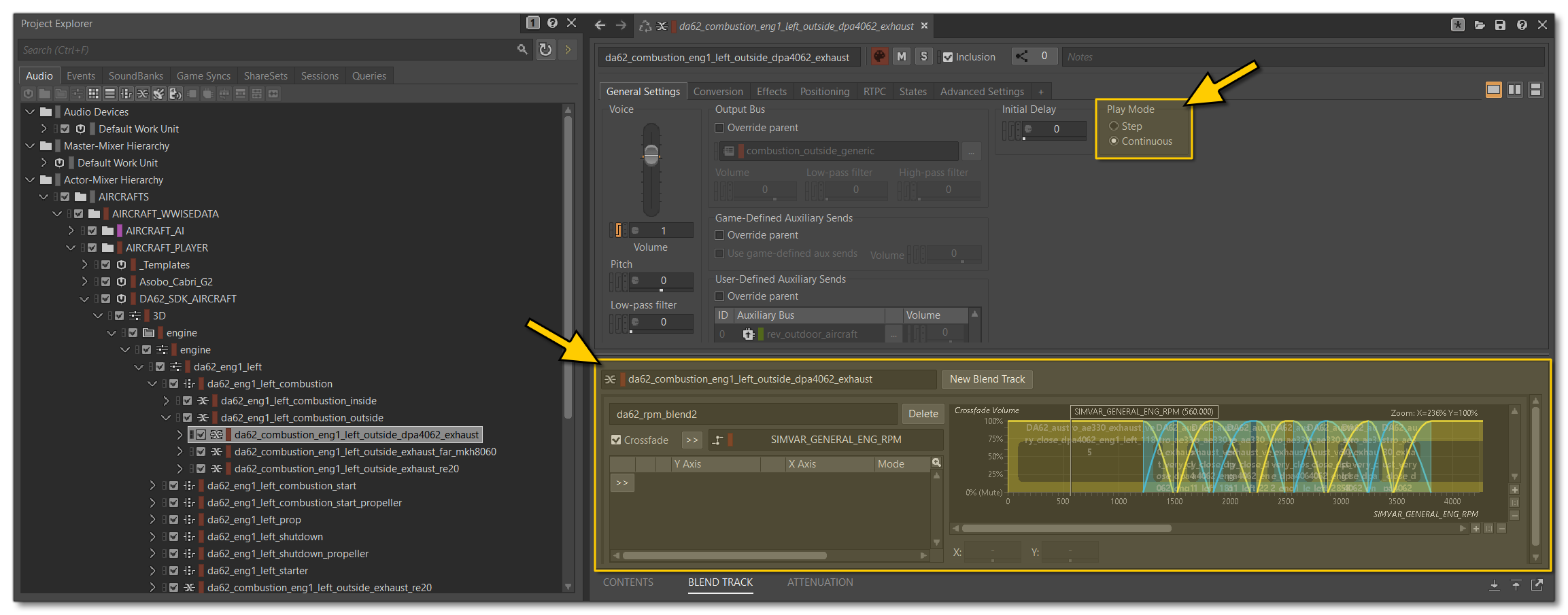
The Continuous Play Mode on the blend container can also be useful for allowing sounds to be played only when they are above a certain range in the blend track, for example, by offseting the range of the "enter" value:
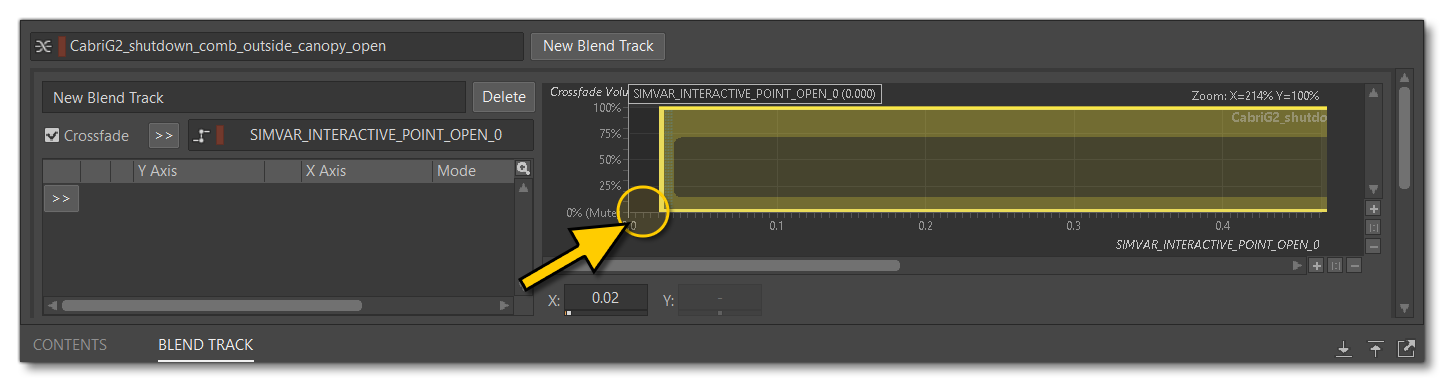
Usually this is done for the door opening audio feature in order to play exterior sounds in the cockpit only when the interactive point open SimVars reach a specific value.
Optimisation Guidelines - Virtual Voices
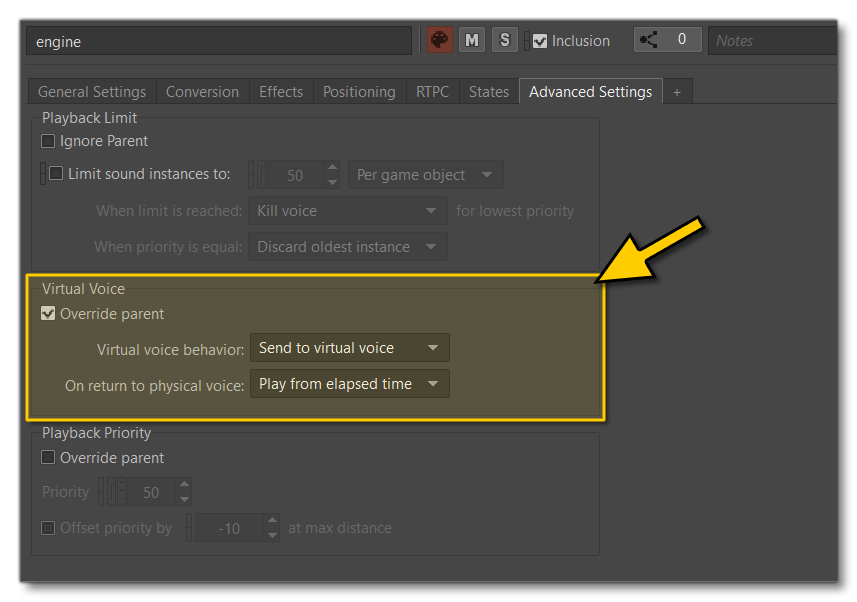
This optimisation is simple, but also very important: ensure that your sounds are sent to virtual when they are silent or have reached their instance limit (and we also recommend that you ensure this setting is not overridden in child containers):