
SDK Overview
Microsoft Flight Simulator 2024 supports the development of add-ons that can be distributed to other users in the form of packages. A package is essentially a collection of files that make up the add-on content being shared, and this can be anything from a custom aircraft to a new airport, or even a combination of multiple different game assets!
After reading this overview, please read the page on Using The SDK, as it includes important information on how the contents of the SDK should be used. For the full contents of the SDK, please see the SDK Contents page.
The SDK is completely independent from the Microsoft Flight Simulator 2024 executable, and is simply a collection of stand-alone tools and resources that can be used to create add-on content. However, the SDK is used in tandem with the Developer Mode toolset which is built into the simulation and must be enabled.
Developer Mode
To create add-on packages correctly you will need to use this SDK in conjunction with Developer Mode from within the Microsoft Flight Simulator 2024 game. You can activate developer mode from the General options in the game:
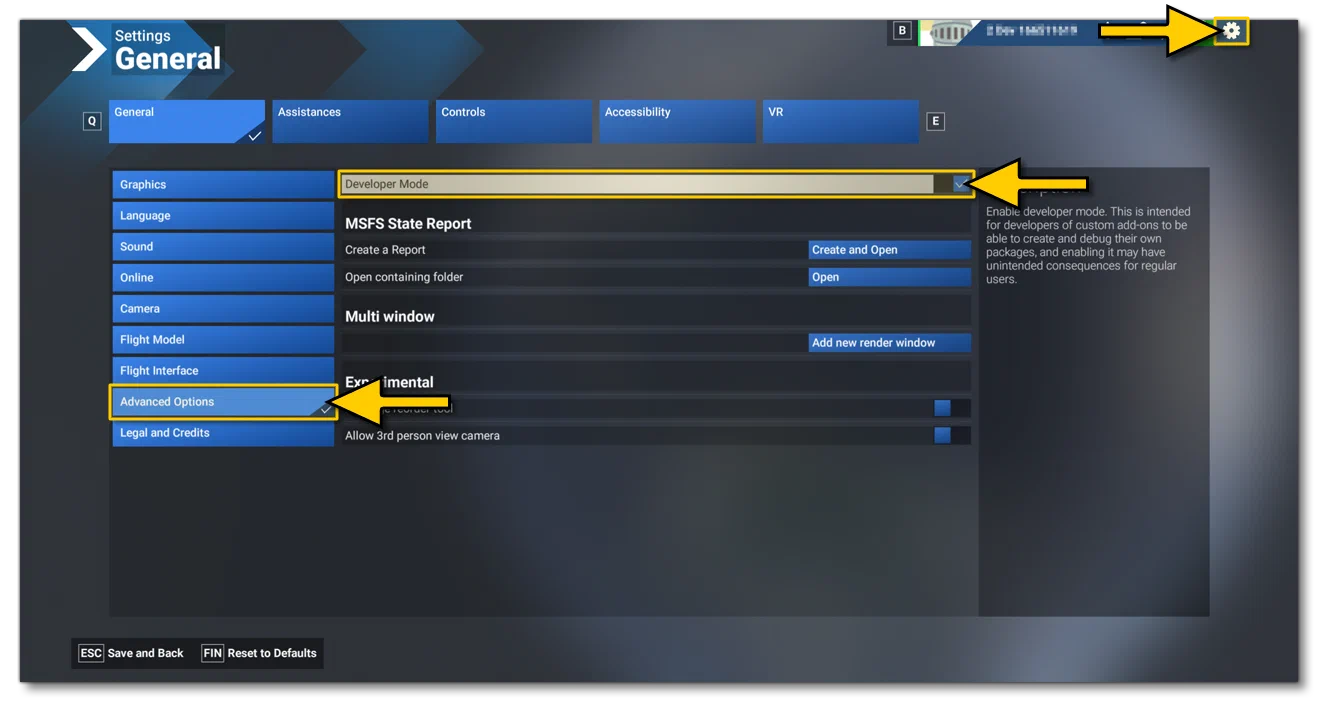
Once activated, you will have access to the Developer Tools from a toolbar across the top of the screen. Note that the majority of these tools cannot be used unless you are within a mission in the game.

You can access this document as well as extra samples and tutorials, and also download the latest version of the SDK from the Help menu:
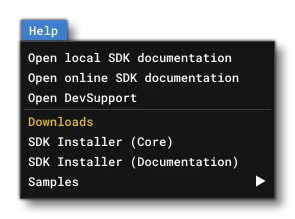
The Microsoft Flight Simulator 2024 SDK comes in the form of an *.msi (Microsoft Installer file), as do some of the extra samples available for download.
For a full rundown of the different tools available, please see the section on Using Developer Mode.
System Requirements
The system requirements for using the Dev Tools and the SDK are the same as those for running the Microsoft Flight Simulator 2024 game. You can find a full and up-to-date list of these requirements from the following link:
Additional Tools
When installing the SDK it will detect the presence of any external tools that are supported by the SDK or required for the SDK to be used. These are:
3D Studio Max: The glTF exporter plug-in that comes with the SDK depends on Autodesk 3D Studio Max(opens in a new tab). During installation, existing installations of 3D Studio Max will be detected and the appropriate plug-in for the installed version will be added. The SDK currently supports 3D Studio Max 2016 (SP2), 2017, 2018, 2019 (SP3) and 2020. You can find out more information on the 3DS Max Tools page.
Microsoft Visual Studio 2019: Support for WASM requires Microsoft Visual Studio 2019(opens in a new tab) with the Clang tools installed. The Clang tools can be installed through the Microsoft Visual Studio Installer under the “Desktop development with C++” workload. The SDK will also install the Microsoft Flight Simulator Platform Toolset for Visual Studio which is used when creating certain types of aircraft gauges and other things.
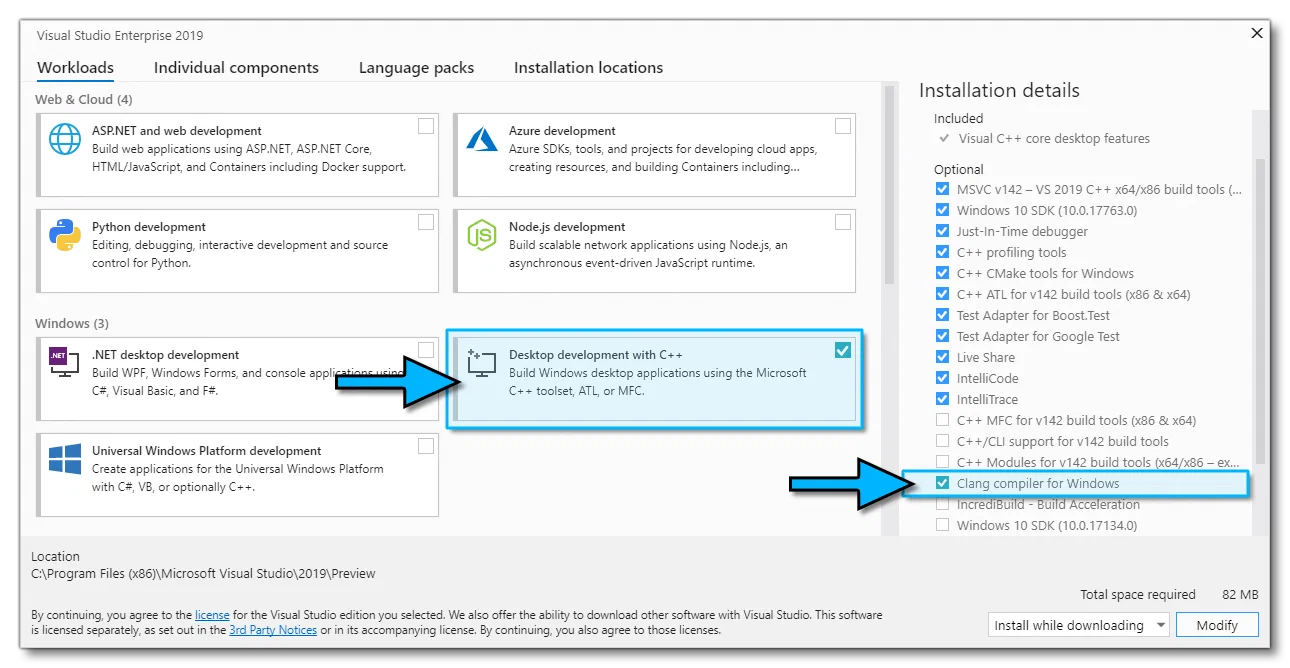
Note that if you do not have Visual Studio installed (or 3D Studio Max) when you install the SDK, you will need to download and install it, then re-install the SDK to ensure that they are both correctly configured.
Launcher Tool
The launcher tool is a tool specifically created to provide the developer a faster launch of Microsoft Flight Simulator 2024. This tool basically launches Microsoft Flight Simulator 2024 as normal, but forces the game to skip the intro logos and videos that would normally be displayed on load. You can find full information here:
The Community Folders
The Community foldersare the folders where you would place your created packages to have them appear in the game without the need to load them up every time using the Developer Mode Project Editor. In Microsoft Flight Simulator 2024 there are two community folders:
- Community: ForMSFS 2020packages.
- Community2024: ForMSFS 2024packages.
The location of these folders will depend on where your copy of Microsoft Flight Simulator 2024 came from, as different retailers (OneStore and Steam) will cause the Community folders to be created in different locations.
To find out where the Community folders are for your version of the game, you can open the Virtual File System window from the Tools menu in Developer Mode:
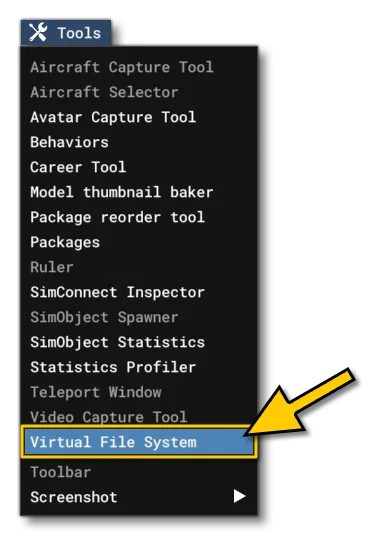
Once you have the Virtual File System window open, you can expand the Packages Folders section, and then simply click on the Open Community Folderor Open Community 2024 Folder buttons:
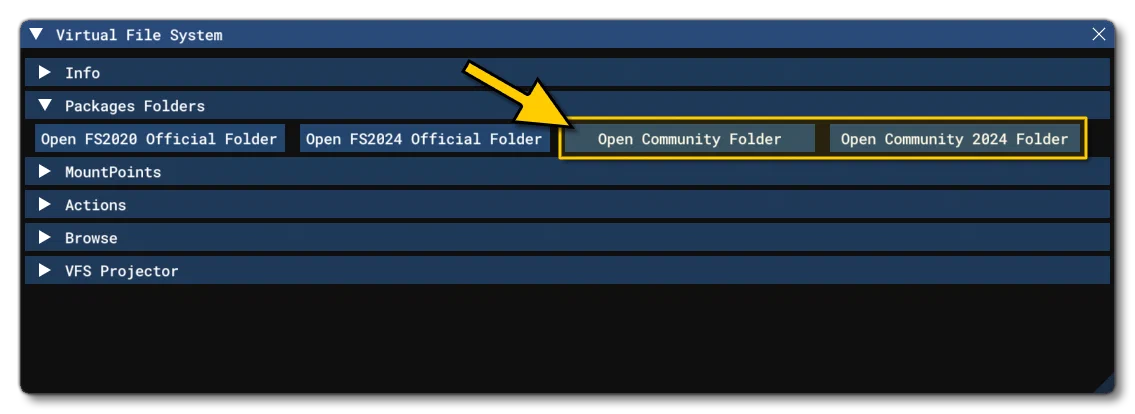
This will open an explorer window on the selected Community folder itself, and you can then copy any packages that you want to have permanently installed in Microsoft Flight Simulator 2024 to that location.
Additional External Tools
Asobo has made available extra tools that can be used when creating add-ons for Microsoft Flight Simulator 2024. Some of these tools are installed automatically when you install the SDK (sometimes depending on whether you have other products installed or not, for example the 3DS Max plugin requires you have 3Ds Max installed). These additional tools, along with a few other useful extras, can be found here:
There is also an open source framework available to users which can be used to create glass-cockpit displays and other instrumentation. You can find this from the following link: