
MSFS 2024 SDK Introduction
This document is still a work-in-progress as we transition to a new publishing framework, and as such may contain broken links, poor formating, and other minor issues. We anticipate having this all resolved for the final Sim Update 7 release. If you require the old documentation it can still be found at the previous URL: https://docs.flightsimulator.com/msfs2024/html/1_Introduction/Introduction.htm(opens in a new tab). We apologise for any inconvenince this may cause.
Welcome to the Microsoft Flight Simulator 2024 Software Development Kit! This SDK is designed to allow the development of add-ons for Microsoft Flight Simulator 2024, whether you’re creating them using the simulators built-in tools, or making them from scratch using external tools.
Creating add-ons for Microsoft Flight Simulator 2024 is done using a combination of external tools and tools that become available in-simulation when you activate Developer Mode. Distributed along with this SDK you will also find some extra development tools that are designed to help integrate the creation of add-ons with other creative tools and interfaces, for example the 3D Studio Max glTF exporter plug-in.
Add-ons for the simulation are created as packages and - at its simplest - a package is created using a combination of three things:
Enabling Developer Mode in Microsoft Flight Simulator 2024 gives you access to a host of in-sim tools where you can create new scenery, add aircraft, create missions and much more, all without the need for programming or, in many cases, external tools.
Creative Assets: (Models and Texturing, and Audio)
Your creative assets include all the things like aircraft models, sound effects, scenery textures, etc… that need to be created for a new custom add-on (although for scenery you can still create great results using the default assets available to you in the Developer Mode Scenery Editor).
These are the files that are packaged along with the creative assets to tell Microsoft Flight Simulator 2024 everything it needs to know to integrate the add-ons in the game.
It is possible to create simple assets using just the in-game tools that are available to you in Developer Mode, but to get the most out of the system and to create truly fun and interesting add-ons requires you to work with all three pipelines outlined above. Additionally, for those of you that have some programming experience or experience creating add-ons for previous versions of Flight Simulator, we have some extra Programming APIs available to you so you can get the most out of the product.
However, due to the complex nature of a simulation like Microsoft Flight Simulator 2024, creating good add-on content can also be a seemingly complex task, and so we recommend that you read through the following pages of the documentation before getting started:
You can find a brief overview of what the SDK contains from the SDK Contents page, and you can find some essential setup information from the SDK Overview and Using The SDK pages.
To get an idea of how packages are structured and used, see the various sample files available to you.
To find out what’s new in this release - or to revise changes made in previous releases - please see the latest Release Notes.
Seasoned developers of add-ons for Microsoft Flight Simulator 2020, Microsoft Flight Simulator X, or other simulation software may also benefit from looking over the DevSupport Forums(opens in a new tab).
There is a lot of information in this document and we suggest - especially if you are new to creating add-ons - that you start with some very basic in-game objects or scenery using the Developer Mode and refer back to the documentation for more information as you progress up to making your own aircraft, airports or scenery.
Whatever you do, we hope you have fun doing it, and we’re looking forward to seeing what you can create on the Microsoft Flight Simulator 2024 Marketplace!
For more information on publishing to the Marketplace, please see here(opens in a new tab).
Using This Documentation
This manual for Microsoft Flight Simulator 2024 is not meant to be read from start to finish, and is instead designed to be a resource of information that you can look up at any time to find specific information about what you are working on. As such, it has certain features to help you find what you need as quickly as possible.
After each Sim Update you should empty the browser cache and do a hard reload of the documentation page to ensure that everything updates correctly. Sometimes you can have cache conflicts after updating that break the search engine or page formatting. Clearing and reloading resolves these issues.
The Table Of Contents
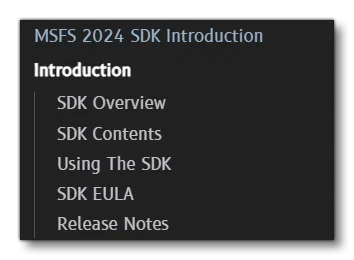
The left of the manual is dedicated to the ToC (Table of Contents) which shows an expanding hierarchy of articles. This table will expand to to show you the page you are viewing within the context of the entire document, and can be used to browse the contents of the manual and get an overview of what it contains.
The Glossary
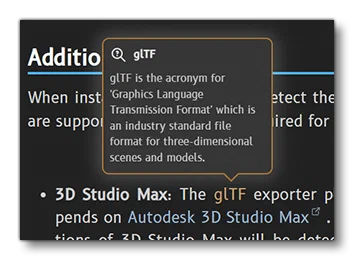
Throughout the text of this document, certain words will be highlighted in orange. These are glossary terms and they can be clicked to open a small window with some explanatory text for the term.
Search
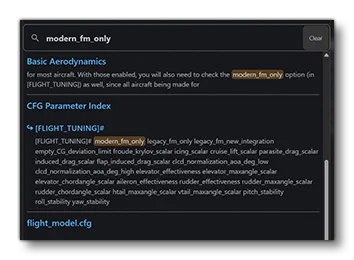
The manual provides you with an intelligent search system that will not only show the pages with the term supplied in them, but also pages that may not contain the exact term but may also be relevant to what you’re looking for. Note that you can prioritise exact searches by enclosing the text in quotes “”.
Global Index
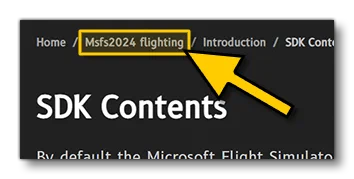
The breadcrumbs at the top of the page have a link to either “MSFS2024 Flighting” or “MSFS2024 Retail” depending on which version of the documentaiton you are currently using. Clicking this will take you to the Global Index which lists every page of the documentation alphabetically so you can quickly find specific pages without going through the Table Of Contents.
Additional Tools And Buttons

These symbols can be clicked to switch between the “dark” and “light” documentation skin.
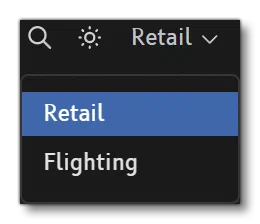
The text shown in the top right can be clicked to switch between the Retail (essentially the stable build of the simulation) and the Flighting (the current “beta” build of the simulation) versions of the SDK documentation.

This button can be used to copy the current page URL to your clipboard (useful if you are using the offline documentation).