
Camera Variables
The tables below indicate the requirements for the Simulation Variables that can be used to get and set the different properties for the available game cameras. For information on the units listed for each variable, please see here: Simulation Variable Units
You can find a complete index of all available SimVars here: SimVar Index
Cameras
| Simulation Variable | Index | Description | Units | Settable |
|---|---|---|---|---|
CAMERA GAMEPLAY PITCH YAW | Pitch / Yaw | Returns either the pitch (index 0) or the yaw (index 1) of the current gameplay camera. | Radians/π | |
CAMERA REQUEST ACTION | N/A | This can be used to have the currently active camera perform a predefined action. Currently only 1 action is supported, but more may be added over time. | Enum:1 = Reset Active Camera (in VR this will recenter the headset view)2 = Move Active Camera | |
CAMERA STATE | N/A | This can be used to get or set the camera “state”, which will be one of the listed enum values.Note that not all poossible values will do anything as some belong to legacy systems no longer used in MSFS 2024 and others have been reserved for future expansion of the camera system.Also note that the value “9” is a special case, generally used only when working with in-sim panels and is used to go to the showcase cameras, defaulting to the last selected camera within this section (Drone, Fixed or Environment). | Enum:1 = Forced Custom Target Position2 = Cockpit3 = Chase Plane Drone4 = Fixed On Plane5 = Environment 6DOF6 = Gameplay7 = Showcase8 = Drone Plane9 = Waiting10 = World Map11 = Hangar RTC12 = Hangar Custom13 = Menu RTC14 = In Game RTC15 = Replay16 = Drone Developer17 = Drone Top Down18 = Follow Actor19 = Hangar20 = Old Drone Plane21 = Chase F18 Plane22 = Ground23 = Follow Air Traffic Plane24 = First View25 = Drone Photo Mode26 = Third View27 = Transition28 = Catch Object29 = Idle30 = World Map Idle31 = Explore Flightpath Drone32 = Focus Location33 = Worldmap Transition | |
CAMERA SUBSTATE | N/A | This variable can be used to get or set the camera “sub-state”. The options here are generally only required when working with the in-sim panel UI. Note that the “locked” and “unlocked” state will be changed automatically if the following SimVars have their values changed: COCKPIT CAMERA HEADLOOK, CHASE CAMERA HEADLOOK. | Enum:1 = Locked (Fixed look or chase lock - The camera is locked in position)2 = Unlocked (Head look or Chase normal - The camera is “attached” to the mouse)3 = Quickview (the camera is currently using a Quickview)4 = Smart (The camera has Smart camera active)5 = Instrument (The camera is focused on an instruments panel) | |
CAMERA VIEW TYPE AND INDEX | Camera Index | With this you can get or set both the type of view for the current camera, as well as the option index, which will be between 0 and the maximum index value (as retrieved using the CAMERA VIEW TYPE AND INDEX MAX SimVar). Supplying an index of 0 to the SimVar will get/set the type (from the selection of enum values listed), and using an index of 1 will get/set the option index, which is an integer value.Please see the Notes On View Types And Indices section below for more information. | Enum (index = 0):0 = Unknown / default (External / Chase and Showcase / Drone / Fixed / Environment states)1 = Pilot View (Cockpit State)2 = Instruments (Cockpit State)3 = Quickview (Cockpit State)4 = Quickview External (External State)5 = View (Showcase / Drone / Fixed / Environment states)orNumber (index = 1) | |
CAMERA VIEW TYPE AND INDEX MAX | Camera Type Index | This variable can get the number of option indices related to a specific camera view type. The index value supplied to the SimVar should be one of the camera view type Enum values (see CAMERA VIEW TYPE AND INDEX), and the SimVar will return the number of options available for that camera type (counting from 1, so - for example - if the camera view type is “Quickview” and has 8 quickview settings, then CAMERA VIEW TYPE AND INDEX MAX:4 will return 8). Note that this value can be set after a flight has started, but it will have no effect since the number of camera options is initilaised once only and not updated (and the simulation may overwrite the value again even after setting it).Please see the Notes On View Types And Indices section below for more information. | Number | |
DIRECTORS CUT CAMERA PITCH | N/A | Gets/sets the pitch of the Director’s Cut camera gimbal. | Percent | |
DIRECTORS CUT CAMERA YAW | N/A | Gets/sets the yaw of the Director’s Cut camera gimbal. | Percent | |
GAMEPLAY CAMERA FOCUS | N/A | This gets/sets the focus for the camera zoom, which can be either manual, or auto. The setting affects both the Cockpit and the External (Chase) cameras.The following SimVars can be used to get/set the level of zoom: COCKPIT CAMERA ZOOM or CHASE CAMERA ZOOM. | Enum:0 = Auto1 = Manual | |
IS CAMERA RAY INTERSECT WITH NODE | Node | This SimVar is used to check for a collision along a ray from the center of the user FOV and a model node. The available nodes that can be checked using this SimVar must be previously defined in the [CAMERA_RAY_NODE_COLLISION] of the cameras.cfg file. The SimVar requires a node index value between 1 and 10, corresponding to the node defined in the CFG file, and the SimVar will return 1 (TRUE) if there is a collision along the camera ray or 0 (FALSE) otherwise. You may also supply an index of 0 to perform a collision check for all defined nodes, in which case the SimVar will return 1 (TRUE) if there is a collision between the ray and any of the defined nodes. Supplying an index outside of the range of 1 to 10, or supplying an index for which no node has been defined, will return 0 (FALSE). | Bool |
Notes On View Types And Indices
To help visualise what cameras are being accessed using the SimVar CAMERA VIEW TYPE AND INDEX, you can see them all in the “in-sim panel” UI for the camera, here:
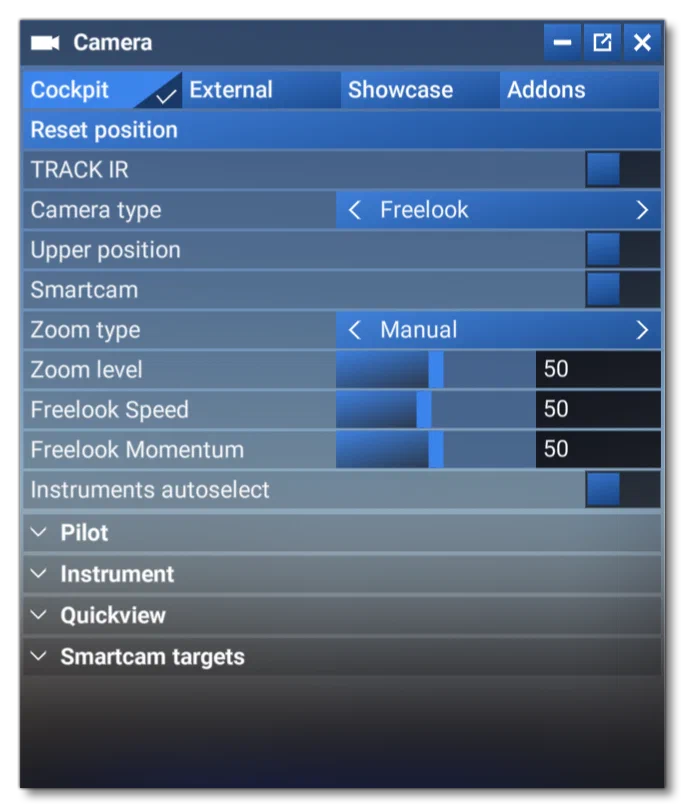
In the image above, we’re looking at the Cockpit camera panel (you can check or set this using the CAMERA STATE SimVar), and this panel has 4 different camera view types: Pilot, Instrument, Quickview, and SmartCam Targets. To check or set which of these view types is being used, you would use the CAMERA VIEW TYPE AND INDEX using 0 for the camera type, and then you would use 1 for the option index within that category (note that options are counted from 0). For example:
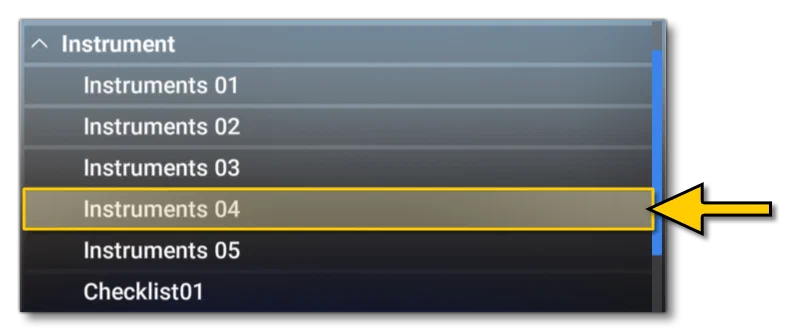
CAMERA VIEW TYPE AND INDEX:1 = 3This would be the following camera type and option:
If the camera type is 1 (for the Pilot view type), then the 4 default options will be indexed 1 (Close), 2 (Pilot), 4 (Landing), and 5 (Copilot), and the SimVar CAMERA VIEW TYPE AND INDEX MAX will return +1 for the number of options (ie: 5 not 4 by default). This is due to the internal requirements of the code.
Chase (External) Cameras
| Simulation Variable | Index | Description | Units | Settable |
|---|---|---|---|---|
CHASE CAMERA HEADLOOK | N/A | This is used to get/set the look state of the chase (external) camera. Note that this value will also affect the CAMERA SUBSTATE value, when the CAMERA STATE is set to 3 (External/Chase). | Enum:1 = Freelook2 = Headlook | |
CHASE CAMERA MOMENTUM | N/A | Sets/gets the momentum modifier of the chase (external) camera, which is controls how fast/slow the camera will stop moving when no longer being moved by the user. Default is 50%. | Percentage | |
CHASE CAMERA SPEED | N/A | Sets/gets the translation speed modifier of the chase (external) camera, as a percentage. Default is 50%. | Percentage | |
CHASE CAMERA ZOOM | N/A | Sets/gets the zoom/FOV modifier for the chase (external) camera. Note that when setting this value, it will affect the camera regardless of whether the GAMEPLAY CAMERA FOCUS is set to manual or automatic. Default is 50%. | Percentage | |
CHASE CAMERA ZOOM SPEED | N/A | Sets/gets the speed modifier for when the zoom/FOV chase (external) camera changes zoom/FOV levels. Default is 50%. | Percentage |
Cockpit Cameras
| Simulation Variable | Index | Description | Units | Settable |
|---|---|---|---|---|
CAMERA ACTION COCKPIT VIEW RESET | N/A | This can be used to reset the cockpit camera when the CAMERA STATE is set to 2 (Cockpit). Essentially the same as the user pressing the default reset keys ⌃ Ctrl + ␣ Space. | Bool | |
CAMERA ACTION COCKPIT VIEW SAVE | N/A | This can be used to save a cockpit camera when the CAMERA STATE is set to 2 (Cockpit). The index value given is the save “slot” that will be used, from 0 to 9. Essentially this is the same as the user pressing the default save keys ⌃ Ctrl + ⎇ Alt + 0-9. | Bool | |
COCKPIT CAMERA HEADLOOK | N/A | This is used to get/set the look state of the cockpit camera. Note that this value will also affect the CAMERA SUBSTATE value, when the CAMERA STATE is set to 2 (Cockpit). | Enum:1 = Freelook2 = Headlook | |
COCKPIT CAMERA HEIGHT | N/A | This can be used to get/set the cockpit camera height modifier expressed as a percentage. Default is 50%. | Percentage | |
COCKPIT CAMERA INSTRUMENT AUTOSELECT | N/A | This can be used to get or set the autoselect option for the cockpit camera when viewing the instruments (ie: the CAMERA SUBSTATE is 5). When enabled the camera will move automatically if the player mouse reaches the edge of the screen and there are instrument panels available on that side. | Bool | |
COCKPIT CAMERA MOMENTUM | N/A | Sets/gets the momentum modifier of the cockpit camera, which is controls how fast/slow the camera will stop moving when no longer being moved by the user. Default is 50%. | Percentage | |
COCKPIT CAMERA SIDE | N/A | Not currently used in the simulation. | Enum | |
COCKPIT CAMERA SPEED | N/A | Sets/gets the translation speed modifier of the cockpit camara, as a percentage. Default is 50%. | Percentage | |
COCKPIT CAMERA UPPER POSITION | N/A | Sets/gets the current “upper position” cockpit camera toggle. When 1 (TRUE), the camera is is in the upper position, and when 0 (FALSE) it is in the default position. | Bool | |
COCKPIT CAMERA ZOOM | N/A | Sets/gets the zoom/FOV modifier for the cockpit camera. Note that when setting this value, it will affect the camera regardless of whether the GAMEPLAY CAMERA FOCUS is set to manual or automatic. Default is 50%. | Percentage | |
COCKPIT CAMERA ZOOM SPEED | N/A | Sets/gets the speed modifier for when the zoom/FOV cockpit camera changes zoom/FOV levels. Default is 50%. | Percentage |
Drone Cameras
| Simulation Variable | Index | Description | Units | Settable |
|---|---|---|---|---|
DRONE CAMERA FOCUS | N/A | Sets/gets the focus modifier for the drone camera. Default is 50%, and a lower value will set the drone focus to things in the foreground and a higher level will set the drone focus to things in the background. Note that this is only taken into account when the DRONE CAMERA FOCUS MODE is set to 3 (manual). | Percentage | |
DRONE CAMERA FOCUS MODE | N/A | Sets/gets the current drone focus mode. When set to 3 (manual), the focus position will be based on the [DRONE CAMERA FOCUS](#DRONE CAMERA FOCUS) value. | Enum:1 = Deactivated2 = Auto3 = Manual | |
DRONE CAMERA FOLLOW | N/A | Sets/gets the whether the drone camera is in follow mode or not. | Bool | |
DRONE CAMERA FOV | N/A | Sets/gets the zoom/FOV modifier for the drone camera. Default is 50%. | Percentage | |
DRONE CAMERA LOCKED | N/A | Sets/gets the whether the drone camera is locked or not. | Bool | |
DRONE CAMERA SPEED ROTATION | N/A | Sets/gets the rotation speed modifier of the drone camara, as a percentage. Default is 50%. | Percentage | |
DRONE CAMERA SPEED TRAVELLING | N/A | Sets/gets the translation speed modifier of the drone camara, as a percentage. Default is 50%. | Percentage |
Smart Cameras
| Simulation Variable | Index | Description | Units | Settable |
|---|---|---|---|---|
SMART CAMERA ACTIVE | N/A | Sets/gets the whether the smart camera is active or not. | Bool | |
SMART CAMERA INFO | Camera Index | Gets information on the smartcam system. The index sets what kind of information will be returned (or set):0 = Gets the number of smartcam targets in the smart camera list1 = Gets or sets the index of the currently selected smartcam target, counting from 0 (so index 0 is the first target in the list). | Number | |
SMART CAMERA LIST | Camera Index | Retrieves the type of target for the indexed position in the smartcam list, counting from 0 (so index 0 is the first target in the list). | Enum:0 = unknown POI1 = Follow POI2 = User POI3 = General POI4 = End OF Runway5 = Landing Runway6 = Flightpath7 = Object Interaction8 = Multiplayer OOI9 = Active Runway10 = Waypoint11 = Airport OOI12 = Flight Assistant Destination | |
SMART CAMERA LIST DESCRIPTION | Camera Index | This returns a localized string that represents the smartcam target specified by the given index. Indices count from 0 so index 0 is the first target in the list. | String |