
Audio For AI Aircraft
If your aircraft is going to be used as part of the fleet of AI aircraft within the simulation then you will also need to setup sound effects for them independently of the main user aircraft. These sound effects will work exactly as the main sounds, ie: you create the sounds and events in Wwise, then you export them in a PC.PCK file, and finally you create an XML file to reference them. The only real differences between AI sounds and regular sounds is that the PC.PCK and XML files should be clearly labelled as AI, and the number of effects that you need is greatly reduced.
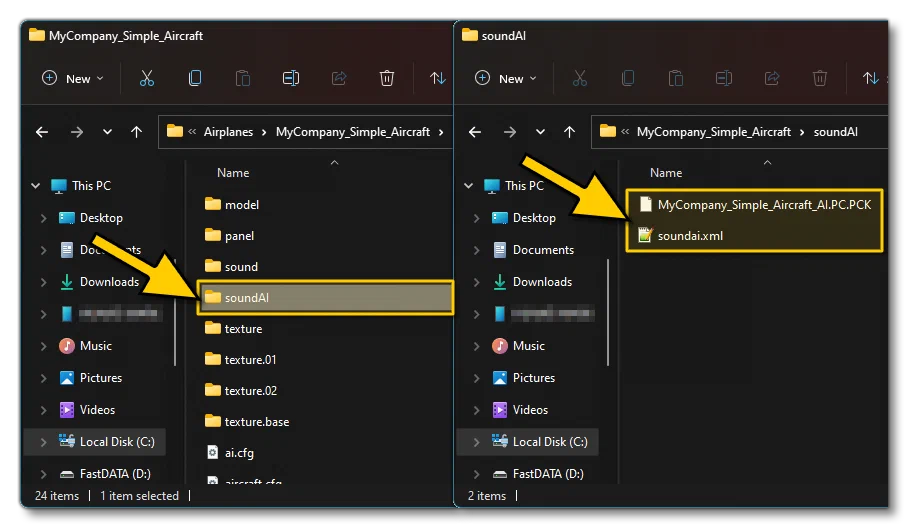
AI Traffic Sounds In Wwise
The good thing about AI traffic is that you can copy/paste most (if not all) of the sounds from the main aircraft and re-use them in the AI aircraft. The sounds you’ll need will only be the ground sounds and the engine sounds, so in the sample project you would do the following:
Go to the AIRCRAFT_AI folder and create a new work unit named after your aircraft
Create an “engine” folder
Create an “engine” Actor Mixer
Create Blend Containers for each of the engine elements, eg: combustion, combustion start, propeller, etc…
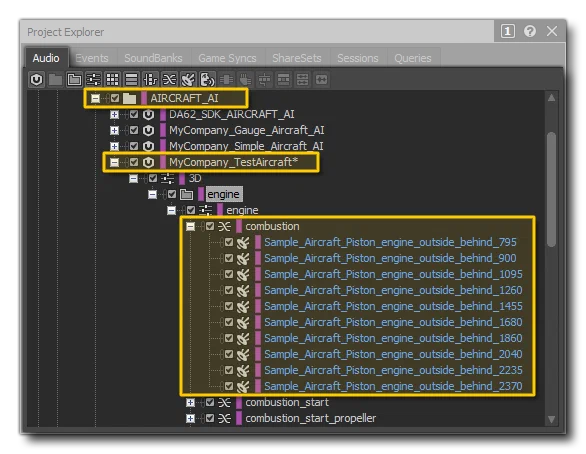
Once you have set that up, it’s simply a case of copying the sounds from the outside engine into the new blend containers. When finished you should have something that looks a bit like this:
You would then want to do the exact same process, but this time for ground effects, so that it looks like this:
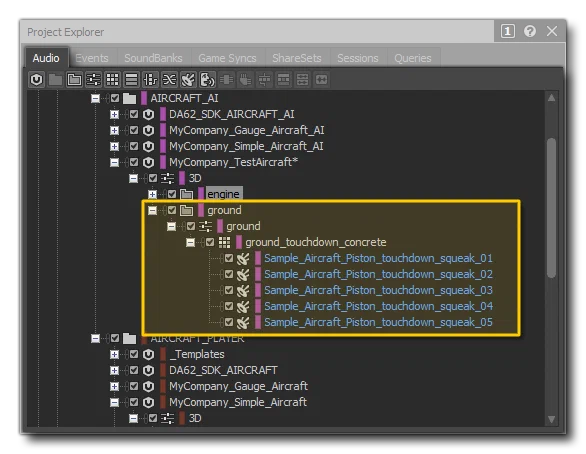
When looking at the images above, you’ll notice that we’ve not created any switch container for the audio like we did for the regular aircraft. This is because there is no need to use the VIEWPOINT state family (which includes the INSIDE/OUTSIDE states) since there is no inside state for AI aircraft.
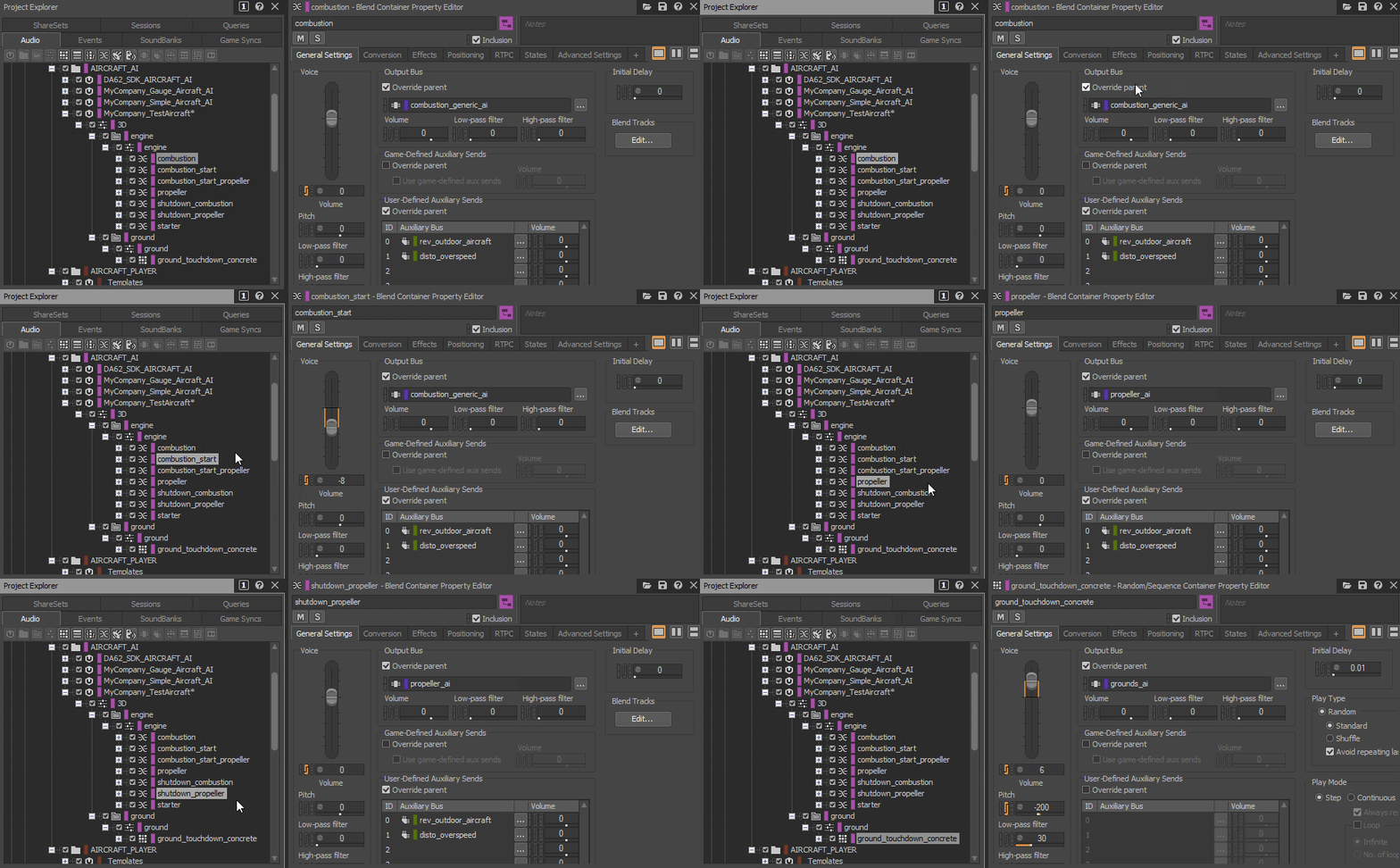
The next thing you’ll have to do to the audio is change the output bus so it uses the already created AI buses. This is done from the General Settings section of the Property Editor for each of the different blend containers, and for each one you should check “Override parent” then navigate to the appropriate output bus so that they looks like this:
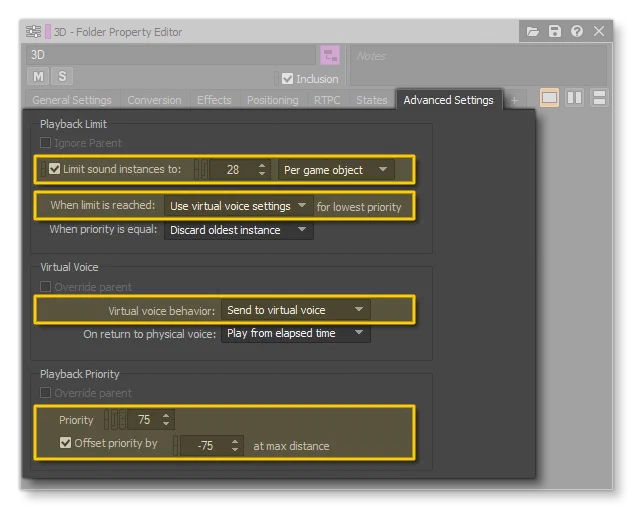
The final step is to go to the 3D Actor Mixer and then in the Property Editor go to the Advanced Settings tab. You want to edit this so that it limits the number of voices being played in live multiplayer sessions, which is done with the following settings:
Check Limit sound instances to and set it to 28
For When limit is reached set it to “Use Virtual voice settings”
Set Virtual voice behaviour to “Send to virtual voice”
Set Priority to 75
Check Offset priority by to -75
Attenuation
Before continuing it is also worth noting how important it is that you mix your AI aircraft audio carefully and pay great attention to the 3D sound attenuation distances, since this will have a great impact on the sound experience of the other users. You can find all the Attenuations sharesets in the Sharesets tab of the Project Explorer, and then edit them as required to get properly balanced audio:
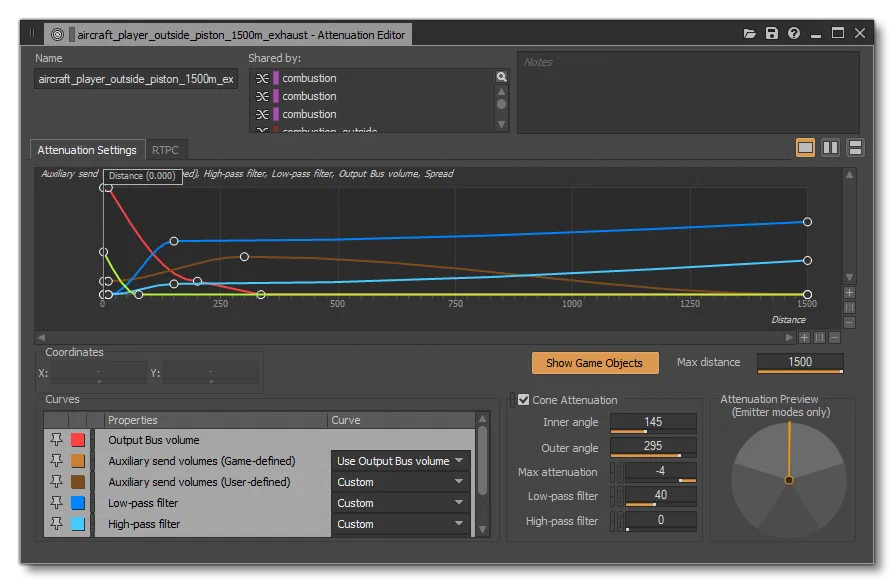
The maximum distance for sounds from AI aircraft to be audible to other users in the simulation is 5km, therefor your max distance attenuations curves should not exceed 5,000m.
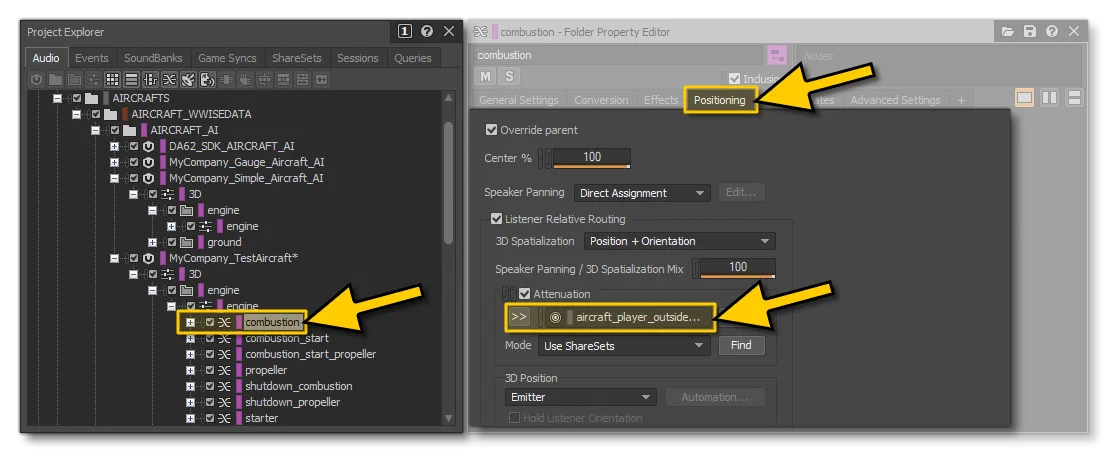
To use an attenuation shareset and apply it to a container, simply go to the Positioning tab after selecting your container, then check the Attenuation box and select a Shareset using the >> button:
Be aware that attenuation on AI sources from a user cockpit perspective is handled with the <AcousticParameters> insulation attributes from the aircraft sound.xml. If you want to know more about the Attenuation Editor and the different available parameters, you can check the Audiokinetic Wwise documentation:
soundai.XML
When it comes to creating the soundai.xml file, the format is exactly the same as that used for the sound.xml. You can use all the same elements and most of the same attributes, however you are limited to the SimVars that you can access. Ai aircraft will only have access and use the following SimVars, depending on the distance the aircraft is from the listener:
- Far distance (up to a maximum of 10,000m, although sounds will not be audible after 5,000m):
- Close distance (up to 500m):
To give an idea of what a typical soundai.xml file looks like, here’s the full contents of the file for the C152:
<?xml version="1.0" encoding="utf-8" ?>
<!-- Copyright (c) Asobo Studio, All rights reserved. www.asobostudio.com -->
<SoundInfo Version="0.1">
    <WwisePackages>
        <MainPackage Name="Asobo_C152_AI"/>
    </WwisePackages>
    <EngineSoundPresets>
        <Sound WwiseEvent="Combustion" ConeHeading="180" FadeOutType="2" FadeOutTime="0.2" RPMMin="200" WwiseData="true" EngineIndex="1" >
            <WwiseRTPC SimVar="GENERAL ENG COMBUSTION SOUND PERCENT" Units="PERCENT OVER 100" RTPCReleaseTime="0.5" Index="1" RTPCName="SIMVAR_GENERAL_ENG_COMBUSTION_SOUND_PERCENT" />
        </Sound>
        <Sound WwiseEvent="Starter" FadeOutType="2" FadeOutTime="0.1" WwiseData="true" EngineIndex="1" >
            <WwiseRTPC SimVar="GENERAL ENG COMBUSTION SOUND PERCENT" Units="PERCENT OVER 100" RTPCReleaseTime="0.5" Index="1" RTPCName="SIMVAR_GENERAL_ENG_COMBUSTION_SOUND_PERCENT" />
        </Sound>
        <Sound WwiseEvent="CombustionStart" ConeHeading="180" WwiseData="true" EngineIndex="1" >
            <WwiseRTPC SimVar="GENERAL ENG COMBUSTION SOUND PERCENT" Units="PERCENT OVER 100" RTPCReleaseTime="0.5" Index="1" RTPCName="SIMVAR_GENERAL_ENG_COMBUSTION_SOUND_PERCENT" />
        </Sound>
        <Sound WwiseEvent="CombustionStart" CustomSuffix="Propeller" ConeHeading="0" WwiseData="true" EngineIndex="1" >
            <WwiseRTPC SimVar="GENERAL ENG COMBUSTION SOUND PERCENT" Units="PERCENT OVER 100" RTPCReleaseTime="0.5" Index="1" RTPCName="SIMVAR_GENERAL_ENG_COMBUSTION_SOUND_PERCENT" />
        </Sound>
        <Sound WwiseEvent="Shutdown" ConeHeading="180" RPMMin="200" WwiseData="true" EngineIndex="1" >
            <WwiseRTPC SimVar="GENERAL ENG COMBUSTION SOUND PERCENT" Units="PERCENT OVER 100" RTPCReleaseTime="0.5" Index="1" RTPCName="SIMVAR_GENERAL_ENG_COMBUSTION_SOUND_PERCENT" />
        </Sound>
        <Sound WwiseEvent="Shutdown" CustomSuffix="Propeller" ConeHeading="0" RPMMin="200" WwiseData="true" EngineIndex="1" >
            <WwiseRTPC SimVar="GENERAL ENG COMBUSTION SOUND PERCENT" Units="PERCENT OVER 100" RTPCReleaseTime="0.5" Index="1" RTPCName="SIMVAR_GENERAL_ENG_COMBUSTION_SOUND_PERCENT" />
        </Sound>
        <Sound WwiseEvent="Propeller" ConeHeading="0" FadeOutType="2" FadeOutTime="0.2" RPMMin="200" WwiseData="true" EngineIndex="1" >
            <WwiseRTPC SimVar="GENERAL ENG COMBUSTION SOUND PERCENT" Units="PERCENT OVER 100" RTPCReleaseTime="0.5" Index="1" RTPCName="SIMVAR_GENERAL_ENG_COMBUSTION_SOUND_PERCENT" />
        </Sound>
    </EngineSoundPresets>
    <GroundSounds>
        <Sound WwiseEvent="CENTER_TOUCHDOWN" FadeOutType="2" FadeOutTime="0.5" WwiseData="true" />
        <Sound WwiseEvent="LEFT_TOUCHDOWN" FadeOutType="2" FadeOutTime="0.5" WwiseData="true" />
        <Sound WwiseEvent="RIGHT_TOUCHDOWN" FadeOutType="2" FadeOutTime="0.5" WwiseData="true" />
    </GroundSounds>
</SoundInfo>
As you can see, it’s much smaller than a normal sound.xml file and only covers the essential exterior engine sounds and ground sounds.
It should be noted that AI aircraft are only updated every 8 frames and as such you should ensure that your sounds will play properly at this update rate. By default, to help mitigate “jumps” in RTPC values causing audio glitches or errors, there will be a type of “smoothing” (interpolation) applied to the values. However, if you are using a SimVar that returns an enum (for example), you don’t want this to happen as your XML will be expecting discreet values rather than interpolated. In these cases the <WwiseRtpc /> element should include the AutoSmoothOnAI attribute, set to “False”. For example:
<WwiseRTPC SimVar="SURFACE TYPE" Units="ENUM" Index="0" AutoSmoothOnAI="False" RTPCName="SIMVAR_SURFACE_TYPE"/>