FLIGHT PLANNING SERVICES DEBUG

This debug window is designed to help you visualise the different FAA and LIDO navigation charts for an airport, primarily for use when creating EFB navigation or chart visualisation apps. When you first open this window, no information will be shown and you will need to supply an airport ICAO code, select what kind of chart you need (FAA / LIDO), and then click the Get Charts Index button. The data shown will largely depend on the airport and the part of the world that the airport is in.
LIDO
If you are viewing LIDO charts, then you will have a table at the top with some or all of the following tabs:
|
Tab Title |
Full Name |
Description |
|---|---|---|
|
AFC |
Aerodrome / Airport Facility Chart |
Main airport overview chart showing runways, taxiways, aprons, buildings, and general airport layout/facilities. |
|
APC |
Aerodrome / Airport Parking Chart |
Detailed parking/gate positions, stand numbers, and aircraft parking guidance. |
|
AOI |
Aerodrome / Airport Operational Information |
Textual operational data: airport hours, lighting, fuel, customs, noise abatement, special procedures, etc. |
|
AGC |
Aerodrome / Airport Ground Chart |
High-detail taxi chart with taxiways, intersections, holding points, and ground movement information. |
|
SID |
Standard Instrument Departure |
Departure procedure charts (SIDs). |
|
IAC |
Instrument Approach Chart |
All instrument approach procedures (ILS, VOR, RNAV, etc.). |
|
SIDPT |
Standard Instrument Departure Procedure Transition |
Charts showing the transition from the SID to the enroute structure (sometimes called SID transitions or SID/STAR connection points). |
FAA
If you are viewing FAA charts, then you will have a table at the top with some or all of the following tabs:
|
Tab Title |
Full Name |
Description |
|---|---|---|
|
MIN |
Minimums |
Takeoff and landing minimums (visibility, ceiling, and alternate minimums). The rows “TAKEOFF MINI” and “ALTERNATE MI” you see belong to this tab. |
|
HOT |
Hot Spots |
Airport Hot Spot charts — diagrams highlighting areas with a high risk of runway incursions or ground incidents. |
|
DP |
Departure Procedures |
Standard Instrument Departures (SIDs) and Obstacle Departure Procedures (ODPs). |
|
STAR |
Standard Terminal Arrival Routes |
STAR arrival procedure charts. |
|
IAP |
Instrument Approach Procedures |
All instrument approach charts (ILS, RNAV, VOR, LOC, etc.). |
|
APD |
Airport / Aerodrome Planview Diagram |
The official airport diagram showing runways, taxiways, gates, and ground layout. |
Table Contents
Regardless of the source of the information, a table will be shown with the total number of charts/procedures given at the top. Within the table, each tab will have the same columns, as shown in the example image below:

The columns within this table are as follows:
- Name - The official name or identifier of the chart/procedure.
- Runways - Lists the specific runway(s) this procedure is relevant for when arriving or departing from the airport.
- Procedures - The short code name of the specific procedure, used as an exact identifier in ATC clearances.
- Aircraft Type - Specifies which aircraft types or performance categories the procedure applies to (eg: jets only, all aircraft, specific wake-turbulence category, or equipped aircraft). In many systems this column shows restrictions such as "RNAV 1", "RNP", or aircraft equipment requirements.
- Valid From - The date and time from which this chart or procedure is valid. This is given as a single datetime decimal value in milliseconds.
- Valid Until - The date and time at which this chart or procedure is no longer valid. This is given as a single datetime decimal value in milliseconds.
- Actions - Here you can find a button to perform an action, normally Get Chart Pages, which will load the specific chart into the debug window, and then display additional information in the Chart Pages section below the table.
Chart Pages
After retrieving a chart from the selected provider (FAA / LIDO), there will be additional information shown below the main table in the Chart Pages section:

This section will show one or more Pages, where each page will contain the following global information at the top:
- Page number
- Page dimensions (in pixels)
- Whether the chart page is georeferenced or not. If this is shown as true, then one or more areas in the chart have been georeferenced, meaning that any software using the chart can accurately place the aircraft GPS position within the area.
Areas
Each "area" listed is a specific part of the chart, and can be expanded to get information on that part. Parts are listed so that you can show only specific informationin the EFB or app display, for example, one area could have the procedure name, airport name, date, etc..., while another could have the the actual chart itself. The information shown here is as follows (note that not all areas will show all of this information):
- Area type: this is the type of area that is being described within the chart. Can be one of the following:
- Low - the detailed, GPS-aligned map the user will actually navigate with.
- Middle - the surrounding text and supporting boxes that are deliberately excluded from georeferencing.
- Georeferenced: Whether this are is georeferenced or not.
- Chart Rectangle: This is the top left and bottom right positions of the rectanglular are of the page this area represents. These values can be used by the EFB or App to display only the given area.
- World Rectangle: This is given when the area is georeferenced and is used to define the precise rectangular area of the world that the chart is displaying. The rectangle is given by the Lat / Lon of the upper left and lower right corners of the rectangle, and includes the orientation.
- Projection (type): This section defines the projection type used, which is usually LCC (Lambert Conformal Conic), although this may change at very high latitudes to Polar Stereographic, and older FAA charts may use Polyconic. The following projection values are used to calculate the World Rectangle values:
- Standard parallel #1 - Northern latitude where the imaginary cone touches the Earth.
- Standard parallel #2 - Southern latitude where the cone touches the Earth.
- Central meridian - The longitude that runs up the middle of the chart.
URLs
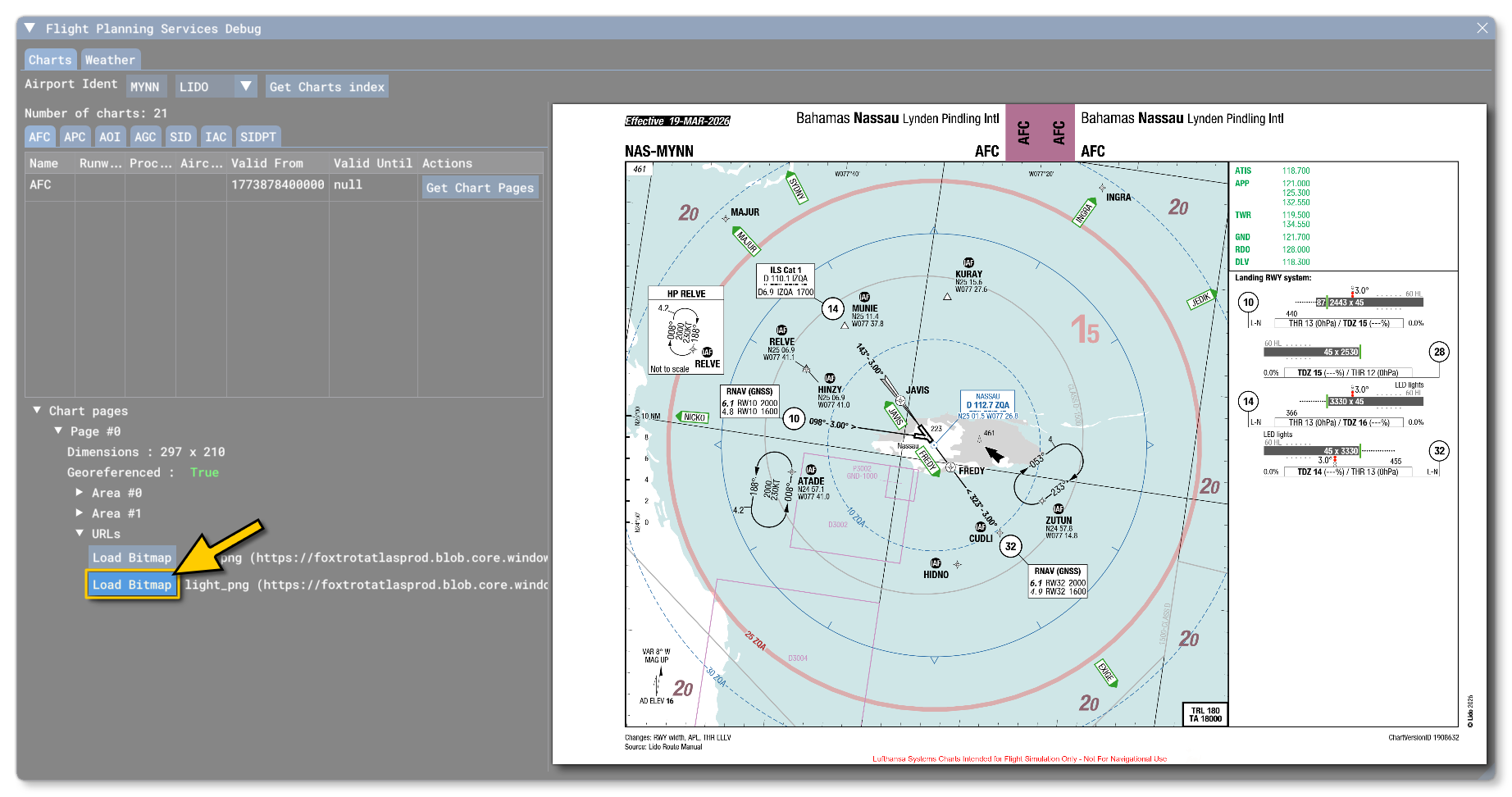
This section of a page lists the different URLs which can be used to get the charts. These will be given in brackets beside a Show Bitmap button, and clicking this button will load the chart page into the window for display:
Related Topics