THE SIMOBJECT STATISTICS PROFILER
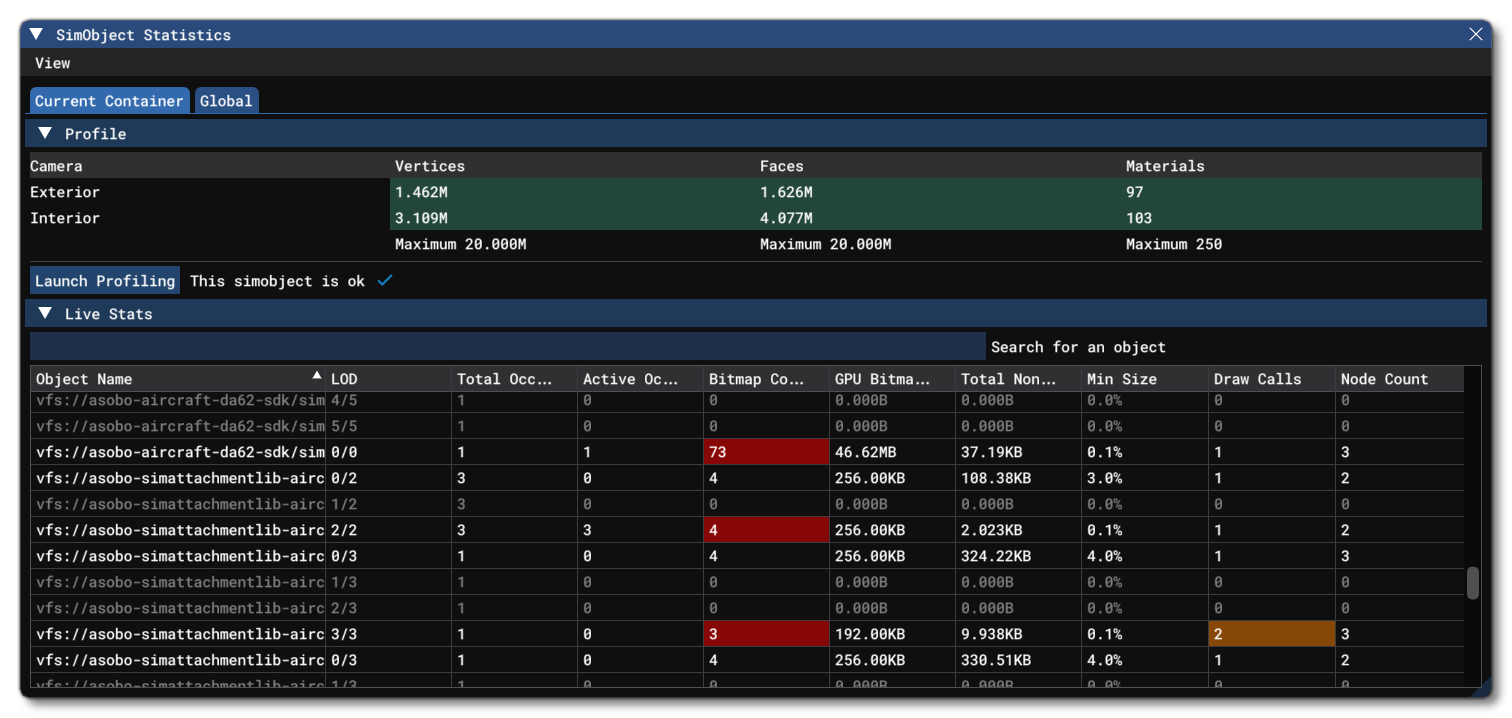
This window shows different statistics for the SimObjects in the simulation, primarily the currently selected object. This window is designed to help you optimise the models that you use for your SimObject add-ons, and the value rules on all the statistics are based directly on the information given on the following pages:
- General Principles
- Aircraft Modelling General Principles
- Cockpit And Cabin Modeling General Principles
NOTE: There is a similar tool available just for static scenery objects, which is explained here - The Scenery Statistics Profiler
View Menu
From the View menu you have a set of options that will affect what information is displayed and how it is displayed on the Current Container tab. These options are:
- Edit Columns: Clicking this button will open a menu where you may check or un-check the different statistics that are visible in the main window. Each available column is listed in the table below and will be coloured depending on how optimised it is in the scene (see the section on for more information).
Column Description LOD The LOD that correspond to this line of stats Total Occurrences The number of instances of this object in the scene (no matter which lod they're at) Active Occurrences The number of instances of the objects that are at this LOD (so it depends on the actual POV). Bitmap Count Number of textures used by this LOD. GPU Bitmap Size Size in memory of the sum of all the bitmaps for this LOD. Total Non-Texture Size Size in memory of the sum of everything that is not a texture for this LOD. Min Size This is the minimal screen percentage that the LOD must have to be displayed. For example, if 20 is shown here, then the LOD will only be loaded when the object occupies at least 20% of the screen space. Draw Calls The current number of draw calls for the LOD. Draw calls are influenced by the number of vertices and the number of materials that are associated with an object (although there may be other factors too). Static Vertex Count The number of vertices for the LOD. Static Face Count The number of faces (triangles) for the LOD. Skinned Vertex Count The number of skinned vertices for the LOD. Skinned vertices use more memory and GPU time than regular vertices. Skinned Face Count The number of skinned faces (triangles) for the LOD. Skinned faces use more memory and GPU time than regular faces. Collision Vertex Count The number of vertices used for collision for the LOD. Collision Face Count The number of faces used for collision for the LOD. Node Count The number of nodes for the LOD. This translates to objects such as meshes, dummies and helpers in 3Ds Max. Bone Count The number of nodes used as bones in skinned meshes. In Microsoft Flight Simulator 2024, this is the entire hierarchy of all the bones used by a skinned mesh, up to the last common ancestor (the "root" node of the skeleton). These bones cost memory in addition to the node they represent. Morph Target Count The number of morph targets for the node. Static Vertex Size Size in memory of the sum of the vertices for this LOD. Static Face Size Size in memory of the sum of the faces for this LOD. Skinned Vertex Size Size in memory of the sum of the skinned vertices for this LOD. Skinned Face Size Size in memory of the sum of the skinned face for this LOD. Collision Vertex Size Size in memory of the sum of the collision vertices for this LOD. Collision Face Size Size in memory of the sum of the collision faces for this LOD. Node Size Size in memory of the sum of the nodes for this LOD. Bone Size Size in memory of the sum of the bones for this LOD. Morph Target Size Size in memory of the sum of the morph targets for this LOD. Original Min Size The original "minSize" setting (as defined by the <LOD />element in the Model Definitions file)Max Draw Calls The maximum number of draw calls for the LOD. Draw calls are influenced by the number of vertices and the number of materials that are associated with an object (although there may be other factors too). Draw / MaxDraw Ration The ratio between the current draw calls and the maximum number of draw calls. Total Vertex Count The total number of vertices for the object. Max Vertex Count The maximum number of vertices for the object. Vertex / MaxVertex Ratio The ratio between the current number of vertices and the maximum number of vertices. Material Count The number of materials used by the model.
- Hide From List: From this sub-menu you can hide certain things from the Live Stats list. These options are as follows:
- Hide Geometryless Objects - This option (active by default) will hide all objects that have no geometry, the exact number is shown in brackets beside the option.
- Hide Errors - This option will remove any entries that have errors (this includes any unloaded LODs) from the live list.
- Hide Objects With No Active Occurence - This option hides any objects that are not active in the scene from the live list.
- Auto Resize Columns: This option will automatically resize all the visible columns within the window, attempting to give them all an adequate and equal width.
- Force all LOD loading: This option will force the statistics Profiler to load all LODs into memory. Disabling it again will attempt to return the simulation to the previous state and unload all unused LODs, however this may cause visual issues as LODs that should be visible may be removed. In those cases we recommend you restart the flight.
IMPORTANT! This option may have some impact on performance.
Current Container
The Current Container tab is the main part of the window and is where you can profile the currently selected aircraft. To use this tool, you should build and mount your SimObject package, and then start a free-flight with the SimObject selected. Once you have started the flight, you should wait a few seconds for the simulation to stabilise and then click on the Launch Profiling button. On doing this, the simulation will isolate the SimObject and start the profiling process, which consists of viewing the aircraft from the exterior and then again from the interior, recording the different metrics (listed below) for the SimObject efficiency.
When the profiling process is finished, the Profile section will show an overview of the most important metrics (Vertices, Face count and Materials) and the Live Stats will show the current stats for the different object parts as they are displayed in the simulation.
Profile
The profile section simply shows the most important metrics, and these (and the displayed maximums) are calculated based on the object as rendered in the simulation. As such, the values will include not just the static mesh, but also the generated shadow mesh, and the shown maximums are also based on the final rendering by the engine, not the vertex/face/material counts as shown in your modelling tool. The section is split into two parts, showing the values for the exterior camera and the interior camera so you can get an idea of how the SimObject will perform in the two main simulation views. The values are colour coded as well, where:
- Green = The object is well optimised for the simulation
- Orange = The object is passable and can be released/used, however further optimisations could be done as it's reaching the acceptable limits.
- Red = The object needs work and should not be released/distributed in this state as it requires further optimisations.
Note that you can also mouse over each of the different values to get a breakdown of what part of the value is the from the object and what part of the value is from the shadows (remember, not all parts of the object will cast shadows, but those that do will use approximately five times as many vertices/faces for the shadows).

Live Stats
The live stats section shows the statistics for each part of the object in real time, and will change based on the camera position and movement. In this view you can rotate the camera, and zoom it in/out to have the simulation switch LODs and get the stats for each part at different LOD levels. Like the profile section, the different stats are colour coded as follows:
- If the Object Name is grey, then that object LOD has not been loaded. This is most likely due to the camera position (only the current LOD is loaded based on camera POV). You can force all the LODs to be loaded using the Force All LOD loading option from the View menu, but note that this forcing all LODs to be loaded will have some impact on performance. It is safe to do it if you're only planning to get the statistics in this session.
- If any column is white, then that statistic is considered to be within respectable tolerances for the scene.
- If any column is orange, then that column is an edge-case value that should be examined to see if it can't be further optimised. If you hover the mouse over the statistic then you'll get a tooltip with more information:

- If any column is red then that column has a value that is considered to be inadequately optimised for the scene. If you hover the mouse over the statistic then you'll get a tooltip with more information:

Important Values
The following table shows the most important values to look at and what would be considered dangerous or edge case values (in orange) and what are bad values (in red):
| Column | Conditions | Dangerous / Edge Case | Bad |
|---|---|---|---|
| Bitmap Count | Based on the last LOD of the object. | 1 bitmap | > 1 bitmap |
| Min Size | Based on the second to last LOD. | minSize > 10 | Minsize > 11 |
| Based on the last LOD of the object. | minSIze > 1 | minSize > 1.1 | |
|
Draw Calls |
N/A | Draw Calls > Max. Draw Calls * 0.9 | Draw Calls > Max. Draw Dalls |
|
Node Count |
N/A | Node Count > Max Node Count * 0.9 | Node Count > Max Node Count |
|
Original Min Size |
Based on the second to last LOD. | minSize > 10 | minSize > 11 |
| Based on the last LOD of the object. | minSize > 11 | minSize > 1.1 | |
|
Draw/MaxDraw Ratio |
N/A | >= 90 | > 100 |
|
Total Vertex Count |
N/A | Vertex Count > Max Vertex Count * 0.9 | Total Vertex Count > Max Vertex Count |
| Vertex/MaxVertex Ratio | N/A | >= 90 | > 100 |
Global
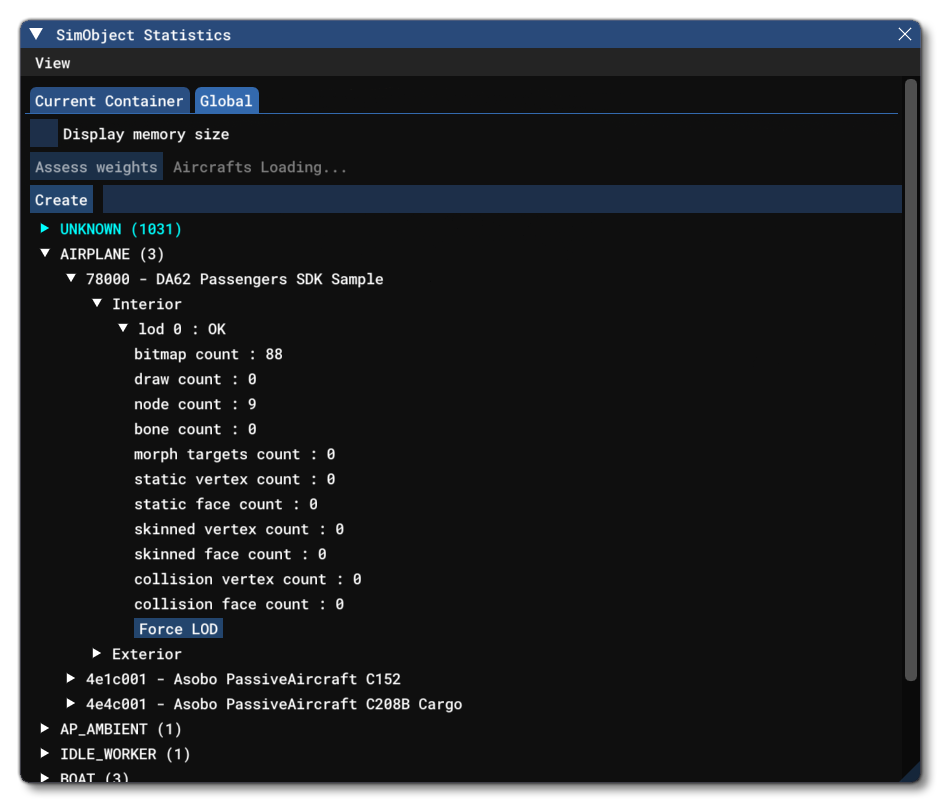
This window is designed so that you can quickly check the different statistics related to all the SimObject models currently loaded by the simulation, like bitmaps, vertices, nodes, etc... as well as see what impact these things are having on the memory usage. From the list of SimObject catregories, you can expand each one to see the different SimObjects that are contained within, and then further expand the objects to see details about their models, materials, LODs and how they are being rendered in the world.
The top of the window has an option to Display Memory Size which will change the details for each sim object to show the size in memory for some of the items rather than their count. You can then find a button labelled Created beside a text input field. Here you can input the name of a SimObject and then click the Create button to load it into the simulation as if it had been added to the world. The new SimObject will be added to the Unknown category, and you can then expand it to see the details for the object.
NOTE: This does not require you to have started a flight and can be done from the main menu of Microsoft Flight Simulator 2024. In this way you can quickly check how optimised an object is without having to go through the process of entering into the simulation.
The information for each SimObject is split into LOD sections, so you can check the details for each LOD independently and ensure that each one is as optimised as possible. Each LOD section can have three states:
- Ok: This LOD has been loaded and is in memory. When this is displayed, the information for the LOD will be shown when the LOD is expanded, and there will be a
Force LODbutton at the bottom. Clicking this button will force the SimObject to use the LOD settings, even though it may not be appropriate: - Loading: This LOD is currently loading.
- Not Loaded: This LOD has not been loaded into memory yet. For any LOD that is flagged as Not Loaded, you can click on it to expand it and then click the
Loadbutton to load the LOD into memory even though it's not currently required.
Related Topics