EXPORT WINDOW
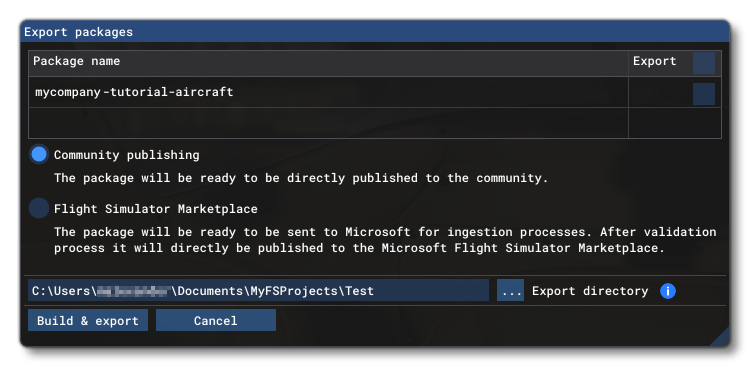
The export window allows to export all the packages in the current project. This window is opened when you select the Build & Export option from the Project menu. When you select this option the following window will open, giving you two different export options, both of which are explained in more detail below:
IMPORTANT! Once you have exported a package as a ZIP file, you should never modify the contents of this ZIP. This will break the exported package and should be avoided at all costs.
It should be noted that may of the textures used in your package will be compiled into *.ktx2 and *.ktx2p format files, and depending on the build target, these may or may not be viewable/editable using external tools, since packages built for ingestion into the Marketplace will use a proprietry KTX2 format. Please see here for more information:
Community Publishing
The Community Publishing option will create a ZIP file with all the built packages for the project. You simply need to select the packages that you want to export from the list at the top, then give an Export Directory to save this file to, and then finally click on the OK button for it to be created and placed in a Community folder in the given directory. This process will perform a Validation of the selected packages, but this validation is less strict and will not include any marketplace data. See the Validation section for more information.
Once the export process has finished, the resulting ZIP file can then be shared with friends and the larger Microsoft Flight Simulator 2024 community. For users to add the content to the simulator, they simply need to extract the zipped packages to The Community Folders of their installation.
Flight Simulator Marketplace
The Flight Simulator Marketplace option is for those users that wish to publish their add-on to the Marketplace that is available within Microsoft Flight Simulator 2024. Before using this option you should be a Microsoft partner developer, as explained here:
IMPORTANT! All aircraft that are uploaded to the Marketplace, must have been exported using Microsoft Flight Simulator 2024. Packages for previous versions cannot be uploaded to the 2024 marketplace (and vice versa: 2024 packages cannot be uploaded to the 2020 Marketplace).
If you are a recognised developer, then you upload projects here:
As with Community publishing, you need to specify an Export Directory for the exported packages to be saved to, and - when ready - you can click the OK button to build and export the packages.
Validation
Exporting a package will perform a package validation step, which will check the package contents for issues. Initially, when the export process has finished, you will be presented with a warning reminding you that editing Marketplace Packages after export may invalidate the package for ingestion to the Marketplace:

Having checked Read and Understood you can click OK and will then be taken to the Export Result window, which will show what - if any - issues your package may have:

This window will show the various validation errors that have been found when exporting, and if you have multiple packages in the exported project, each one will have its own section which can be expanded, and show the issues associated with the specific package in each. Once you have checked the errors, you can click on OK to close the window and then fix the issues in the Project Editor and try to export once again.
Once all errors have been fixed, the built packages will be saved to the Export Directory and you can then go ahead and submit them to the Marketplace, or share them with the community.
Error Rules
The table below shows the various rules, along with the possible warnings and errors that you can get:
| Rule | Error | Warning | Description | Marketplace Only |
|---|---|---|---|---|
| Validate Package Folder | X | - | Check if the package folder exists. | - |
| X | - | Check if the package folder name size is less than 128 characters. | - | |
| X | - | Check if the package folder name is in the form "aaa-bbb-...-xxx". | - | |
| Validate Package Manifest | X | - | Check if manifest.json can be parsed with no errors. |
- |
| X | - | Check that the export type is correct. | ||
| X | - | Check if the package order hint is valid. | - | |
| - | X | Check if the order hint is 3rd party allowed. | - | |
| Validate Package Layout | X | - | Check if layout.json can be parsed with no errors. | - |
| X | - | Check all files in the package folder are listed in the layout (there is no unlisted file). | - | |
| X | - | Check all entries in the layout are existing files and with a correct filesize. | - | |
| X | - | Check if there is any .exe, .dll, .bat, .cmd. |
||
| X | - | Ensure the file manifest.json is not listed. |
- | |
| Validate Content Info | X | - | Check the thumbnail file size is correct | - |
| Validate CFG files | - | X | Check all .cfg files with their corresponding filedef. |
- |
| Validate SimObjects | - | X | For all airplanes SimObjects, check their preset cfgs file (fully merged) with the filedefs. | - |
| Validate GLTFs | - | X | Check uri fields are relative paths. | - |
| Validate BGL files | X | - | Check all .bgl files don’t have packed 64bits QMIDS | - |
| Validate Texture files | X | - | Check all .dds files have an associated .json file. |
- |
| Validate Wasm files | X | - | Check the wasm files are built in release. |
Marketplace Requirements
When it comes time to upload the package to the Marketplace, you will need to provide certain assets. These will be displayed along with the package on various pages and sections where it is listed, as well as within various section of the simulator itself. The rules for these assets are as follows:
- The package must have been exported using Microsoft Flight Simulator 2024.
- Each product listing can have a maximum of 80 files, maximum, between all the images and videos.
- The combined size of all uploaded assets cannot exceed 1GB total.
- You can only upload 2 videos per product listing.
- Each individual file has a maximum file size of 500MB.
- All images should be in JPEG format, and follow these size rules:
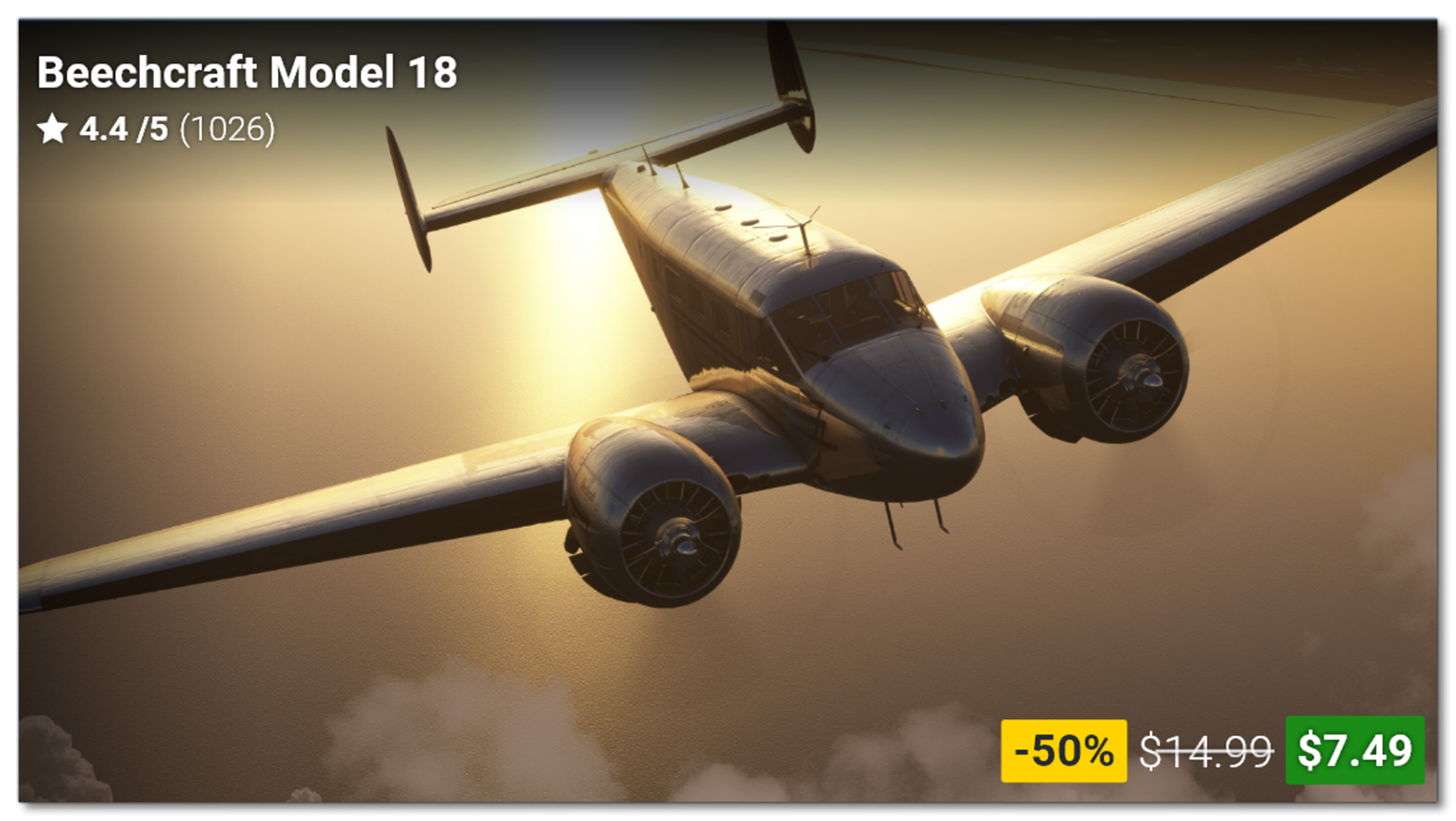
- Marketplace Thumbnail ideal size: 1520x840px (1 thumbnail image only required)
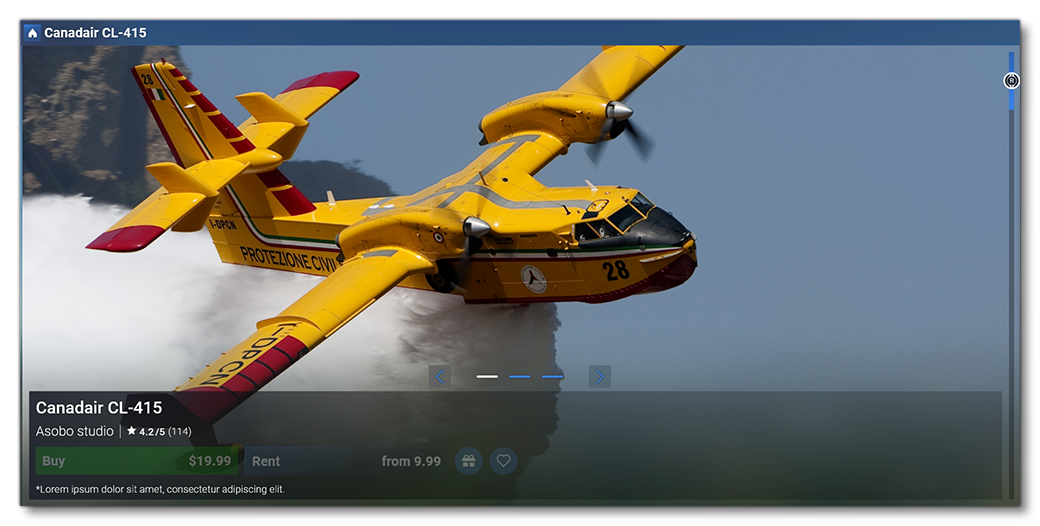
- Product Page Carrousel ideal size: 3580x1720px
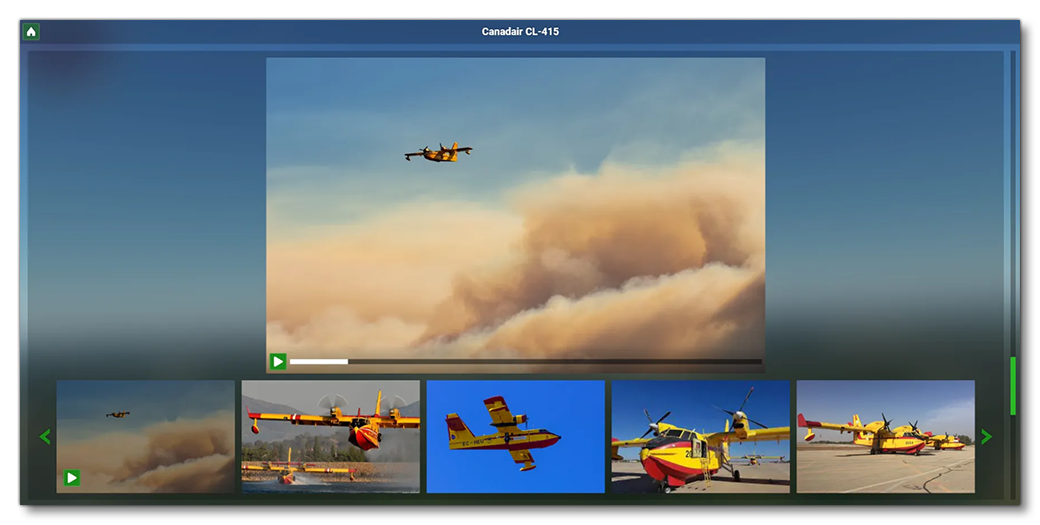
- Media Viewer Carrousel ideal size: 1760x1120px (this is the same for videos and images)
- Livery Carrousel ideal size: 600x320px

- MyLibrary Thumbnail ideal size: 360x200px (1 thumbnail image only required)

- Marketplace Thumbnail ideal size: 1520x840px (1 thumbnail image only required)
- Note that all images will be automatically adjusted to the appropriate display size, but you should aim to provide the images at the recommended sizes given above for optimal performance and quality.
- There is no hard character limit in the simulation for descriptive text, however the Marketplace may impose one. The general recommendation is to keep all text as concise as possible.