INPUTS
IMPORTANT! This page is a work in progress, and it's possible this tab will be getting removed in future updates. You should edit the actionDb and remapDB through the Input Profile Editor if required.
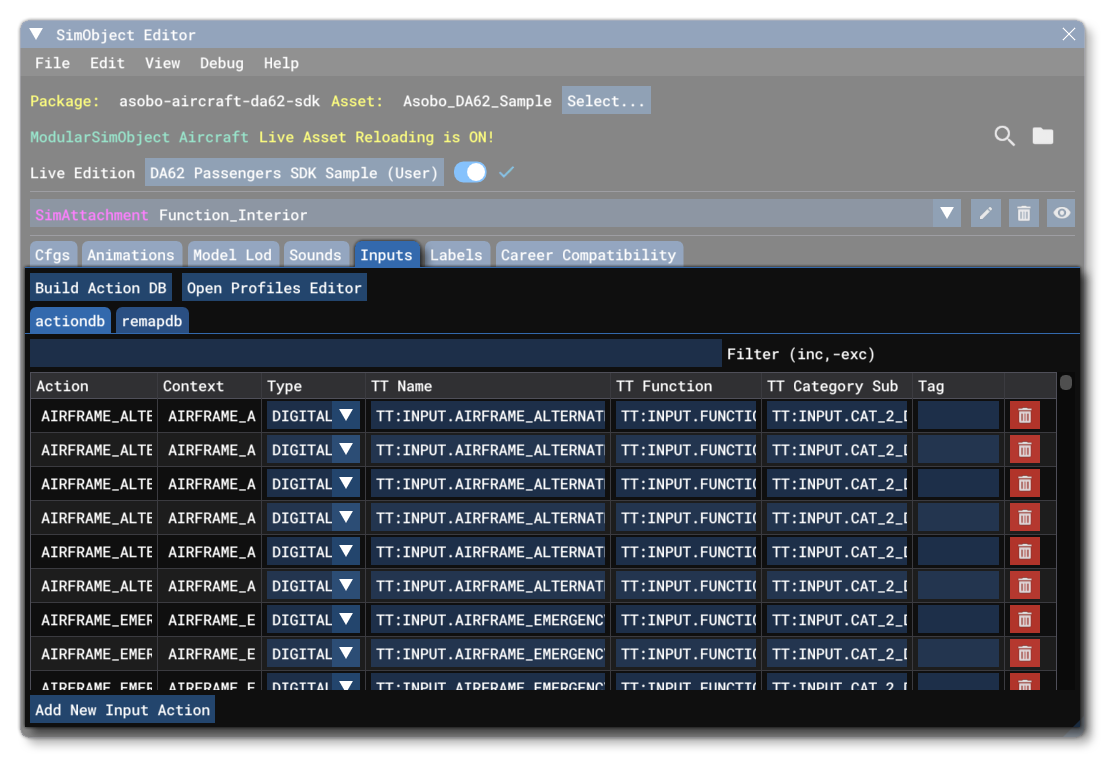
The Inputs tab is where you can see and edit the different input actions that have been defined for the currently selected modular node. In general, you will have no need to use this tab until after you have created one or more Aircraft Specific Input Profile, and it will be blank until that happens. However, once you have a profile in the selected node (common, attachment, or preset), there will be information available in both of the tabs shown.
The two buttons at the top of this tab are as follows:
Build ActionDB- This will parse the model behaviour files for the modular node and add any inputs into the*.actiondbfile so they can be edited. In general you don't need to use this, as it's better to go through the ActionDB creation process using the Input Profile Editor.Open Profile Editor- Clicking this button will open the Input Profile Editor.
ActionDB Tab
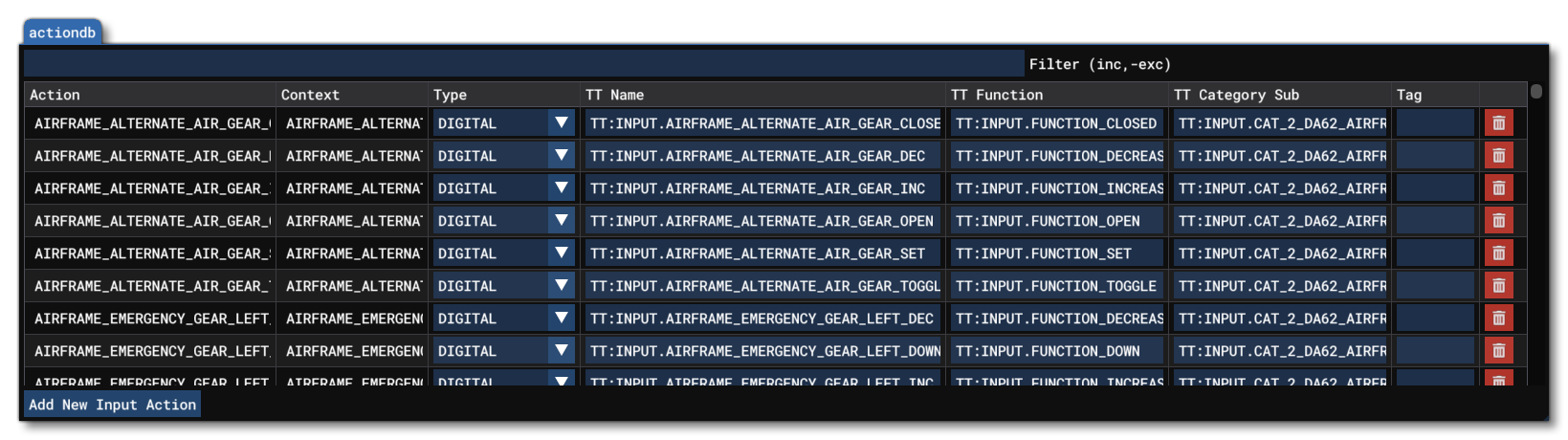
This tab shows the contents of the intermediary *.actiondb file which is used to generate the final Input Configuration XML used by the aircraft package. From the tab you can edit some, but not all, of the properties in this file using the table of inputs. This table can be filtered using the Filter option at the top, and has the following columns:
- Action - This is a read only field displaying the action name, as extracted from the aircraft Model Behaviors for the selected modular node.
- Context - This is a read only field displaying the Context for the action.
- Type - This is the type flag of the action, which can be edited. For the full list of type flags, please see here: The Input Profile Editor - Type.
- TT Name - This is used to define a localized string ID for the action name. If you have a *.loc file then you can use the
TT:[string]format, otherwise the name should be given in English. - TT Function - This is used to define a localized string that describes the action. If you have a *.loc file then you can use the
TT:[string]format, otherwise the description should be given in English. - TT Category Sub -
- Tag - This is used to define a localized tag string. These tag strings are used to tell the simulation that certain inputs should be shown within certain menus and UI elements. The available tags are as follows:
- wip
- obsolete
- debug
- Delete - This will delete the action from the DB file.
RemapDB Tab
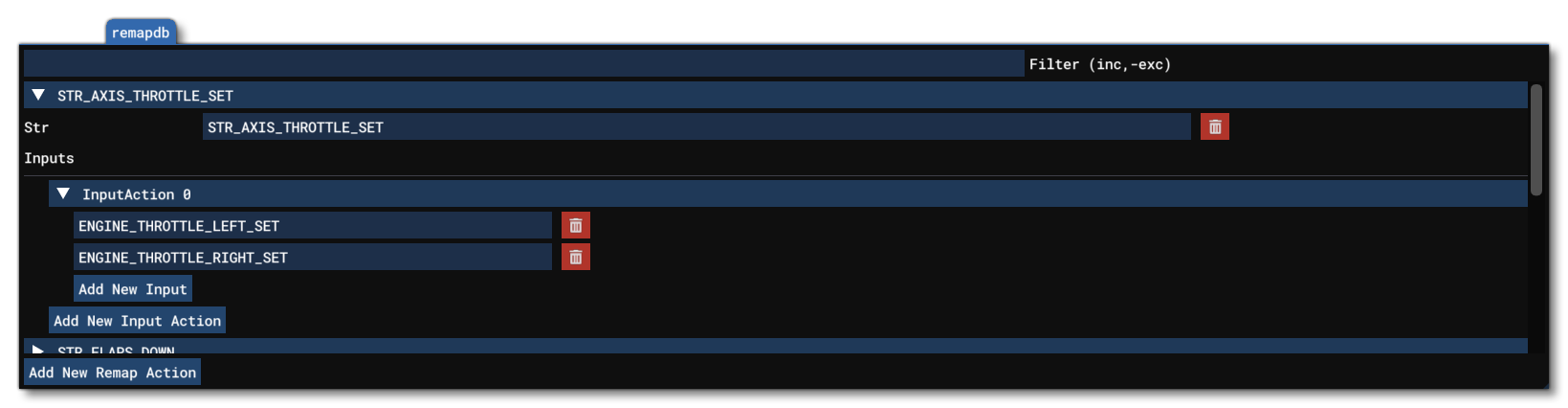
This tab shows the contents of the intermediary *.remapdb file which is used to generate the final Input Configuration XML used by the aircraft package. The idea here is that some UI strings that are shown to the user will be localised to show the device input for the situation or a localised string. However, it may be that you have changed this from the default, or the device you're setting up the profile for is not one that is included in the simulation. As such you can select from one of these built-in UI strings, and then associate it with one (or more) of the inputs from your profile, so that the input MergeIcon or name string will be shown instead of the default.
The first thing you have here is the UI String that you wish to associate with one or more inputs. This is selected from the Str menu at the top. You can then click the Add New Input Action button to add an action. Within this input action you then click Add New Input to select the model behaviour input to associate. The general rules are as follows:
- If an Input Action has two or more behaviour inputs associated with it, then they will all need to be used. For example:
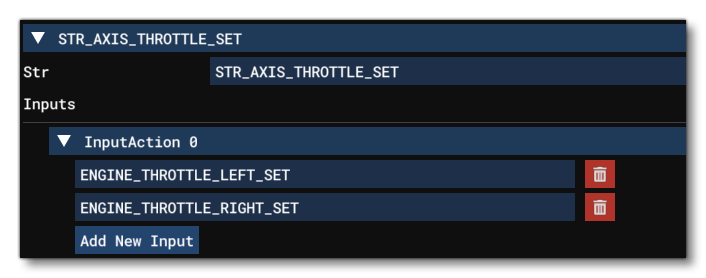 Here, we are remapping the "STR_AXIS_THROTTLE_SET" to the behaviour actions "ENGINE_THROTTLE_LEFT_SET" and "ENGINE_THROTTLE_RIGHT_SET", such that both will be required when this prompt is used.
- If you have one or more input actions then only one of them needs to be used. For example:
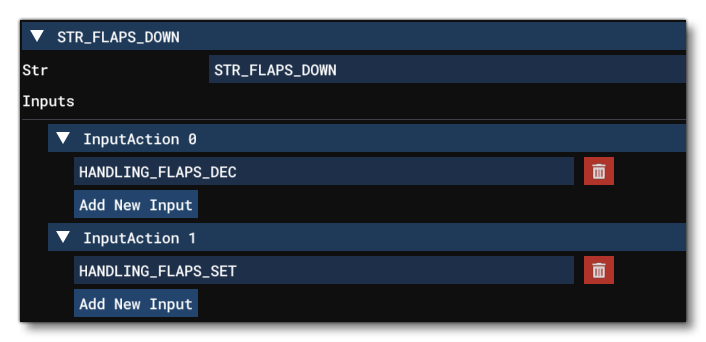 Here "STR_FLAPS_DOWN" is remapped to accept input if either of the "HANDLING_FLAPS_DEC" or "HANDLING_FLAPS_SET" actions is used.
Note that you can mix and match these as required so that certain UI strings are associated with Input1 and input2 or input3 or input4, etc...
To further explain how this works, if the game has to display an input action UI string, it will look at every set of possible input actions - in the order in which they were added - and then display the mapping of the first set that it detects in the user profile. If it doesn't find any action mapped to the UI string, it will display a default localised tring instead. To give a schematic example, say you have remapped a UI string to actions A, B and C like this:
STR = [A and B] or C
If the user only has action C mapped to their profile, then the UI will display the MergeIcon (or name string) of the input mapped to action C. However if the user has all three (A, B, and C) mapped to their profile, the UI will display the MergeIcon (or name strings) for the inputs of [A and B]. If the user only has B and C mapped, then C would be used.
Related Topics