EDITED LIVERIES
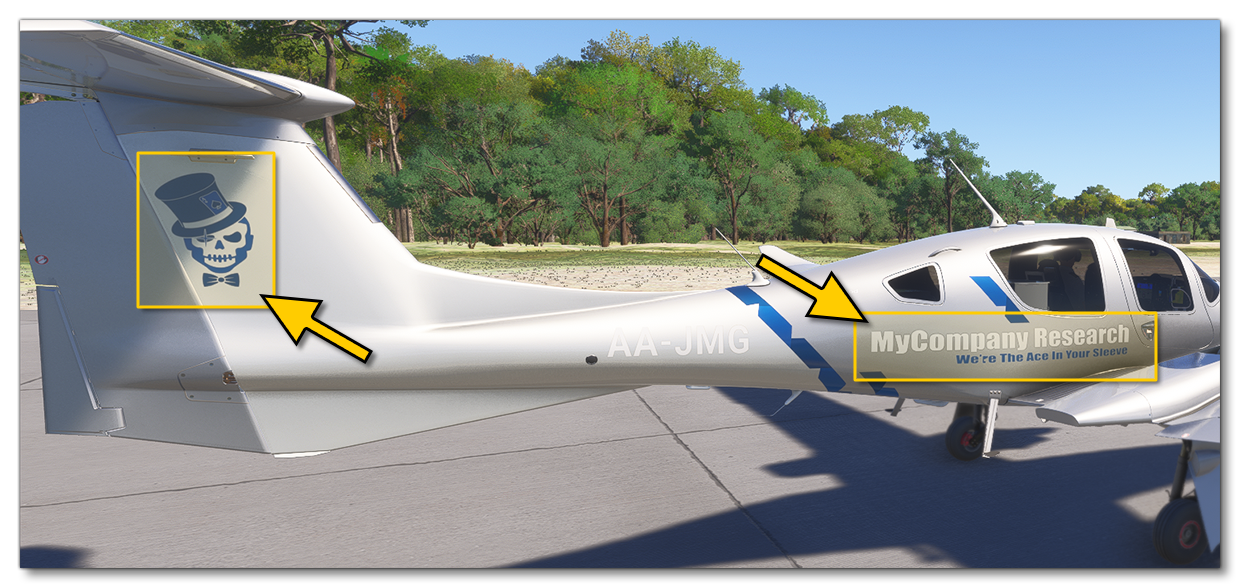
An Edited Livery is one that has been copied from an existing aircraft and then edited, usually to generate a custom company livery or a brand livery or something else that you want to be shown on all appropriate aircraft. The concept here is simple:
- Select an aircraft.
- Copy a livery from the aircraft.
- Edit the livery textures and/or models.
- Repeat for all other aircraft.
It should be noted that some aircraft liveries have glTF and textures, some have only textures or only glTF, and others may have neither, since Microsoft Flight Simulator 2024 has adaptive liveries which are setup through the livery.cfg. So the exact files that you get when you create an edited livery package will depend on the "base" livery that is chosen to edit.
For information on the other livery types, please see the following pages:
Creating A Livery Package
We'll start the creation of an edited livery package by opening The Project Editor and creating a new project:
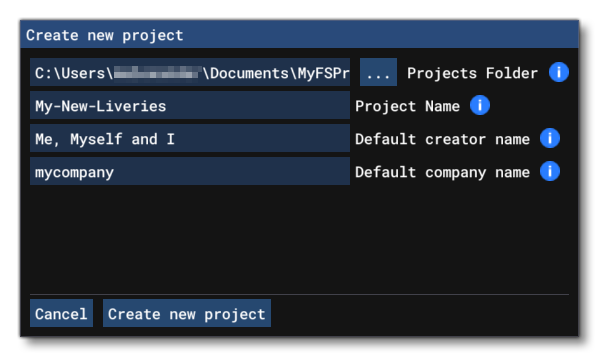
When you click the Create A New Project button and select Package, the package wizard will open where you should select the Livery package type and fill in the relevant details:

On clicking Next, you will be presented with the following window:

This window presents you with the following options:
- Modular SimObject - From here you can choose whether you wish to edit the livery for a modular SimObject or not. This will affect the SimObjects available in the list for selection.
- Categories - This is a drop-down menu where you can select what type of SimObject you want to edit the livery of, either and Airplane, a helicopter, a boat, a ground vehicle, or a Hot Air Balloon.
- Filter SimObjects - When multiple SimObjects are shown in the list, you can use this input box to add a filter to quickly find the one you need.
- SimObjects - This is the list of applicable SimObjects that can have liveries to edit, based on the category and the filter.
- Filter Liveries - When multiple liveries are shown in the list, you can use this input box to add a filter to quickly find the one you need.
- Liveries - This is the list of applicable liveries for the selected SimObject, based on the SimObject selected and the filter.
- Livery Name - Here you can give a name to the livery you are going to be editing.
- Asset Group Name - Here you can give the name of the asset-group that is being created for the livery.
When ready, you can then click on the Create Livery button to begin the creation of the livery package for editing. When finished, all the assets will be in the various Asset Directories and can then be edited as required.
Additional Liveries
When it comes to creating additional liveries in the package, the general recommendation is as follows:
- If you are creating an additional livery for the same aircraft, then you can simply add a new asset group to the package. This is done by selecting the package in the Project Editor, and then clicking the
Add Asset Groupbutton at the bottom, and repeating the steps outlined above.

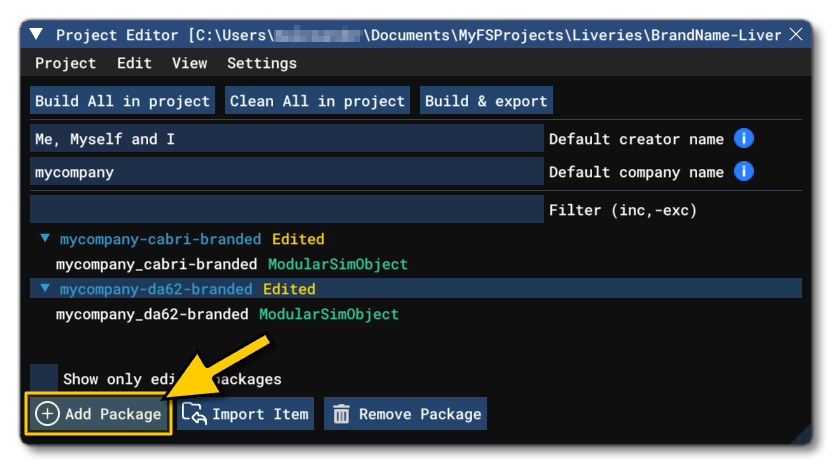
- If you are creating an additional livery (or liveries) for another aircraft, then you should create a new package within the project. This is done by simply clicking the Add Package button in the Project Editor and then repeating all the actions listed in the section above:
Asset Directories
After you have created your livery for editing, you can find the livery assets in the Package Sources folder. You can find this folder by using the project inspector:

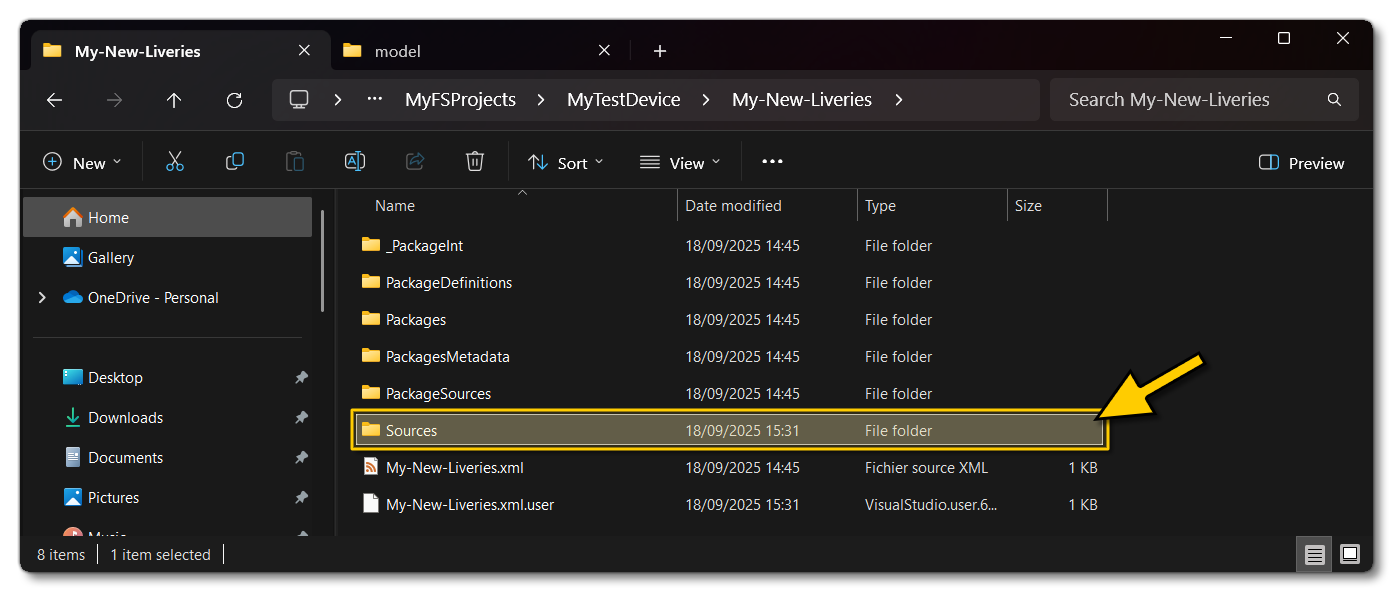
All the files relevant to the livery can be found here, and you can edit them as required. However, there is another folder created in the package containing additional files which you'll need. This is the Sources folder, which contains the base models for the aircraft. This can be found in the same location as the Package Sources folder:
If the livery has glTF files, then you will need to import the aircraft model first from the Sources folder, then the livery model, and if the aircraft is modular, then you will need to edit each of the livery parts separately. This is because you can't change the number of parts in the livery for an existing aircraft, and all the glTF have been exported with the root node at (0, 0, 0), meaning you can't easily "reconstruct" the aircraft, edit all the livery parts at once, then export them. It is much easier to edit the parts individually, without any kind of translation or rotation of the root.
Note that when importing the base model glTF into your modelling software, the textures may have issues. This is because the glTF is referencing a texture that is stored elsewhere in the VFS and thus hasn't been exported to the Sources folder. You can, if required, retrieve the textures you need using the VFS Projector, and then re-target them in your modelling software. However, since you are editing the liveries and not the base model, the lack of proper textures isn't usually an issue.
Testing The Livery
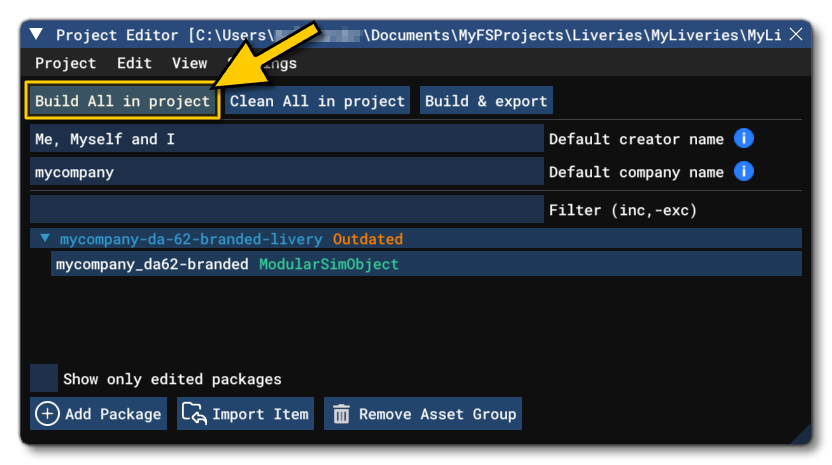
Once you have made some edits to your livery package, you'll want to see how it looks in the simulation. For that you simply need to build the package by clicking the Build All In Project button in the Project Editor:
Once you've built the package, your livery (or liveries) should then be available in the simulation UI (they will be added to the list, ordered as "Official" > "Default" > all other liveries in alphabetical order):
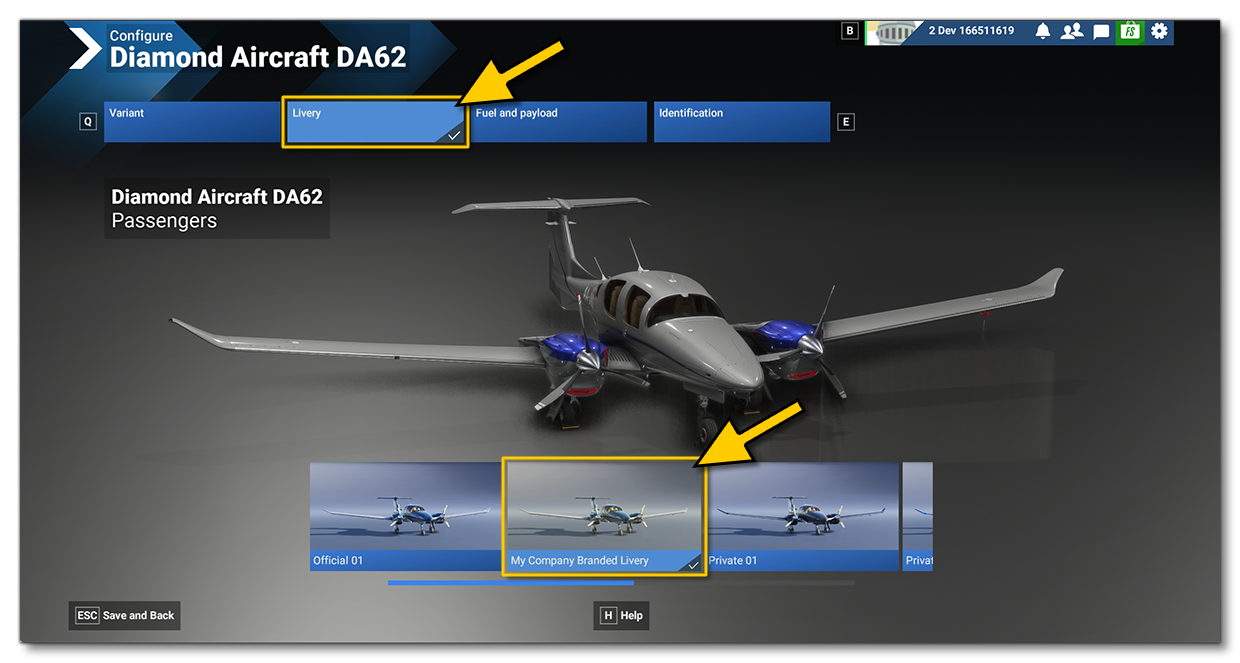
You can then select it and start a flight to be able to see how it looks properly when it's being flown, as shown in the image below: