CONVERT A MSFS2020 SCENE TO MSFS2024
The Blender and 3DS Max plugins have been updated for Microsoft Flight Simulator 2024. Any scenes that were created for MSFS 2020 with previous versions of the plugins will need to be updated using the new plugin so that when the scene is imported into the simulation there are no issues. This document gives you the steps required to correctly co-install the plugins and also update your scenes so that they are compatible with Microsoft Flight Simulator 2024.
IMPORTANT! We strongly recommend that you make backups of all your Scenes before updating them for MSFS 2024. Once a scene has been updated to use the new version of the plugin it cannot be reverted.
With blender you can have both the MSFS 2020 and MSFS 2024 installed at the same time, however you can only have one enabled at any given time. This is important as they will conflict with each other and you can't upgrade 2020 scenes for 2024 while both are enabled. The upgrade process is as follows:
- Save your scene with ONLY the MSFS 2020 plugin enabled.
- Disable the MSFS 2020 and enable the MSFS 2024 plugin, then restart blender. This can be done from the Blender Preferences:
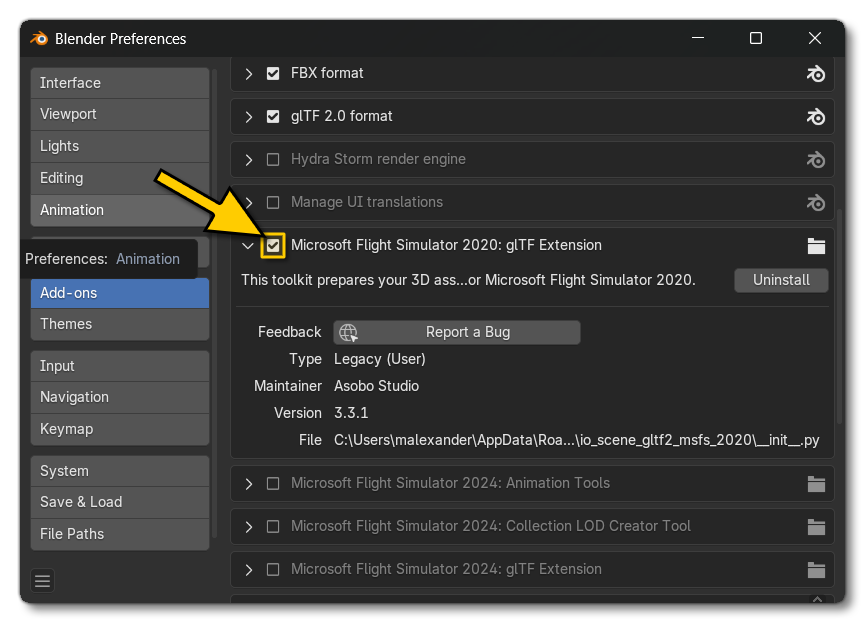
- Open the MSFS 2020 scene that you want to upgrade.
- Go to the Preferences and then enable the MSFS 2024 plugins:
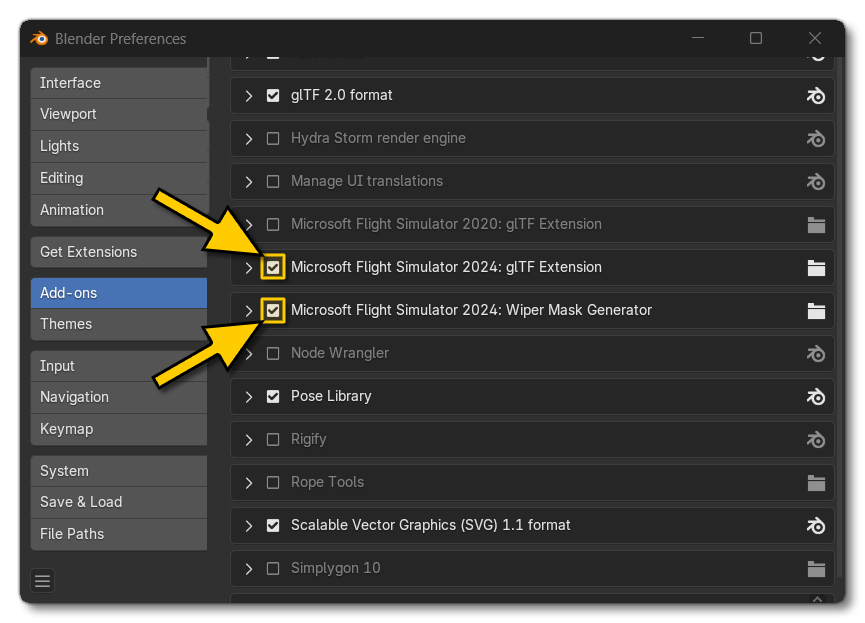
- The final step is to go to the Layouts section, and then select the Convert Scene To MSFS2024 option from the MSFS2024 Menu:
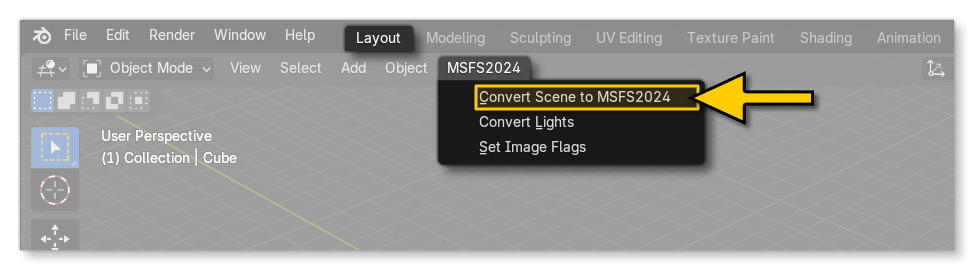
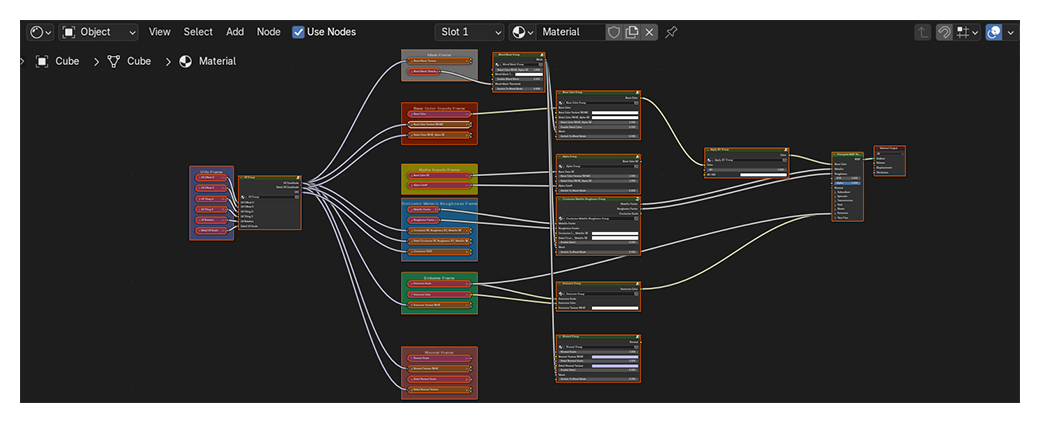
You will be asked to confirm your choice, and after clicking Ok, the scene will have been converted for Microsoft Flight Simulator 2024. Note that the conversion primarily affects lights and materials. For example, the image below shows the shader setup for the MSFS 2020 standard material, and if you mouse over it you can see it after it's been converted for MSFS 2024:
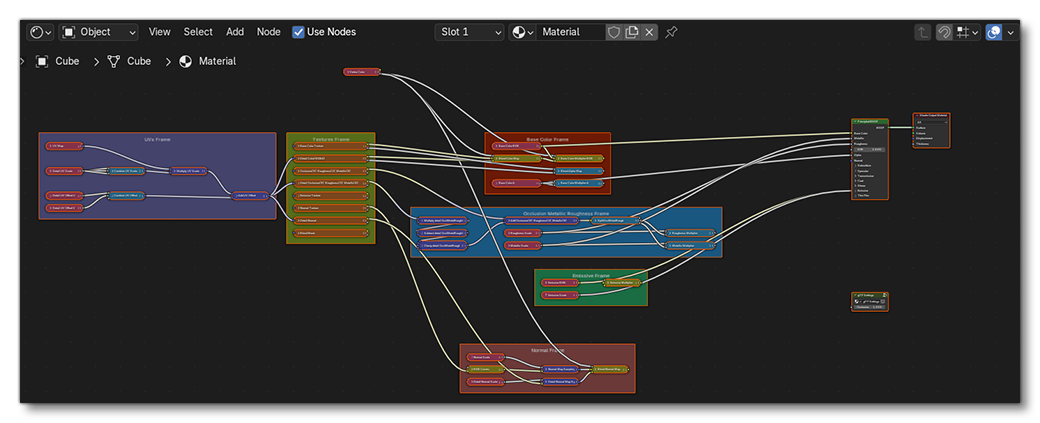
Once the conversion is complete you can then save the scene using a different name, and repeat the process for all the scenes that you want to update. If you wish to know exactly what has been converted please see Addendum: Conversion Objects.
From this point on, when you wish to work on a 2020 scene, you should disable the MSFS 2024 plugin, and when you want to work on a 2024 scene you should disable the MSFS 2020 plugin.
With 3DS Max you can have both the MSFS 2020 and the MSFS 2024 plugins installed at the same time without issues. However you should never mix them in a single scene - for example, you can't use MSFS 2024 materials with MSFS 2020 lights - otherwise you will have issues on export and on rendering thew glTF in the simulation.
If you wish to upgrade a scene to be used in Microsoft Flight Simulator 2024 you should follow these steps:
- Open the scene you wish to convert in 3DS Max.
- Save it to a safe location before doing the conversion.
- Go to the MSFS 2024 menu and select the Convert 3DS Max Scene To MSFS2024.

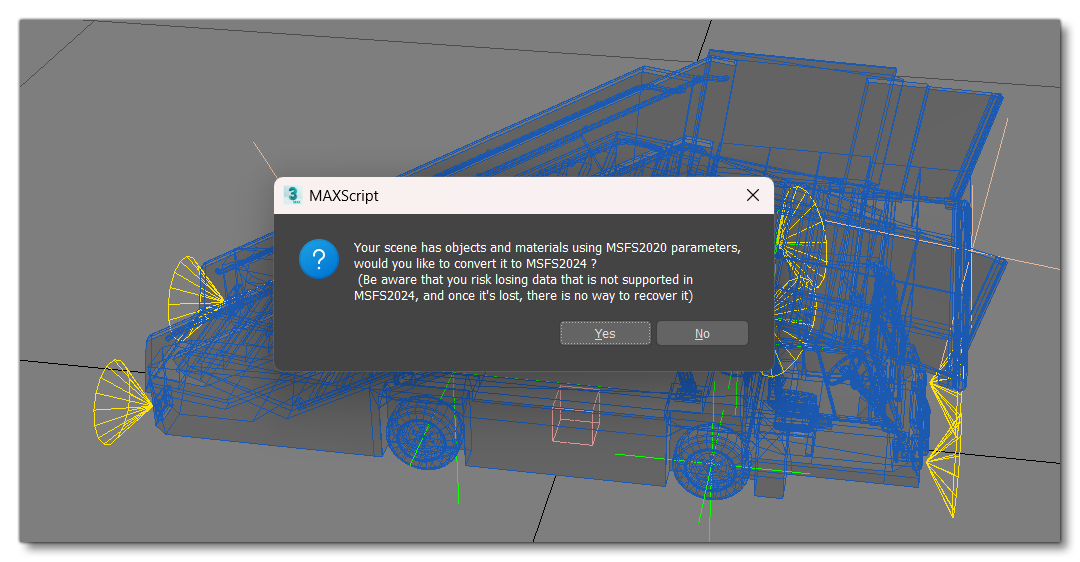
- You will be shown the following warning, since this option cannot be undone, and you should click on
Yesto continue:
Once the conversion is complete you can then save the scene using a different name, and repeat the process for all the scenes that you want to update. If you wish to know exactly what has been converted please see Addendum: Conversion Objects.
From this point on, when working on your projects, you must not "mix and match" elements from both plugins. Use only the "MSFS2024" tools and materials for Microsoft Flight Simulator 2024 projects, and use only "MSFS2020" tools and materials for Microsoft Flight Simulator 2020 projects.
Addendum: Conversion Objects
The following is a list of exactly what objects are being converted when updating a project from the MSFS 2020 SDK plugin to the MSFS 2024 plugin:
- FlightSim 2020 Material -> MSFS2024_Material ("Microsoft Flight Simulator 2024" Material)
- AsoboBoxGizmo ("Box Gizmo") -> MSFS2024BoxGizmo
- AsoboCylinderGizmo ("Cylinder Gizmo") -> MSFS2024CylinderGizmo ("Cylinder Gizmo")
- FlightSimFastLight ("FlightSim Fast Light") -> MSFS2024FastLight ("Fast Light")
- FlightSimAdvancedLight ("FlightSim Advanced Light") -> MSFS2024AdvancedLight ("Advanced Light")
- FlightSimSkyPortal ("FlightSim Sky Portal") -> MSFS2024SkyPortal ("Sky Portal")
- ProjectedDecal ("Proj Decal") -> MSFS2024ProjectedDecal ("Projected Decal")
- AsoboSphereGizmo ("Sphere Gizmo") -> MSFS2024SphereGizmo ("Sphere Gizmo")
- AsoboSphereBoundingVolumeGizmo ("Sphere Gizmo Bounding Volume") -> MSFS2024SphereBoundingVolumeGizmo ("Sphere Gizmo Bounding Volume")
- SphereFade ("Sphere Fade") -> MSFS2024SphereFade ("Sphere Fade")