MSFS2024 UTILITIES
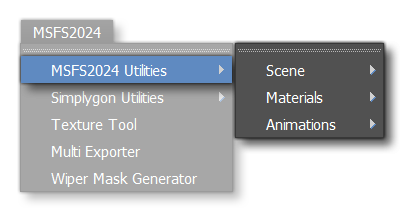
From this menu you have access to some additional utilities to help you create your Microsoft Flight Simulator 2024 assets. These are available from the sub-menus listed below.
Scene
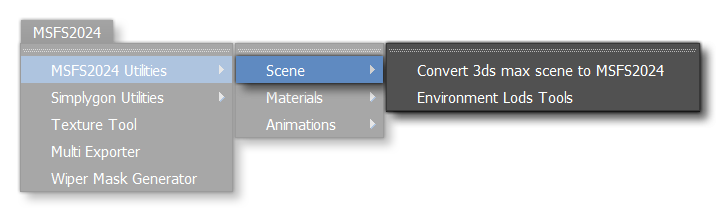
-
Convert 3DS Max Scene To MSFS2024
By default, on opening a scene created using the MSFS 2020 plug in, you will be prompted to upgrade it for MSFS 2024. However, it may be that you want to edit the scene first, and then upgrade, in which case you would make the editions and then select this option to complete the update process. For more information, please see here: Convert A MSFS2020 Scene To MSFS2024
IMPORTANT! This option requires that both the 2020 and 2024 plugins are installed. If only one of them is installed you cannot use this option.
-
Environment LODs Tools
This option will open the environment LODs toolbox where you have the following options:
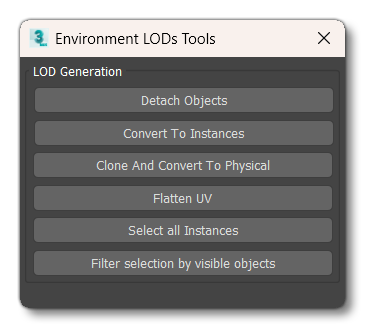
- Detach Objects - When used, this will un-parent the selected objects.
- Convert To Instances - When used, this will make instances from the selected meshes.Note that the mesh should have the pivot at it's center, otherwise it will be moved when this button is used.
- Clone And Convert To Physical - This will clone a material and then convert it to a PBR material.
- Flatten UV - This will simply flatten the geometry of the currently selected object(s) into UV space.
- Select All Instances - Selects all the instances in a mesh.
- Filter Selection By Visible Objects - Filters the current selection by visible objects only.
Materials
-
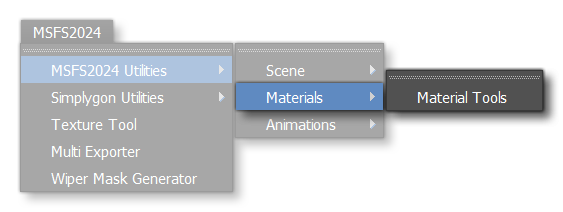
Material Tools
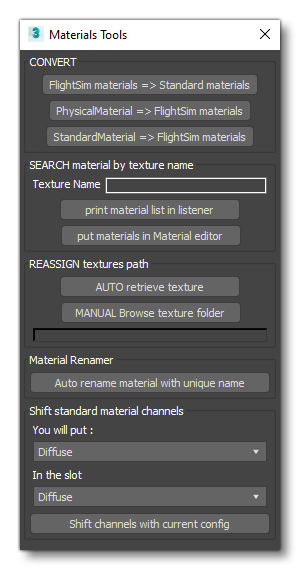
This option will open the material tools window. You can find more information on the following page: Material Tools
Animations
-
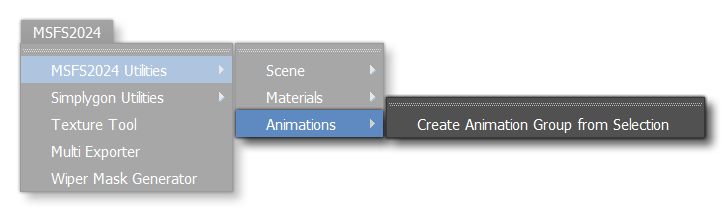
Create Animation Group From Selection
This option will create a new animation group based on the currently selected objects. See here for more information: Animation Groups
0/255