AIR TRAFFIC
Most of the living world traffic (aircraft, ground vehicles, boats and people) is controlled automatically by the simulation and you only have a very limited say in what get's spawned and where by setting the biome/living world XML file. However, there are still some important things to be aware of when setting up an aircraft to ensure that it can (or cannot) be used by the various AI or multiplayer systems, which are all listed in the sections below.
AI Aircraft
There are 3 types of AI aircraft in the simulation: Live Air Traffic, Offline Air Traffic, and Parked Aircraft. The first two are mutually exclusive and can takeoff, land, and fly in the air, while the last one stays on the ground.
Offline Air Traffic
Offline aircraft are governed by an internal system that has a list of specific aircraft models and their schedules. They can fly from airport to airport before resting and then flying again, as if they were actual real-world aircraft. The actual schedules that these offline aircraft use are based on actual flight frequencies and real world data, so they behave almost as if the flights had an actual "live" schedule. This means that even if the user changes the time in the simulation, these aircraft will have their schedule updated to match.
The model used for the aircraft depend on the installed add-ons and the settings for the simulation itself. Depending on these and other factors generic aircraft may be spawned, or special low-poly optimised aircraft, or even a limited variety of aircraft. Note that this is also true for both parked aircraft and live air traffic.
Parked Aircraft
Parked Aircraft is a system that generates a number of aircraft in each airport, in order to avoid a feel of "emptiness" that was present in the airports of previous versions of the simulation. This also helps the Air Traffic system to avoid having aircraft appear "out of thin air" in the airport before taking off.
When getting close enough to an airport, each unoccupied parking of the airport tries to generate a parked aircraft with a probability determined by GeneralSettings ParkedAircraftsQuantityByParking rate multiplied by the Ground Aircraft Density (found in the in-sim Options of Microsoft Flight Simulator 2024). The model of aircraft is chosen with multiple criteria, such as:
- preferred parking type
- company
- manufacturer (if the parking has such requirements)
- radius of the parking.
The aircraft chosen will always have a wingspan smaller or equal to the diameter of the parking. Depending on the GoodToBadMatchRate attribute, aircraft that have a wingspan closest to the parking diameter might have higher chances of being chosen (parking spot definitions are discussed here: <TaxiwayParking />).
If an Air Traffic aircraft should be created at an airport - due to a Takeoff happening soon, for example - the system first tries to find a Parked Aircraft of the same model. If such a Parked Aircraft is found, the plane leaves the Parked system, and becomes part of the Air Traffic system, otherwise a proper aircraft is created.
To give even more life to an airport, Parked Aircraft might randomly use some of the services available around them from time to time. See the <SleepingActivities> of the Airport Services xml for more details.
If an aircraft (User or AirTraffic) lands and requires a parking spot, but all spots are currently occupied due to Parked Aircraft - and no ambient vehicle is occupying a relevant parking - then a Parked Aircraft is destroyed (removed form the sim world) to make some room for the new aircraft. Ambient vehicles are prioritized for this kind of destruction, when possible.
Live Air Traffic
Live air traffic aircraft receive real-time data from actual aircraft that are flying in the world. This data is used to position them in the world, however it should be noted that this is an approximation only, and may not be totally accurate, especially as the aircraft nears the ground or flies very low.
Essentially this means that live air traffic has two states:
- During the "data" state, movement of the aircraft is dictated by the data received by the simulation. In this state the simulation does not actually move the aircraft, but simply updates it's position based on incoming data (obviously with a certain amount of interpolation to "smooth" the flight of the aircraft). The only thing the simulation controls in this state are the lights.
- During the "AI" state, the simulation takes over and will ignore incoming data in favour of letting the AI deal with the aircraft. This state is used mainly for, taxiing, takeoff, and landing. Even though this AI control does not match the real-world state of the aircraft, it is required to maintain order and consistency within the simulated world with regards to ATC instructions and possible conflicts with other elements, including user aircraft.
The switches between the two states happen as follows:
- The switch from "AI" to "data" happens after the entire takeoff procedure is finished, with the intention being to time things correctly to match the live data position.
- The switch from "data" to "AI" happens either when the in-simulation ATC gives the aircraft landing clearance, or when the incoming data makes the aircraft move dangerously close to the ground.
Note that, since the "AI" state requires ATC communication, the simulation needs to have information about the destination for the aircraft in order to create a flight-plan. Any aircraft data received without any destination is discarded, and the corresponding aircraft is not spawned.
Finally, note that - under the right conditions - live air traffic aircraft may not actually be created, but instead the simulation will take over a parked aircraft that happens to be the correct model in the correct airport at the correct time. This is done to avoid aircraft "popping" into existence and maintain immersion.
Air Traffic And The Aircraft.cfg File
This section outlines the parameters in the aircraft.cfg file that are required for custom aircraft to be used (or not) as air traffic.
Setting either the isAirTraffic or the canBeUsedByAITraffic flags to TRUE (1) allows the game to use that variation of an aircraft as a parked (grounded) passive aircraft, and potentially as a part of the "Real Online" air traffic. However, note that if a plane variation is marked as isAirTraffic, it should be an optimized variation with a lower level of detail, and therefore it should also be flagged using the isUserSelectable parameter as "isUserSelectable=0". The following rules apply to these two parameters for air traffic:
- an aircraft with
canBeUsedByAITraffic=1andisAirTraffic=1will appear in the game as parked aircraft - depending on parking spot compatibility like wingspan - if the user sets the traffic type to "Real Online" in the Microsoft Flight Simulator 2024 options. These aircraft will be preferred over aircraft flagged withisAirTraffic=0. - an aircraft with
canBeUsedByAITraffic=1andisAirTraffic=0is the same as above, except that the aircraft will only be used when the "Use Only Generic" option is switched OFF by the user in the Microsoft Flight Simulator 2024 options. - an aircraft with
canBeUsedByAITraffic=0andisAirTraffic=1will not be used by parked aircraft or AI offline air traffic, and can only be used by real-time online air traffic (but only if the corresponding aircraft actually flies in real life) and only if multiplayer (ie: some other player uses a corresponding aircraft). - an aircraft with
canBeUsedByAITraffic=0andisAirTraffic=0is the same as above, but only if the "Use Only Generic" option is switched OFF by the user in the Microsoft Flight Simulator 2024 options. In these cases, the aircraft will rarely be seen at all, outside of your own use (assuming it's user selectable).
Aircraft that have the icao_generic flag set to TRUE (1) should have all variations flagged as not selectable by the user "isUserSelectable=0" and also be included as part of the air traffic ("isAirTraffic=1").
If the [GENERAL] section of the Aircraft Configuration File contains correct ICAO information, the aircraft will be usable as part of the live air traffic, to represent "Real Online" planes that match their Aircraft Type Designator. Even if a plane is not flagged as available for air traffic ("isAirTraffic=0" or "canBeUsedByAITraffic=0") variations, there is still a chance it might be used to represent a "Real Online" plane if the user set the "Use Only Generic/Optimized Plane Models for Traffic" option to OFF in the graphic settings. The variations of an aircraft that are marked with the isAirTraffic flag will always be prioritized over the other variations (even airline liveries) both to use as parked planes and to swap "Real Online" planes.
Variations with a non-empty icao_airline field are considered real airline liveries. They will be used for parked planes, but for "Real Online" planes they will only match with flight identifications that carry the airline ICAO code of that variation. For example, if a flight has identification "UAL1337" the system will first look for variations of the matching plane that have icao_airline = "UAL", and if none are found, it will use any variation with an empty icao_airline.
In addition to the information given above, even aircraft flagged as "generic" or with only air traffic variations need correct values for most of the fields in the Flight Model configuration file. Please verify, among other things, the information on contact points, static center of gravity height, static pitch, and reference speeds.
Finally, please check the AI configuration file documentation for additional information on setting up a passive aircraft.
Air Traffic And Multiplayer Aircraft
For an aircraft to be visible in a multiplayer situation, the user viewing the aircraft must have the package installed, otherwise a substitute aircraft will be shown. Even with the correct base package installed, if they don't have the same livery title available then they may see an aircraft of the same characteristics based on the ICAO designator for the aircraft, as given by the icao_type_designator parameter. The following flowchart illustrates how this works:
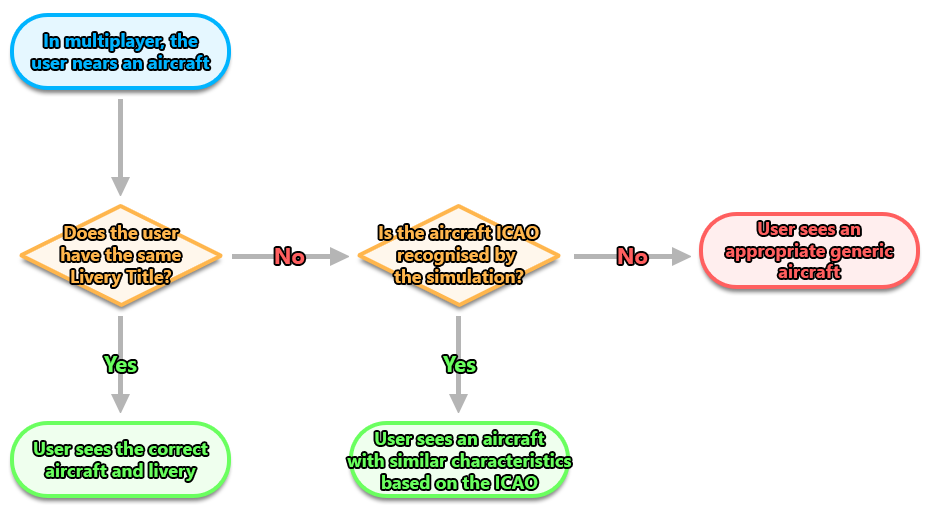
It is important to note, however, that if the user has selected to only view generic aircraft within the simulation options, then none of the above will be applied and only appropriate generic aircraft will be shown.