DEVICE AND TRANSVERSAL PROFILES
The purpose of a device profile, is to create s series of base files so that the device is displayed in the UI and can be assigned to the various controls of any aircraft by the user. Device profiles also usually contain transversal input mappings for the generic UI elements within the simulation, like pausing, showing the EFB, moving the cursor, etc... As such, this section is aimed more at device manufacturers rather than aircraft developers. However, there is nothing stopping any individual from using this process to create transversal profiles for their favourite or personal controller if there are none already available.
If you wish to create an input profile for an aircraft category or a specific aircraft, please see the following pages:
Device Package Setup
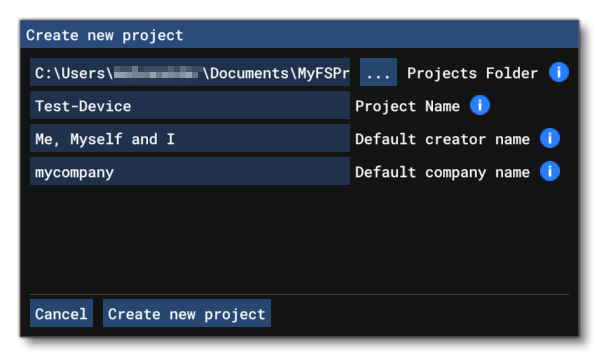
Before you can start to create your device profile, you will first nee to create the base package which is going to be used to share the device (and any input profiles associated with it) publicly. For that, the first thing you need to do is run the simulation and then open The Project Editor and from the Project menu, select New Project then fill in the project details:
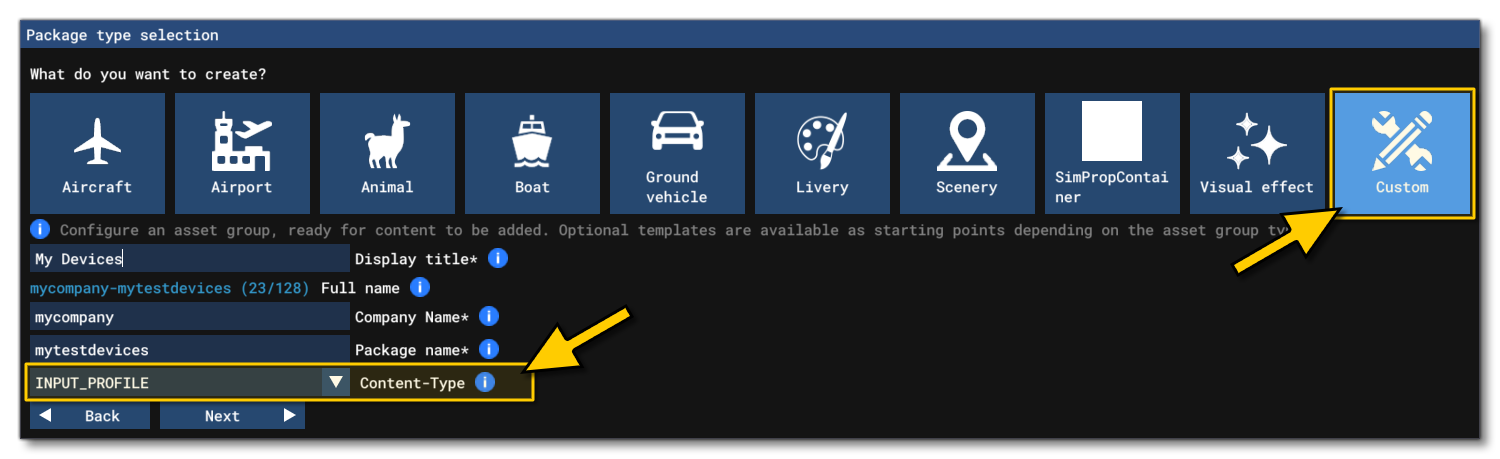
Once you have given the basic details for the project, clicking Create New Project will open the Publishing Item Selection window, and here you need to select Package, then click Next. You can then select the Package Type, which - for the purpose of devices - should be Custom, and the type should be INPUT_PROFILE (as shown in the image below).
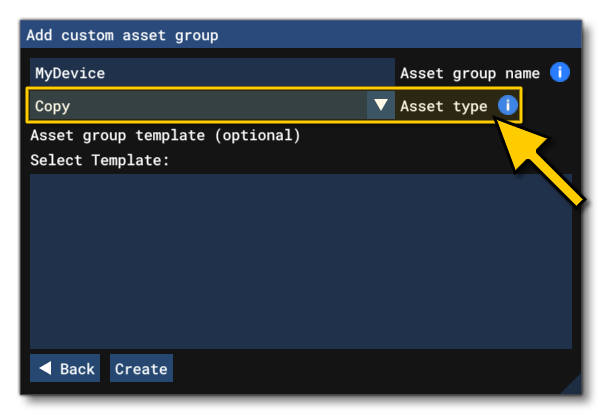
On the final page of the package wizard, you need to give the name of the device you are creating the profile for. You should also ensure that the asset type is set to Copy:
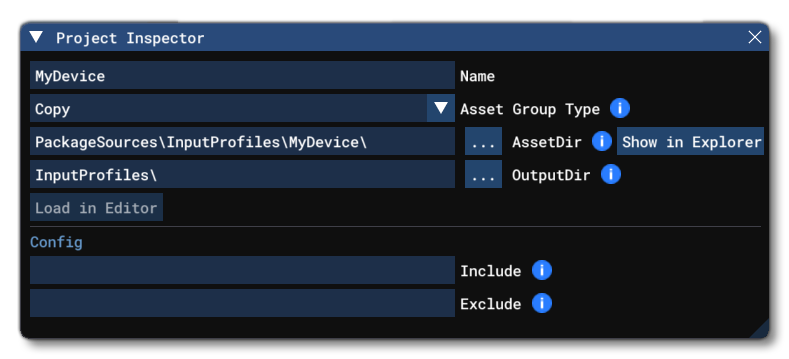
Once this has been done, the final step is to edit the AssetDir and OutputDir for the asset group in The Project Inspector, as the auto-generated paths will not be correct. The following paths should be used for a device profile:
- Set the AssetDir to
PackageSource\InputProfiles\[DEVICENAME] - Set the OutputDir to
InputProfiles\
Also note that when setting this up, you may need to delete the "Copy" folder that was created originally, and we recommend that you also add a Sources folder beside the PackageSources and PackageDefinitions folders (as shown here: General Package Folder Structure). This folder will be where you will store the device project files, ie: the files used to create the device profiles that are not meant to be included in the package itself.
DeviceConfig XML
Having set up the project and the required source folders, you can now go ahead and create a DeviceConfig.xml file. This should be placed in the [DEVICENAME] folder for the device, and will have the following contents initially:
<?xml version= "1.0" encoding= "utf-8" ?>
<DeviceConfig>
    <Device ProductId="[PRODUCT_ID]" TextureFolder="DeviceName" Priority="0" />
</DeviceConfig>
All controllers have a unique product ID, which you will need to supply here. If you have the device and can plug it in, then you can find this ID number from the Input Application. Simply plug the device in, then start the application and click on the device button . The window that opens will show the product ID:
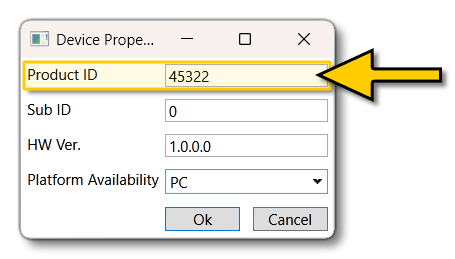
Note that this ID is displayed as a decimal number, but you need to supply a hex value to the XML. So this value will need to be converted, for example the value shown above becomes 0xB10A, and this is the value you should put in the ProductId attribute in the XML.
The next thing to do is give the TextureFolder attribute, which is the folder where the images related to the controller will be shown. How to add these images is explained in the Device Textures section (below), so here you simply need to give the name of the folder that you will create (normally it's the name of the device). The final thing to add is the Priority, which defines the position in the controller list in the UI for the device, where a lower value will represent a higher priority in the UI list.
Putting this together and the final XML will look something like this:
<?xml version= "1.0" encoding= "utf-8" ?>
<DeviceConfig>
    <Device ProductId="0xB10A" TextureFolder="T1600" Priority="-10" />
</DeviceConfig>
Device Textures
Your device needs two different types of texture images for the UI in the simulation:
-
The first is called
layout.png, and is a single, large image that shows the device on a transparent background. It should be authored as a*.png, with a width/height of 1280px/1080px. For example (image is rendered with a chequered background to show the size and transparencies):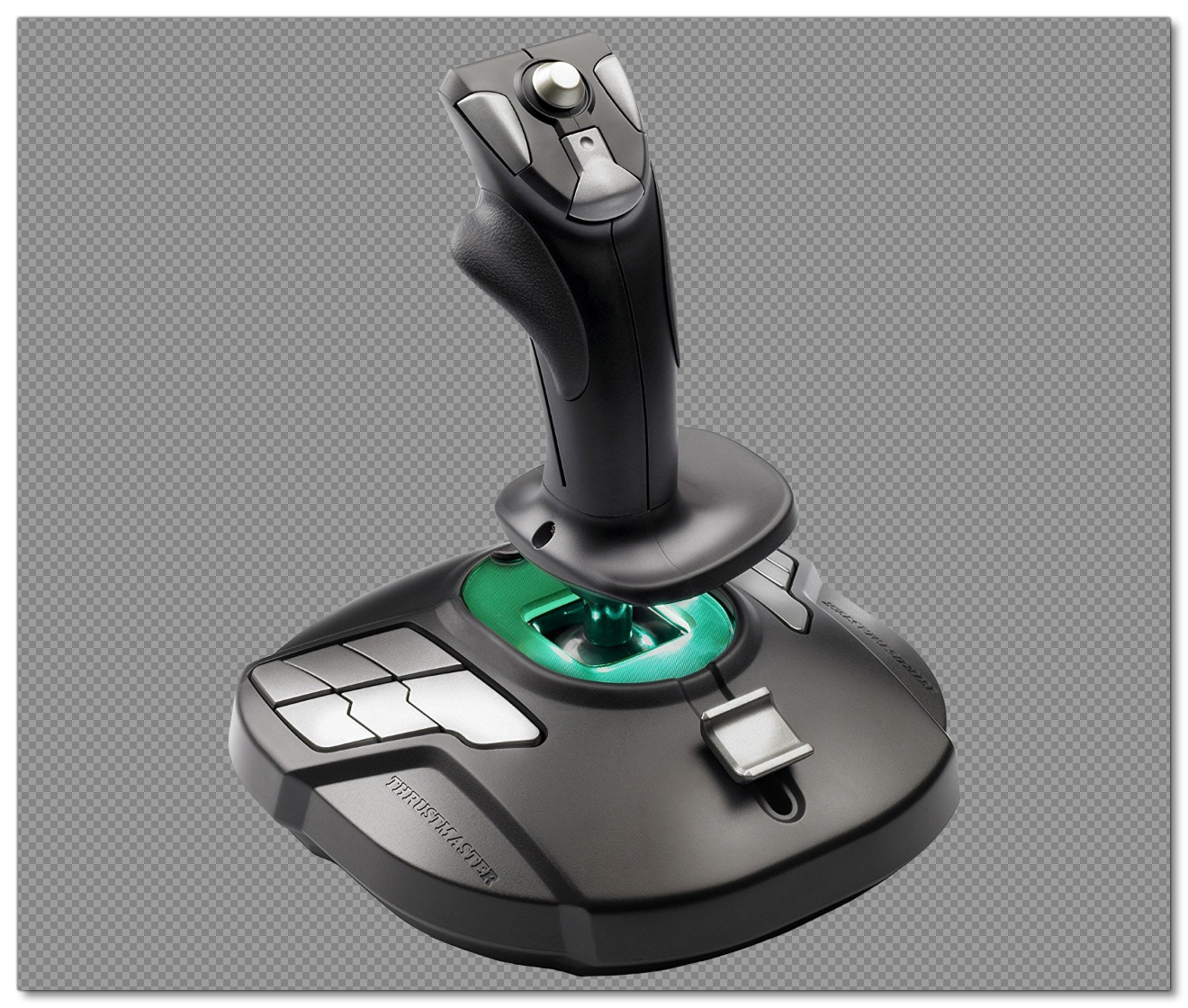
- You will also need to add several icon images that will be used to symbolise the device controls. These images should be authored as
*.svgfiles, and they should be flat white only. For example (images are rendered with a chequered background to show the images and transparencies):

All these files will go in a folder within the [DEVICENAME] directory, and the folder should be named the same as the string given in the TextureFolder attribute in the DeviceConfig.xml.
Linking Icons With Inputs
Having created the images required for the device, you need to link them with the device inputs themselves. This is done through the previously created DeviceConfig.xml, using various <MergeIcons> tags. This tag requires a string that represents the input, and an icon to be shown when the simulation detectes that input. These strings are "built" from various smaller sub-strings connected using "&". For example, if you want to use the same icon for stick input on the left-right and up-down axis, then you would have something like this:
<MergeIcons SourceIcons = "R-STICK LEFT&R-STICK RIGHT&R-STICK UP&R-STICK DOWN" TargetIcon="R-STICK_1" TargetTT="TT:INPUT.PAD_RIGHT_STICK"/>You can find the required sub-strings from the lists given here: SourceIcons Keys. If you are not sure which sub-strings to use, you can use the Input Application to get the Input Application Binding string - using the  Edit button and interacting with the device - and then compare that with the corresponding
 SourceIcon string in the tables. For example:
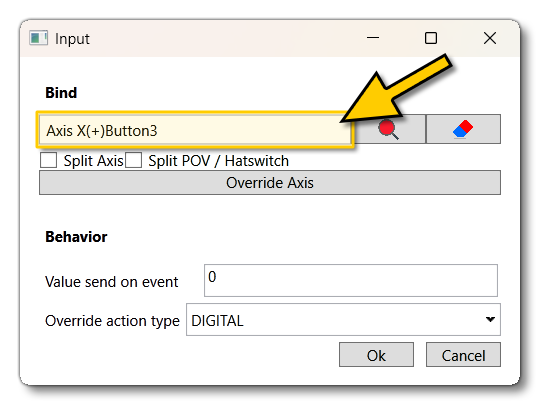
Here the binding string is "Axis X" plus "Button3", which - from the Controller (XBox One for Windows) table - you can see gives us the SourceIcon sub-strings "L-STICK X" and "A", so the final string is "L-STICK X&A" for this input. Once you've gone through all the different input combinations and linked them with your icons, the final XML will look something like this:
<?xml version= "1.0" encoding= "utf-8" ?>
<DeviceConfig>
    <Device ProductId="0x0001" TextureFolder="XInput Gamepad" Priority="-1" >
        <MergeIcons SourceIcons = "R-STICK LEFT&R-STICK RIGHT&R-STICK UP&R-STICK DOWN" TargetIcon="R-STICK_1" TargetTT="TT:INPUT.PAD_RIGHT_STICK"/>
        <MergeIcons SourceIcons = "R-STICK X&R-STICK Y" TargetIcon="R-STICK_1"  TargetTT="TT:INPUT.PAD_RIGHT_STICK"/>
        <MergeIcons SourceIcons = "R-STICK LEFT&R-STICK RIGHT" TargetIcon="R-STICK X"/>
        <MergeIcons SourceIcons = "R-STICK UP&R-STICK DOWN" TargetIcon="R-STICK Y"/>
        <MergeIcons SourceIcons = "L-STICK LEFT&L-STICK RIGHT&L-STICK UP&L-STICK DOWN" TargetIcon="L-STICK_1" TargetTT="TT:INPUT.PAD_LEFT_STICK"/>
        <MergeIcons SourceIcons = "L-STICK LEFT&L-STICK RIGHT" TargetIcon="L-STICK X"/>
        <MergeIcons SourceIcons = "L-STICK UP&L-STICK DOWN" TargetIcon="L-STICK Y"/>
        <MergeIcons SourceIcons = "L-STICK X&L-STICK Y" TargetIcon="L-STICK_1"  TargetTT="TT:INPUT.PAD_LEFT_STICK"/>
    </Device>
</DeviceConfig>
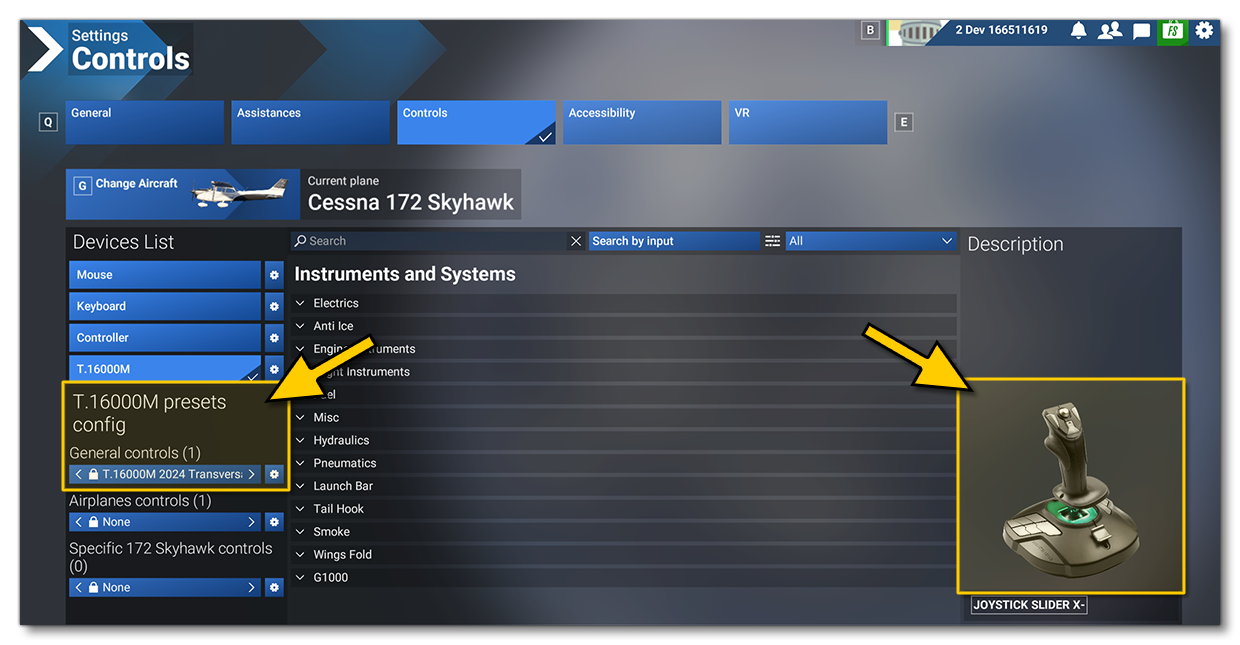
At this point, you can go ahead and build and mount the package. When finished, you can open the Controls menu in the simulation, and you should be able to see the device in the UI:
Transversal Package Setup
Having set up the device so it can be used in the simulation and have it display the appropriate images and icons, you should also set up the transversal controls. You don't have to do this, as the user can set up the bindings how they choose, but it's good practice to have the device you are creating the profiles for provide a minimum of functionality from the moment it gets plugged in.
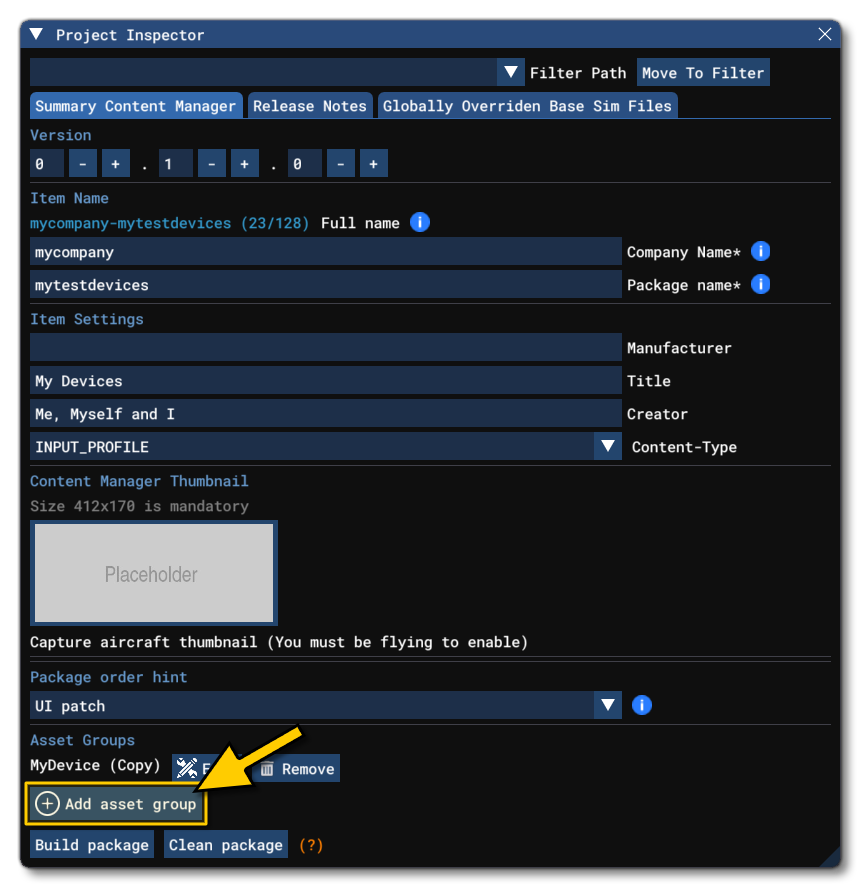
To set up these transversal controls, we will be using the Input Application, which has a all the actions used in the simulation, and permits the binding of the controller input with them. However, first you will need to add another package to the project, as devices and input bindings are stored in different locations in the VFS. So add another asset group to the project, using the Project Inspector:
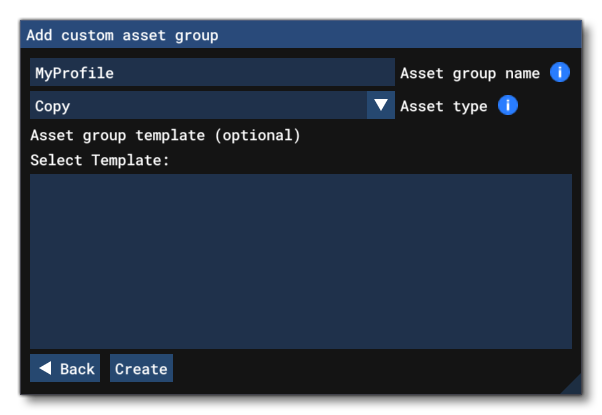
Again, choose Custom from the Package Type window, give the group a name and set the Asset Type to Copy:
The final thing to do with this asset group is edit the AssetDir and OutputDir for the asset group in The Project Inspector, as - much like with the device asset group - the auto-generated paths will not be correct. The following paths should be used for a device profile (and don't forget to delete the "Copys" folder):
- Set the AssetDir to
PackageSources\InputProfiles\Catgeories\Transversal\[TARGET]\ - Set the OutputDir to
InputProfiles\Categories\Transversal\
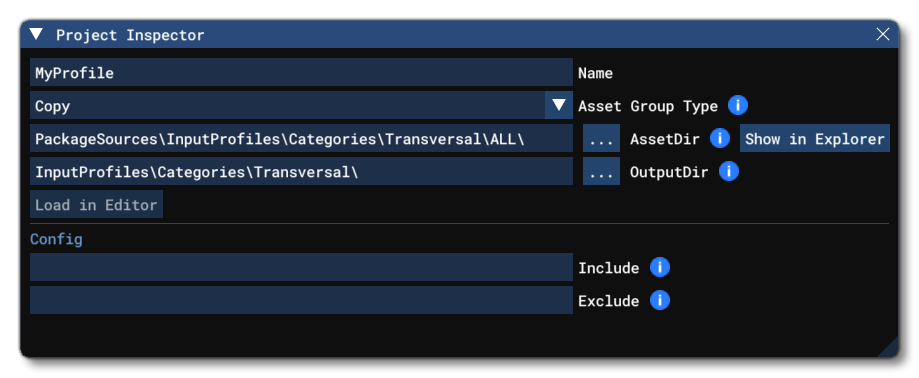
In the paths shown above, the [TARGET] is the platform to target with the profile, which can be one of the following:
ALL- The profile can be used on all available platforms.PC- The profle is only meant to be used on PCXBOX- The profile is only meant to be used on XBOX
This means you can add various "versions" of the profile to target the different platforms should you wish to modify the bindings associated with the device based on where it's being used.
Setting Up Transversal Bindings
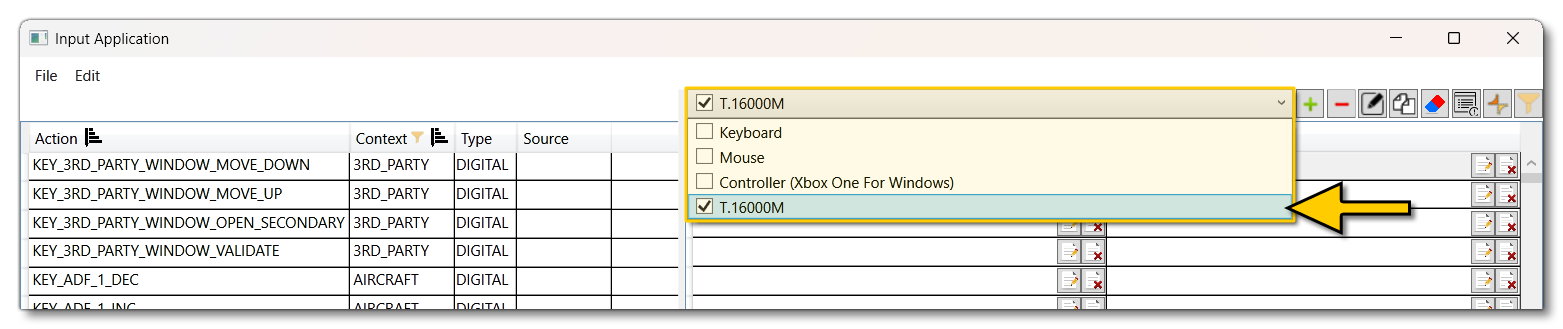
When it comes to setting up the bindings between the device and the simulation, you'll need to use the Input Application. With the device you want to create the transversal inputs for plugged into your PC, on opening the Input Application, it should have been automatically detected and be visible in the device menu at the top of the application:
In general, the bindings you will need to set up are those which can be used across various UI contexts and - when in the simulation - can be used for non-aircraft specific controls (for example, cameras). The following is a minimum list of contexts and associated actions that you should be aiming to set up:
NOTE: You can find a full list of contexts here.
| Contexts | Actions |
|---|---|
ALWAYS |
KEY_MENU_SR_EFB_TOGGLE |
COCKPIT_CAMERA |
|
COCKPIT_GLOBAL_CAMERA |
|
COCKPIT_GLOBAL_CAMERA_TRANSLATE |
|
EXTERNAL CAMERA |
|
INGAME_UI |
|
INSTRUMENTS_CAMERA |
|
MODES |
|
PC_MODE_SWITCHES |
KEY_ACTION_PC_CONTROL |
PLAYER_CHARACTER_FPV |
|
PLAYER_CHARACTER_INTERACTION |
KEY_PC_INTERACT |
PLAYER_CHARACTER_MOVEMENT |
|
PHOTO_MODE_ACTIONS |
KEY_PHOTO_MODE_TAKE_PICTURE |
PHOTO_MODE_ROTATION |
|
PHOTO_MODE_SWITCHES |
KEY_PHOTO_MODE_TOGGLE |
PHOTO_MODE_TRANSLATION |
|
SMART_CAMERA |
KEY_TOGGLE_SMART_CAMERA |
SIM_SHORTCUT |
|
VIEW_MODE_SWITCHES |
KEY_VIEW_MODE |
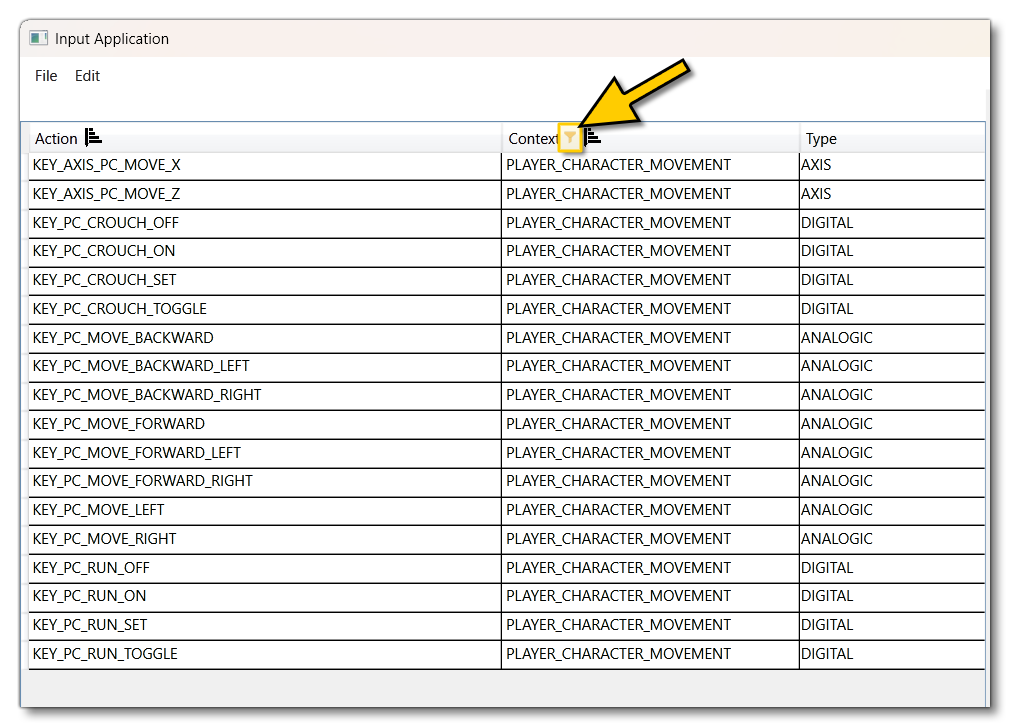
To set up these inputs, we'll take the PLAYER_CHARACTER_MOVEMENT context as an example. In the Input Application, you can start by filtering the contexts using button and selecting only the PLAYER_CHARACTER_MOVEMENT context. This will limit the actions shown:
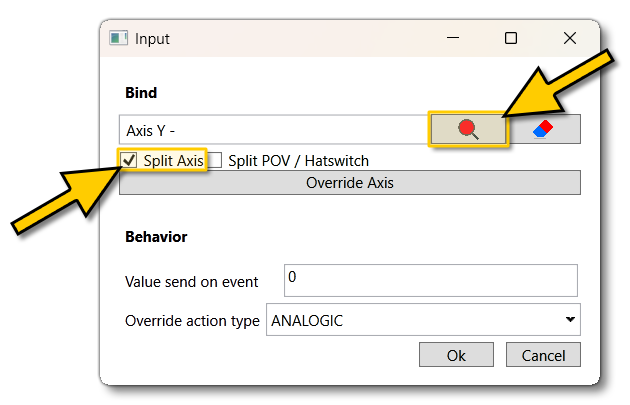
You can now click on the Modify Binding button for the KEY_PC_MOVE_FORWARD action, which will open the input window. From this winow you will need to select the Split Axis option (so the application detects +/- axis movement separately) and then use the Bind Select  button to set the window to accept device input. If you move the device in a direction, the axis will be registered:
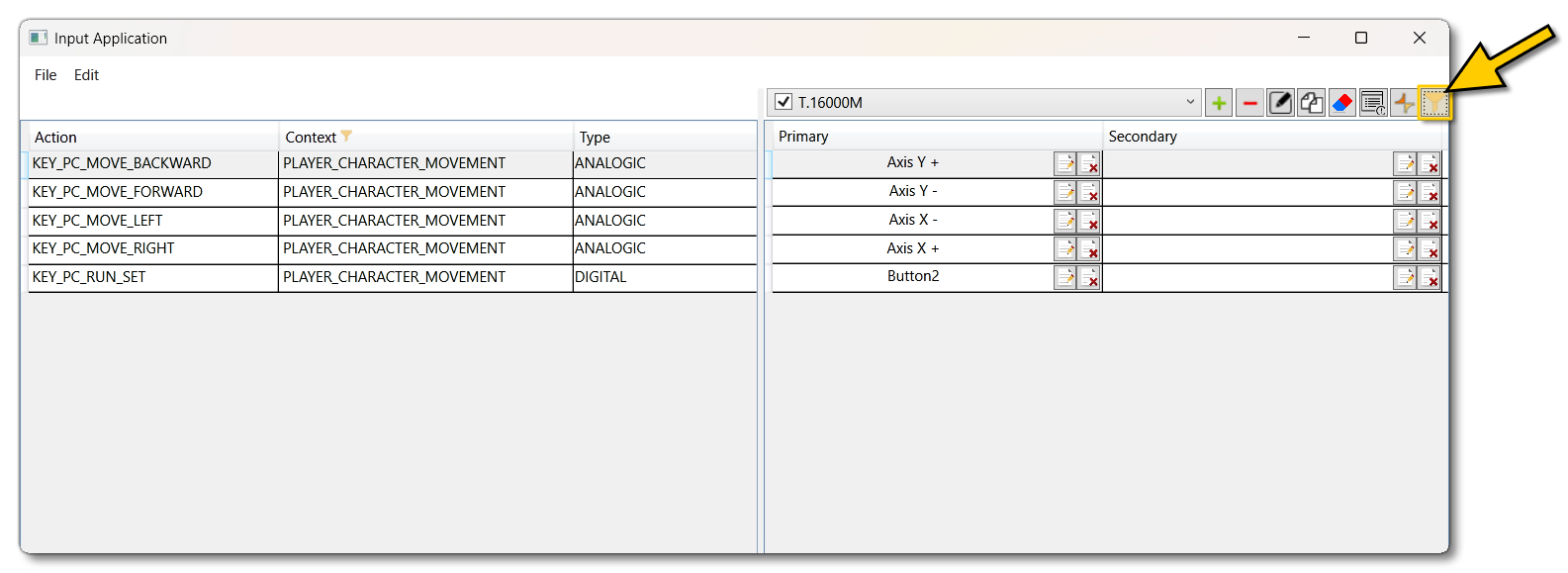
We then click on Ok, and repeat the process for the KEY_PC_MOVE_BACKWARD, KEY_PC_MOVE_LEFT, KEY_PC_MOVE_RIGHT, and KEY_PC_RUN_SET, actions (note that the last one is a digital - button - input, not an analog input). When finished you can click on the Show Only Bound Actions  filter to see just the actions and inputs that you've bound:
At this point, we then repeat the process for all the other minimum context actions, although you can add more as required (for example, many of the MENU, MENU_CORE, and MENU_GLOBAL context actions are worth binding in the transversal file as well).
Saving And Exporting The Project
Once we have set up all the transversal bindings, we can save the project to the Sources folder from the File menu of the input application. Once we have saved it, we can go ahead and export the settings for use in the input package. For that, you need to select Export from the Edit menu, which will open the following window: