DEBUGGING MODEL BEHAVIORS
The best way to debug your Model Behaviors is to go through the Behaviors Debug Window (this window can be opened after starting a flight, with an aircraft in the air):
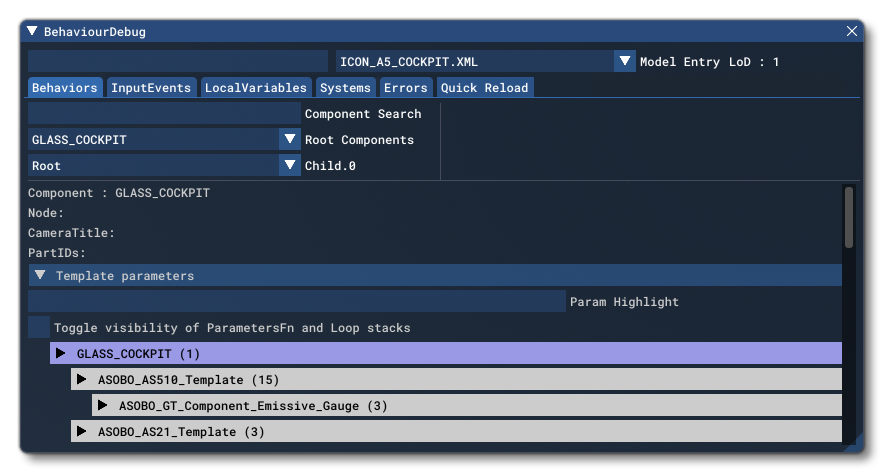
A good way to catch most errors is to use the Logs tab of the main window, which will list out all the errors that have been found while loading the aircraft. In order to preserve performance, errors will only be listed on loading the aircraft and so you will probably need to reload the plane from the SimObject Editor to see any changes or editions that you have made.
While Logs tab will allow you to find general errors regarding the Model Behaviors and the naming side of things, you may sometimes have issues that require a more precise approach with the study of a very specific XML file. When that happens, the Behavior Viewer window will contain the information needed, as you can select the file to study and immediately see on the logs tab what issues - if any - the file has. Most errors are fairly explicit, however those cause by RPN can be harder to spot, so here are a few tips that can be useful in finding out the cause of these kinds of problems:
- Some issues that may look like RPN issues can be caused by an issue in the animation, a good way to check for those issues is to find the animation in the Behaviors tab and use the Force Position slider to ensure it does what it is meant to.
- The Logger, which can be used on many of the RPN based elements can allow you to read through the steps the RPN calculator goes through and figure out where the values are not what you expected.
- Another way to debug the flow and the values of the RPN, especially for bits of code that cannot be debugged using the Logger, is to set LocalVars (or I/O vars) and use that to follow the flow and values of the RPN code.
- Input Events can also be a good way to see how your interactions react with a single Key Event, as opposed to interacting with a peripheral which can be hard to limit to a single input.
Related Topics