SIMOBJECT MODEL XML AND CFG SETUP
Assuming that you've exported the different parts of your model into the appropriate folders within the modular aircraft package, the next step is to link the files together within the simulation. For that you need to set up various model.cfg files and also create accompanying XML files for the aircraft - one of each for every part that you have exported. The model CFG file is used to tell the simulation which XML files to use as well as information about whether the part is interior/exterior, while the model XML file defines the LOD setup and also links any Model Behaviors. On this page we'll go through the basics of how to make these files.
NOTE: This page assumes you have followed the Recommended Project Setup, where you have created a single "helper node" glTF for your modular aircraft and that all other models will be attached it that. If that is not the case, the information here is still valid, but may need some tweaks to match your project setup.
model.cfg
This file is very simple to setup and you only normally need one of these files per-project. It is used to setup the helper node to which all other models will be attached. When you first created the modular aircraft project, a model.cfg file will have been created for you in the model folder in the common root folder of the project (if you're not using the template project you will need to create this folder hierarchy and file). The contents of this file will look like this:
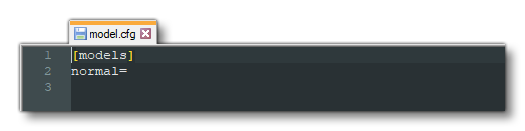
The first thing you need to do here is setup the [models] section to point to two files which will defined the glTF to use as the attachpoint for both the interior and exterior models. These files don't exist yet - we'll create them later - but we can still give their names here. These files usually follow the same format:
exterior.xml
interior.xml
So the model.cfg file will now look like this:
[models]
exterior=exterior.xml
interior=interior.xml
The next thing you would need to add to this file is the [model.options] section. This section has some parameters that are used to tell the simulation how the interior and exterior models should interact, and a general "rule of thumb" for these options is that if you have an interior model, they should all be set to true, and if you don't then they should all be set to false. So, at the top of the file, before the [models] section, you would add the following:
[model.options]
withExterior_showInterior=true
withExterior_showInterior_hideFirstLod=true
withInterior_forceFirstLod=true
withInterior_showExterior=true
After this the whole file should look something like this:
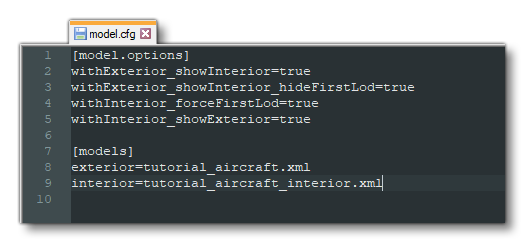
This file can now be saved and you can continue on to create the referenced XML files, as well as the additional XML files for the parts of the aircraft model.
Aircraft XML
Having created the CFG file and referenced the interior and exterior XML files, the next logical step is to create those files. The XML files for both interior and exterior are going to be identical, as all you need them to do is tell the simulation which glTF file to use as the attach point helper node.
NOTE: If you'd like more information on the different XML elements used in these files, please see the following page: Model XML Properties.
If you've used the modular aircraft template project, you will have a basicaircraft.xml file which can be deleted as it won't be getting used. Now you will have to create the two XML files that reference the helper node glTF (interior.xml and exterior.xml) in the same common folder, and the contents of both files is as follows (where <HELPER_NODE> is the name of the helper node glTF file you exported):
<?xml version="1.0" encoding="utf-8"?>
<ModelInfo>
    <LODS>
        <LOD ModelFile="<HELPER_NODE>.gltf"/>
    </LODS>
</ModelInfo>
Having done that, you will need to create the XML for each of the parts that are going to be attached to this helper node. These XML files will then be referenced in the attached_objects.cfg file of each aircraft preset, and should be created in a model folder, within the part attachment folder, like this:
\PackageSources\SimObjects\Airplanes\<Aircraft>\attachments\<Company>\<PartName>\model\<PartName>.xml
With the file for the part of the aircraft created, you should open it and add in the following:
<?xml version="1.0" encoding="utf-8" ?>
<ModelInfo version="1.0" guid="">
    <LODS>
        <LOD minSize="150" ModelFile="[PartName]_LODx0.gltf"/>
        <LOD minSize="80" ModelFile="[PartName]_LODx1.gltf"/>
        <LOD minSize="50" ModelFile="[PartName]_LODx2.gltf"/>
        <LOD minSize="25" ModelFile="[PartName]_LODx3.gltf"/>
        <LOD minSize="1" ModelFile="[PartName]_LODx4.gltf"/>
    </LODS>
</ModelInfo>
Once you have that, you can save the file. Note that the values given don't need to be edited straight away and you can copy those shown above as placeholders until you can test the aircraft in the simulation and adjust them as required. If your aircraft has more or less than the five LODs shown in the example code, then simply adapt the values shown as required, but note that the minSize values for the last 3 LODs are usually the same, regardless of the size of the aircraft.
That should be enough information for you to load the project into the simulator and then open the SimObject editor to set up the attached_objects.cfg to reference the parts and XML files you've added. Once that's done the basic package can be built and worked on using the editor to set up the flight model, engines, etc...
Note that the model XML file will later contain much more information related to the animations that the aircraft uses and how interactions should be performed based on user input. This is is all dealt with using the Model Behavior system, which is explained in detail in the following section: