SIM ATTACHMENT LIBRARIES
One of the benefits of working with Modular SimObjects is that you can create packages of Sim Attachments that can then be referenced and attached to multiple objects. For example, you can create an instrument, or a seat, or a button, etc... and then "attach" these objects to all the aircraft that would require them. This greatly reduces the resources that you need and lets you build up a package of re-usable assets for future SimObjects that you may create. It should be noted that there are also numerous "pre-made" Sim Attachments available to you for use directly in your own aircraft. You can find more details on the following page:
Creating The SimAttachment Package
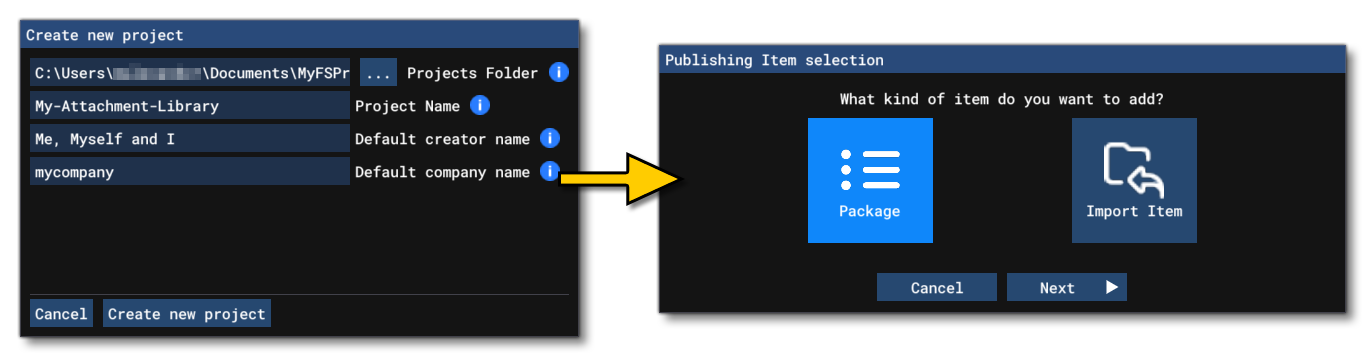
To create an attachment or - a collection of multiple attachments - you will first need to create a new package from The Project Editor:
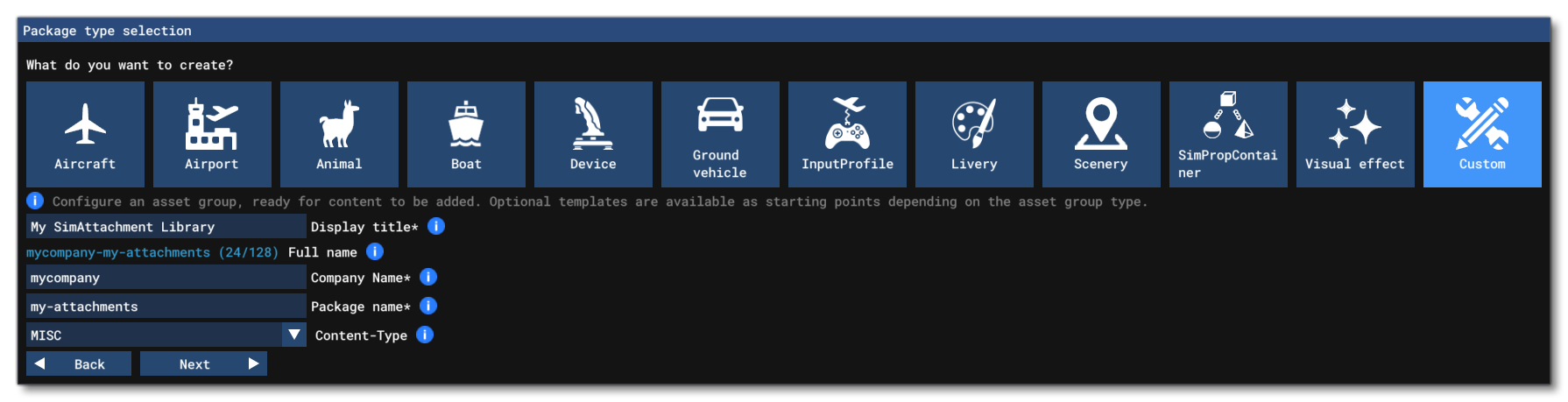
This will then open the Package Type Selection window where you should select Custom and then supply the requested details, making sure to set the content-type to one of the following:
- For instruments (including buttons, knobs, levers, etc...), use the INSTRUMENTS content-type.
- For everything else (or mixed packages with instruments and other objects), use the MISC content-type.
You will then be prompted for the first asset group to add. This must be of the type SimAttachmentLib, as shown below, and you will have to select one of the two available templates:
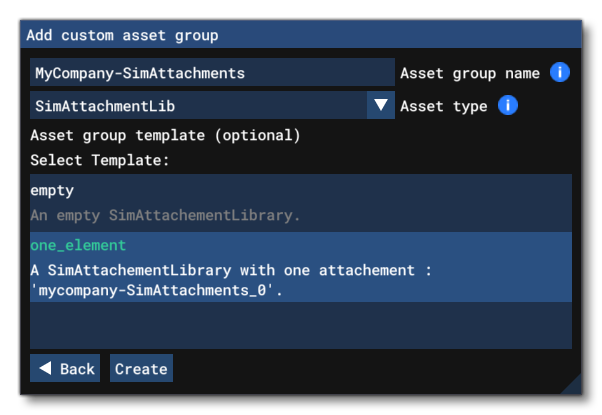
If you are unsure of the project structure we recommend that you select the "one_element" template. This will create the SimAttachment library, and create an attachment with the given name (suffixed with _0 initially, but this can be edited later if required) as well as the main the folders that an attachment can contain. If you are familiar with the requirements of a SimAttachment, and how the folders are structured within a library, you can select the "empty" option.
For this example, we'll be using the "one_element" template. This will create the following folders in the package sources:
PackageSources
|---> SimAttachementLibs
|---> *packageName*
|---> *SimAttachementLibraryName*
|---> *[attachmentname]_0*
| |---> config
| |---> model
| |---> panel
| |---> sound
| |---> texture
|
|---> Further attachments as required later
Note that none of these folders and their corresponding files are obligatory, and you can use all of them, or some of them or none of them with other folders and files. For a full list of folders and files that can be used in a Sim Attachment, please see the Sim Attachments page.
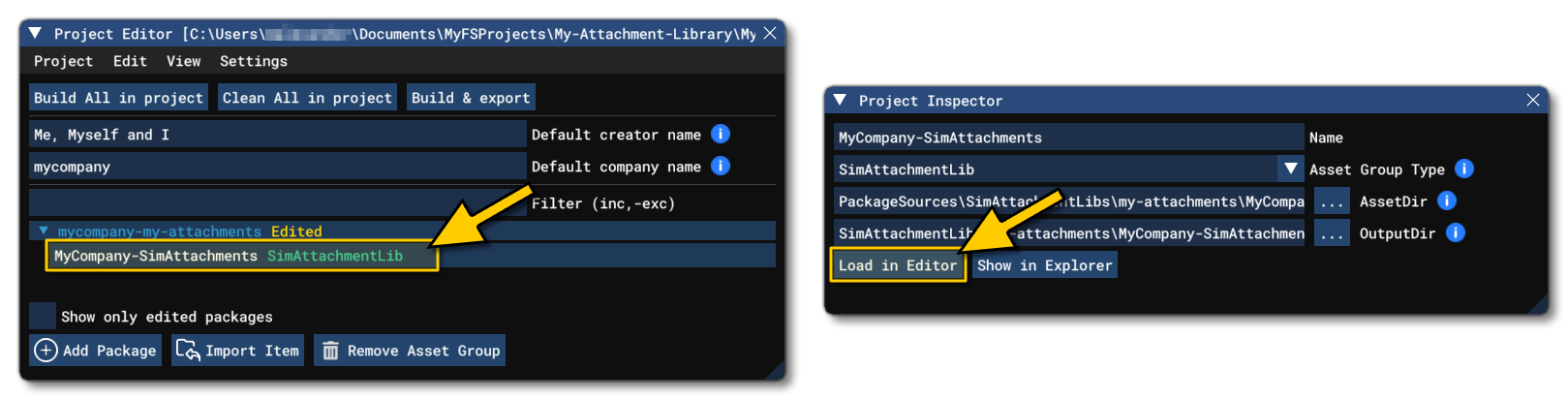
Once the Package has been created with this first attachment, you can then select it and click on the Open In Editor button from The Project Inspector to open the attachment in the SimObject Editor so that it can be edited:
In the editor you can then start to modify the various CFG files that the attachment requires, along with many other features (not all of them will be used, but an attachment can have almost everything a SimObject can have):
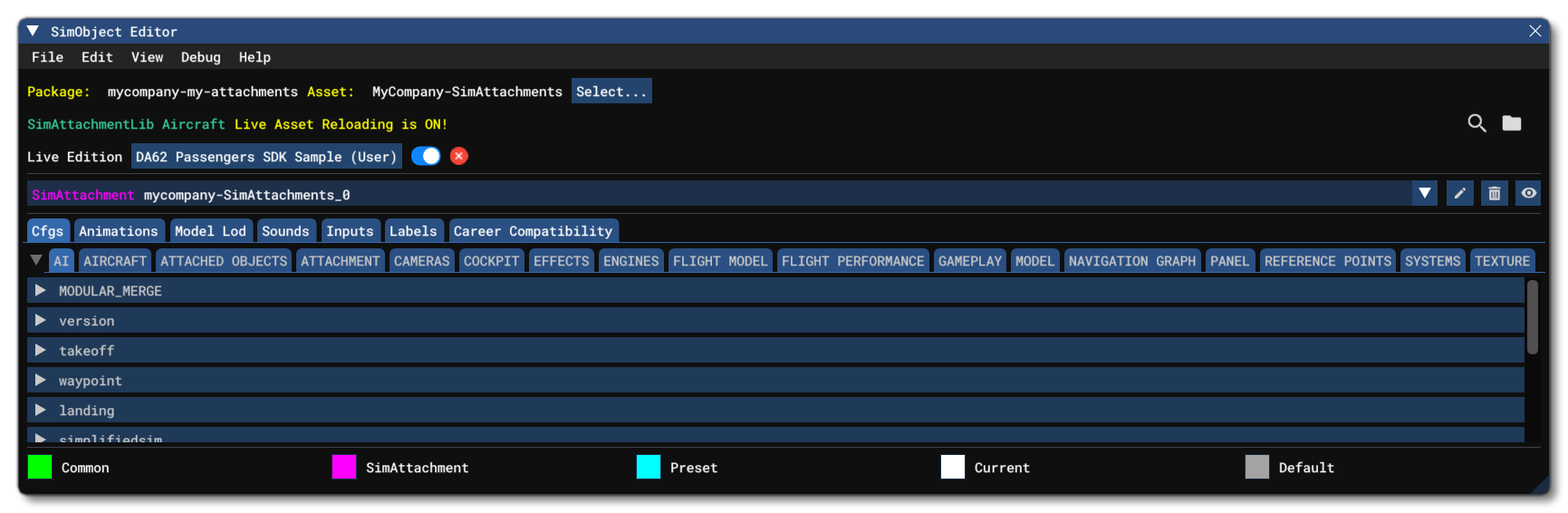
If you need to add models, audio, checklists, etc... you will need to modify the package sources directly. If you wish to add further SimAttachments to the library, you should use the File > Create option. For information on single SimAttachments and their setup, please see the following page:
Related Topics