SIM ATTACHMENTS
A Sim Attachment is basically an object which is attached to another object to create a final working Modular SimObject in the simulation. The normal procedure is to have a common folder with a base model node and some essential config files, audio, etc... and then attach the rest of the object parts to that (the actual parts you require will depend on the aircraft or vehicle being created and the workflow you have established). You can find examples of a modular aircraft within the SDK samples.
A SimAttachment can be anything like a simple model part with LODs and textures, a working glass cockpit, landing gear, or even an entire cockpit. You can even attach SimAttachments to SimAttachments, and create a whole hierarchy of parts, for example: the base model node, which has the fuselage attached to it, which then has the wings attached to that, and finally the engines are attached to the wings. In most cases these attachments will be included as part of the vehicle package - in the attachments folder of the Modular SimObject project - but it's also possible to make libraries of attachments which can be referenced and attached, and there are a number of included attachments which can also be used in your own projects.
The main uses for SimAttachments is to:
- have multiple versions of the same part - for example, you can have two fuselage attachments, one for skydiving and one for passengers - which can then be selected based on the preset within the SimObject, while maintaining the common attachments like wings and landing gear, etc...
- have common components that can be shared across multiple aircraft, like a glass-cockpit display, or some other intsrument.
- have a more visually detailed yet optimised SimObject, since each part will have its own set of LODs and will use a different LOD based on distance from the camera.
Adding A SimAttachment
To add a SimAttachment to your project you can use The SimObject Editor. Once you have created the new SimObject project (see here for details: Creating A Modular Aircraft Project), you can add a new attachment from the editor by going to the File menu and selecting the Create option:
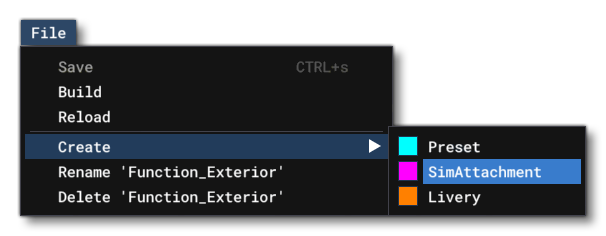
You will be prompted to give the new attachment a name and then after clicking Create, it will be shown in the SimObject Editor for editing.
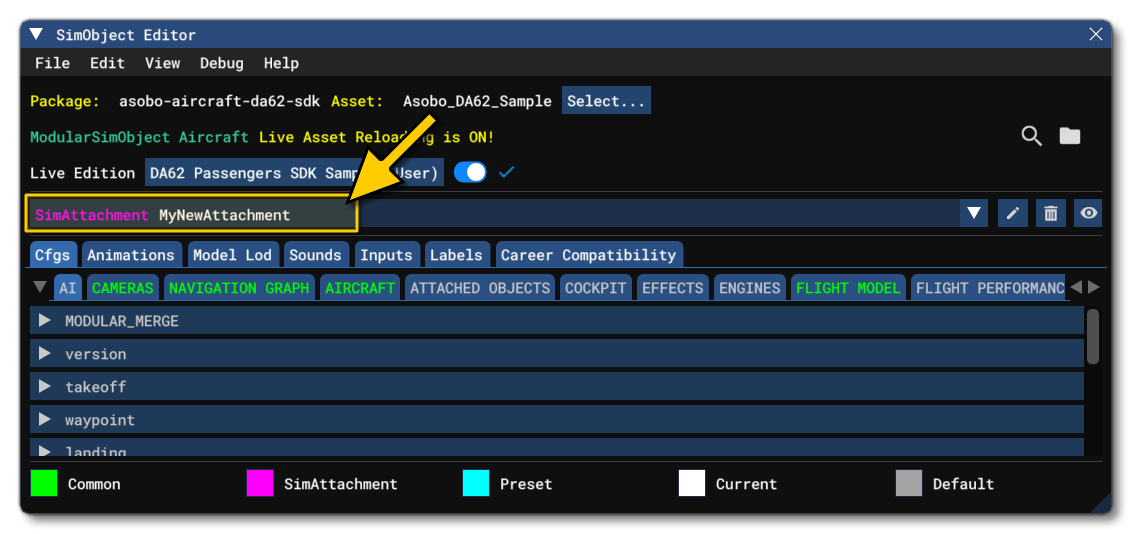
From this point on you can then copy the model, texture, animation, etc... files into the SimAttachments folder (which you can find by simply clicking the 🖿 button), and then edit the files in the SimObject editor. Which files you edit, and what else you add, will largely depend on the purpose of the SimAttachment. However, as reference, you can find the full list of possible files and folders here:
Using The SimAttachment
Once you have created your attachments you will need to reference them in the SimObject. For that you will need to do two things:
- Have the required node setup in the SimObject model.
- Have the required settings in the attached_objects.cfg file for the SimObject.
NOTE: We are talking about referencing the SimAttachment from a SimObject, but you can also reference attachments from other attachments in the same way.
In this file you will need to add an [SIM_ATTACHMENT.N] section, and there you will give the path to the attachment model.xml file, and a few other details depending on whether the attachment is being attached to the SimObject or another attachment, for example:
[SIM_ATTACHMENT.0]
attachment_root="SimAttachments\MyInstruments\instrument_1\"
attachment_file="model\instrument_1.xml"
attach_to_model="interior"
attach_to_model_minsize=1
attach_to_node="INSTRUMENT_ONE_HOLDER"
alias="Interior_Instrument_One"
Once this is setup, you should be able to build the sim attachment, then build the parent project that references it and see it in the simulation. To help with debugging you can use the Debug LODs options, as well as the the Behaviors Debug window (if the object has model behaviours). It's also possible to edit the position of the attachment locally without having to edit the model node it's being attached to by using the relevant parameters in the attached_objects.cfg file (see: attach_offset, attach_pbh, and attach_scale).
Related Topics