LIGHT OBJECTS
A Light object is an object element that is used to add different kinds of lights to a SimPropContainer Object only. When you select this object type you will be presented with a list of different light object elements listed in the Objects window:
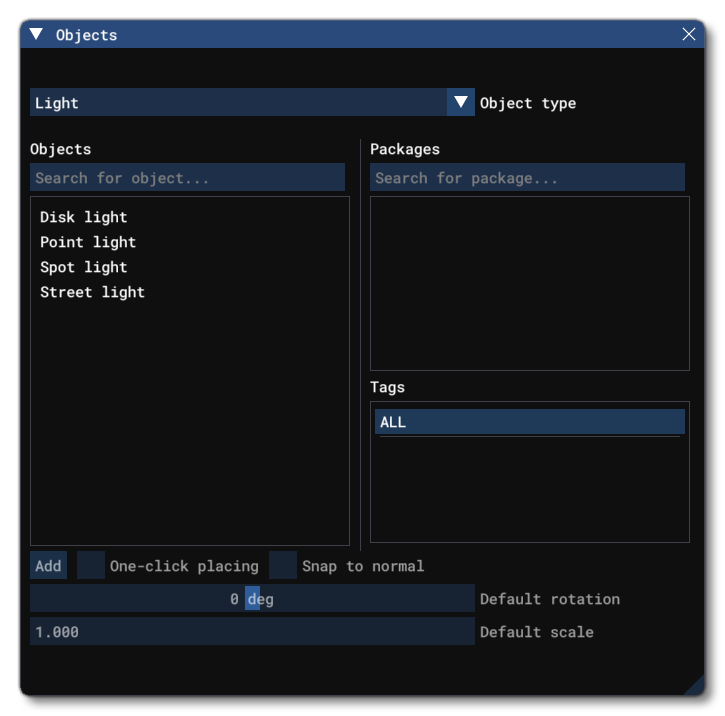
Light object elements are a visual effect that can be used to create different types of lights within a SimProp Container object, and initially you can create one of the four main light types: Disk, Point, Spot and Street Light. Note that the different light types shown in the Objects window are simply different configurations of the same properties, so you can quickly place lights of the same type, but once placed, they are all fully configurable.
Clicking the Add button will place the selected light in the SPC and then you can use The Edition Gizmo to move it around and position it as required.
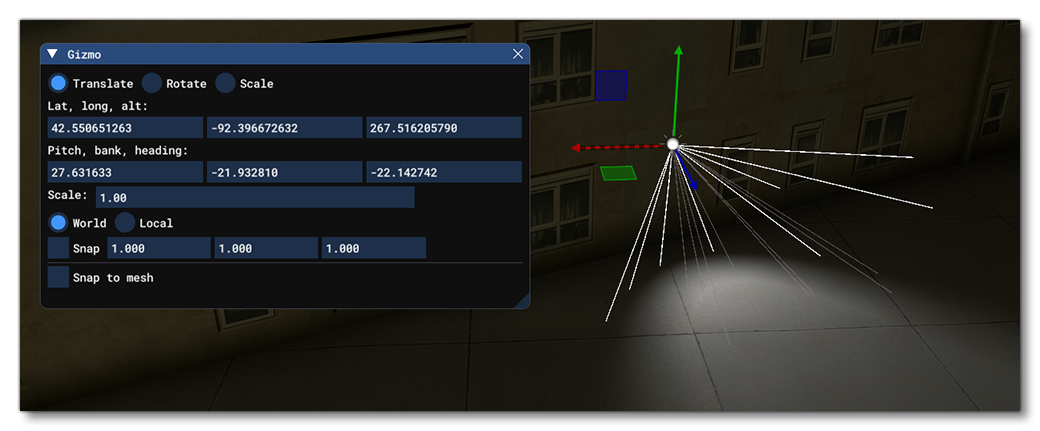
Once you have added your light to the SPC, you can then go ahead and edit its properties.
Properties
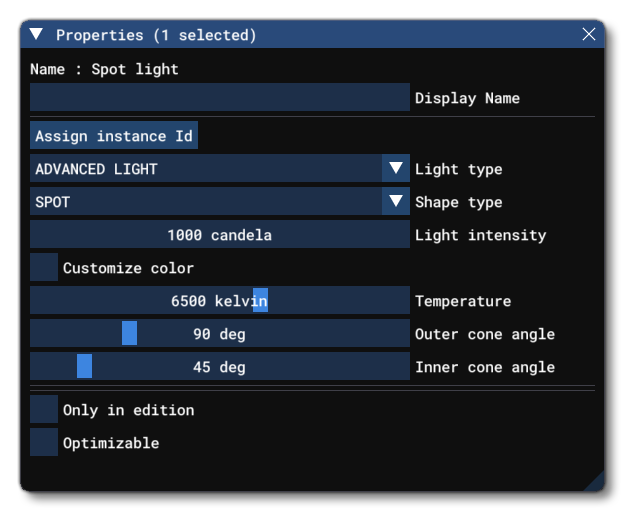
The Properties window for a Light object looks like this:
-
Name
This is the name of the light object element as defined from its file.
-
Display Name
This is the name of the light as it will be displayed in the The Scenery Contents List. This can be edited and is helpful for identifying elements when you have a lot of items in the content list.
-
Light Type
This lets you select the type of light to use, either Street Light or Advanced Light. If you choose the advanced light, then you can also select the Shape Type.
-
Shape Type
When You have selected the Advanced Light type, then you can also select the shape of the light, which can be either point, spot, or disk.
-
Light Intensity
This sets the intensity of the light, in candela.
-
Customise Colour
Enabling this option will change the temperature control to show RGB colour options, permitting you to set the light colour using those values instead of using a Kelvin value.
-
Temperature
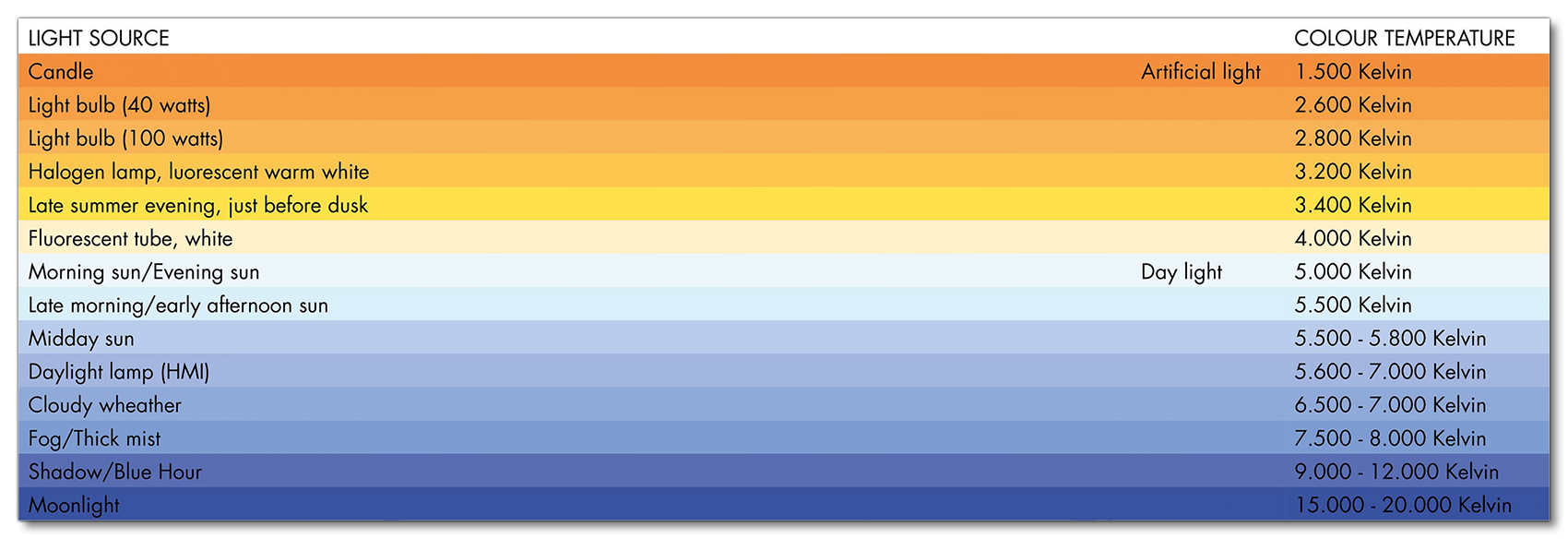
This sets the light temperature which will affect the colour of the light. The following chart shows the approximate light tone associated with given temperatures:
The other available options for a light will change depending on the Light Type and Shape Type, so below we'll show each of them separately along with a visual of what they look like in the simulation.
Street Light
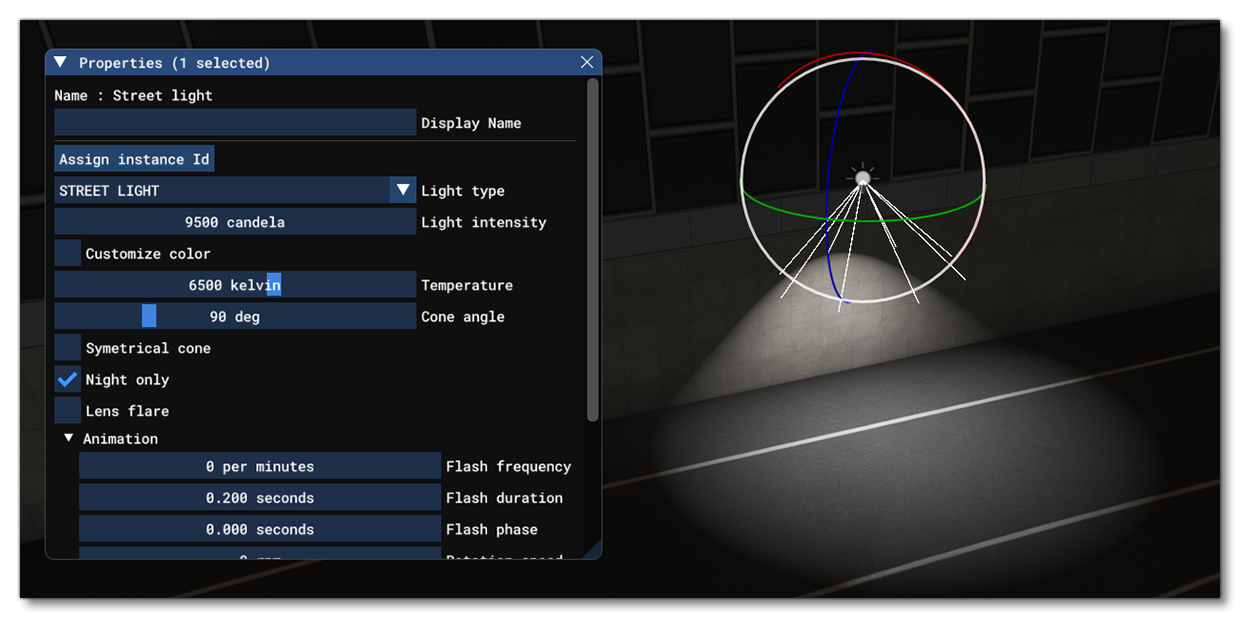
The street light is a conical shaped light type that has multiple setup options permitting it to be synced with the day/night cycle of the simulation world, as well as set up flashing/strobe effects and other parameters unique to this light type.
-
Cone Angle
The spread angle of the light, from 0° to 360°. If you wish to simulate an omnidirectional light, then set the Cone Angle to 360°.
-
Symmetrical Cone
When this is checked, the light cone will be mirrored, so you have two cones facing opposite directions.
-
Night Only
When this is checked, the light will be on at night and off during the day. When not checked the light will be on all the time, regardless of the time of day.
-
Lens Flare
When Lens Flare is checked, a flare effect will be added to the light. This will also show an additional option:- Flare Only - Checking this will disable the light except for the flare effect.
-
Animation
This section is used to set up animation effects for the light and has the following additional options:- Flash Frequency - This is the number of times that the light will "flash" in a second. Setting this to 0 means the light does not flash.
- Flash Duration - The duration of one flash in seconds.
- Flash Phase - The flash phase is the offset in seconds to the flash frequency. For example, if the frequency is set to 6 and the phase to 0, then there will be one flash every ten seconds and the flashing will start at zero seconds of the model being spawned (6 flash / 1 minute = one flash every 10 seconds). If the frequency is set to six and the phase is set to three, then there will be one flash every ten seconds but it won't start until three seconds after the model has spawned. This parameter is useful to synchronize or desynchronize several lights inside the same SPC or make the light flash at different intervals and give different effects.
- Rotation Speed - The number of revolutions per minute for the light. This value is only relevant when the light angle is under 360°.
- Rotation Phase - The rotation phase is the offset in seconds to the rotation speed.
Advanced Point Light
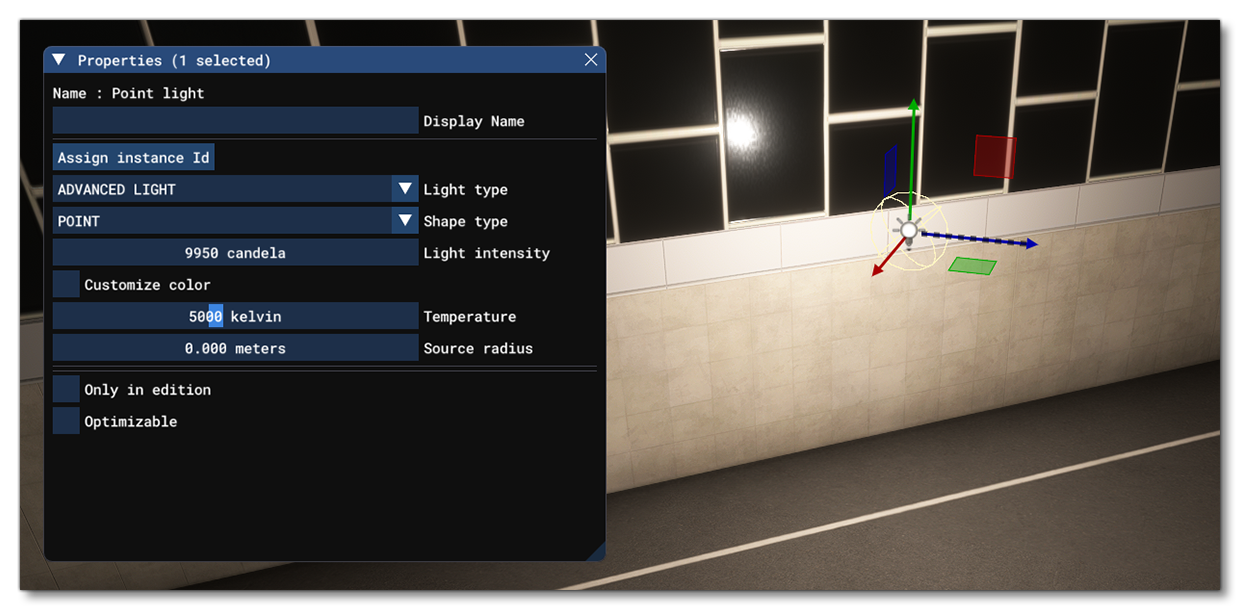
The point light is a single omnidirectional light source that has the following customisation options:
-
Source Radius
This sets the radius of the source light, in meters.
Advanced Spot Light
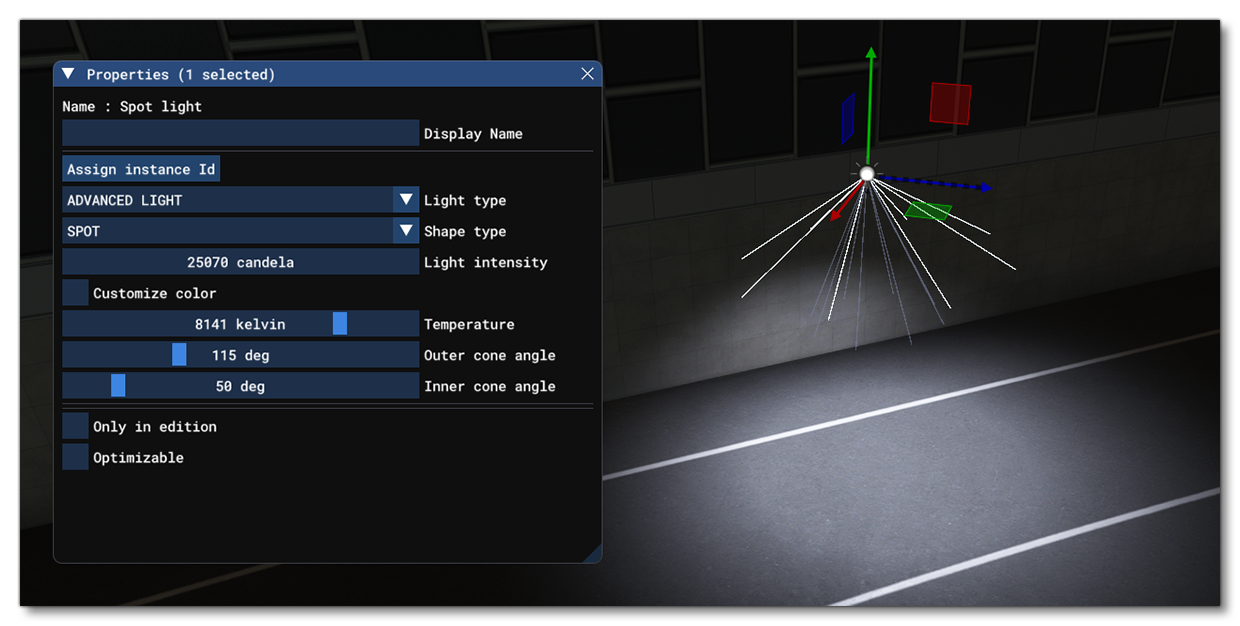
The spot light is a conical light source with the following additional edition options:
-
Outer Cone Angle
This sets the outer cone angle. The outer cone is where the light will be "feathered" from the maximum intensity of the inner cone angle, to the minimum intensity of the outer cone angle.
-
Inner Cone Angle
This sets the inner cone angle. The inner cone is where the light is at maximum intensity.
Advanced Disk Light
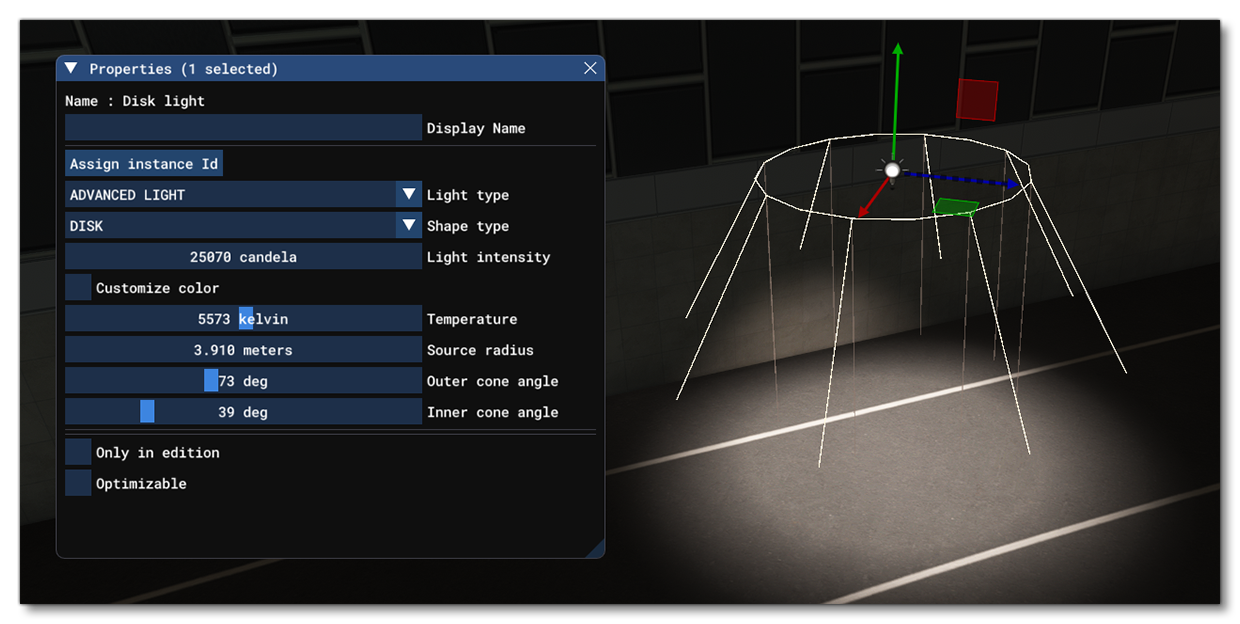
The disk light is a disk shaped light source with the following additional options:
-
Source Radius
This sets the radius of the disk-shaped light source.
-
Outer Cone Angle
This sets the outer cone angle. The outer cone is where the light will be "feathered" from the maximum intensity of the inner cone angle, to the minimum intensity of the outer cone angle.
-
Inner Cone Angle
This sets the inner cone angle. The inner cone is where the light is at maximum intensity.
Additional Options
The following options are available for all light types and shapes:
-
Only In Edition
When this is checked, the light will only be visible when the the SimProp is being edited, but not when placed in the simulation.
-
Optimizable
Checking this option means that the decal object can be "optimized" - ie: the simulation will modify the spawn probability - based on the user graphics settings and platform:- Ultra: 100 %
- High: 50 %
- Medium: 25%
- Low: 12%
- xbox: 12%
Related Topics