SOUNDS AND MODULAR SIMOBJECTS
In the examples that are shown for audio on the aircraft audio pages, the sound folder is placed in the common folder of the aircraft. This is the "base" folder for all modular SimObjects - as explained here: Modular SimObject Project Structure - and in general this is where you would want to place the sound and soundai folders and their accompanying files. These folders would normally contain the audio required for all the available SimObject presets, however there are a few exceptions.
-
Workflow
It is perfectly possible to split your audio into variousPC.PCKand soundXMLspecific to individual presents, or even individual attachments, as well as the common base (or all three!). Doing so offers no real benefits in terms of memory use or efficiency when the SimObject is in the simulation, so the only reason to do this is because it suits the way you or your team works.
-
Sharing
If you are creating attachments that will be used across multiple projects (for example, a common instrument to be used in cockpits), then it will be essential that any audio is included as part of the attachment itself. If you don't do this, then to have the attachment play audio in other projects, you'd have to ensure that the audio files for each SimObject contain the exact code and sounds that the attachment requires. This is much more complicated, error prone, and makes it impossible to share the attachment with people outside of the developer environment you are working in.
-
Animation Sounds
If any of the attachments or presets include amodel.xml(oranimation.xml) with model behaviours for animation that are tied to audio using the<AnimationSounds>element in thesound.xml/soundai.xml, then you will need to include the XML and the associatedPC.PCKfile in the attachment/preset. When it comes to attachments, there are a couple of other things that are important to take into account:- If it's an independent attached object: then the name of the
PC.PCKincluded in the package should be referenced as the main package. - If it's an attached object within a modular aircraft: then audio events can be included in the
PC.PCKplaced in the common/sound folder, so the main package referenced insound.xmlmust be that of thePC.PCKincluded in common/sound.
- If it's an independent attached object: then the name of the
-
Landing Gear And Other Unique Audio
Finally, the other situation where it would make sense to have separatesound/soundaifolders in your attachments is for landing gear or other components that require unique audio for a very specific set of circumstances. For example, tires touching down will require a different sound effect to skis, and skis will need a different touchdown effect to floats. The same logic should be applied to other unique elements of the aircraft being designed.
As you can see, modular aircraft give a great deal of flexibility when it comes to "mixing and matching" components, and this includes the way that your audio is integrated into the project. However, as a general rule of thumb, consider that all audio should be in a single set of files in the common folder, and specialist audio should be in the preset or attachment.
Sound In SimAttachments
When creating SimAttachments to be used in your modular SimObjects - for example, an instruments package - each SimAttachment must have an audio package (PCK files) and a sound.xml file that references the properties of the different sound events, and each package must have the same name as its parent folder.
The process for creating these in Wwise is identical to that for an aircraft:
- You create a work unit for each SimAttachment you want, and then a sound bank too.
- You connect your soundbank to the appropriate new
PCK. - When the Wwise package is created, you add it into the
soundfolder of your instrument and create thesound.xmlfile. - In the
sound.xmlyou reference all your sound events.
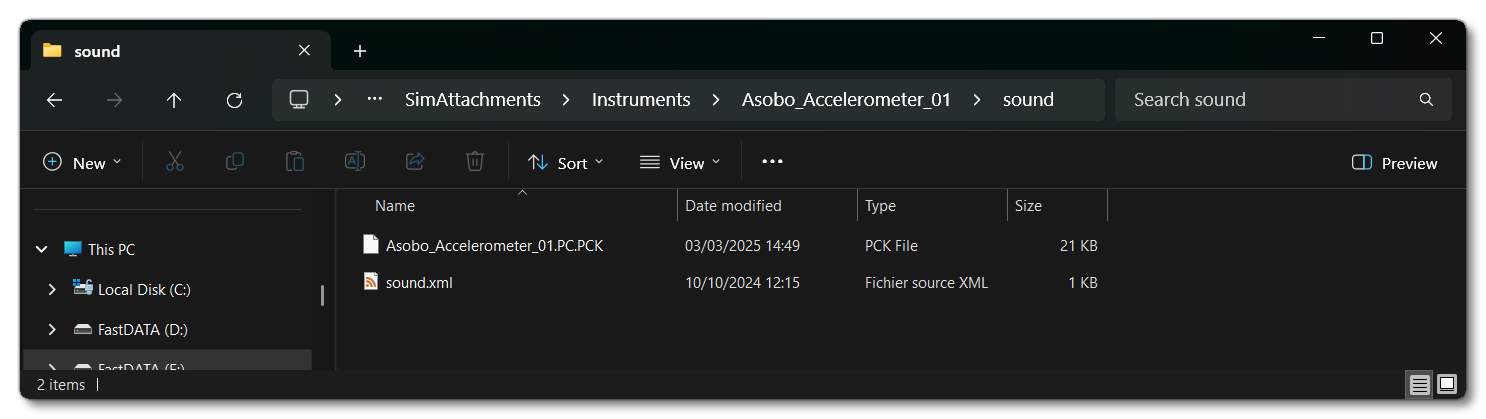
In the sound.xml you will need to reference the package name, using the <WwisePackages> element:
<?xml version="1.0" encoding="UTF-8"?>
<SoundInfo Version="1.0">

    <WwisePackages>
        <MainPackage Name="Asobo_Altimeter_01"/>
    </WwisePackages>

</SoundInfo>
You can then give the various sound event names in the <AnimationSounds> element:
<?xml version="1.0" encoding="UTF-8"?>
<SoundInfo Version="1.0">

    <WwisePackages>
        <MainPackage Name="Asobo_Altimeter_01"/>
    </WwisePackages>

    <AnimationSounds>
        <Sound WwiseData="true" WwiseEvent="button_type_1_forward" ViewPoint="Inside"/>
        <Sound WwiseData="true" WwiseEvent="button_type_1_backward" ViewPoint="Inside"/>
        <Sound WwiseData="true" WwiseEvent="knob_type_3_inner" ViewPoint="Inside"/>
        <Sound WwiseData="true" WwiseEvent="knob_type_3_outer" ViewPoint="Inside"/>
    </AnimationSounds>

</SoundInfo>
Model Behaviors In Attachments
If an attachment includes any model behavior templates or files, then <AnimationSounds> events must also be declared in the attachment's sound.xml file. However, in this case there is no need to add a dedicated PCK for this, since the <WwisePackages> element can define the common PCK, and this common PCK can then include all the required sounds. For example, in the sound.xml shown below, all the <AnimationSounds> for the instrument foleys are implemented into the interior "cockpit" attachment of the modular SimObject, and this attachment contains the model behaviors of the instruments, while the actual PCK is contained in the "common" folder of the SimObject:
<?xml version="1.0" encoding="UTF-8"?>
<SoundInfo Version="1.0">
    <WwisePackages>
        <MainPackage Name="Asobo_Cabri_G2"/>
    </WwisePackages>

    <AnimationSounds>
        <!-- PANNEL =========================================================================-->
        <!-- Bracket  -->
        <Sound WwiseData="true" WwiseEvent="bracket_type_1_forward" ViewPoint="Inside"/>
        <Sound WwiseData="true" WwiseEvent="bracket_type_1_backward" ViewPoint="Inside"/>
        <!-- MFD_650  -->
        <Sound WwiseData="true" WwiseEvent="panel_button_type_3_forward" ViewPoint="Inside"/>
        <Sound WwiseData="true" WwiseEvent="panel_button_type_3_backward" ViewPoint="Inside"/>
        <!-- Others  -->
        <Sound WwiseData="true" WwiseEvent="panel_button_type_2_forward" ViewPoint="Inside"/>
        <Sound WwiseData="true" WwiseEvent="panel_button_type_2_backward" ViewPoint="Inside"/>
        <Sound WwiseData="true" WwiseEvent="panel_button_type_4_inner" ViewPoint="Inside"/>
        <Sound WwiseData="true" WwiseEvent="panel_switch_type_1" ViewPoint="Inside"/>
        <Sound WwiseData="true" WwiseEvent="panel_switch_type_2" ViewPoint="Inside"/>
        <Sound WwiseData="true" WwiseEvent="panel_switch_type_3" ViewPoint="Inside"/>
        <Sound WwiseData="true" WwiseEvent="panel_switch_type_4" ViewPoint="Inside"/>
        <Sound WwiseData="true" WwiseEvent="panel_cover_type_1_forward" ViewPoint="Inside"/>
        <Sound WwiseData="true" WwiseEvent="panel_cover_type_1_backward" ViewPoint="Inside"/>
        <Sound WwiseData="true" WwiseEvent="panel_knob_type_3" ViewPoint="Inside"/>
        <Sound WwiseData="true" WwiseEvent="panel_knob_type_4_inner" ViewPoint="Inside"/>
        <Sound WwiseData="true" WwiseEvent="panel_knob_type_4_outer" ViewPoint="Inside"/>
        <Sound WwiseData="true" WwiseEvent="panel_knob_type_5_inner" ViewPoint="Inside"/>
        <Sound WwiseData="true" WwiseEvent="panel_knob_type_5_outer" ViewPoint="Inside"/>
    </AnimationSounds>

</SoundInfo>
SimVar Sounds And Animation In Attachments
When it comes to Attachments, if they have animations and you wish to add them into the sound XML file using the <SimVarSounds> element, then you will need to ensure that the <Sound> and/or <WwiseRtpc /> elements use the SimAttachmentAlias attribute, for example:
<SimVarSounds>
    <Sound WwiseData="true" WwiseEvent="cargo_door" NodeName="CARGO_DOOR" ContinuousStopDelay="1.0" Animation="DOOR_OPEN_CARGO" SimAttachmentAlias="Exterior">
        <WwiseRTPC Animation="DOOR_OPEN_CARGO" SimAttachmentAlias="Exterior" Derived="true" RTPCName="ANIM_GENERIC_DIRECTION_DERIVED"/>
        <WwiseRTPC Animation="DOOR_OPEN_CARGO" SimAttachmentAlias="Exterior" RTPCName="ANIM_GENERIC"/>
    </Sound>
    <Sound WwiseEvent="oil_trap_dipstick" WwiseData="true" ContinuousStopDelay="1" SimAttachmentAlias="Exterior" Animation="OIL_CAP_1" NodeName="OIL_LEVEL_CAP_DOOR">
        <WwiseRTPC Animation="OIL_CAP_1" SimAttachmentAlias="Exterior" RTPCName="ANIM_GENERIC"/>
        <WwiseRTPC Animation="OIL_CAP_1" SimAttachmentAlias="Exterior" Derived="true" RTPCName="ANIM_GENERIC_DIRECTION_DERIVED"/>
        </Sound>
</SimVarSounds>
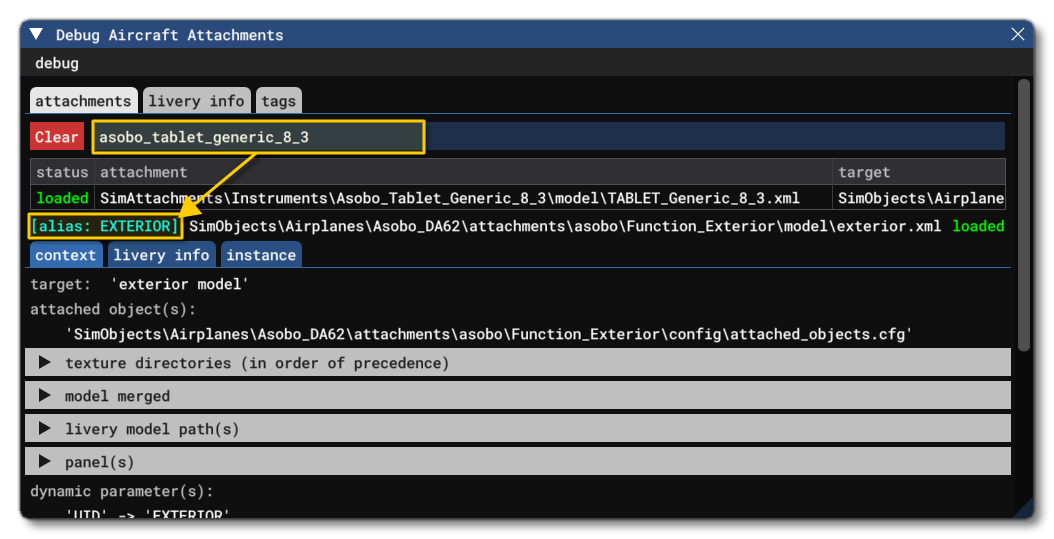
This alias can be found either from the attachment files themselves - as defined by the alias parameter - or you can use the DevMode tools:
- First, open the Behaviors Debug window.
- Then, in the aircraft, position the cursor over the attachment and use Ctrl + G.
- This will open the attachment in the Behaviors Debug window:
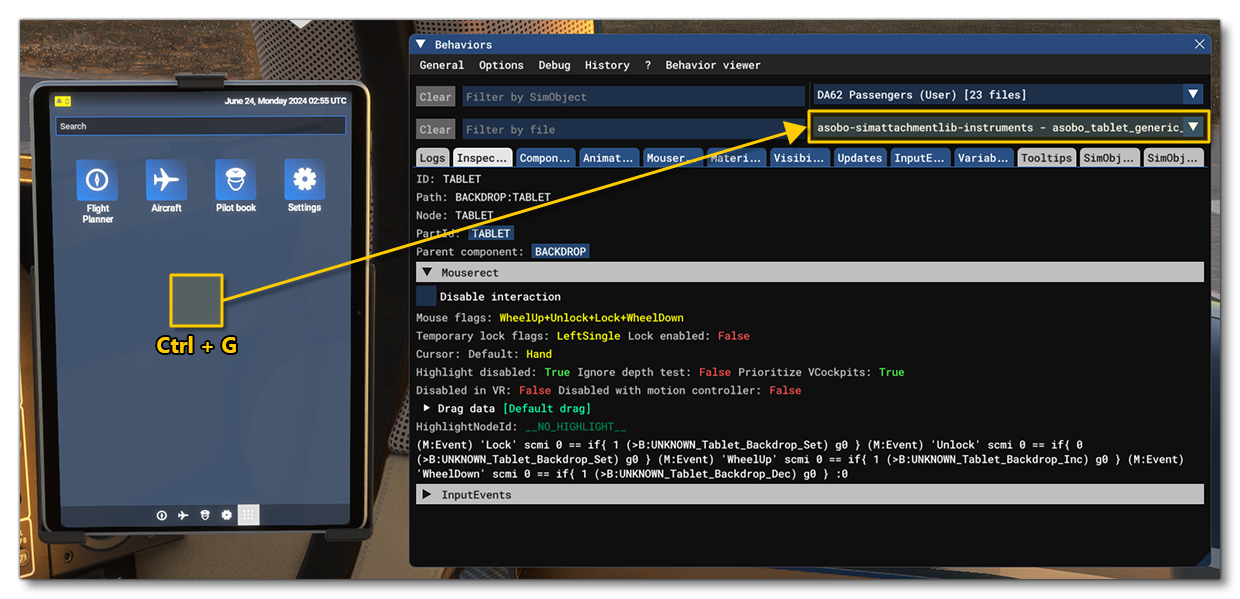
- From the debug window you can get the attachement name. In the example above it's
asobo_tablet_generic_8_3(if the full name isn't visible, then click on the dropdown and it will expand to show the full set of details):

- Now you have the attachment name, you can open the Attachments debug window, and add the name into the filter at the top. On doing this, the alias of the attachment will be shown directly under it:
Related Topics