COMMBUS AIRCRAFT
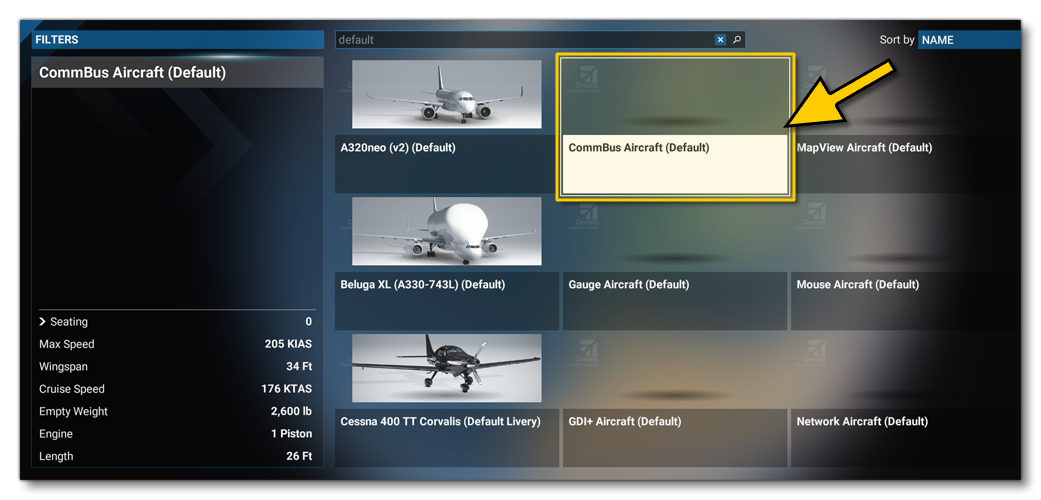
The CommBusAircraft aircraft is a preset of the WASMAircraft modular aircraft, which shows the use of the WebAssembly and JavaScript Communication API. Once the WASM Aircraft package has been built, this module will be available for flying from the aircraft selection screen:
The WasmModules.sln file (found in the Sources folder of the project) will allow you to compile the source-code with Microsoft Visual Studio (2019 or 2022) in order to create the CommBusModule.wasm WebAssembly module which will then be loaded by the simulation. Once compiled, the module will automatically be copied into the following folder
[ROOT]\PackageSources\SimObjects\Airplanes\MyCompany_Wasm_Aircraft\presets\mycompany\CommBusAircraft\panel
Note that if you make changes to the C++ code and recompile the CommBus WASM module, you will have to build your package again. This can be done while the plane is used within the simulation.
Testing
Once you have built the aircraft and selected it, you can go into a Free Flight and you will see three panels in the cockpit that illustrate the communication between WASM and JS gauges:
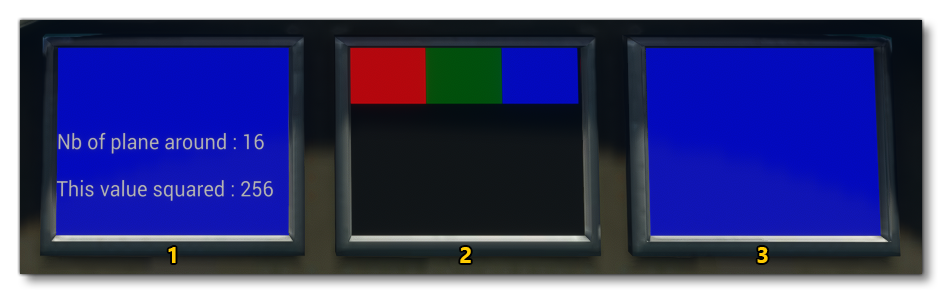
Screens 1 and 2 are WebAssembly module (WASM) gauges, while screen 3 is a JavaScript gauge. The top of each gauge has a value, which can be changed using the arrow buttons, and this value will be transmitted to the different gauges depending on:
- Whether the gauge is registering events.
- Whether the gauge is applicable to the event being sent.
For example, if you click on the Send To Wasm button on Gauge 1, then Gauge 2 will display the following message:
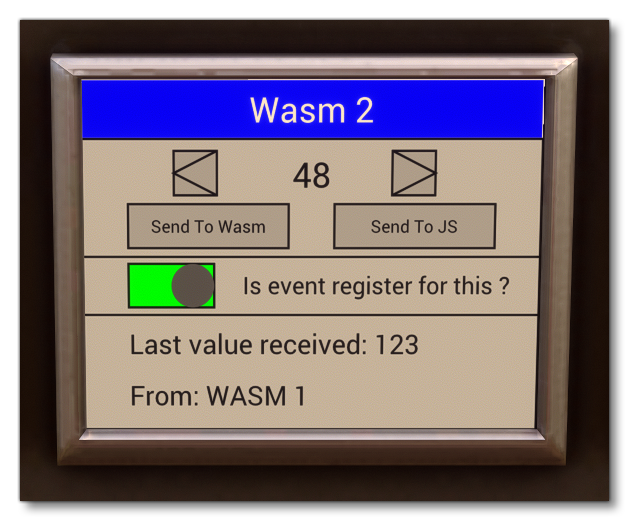
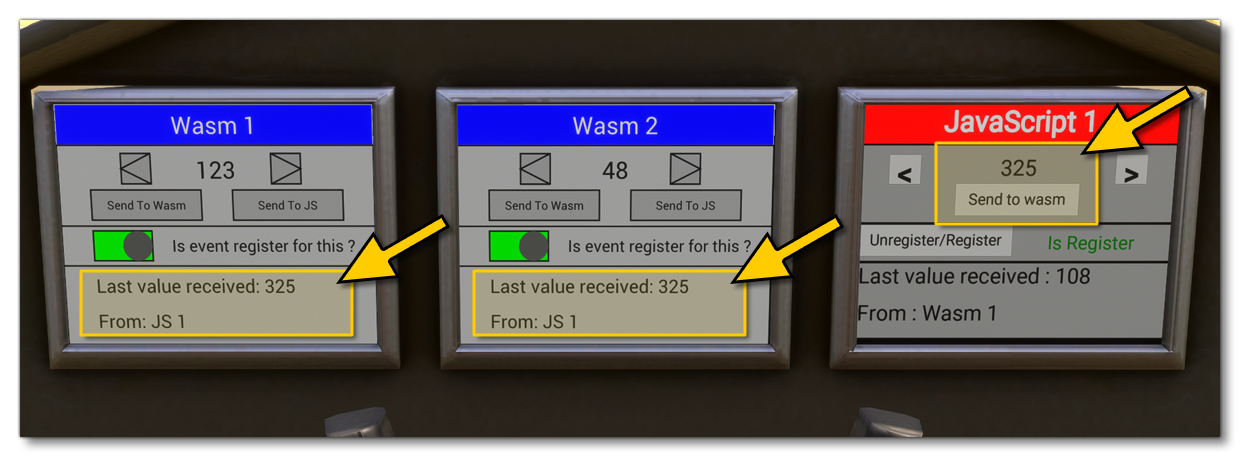
You can see that the gauge has recieved information - the value set - from the WASM 1 gauge. Likewise, if you click the Send To JS button then a similar message will be shown on the JS Gauge screen. Likewise, you can send information from the JavaScript gauge to both the WASM gauges using the Send To WASM button, and both gauges will show this information:
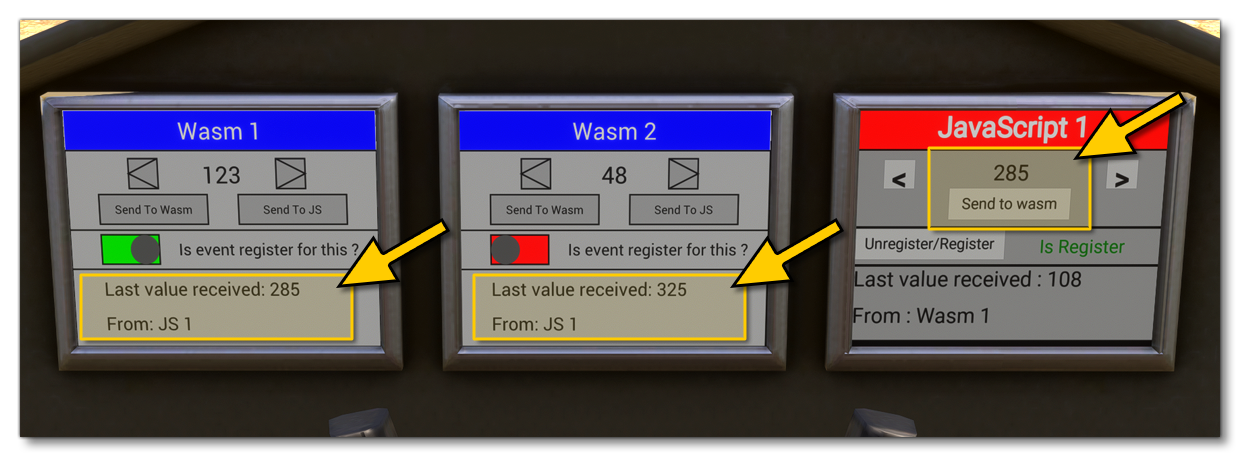
All of the gauges can be switched to not register any events using the register/unregister buttons. If we unregister the gauge WASM 2 and then send a new event from the JS gauge, you can see that only WASM 1 will receive this value: