WASMAircraft
The WASMAircraft sample is a Modular SimObject showcasing multiple different WebAssembly (WASM) APIs, each one available as a separate "module" in the aircraft. The modules showcased here are explained on the following pages:
- CameraAircraft
- Charts Aircraft
- CommBus Aircraft
- FlowAircraft
- Gauge Aircraft
- Gauge And Systems Aircraft
- Gdi+ Aircraft
- IO Aircraft
- Map View Aircraft
- Mouse Aircraft
- Network Aircraft
- Planned Route Aircraft
- Sound Aircraft
- Vars And Events Aircraft
- VFX Aircraft
Loading And Building The Project
In order to load and build the project in Microsoft Flight Simulator 2024, you must have previously enabled Developer Mode (see here for more information). Once enabled, simply follow these steps:
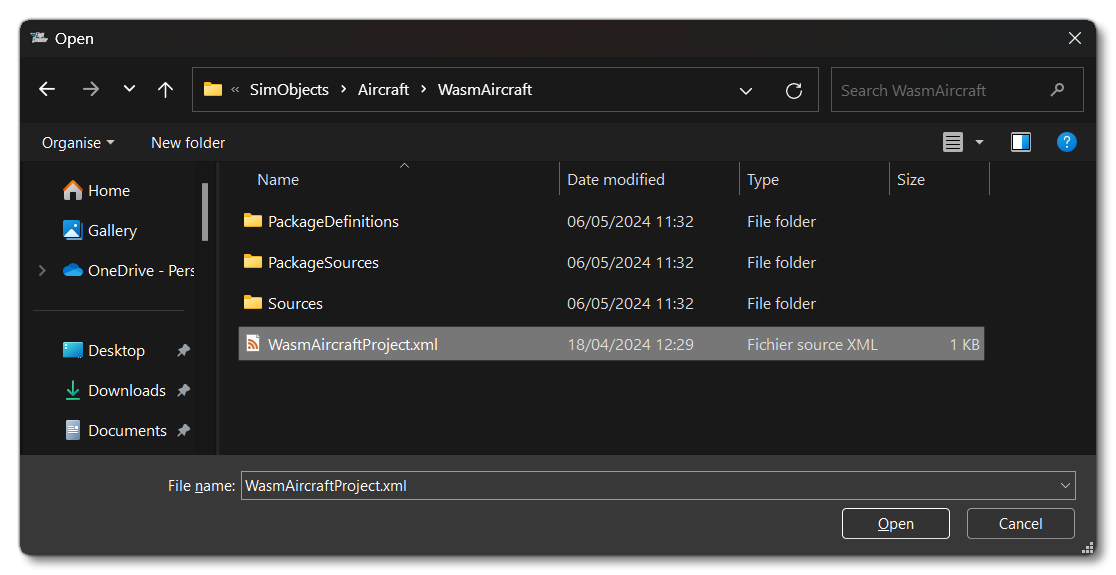
- Use the Open project... command from the File menu.

- Select the file
WasmAircraftProject.xmlfrom theWASMAircraftsample project.
- The Project Editor should open automatically and show you the project
mycompany-aircraft-wasm(if the Project Editor doesn't open, then you can open it from the Developer Mode Tools menu)
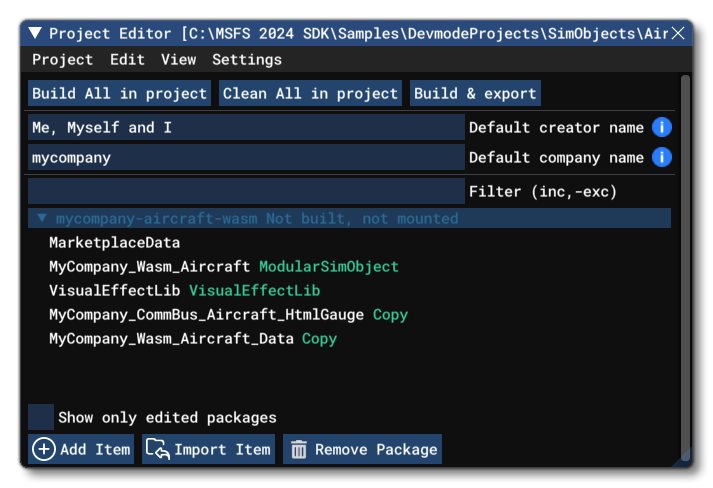
- Once loaded into the editor, you can simply click on the
Build All In Projectbutton to build the sample. Note that this should be done from the main menu of the simulation - before starting a flight - if you wish to see the different aircraft modules listed as selectable aircraft.
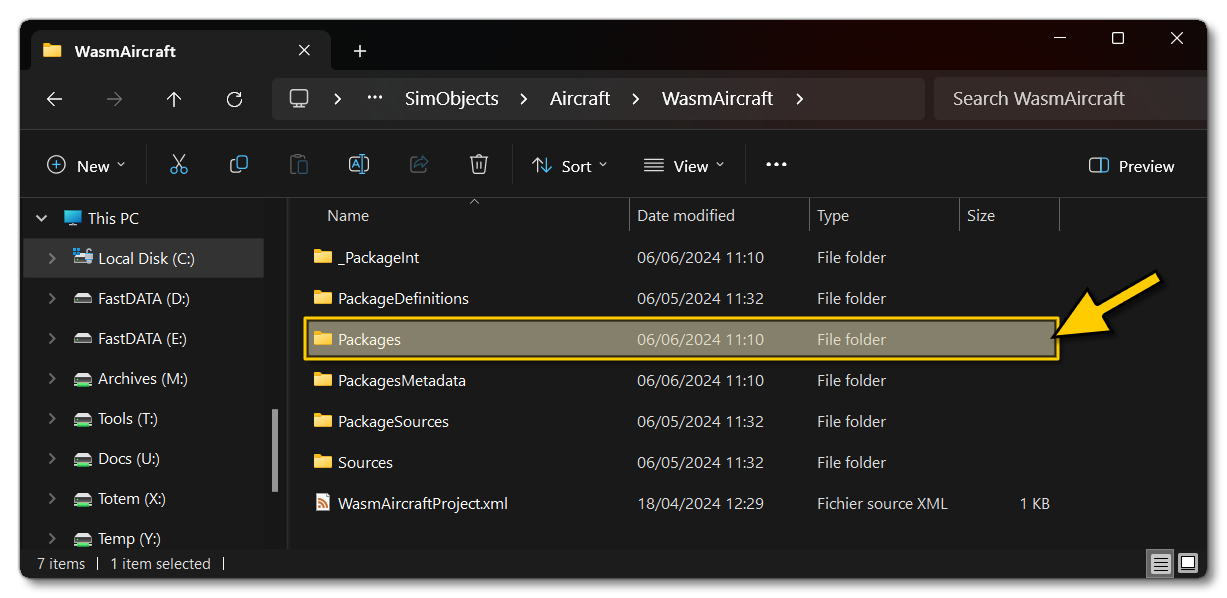
- This will build the modular aircraft package from the files specified in the project. This package will be named
mycompany-aircraft-wasmand will be output in the Packages folder created in the same directory asWASMAircraftProject.xml:
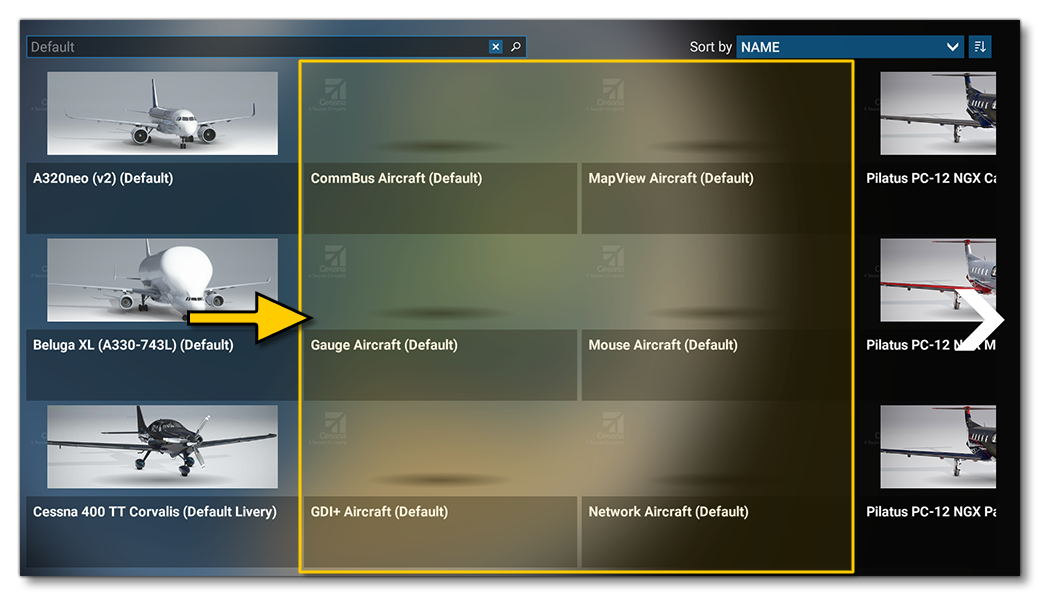
- Building the package will also add the aircraft into the VFS which makes them available for flight from the Microsoft Flight Simulator 2024 main menu. You can now proceed to the aircraft selection screen and see listed all the "modules" in the WASM aircraft package from the Configuration menu:
0/255