GDI+ AIRCRAFT
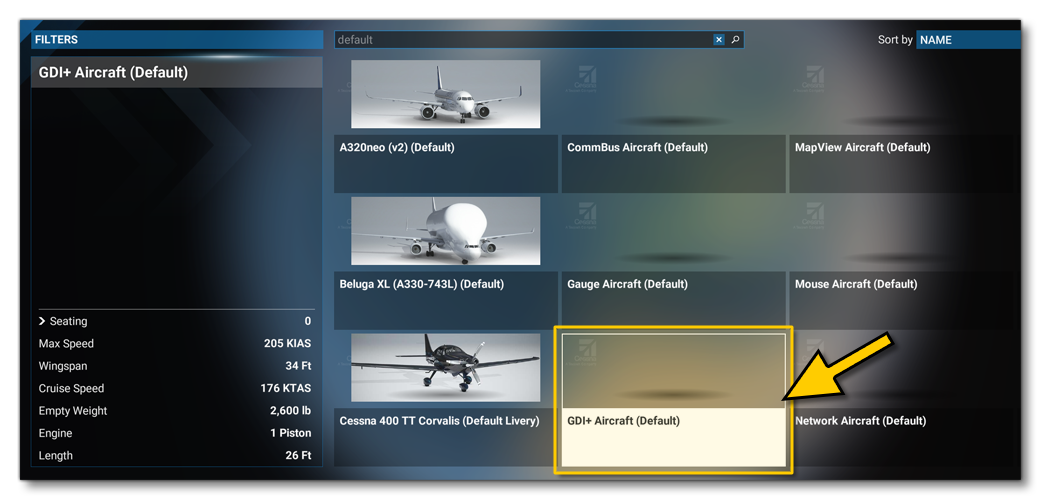
The GdiplusAircraft aircraft is a preset of the WASM modular aircraft, and illustrates how to create C++ gauges for a plane in Microsoft Flight Simulator 2024 using the GDI+ static library. It provides an alternative implementation to the gauges present in the GaugeAircraft module, using the advanced functionality of GDI+. Once the WASM Aircraft package has been built, this module will be available for flying from the aircraft selection screen:
The WasmModules.sln file (found in the Sources folder of the project) will allow you to compile the source-code with Microsoft Visual Studio (2019 or 2022) in order to create the GdiPlusModule.wasm WebAssembly module which will then be loaded by the simulation. Once compiled, the module will automatically be copied into the following folder:
[ROOT]\PackageSources\SimObjects\Airplanes\MyCompany_Wasm_Aircraft\presets\mycompany\GdiPlusAircraft\panel
In order for the aircraft to use the gauges defined in the module, they have to be declared in the panel.cfg file found in the same folder:
[VCockpit01]
size_mm=1024,768
pixel_size=1024,768
texture=SCREEN_1
background_color=0,0,255
htmlgauge00=WasmInstrument/WasmInstrument.html?wasm_module=GdiPlusWasmModule.wasm&wasm_gauge=Compass, 0,0,1024,768

[VCockpit02]
size_mm=1024,768
pixel_size=1024,768
texture=SCREEN_2
background_color=0,255,0
htmlgauge00=WasmInstrument/WasmInstrument.html?wasm_module=GdiPlusWasmModule.wasm&wasm_gauge=Attitude, 0,0,1024,768

[Vcockpit03]
size_mm=1024,768
pixel_size=1024,768
texture=SCREEN_3
background_color=255,0,0
htmlgauge00=WasmInstrument/WasmInstrument.html?wasm_module=GdiPlusWasmModule.wasm&wasm_gauge=Bitmap, 0,0,1024,768
As can be seen above, the gauges are referenced using the following URI scheme:
htmlgaugeNN=WasmInstrument/WasmInstrument.html?wasm_module=[MODULE].wasm&wasm_gauge=[GAUGE_NAME],[X],[Y],[WIDTH],[HEIGHT]
Note that if you make changes to the C++ code and recompile the WebAssembly module, you will have to build the modular aircraft package again. This can be done while the plane is used within the simulation.
Testing
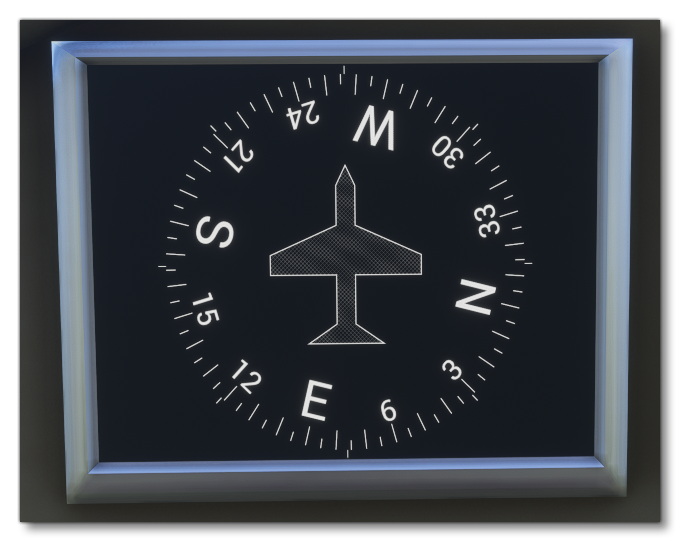
Once you have built the aircraft and selected it, you can go into a Free Flight and you will see three panels in the cockpit:
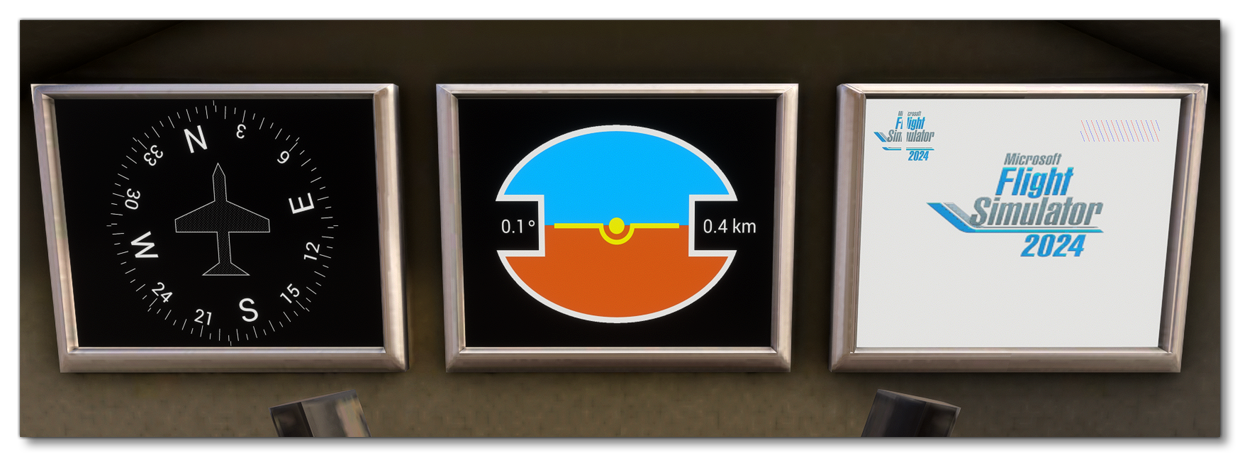
Each of the gauges shown corresponds to the following source code files:
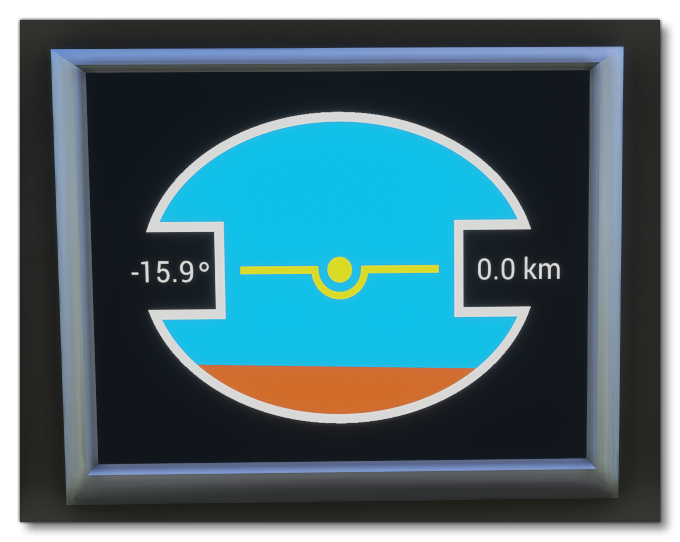
Attitude.cpp: provides a re-implementation ofGaugeAircraftAttitude gauge, using polygons.
Compass.cpp: provides a re-implementation ofGaugeAircraftCompass gauge, using using Path clipping.
Bitmap.cpp: provides a sample of how to load, create and display images.