VS CODE EXTENSION
The VS Code Extension extension provides a number of convenience tools that can be used with many of the different files used in add-on packages. The extension is supplied as part of the SDK Tools and can be found here:
<SDK Root>\Tools\VS Code Extension\
Package Files
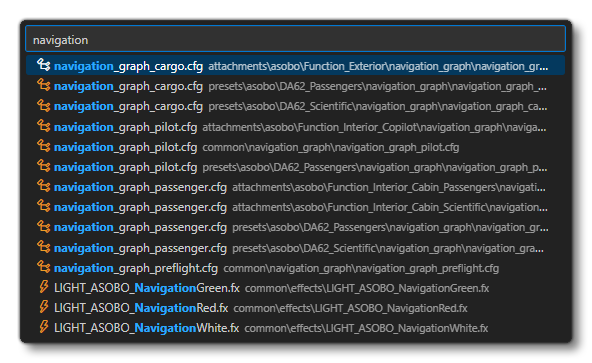
Pressing Alt + Shift + E will - if you are within an aircraft package - show you a list of all the non binary files within that package. This list is filtered to files sharing your current file's name by default:
Model Behavior XML
The following shortcuts are available in the extension related to dealing with Model Behavior XML files:
- Pressing
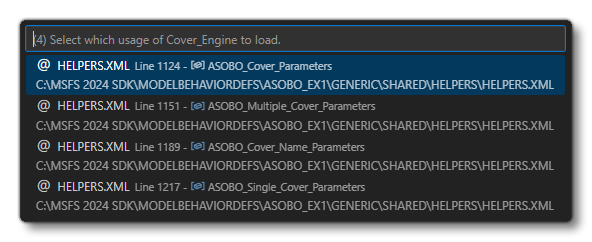
Alt+Gon a Template / ParametersFn / Macro / Parameter Name will do the following depending on whether you are selecting the item itself, or the item definition:- On the item: VS Code will take you to the item definition.
- On the definition: VS Code will display a list of where the tag is used, and selecting one will take you to it.
- Pressing
Alt+Gon a Include / IncludeBase will move you to the included file.
- Pressing
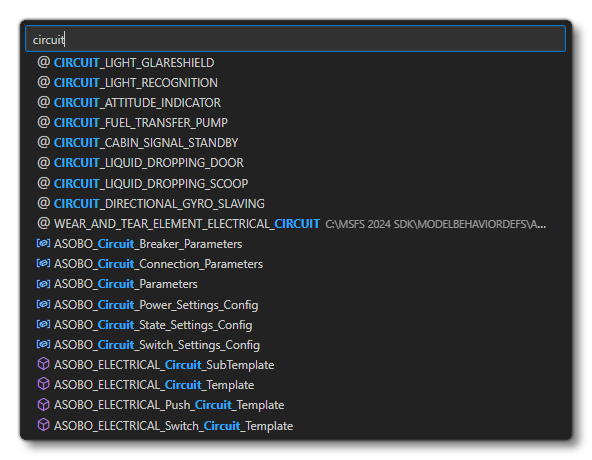
Alt+Shift+Gwill list all available Template / ParametersFn / Macro. You can further filter this list by adding a search term, and then selecting any of the listed items will take you to its location.
GLTF Files
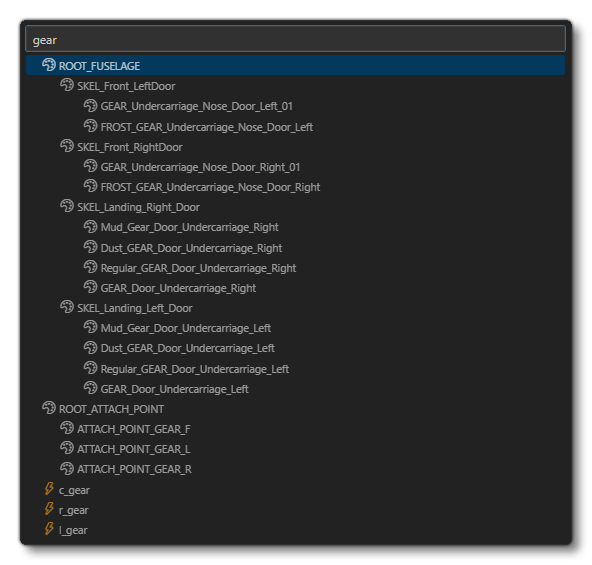
If you select any of the glTF files in the package, you can then use Alt + Shift + G to get a list of nodes and animations available in the file. This list can be further filtered using the text input, and selecting any of the items in the list will move you to the section in the glTF corresponding to the selection.
attached_objects.cfg
If you have open an attached_objects.cfg file and then use Alt + G on an attachment_root or attachment_file then VS Code will take you to the appropriate file.
CFG And FLT Files
There are some quality of life features when using the extension and checking CFG or FLT files:
- Using
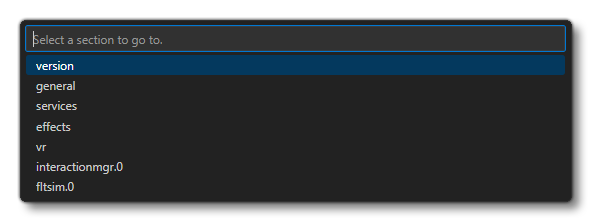
Alt+Shift+Gwill show a list of all CFG / FLT sections, which you can filter, and then select to move directly to it.
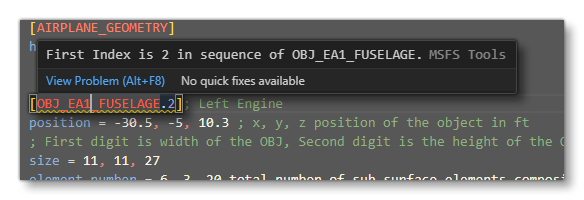
- Duplicate entry validation will be performed on sections and parameters within the files, with VS Code highlighting any issues and - if you hover over the underlined issue - a box will be shown with the error. Note to that for CFG files, additional validation will be performed on indices and misnumbered indexed sections/parameters will be shown.
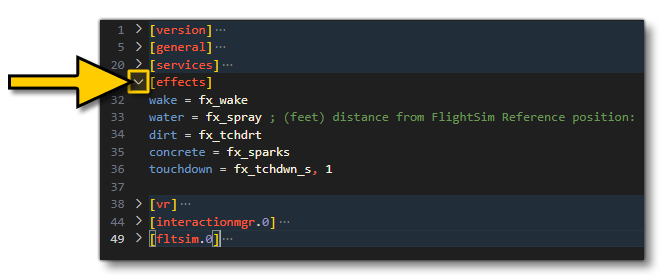
- Sections in the CFG and FLT files can be collapsed / expanded to condense down the information using the arrows beside each one.
- There is also some syntax highlighting done to CFG files and FLT files to make reading them easier. It should be noted that this is tuned to the dark VS Code settings, but you can tune it to suit your own setup Settings/Token Color Customizations options.
Related Topics