THE 3DS MAX PLUGIN
IMPORTANT! This part of the documentation has not been fully updated for Microsoft Flight Simulator 2024 and is currently a work in progress.
This section of the SDK documentation is for help with the support for Autodesk 3DS Max versions 2022, 2023 and 2024 only. This software is officially supported by the Microsoft Flight Simulator 2024 SDK and is recommended for use when creating models, animations and materials for your add-ons.
NOTE: Previous versions of the SDK had limited support for versions before 2022, however due to the fact that AutoDesk has completly removed those versions from availability, for customers, they are no longer supporteed by the MSFS 2024 SDK either.
During installation of the Microsoft Flight Simulator 2024 SDK, existing installations of 3D Studio Max will be detected and the appropriate plug-in for the installed version will be added. If you did not have 3D Studio Max installed when you installed the SDK and then later install it, you will need to reinstall the SDK to correctly add the plugin.
IMPORTANT! If you are updating the SDK and have previously installed the 3Ds Max plugin, you may experience issues using 3Ds Max due to corrupted preferences in the 3Ds Max user cache. This cache can be cleared by removing the files found in the following location:
C:\Users\[USER_NAME]\AppData\Local\Autodesk\3dsMax\[Version]\ENU
For more information about updating your 3DsMax installation and workflow for please see here: Updating 3DS Max Projects
The plugin itself consists of the following features which can be found from the MSFS2024 menu at the top, or from context specific buttons in 3DS Max (lights, for example):
- MSFS2024 Utilities
- Symplygon Utilities
- Texture Tool
- Multi-Exporter
- Wiper Mask Generator Tool
- Lights
- Containers
3DS Max Renderer
3Ds Max has a number of different renderers, however the SDK plugins will only work with the following two:
- Scanline
- Quicksilver Hardware Renderer
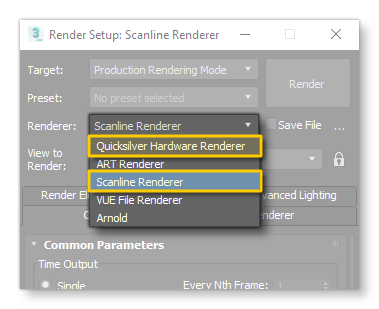
You should ensure that that you are using one of these when working with the SDK plugins to create or edit assets for Microsoft Flight Simulator 2024. If you do not have selected one of these render options then you will not be able to use the FlightSim Materials (and they will not be listed in the Materials window).
IMPORTANT! If you are using 3Ds Max 2021, then you are further limited to only using the Quicksilver Hardware Renderer since there is an issue with the Scanline renderer and the SDK plugin shaders.
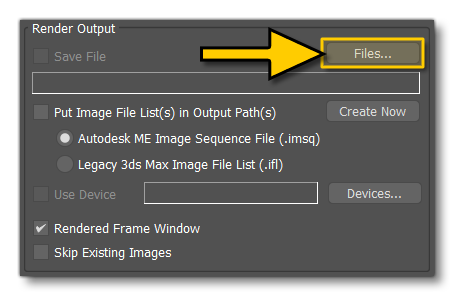
One thing to be aware of when selecting the renderer is that the render output file properties may not be setup correctly, as 3DS Max will apply the last settings used which may not be appropriate for working with Microsoft Flight Simulator 2024. To fix this, in the render window, scroll down to the Render Output section, and click on the Files... button:
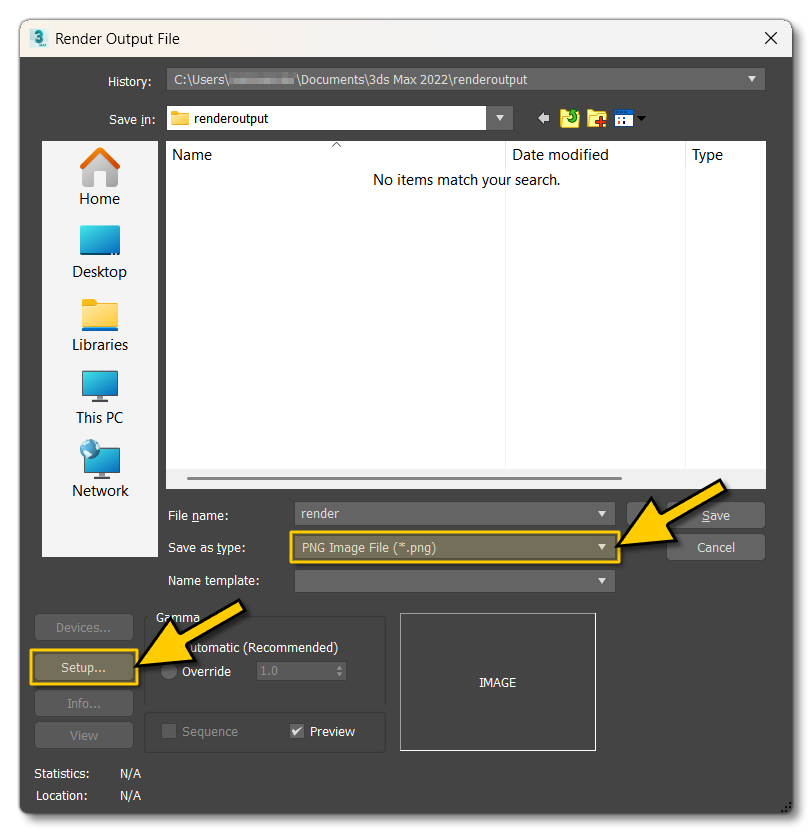
Clicking this will open a file explorer, and here you can give an output name and select the file type. For the file type, the only thing you need to do here is select PNG, and the after that click on the Setup button:
The Setup button will open the following window, where you should select RGB 48 bit and check the Alpha Channel option:
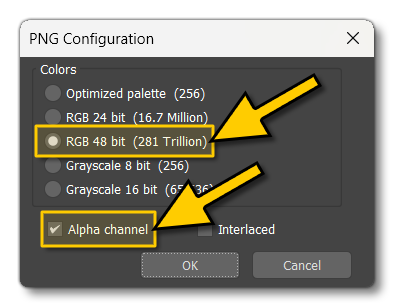
After clicking Okay, you can then click Save in the Render Output window.
RMB Menu Options
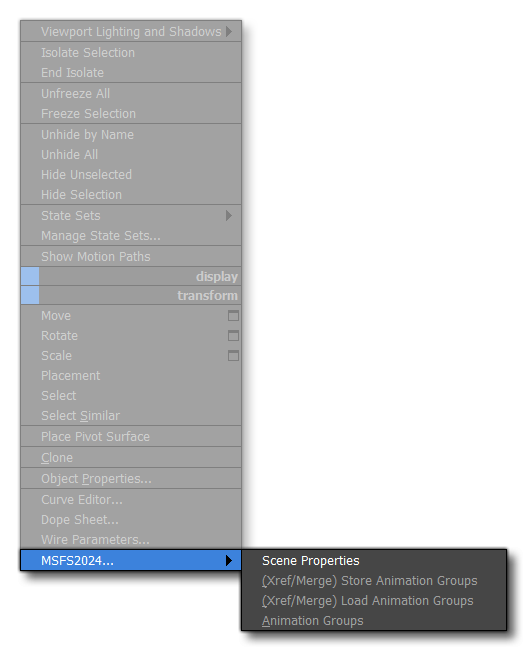
Within 3DS Max after you install the SDK plugin, you can right-click in the scene and then select one of the following options:
-
Scene Properties
This option opens the following window:
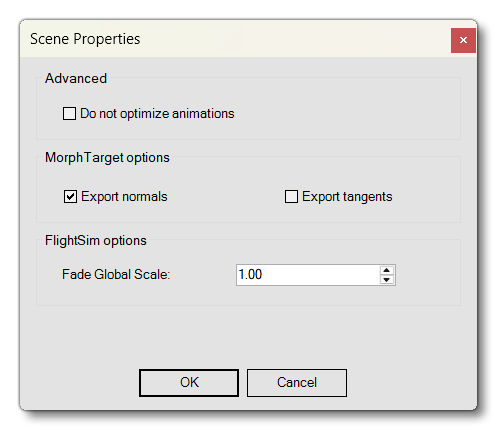 Here you have these options:
- Do Not Optimise Animations - By default animations are optimised and the Exporter will try to prevent the exporting of keyframes that are similar (thus exporting less animation data). However, if you notice "jaggy" animations, you may want to check this option.
- Morph Target Options - Here you can select to Export Normals or Export Tangents when working with Morph Targets.
NOTE: Morph Targets are not supported by the MSFS 2024 glTF Format. - Fade Global Scale - This is used in the simulation to change the point at which an object will fade out of view. This is only useful for scenery objects.
-
Store Animation Groups
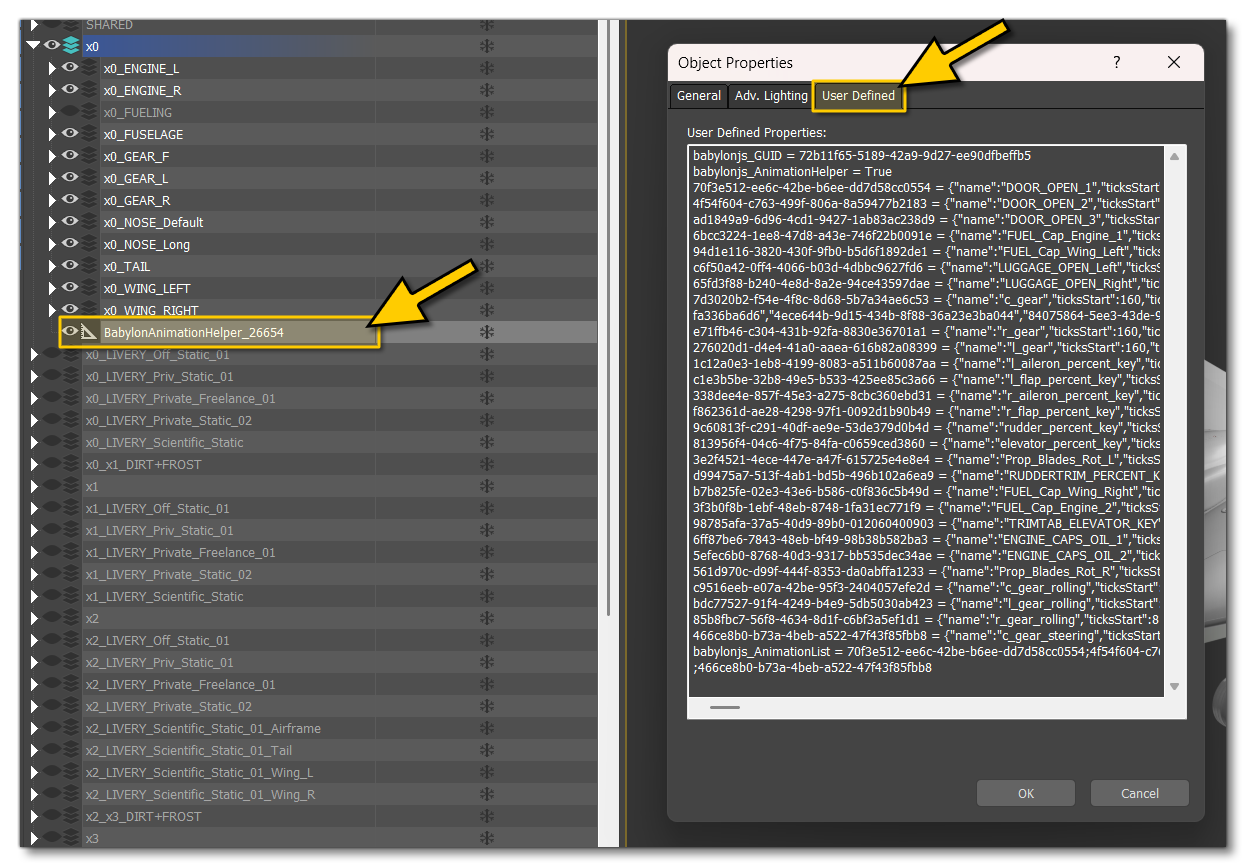
This option will store all the animation group data in a single object in 3DS Max. The data can be found in the User Defined Properties for the object, and can be reloaded into the Animation Groups window using the Load Animation Groups option.
-
Load Animation Groups
This option can be used to repopulate the Animation Groups window with the data from an object previously created with the Store Animation Group option.
-
Animation Groups
This option will open the Animation Group window where you can set up the animations for export.
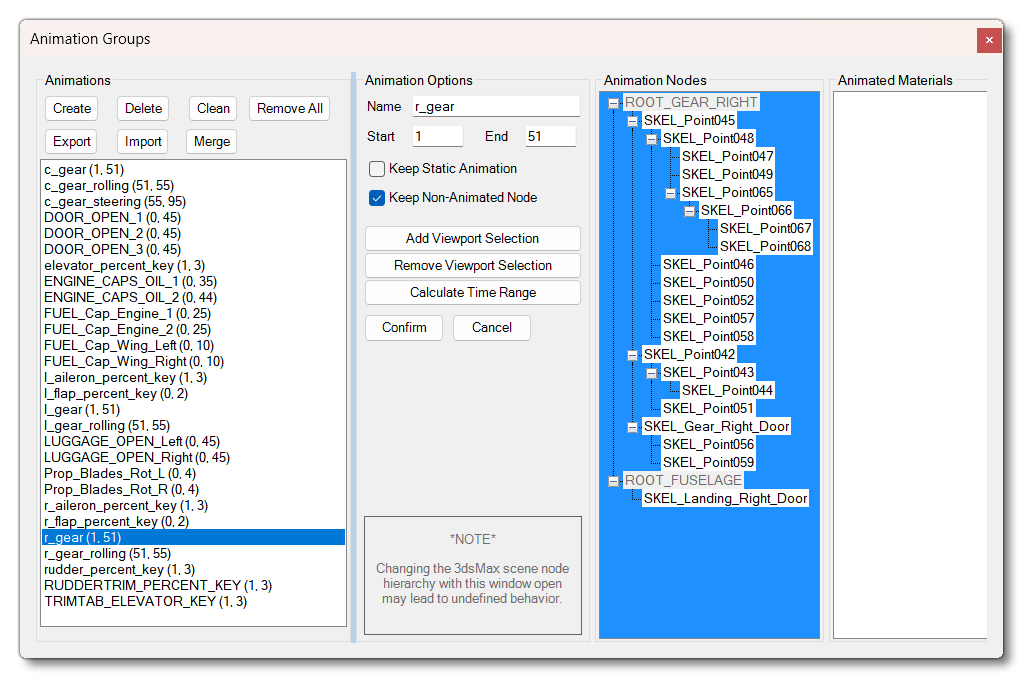 IMPORTANT! Currently, when using linear animations on a node, there have to be animation keys on the start and end frames, matching the animation group it belongs to.
The animation names must match the animation names in the
.xmlfile so that the simulation knows how to use the model animations correctly. The aircraft-specific model.xmlmust be next to the model file and have the same name as the model file (except for the extension). The.xmldefines link with the simulation variables, as well as GUIDs, for use with the Microsoft Flight Simulator 2024 animation system. You can find more information on this here:
Object Properties
When you open the Object Properties in 3DS Max, there are certain details that can be added into the User Defined tab:
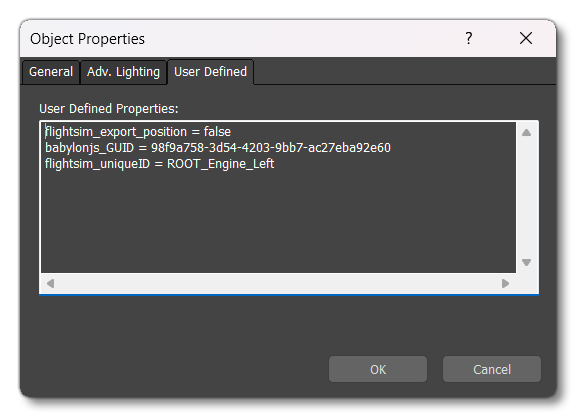
The strings that can be added here are as follows:
babylonjs_GUID- This is a unique GUID that has been generated for the object. You should never need to add or edit this, however it's also not used by Microsoft Flight Simulator 2024.
flightsim_uniqueID- This will be added to the object automatically when you first export the project with the Asobo Unique ID
- Export transforms - There are four different export transform options available, and they will all be considered a
trueif not explicitly flagged here:flightsim_export_position- If set to false, object position will be reset to [0,0,0] on export.flightsim_export_rotation- If set to false, object rotation will be reset to [0,0,0] on export.flightsim_export_scale- If set to false, object scale will be reset to 100% on each axis on export.flightsim_export_transform- If set to false, object scale / position / transform will be reset to 100% on each axis. If this is used, then you do not need any of the other strings.