TRANSVERSAL INPUT PROFILES
The purpose of a transversal input profile, is to create transversal input mappings for the generic UI elements within the simulation, like pausing, showing the EFB, moving the cursor, etc... using an input device. If you haven't set up a device profile yet, then you can find instructions on how to do this on the following page:
Note that if you have created a new device profile you don't have to create a transversal profile to accompany it, as the user can set up the bindings how they choose, but it's good practice to have the device you are creating the profiles for provide a minimum of functionality from the moment it gets plugged in. Also note that you can set up transversal bindings for devices that already have a device profile - perhaps created by the manufacturer or by another user as an add-on - without having created your own profile first.
Setting Up The Transversal Input Profile Package
To set up transversal controls, we will be using the Input Profile Editor, which has a list of all the input actions used in the simulation, and permits you to bind the different controller inputs to them. However, first you will need to either:
- create a new package for the transversal profiles
or, if you are adding a transversal to an existing device package:
- add a new package to the existing project.
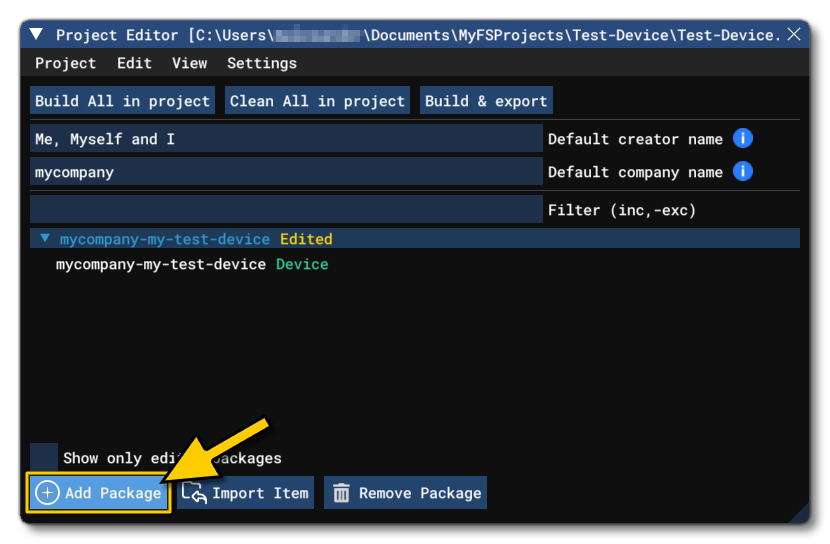
Regardless of the which one of these requirements you have, the approach is the same and starts with adding a new package to the project using the Project Editor (the images show the setup starting with an existing device project, however creating a new transversal project has the same requirements and will use the same setup wizards):
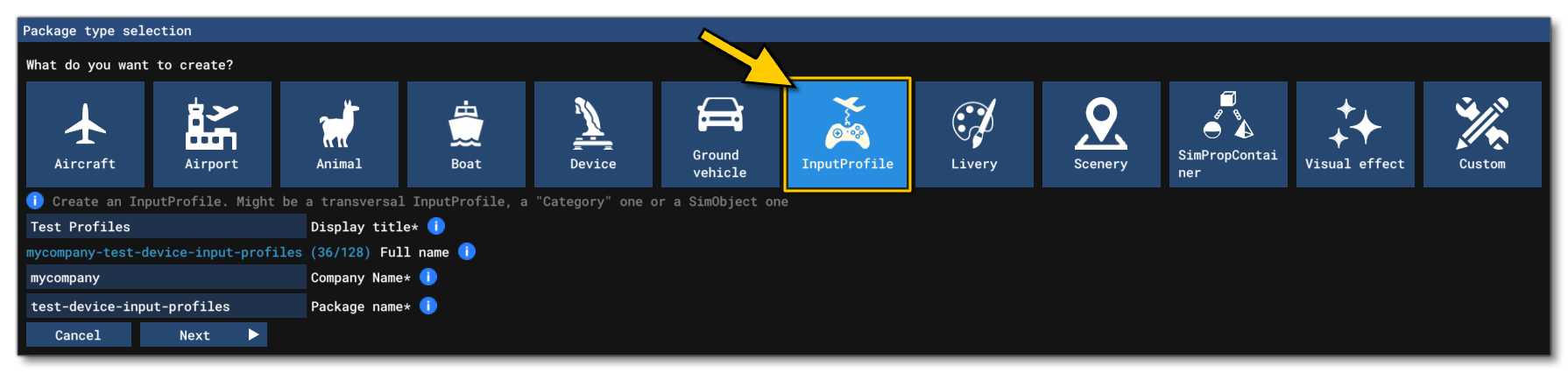
Here you should select the Input Profile package type:
On clicking Next, you will be taken to the Input Profile Wizard where you can select the device to use for the profile, and set what kind of profile it's going to be. In this wizard you will want to give a Filename for the input profile XML file which will be generated by the wizard, then choose the platform for the profile, before finally setting the category to be Transversal. After that it's all about setting up the device, which is identified using the Product ID, and - if you have the device available - you can simply plug it into your PC then click the Use A Device Connected To Your Computer swicth to select the device from the drop-down list. If you don't have the device then you will have to supply the following:
- Product ID - This is the unique product ID, expressed as a hexadecimal value, format
0x0000. - Composite ID - The composite ID is an integer value used to link multiple parts of a single product to a unique product ID (e.g. HOTAS…)
- Hardware Version - Similar to the composite ID, the hardware ID is used to link multiple parts together when they do not all belong to a single product ID.
- Device Type - Identifies the type of device based on the input protocols it uses, which can be one of the following:
- Direct Input - A generic stick / device.
- DualSense - A PS5 controller.
- Keyboard - A keyboard.
- Mouse - A mouse.
- XBox Gamepad - An XBox One controller.
- XBox Series Stick - An XBox One compatible joystick.
- XInput - An XInput device.
- XR Controller - Left and right VR/AR controllers.
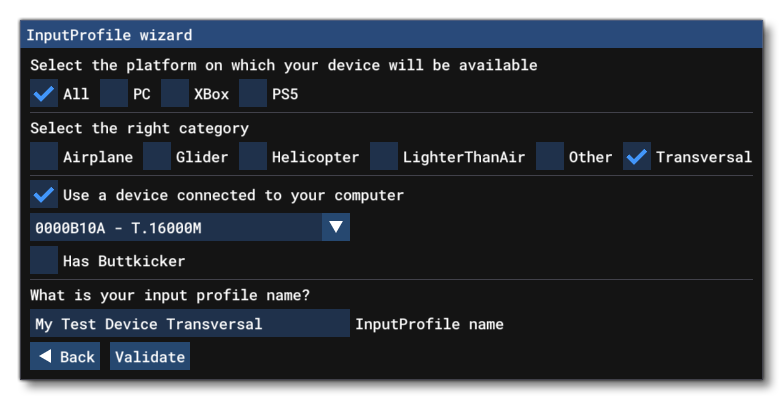
Once you have this information, you can then click the Validate button. This will save the profile XML to the package and open the Input Profile Editor.
Setting Up Transversal Bindings
The Input Profile Editor is what will be used for setting up the bindings between devices and the simulation, which - in this case - is the device setup in previous steps, and it should be plugged into the PC if possible. If you do not have the device present, you can still set up the profile, but it may feel a little more complicated. Having set up the package for the input profiles already, you should have the Input Editor open (but if not, you can open it from the Editors menu, or by right-clicking on the package asset group and selecting Load In Editor), and it will look like this:
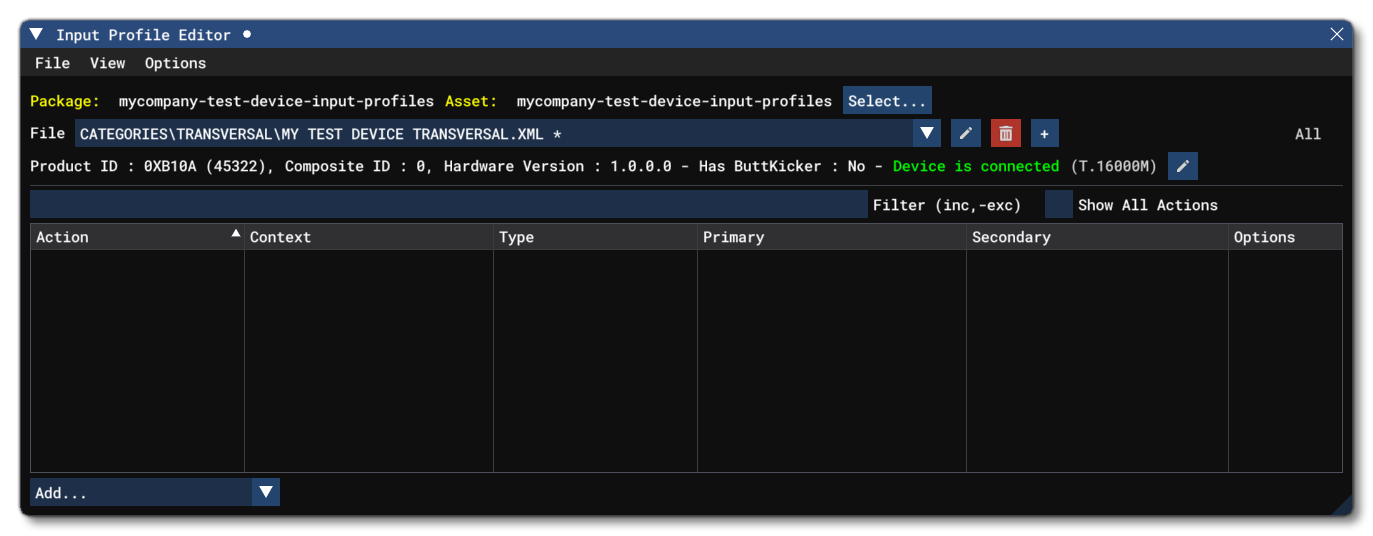
In general, the bindings you will need to set up are those which can be used across various UI contexts and - when in the simulation - can be used for non-aircraft specific controls (for example, cameras). The following is a minimum list of contexts and associated actions that you should be aiming to set up:
NOTE: You can find a full list of contexts here.
| Contexts | Actions |
|---|---|
ALWAYS |
KEY_MENU_SR_EFB_TOGGLE |
COCKPIT_CAMERA |
|
COCKPIT_GLOBAL_CAMERA |
|
COCKPIT_GLOBAL_CAMERA_TRANSLATE |
|
EXTERNAL CAMERA |
|
INGAME_UI |
|
INSTRUMENTS_CAMERA |
|
MODES |
|
PC_MODE_SWITCHES |
KEY_ACTION_PC_CONTROL |
PLAYER_CHARACTER_FPV |
|
PLAYER_CHARACTER_INTERACTION |
KEY_PC_INTERACT |
PLAYER_CHARACTER_MOVEMENT |
|
PHOTO_MODE_ACTIONS |
KEY_PHOTO_MODE_TAKE_PICTURE |
PHOTO_MODE_ROTATION |
|
PHOTO_MODE_SWITCHES |
KEY_PHOTO_MODE_TOGGLE |
PHOTO_MODE_TRANSLATION |
|
SMART_CAMERA |
KEY_TOGGLE_SMART_CAMERA |
SIM_SHORTCUT |
|
VIEW_MODE_SWITCHES |
KEY_VIEW_MODE |
To set up these inputs, we'll take the PLAYER_CHARACTER_MOVEMENT context as an example. In the Input Editor, you have two methods for finding the actions you require:
-
You can check the Show All Actions checkbox, and then in the filter type
PLAYER_CHARACTER_MOVEMENT, which will bring up a list of all actions associated with that context. You can now edit those actions that you require inputs for.
-
You can uncheck the Show All Actions option, click the
Add...button at the bottom of the window, and then filter the action list usingKEY_PC_MOVE_*. Now you can select the action you need from the filtered list, before repeating the process for each of the other actions you require to create a custom list of required actions.
Having created a list of actions you want to link with a controller input, you can then go ahead and add the input strings to bind the two together. In general that starts with the primary input string, which is a string related to a specific input from the device and is the main input the simulation will detect. For example, if it's a gamepad and you want to use the "A" button, you'd use the string "A", and if you need multiple inputs for a single action - for example the "A" and "B" buttons together - then these can be concatenated together so you can have "A + B".
To add the bindings you have the following two methods:
- take the inputs directly from the device by clicking the Get Input button (
 ) and then moving the device joystick and/or pressing the device buttons.
Or:
- use the drop down list button (
 ) and select one or more inputs manually.
Note that regardless of the method chosen to add the device input, you can "group" inputs on a single action to have two or more device inputs required for it, for example: press A and joystick UP to raise the landing gear.
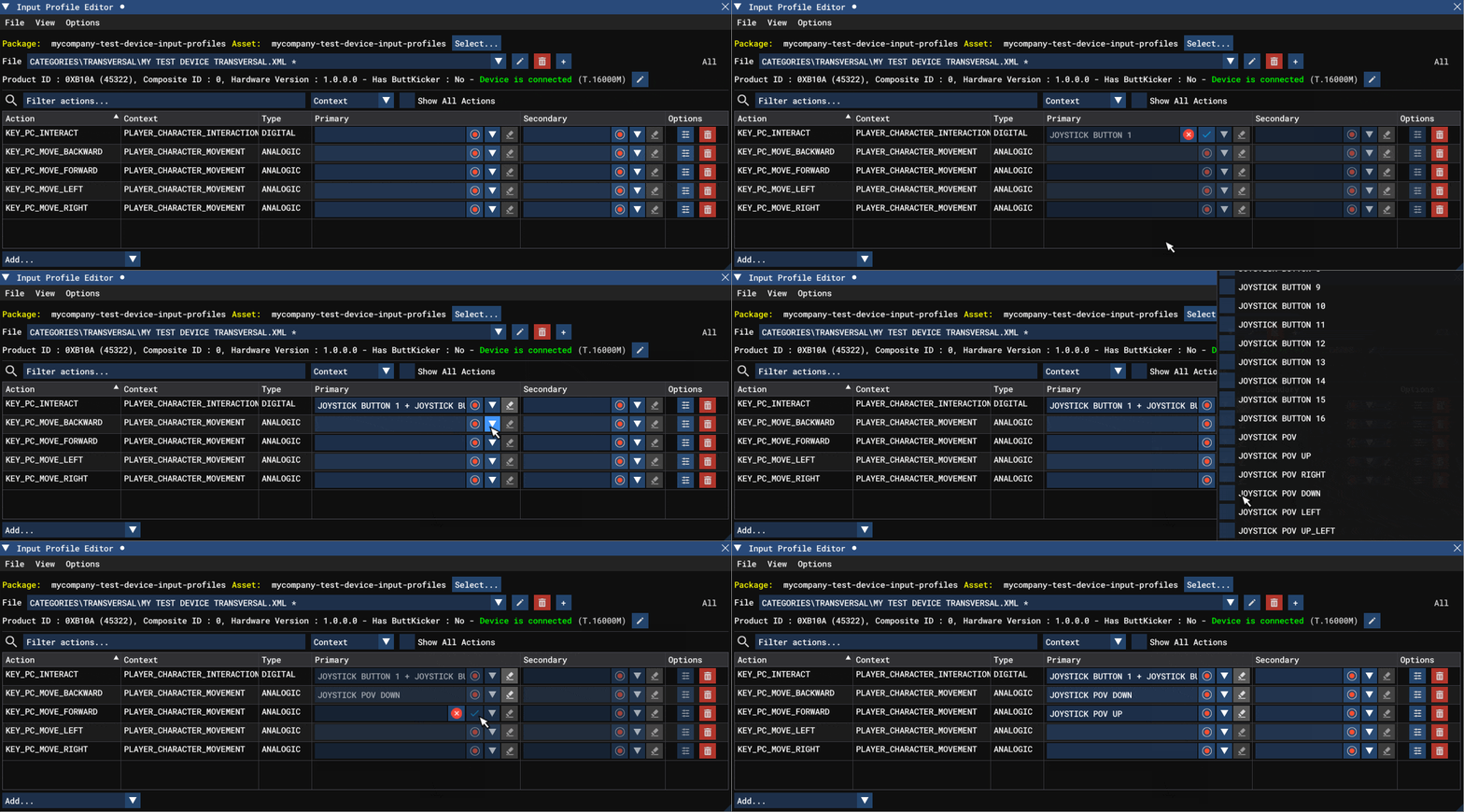
NOTE: For the transversal input bindings you do not need a secondary set of inputs, as those are mainly used for aircraft specific input bindings.
It should be noted that there are certain options available to you for each binding, and these can be accessed using the  button, which will open the Action Options window:
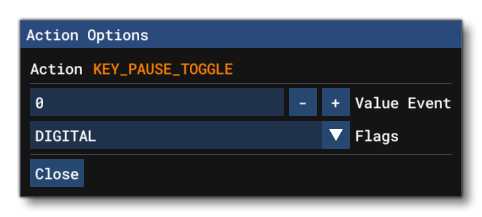
From here you can choose to send a specific value when the input is received (in which case you must check the MOD VALUE flag), and various different flags to use to modify the input. These flags are all explained in detail here: Type Flags. For Axis and Analogue inputs you may also have an Override Axis option.
This process should be repeated for all the different inputs over all the contexts listed in the table above (note that there is nothing stopping you adding in additional transversal input bindings outside of the contexts listed).
Saving And Exporting The Project
Once we have set up all the transversal bindings, you can save the Input Configuration XML to the package using the Save option from the File menu. Once you've saved the bindings you can go ahead and build the package (see Building A Package) and then test the bindings in the simulation (ie: use the controller and test to see that the menus work, that the user avatar can move, that the cameras change, etc...).