DEVICE PROFILES
The purpose of a device profile, is to create a series of base files so that a specific device is displayed in the UI and can be assigned to the various controls of any aircraft by the user. These device profiles also usually contain transversal input mappings for the generic UI elements within the simulation, like pausing, showing the EFB, moving the cursor, etc... As such, this section is aimed more at device manufacturers rather than aircraft developers. However, there is nothing stopping any individual from using this process to create transversal profiles for their favourite or personal controller if there are none already available.
If you wish to create a transversal input profile or a profile for an aircraft category, please see the following pages:
Device Package Setup
Before you can start to create your device profile, you will first need to create the base package which is going to be used to share the device (and any input profiles associated with it) publicly. For that, the first thing you need to do is run the simulation and then open The Project Editor and from the Project menu, select New Project then fill in the project details:
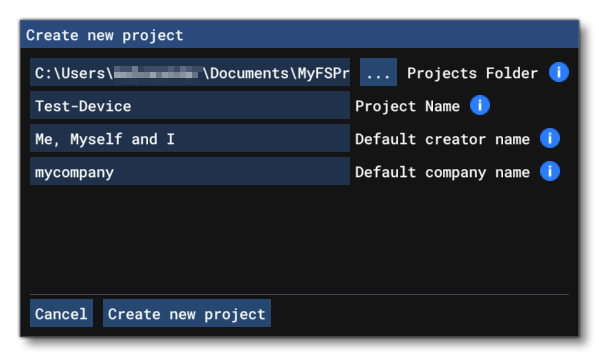
Once you have given the basic details for the project, clicking Create New Project will open the Publishing Item Selection window, and here you need to select Package, then click Next. You can then select the Package Type, which - for the purpose of devices - should be Device (as shown in the image below).
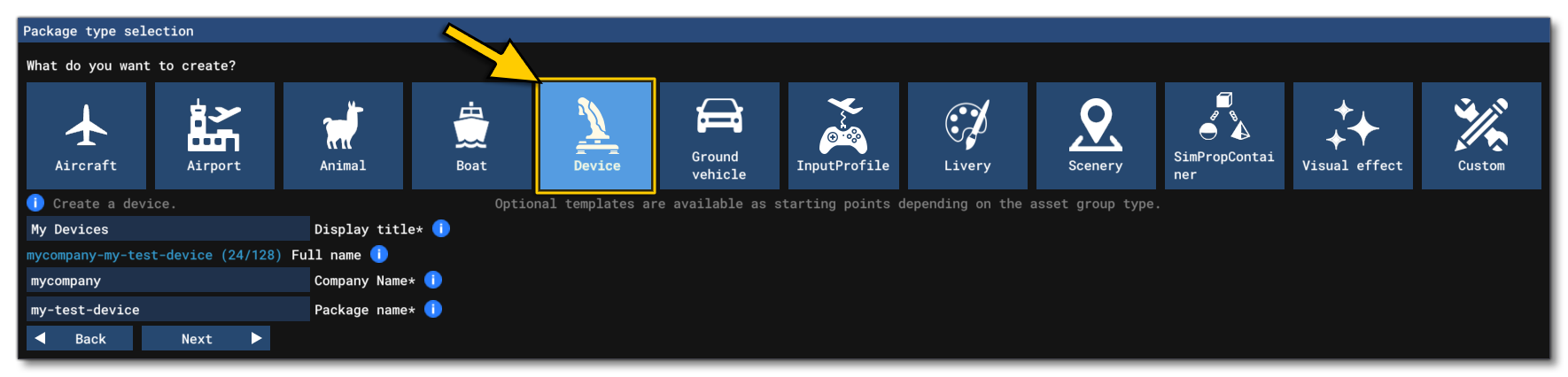
The Device Wizard
The next stage is to use the Device Wizard to set up the device itself. The information you input here will be used to generate the initial DeviceConfig.xml:
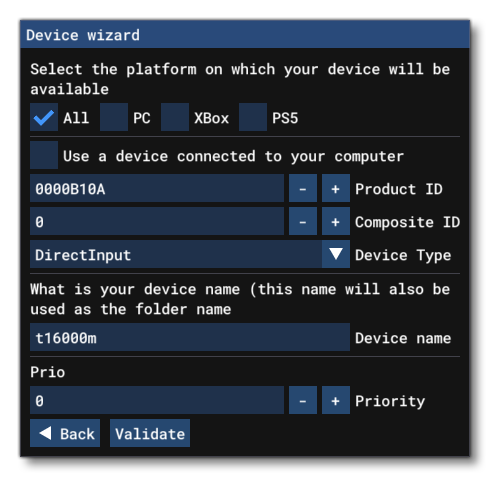
The first part of this window is where you give the device profile a FileName and a Priority. The priority value is used to define the position in the controller list in the simulation UI for the device, where a lower value will represent a higher priority in the UI list.
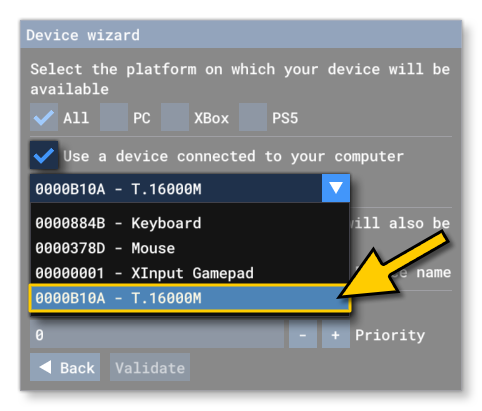
You then need to supply the Product ID for the device, which is the unique USB ID for the device. If you have the device available, then you can simply plug it into the PC then select Use A Device Connected To Your Computer, and select the device from the drop-down list:
If you don't have the device or can't plug it in, then you can simply un-check that option and input the Product ID as a hexadecimal value, as well as the Composite ID (if required - some devices use this to link multiple parts to the same Product ID), and give the Device Type:
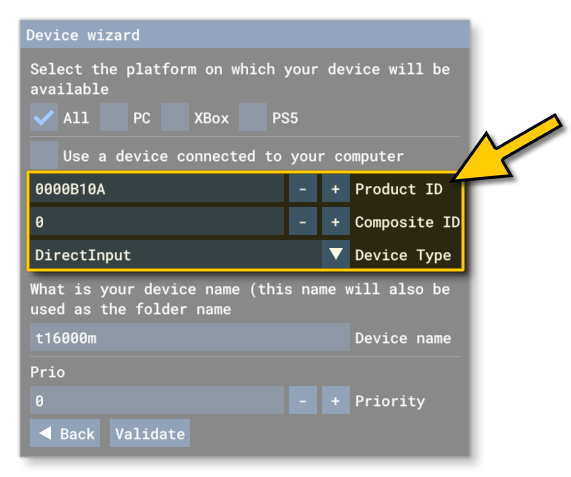
When finished you can click on the Validate button, which will check what you've input here and - if correct - finish creating the package for you. Once finished, the device will be opened in The Input Device Editor and here you should give the device its Display Name:

Device Images
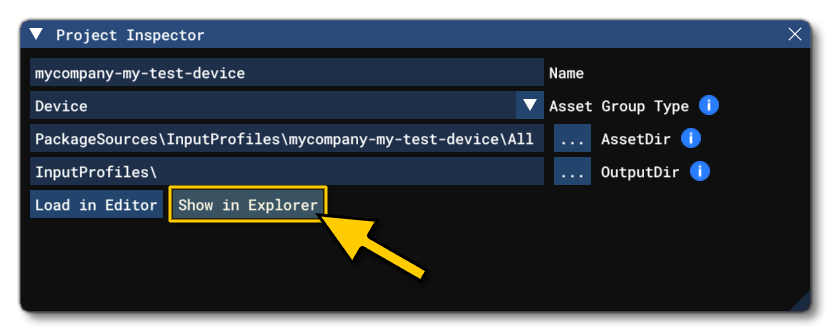
Before building your package for testing, you will need to add in images for the device. The layout image is what will be shown in the simulation UI when the device is selected, and then you have the icon images, which will be linked to the controller and shown at appropriate points when input hints are shown in the UI. These images will be saved automatically beside the device XML file when added using the Device Editor - you can find this location using the Project Inspector, clicking the Show In Explorer button:
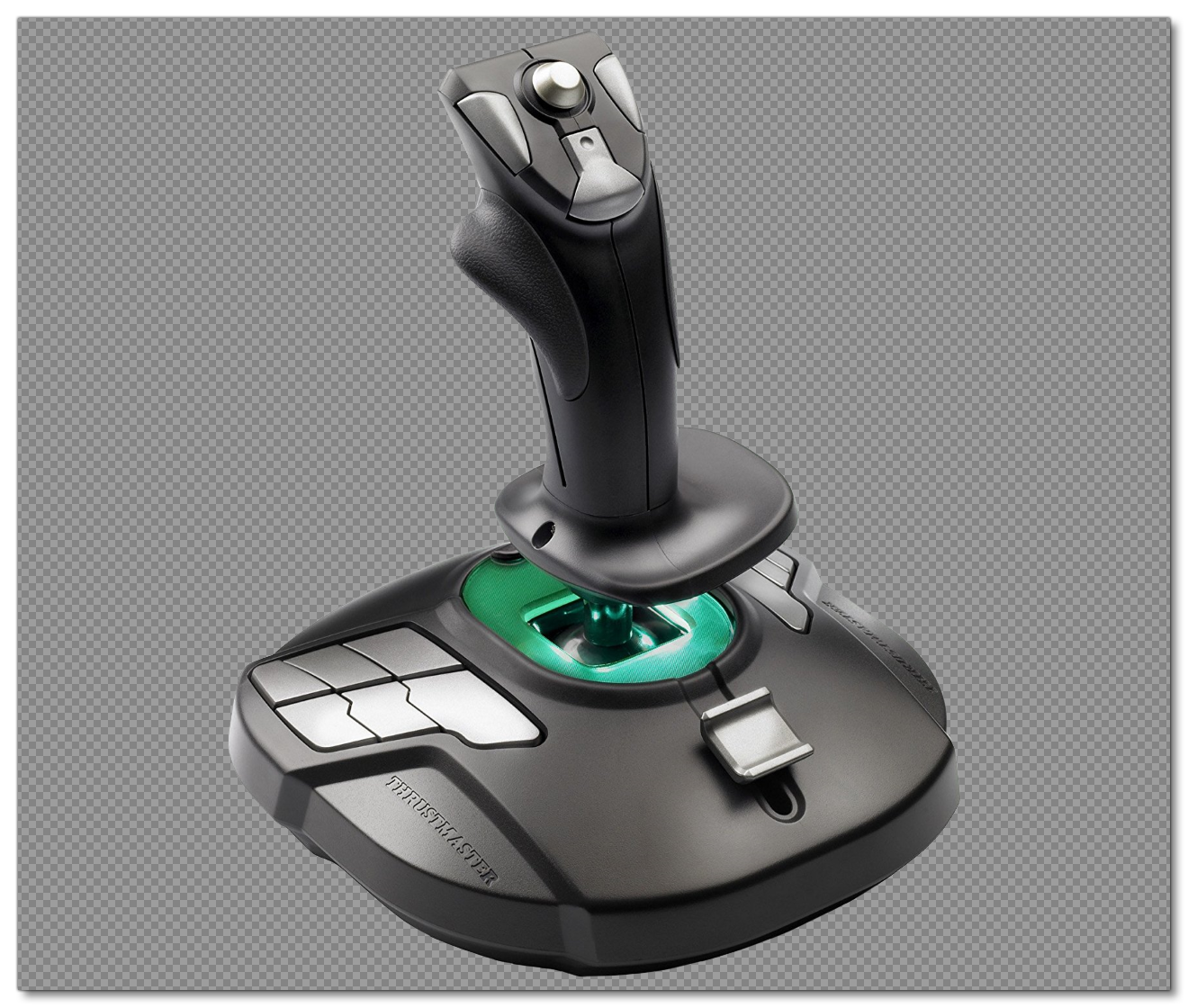
The first image to add is called layout.png, which is a single, large image that shows the device on a transparent background. It should be authored as a *.png, with a width/height of 1280px/1080px. For example (image is rendered with a chequered background to show the size and transparencies):
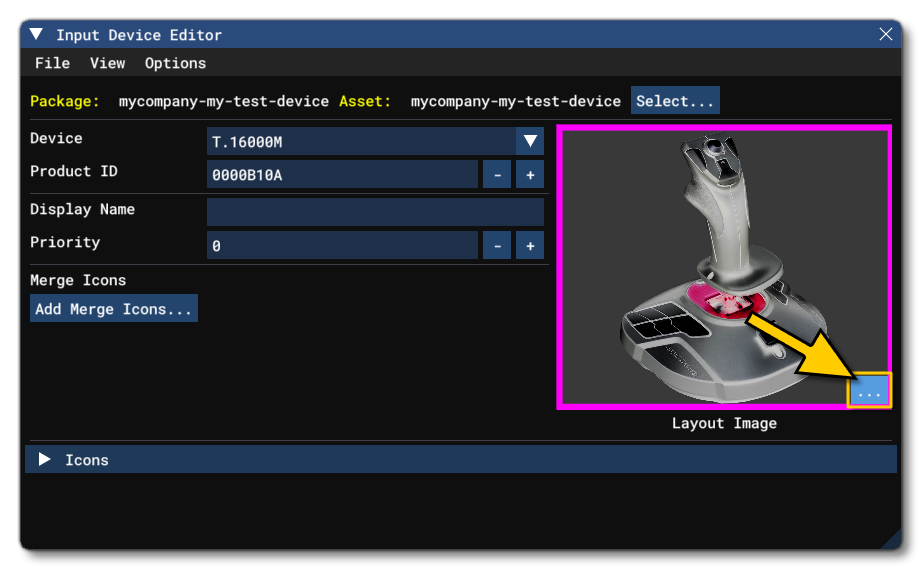
Note that the package wizard will have created this file using a stock image already, and you can simply overwrite this image with the one for your own device by clicking the ... (Import Image) button in the editor, and browsing to the image location (the Device Editor will automatically copy it to the correct location in the package):
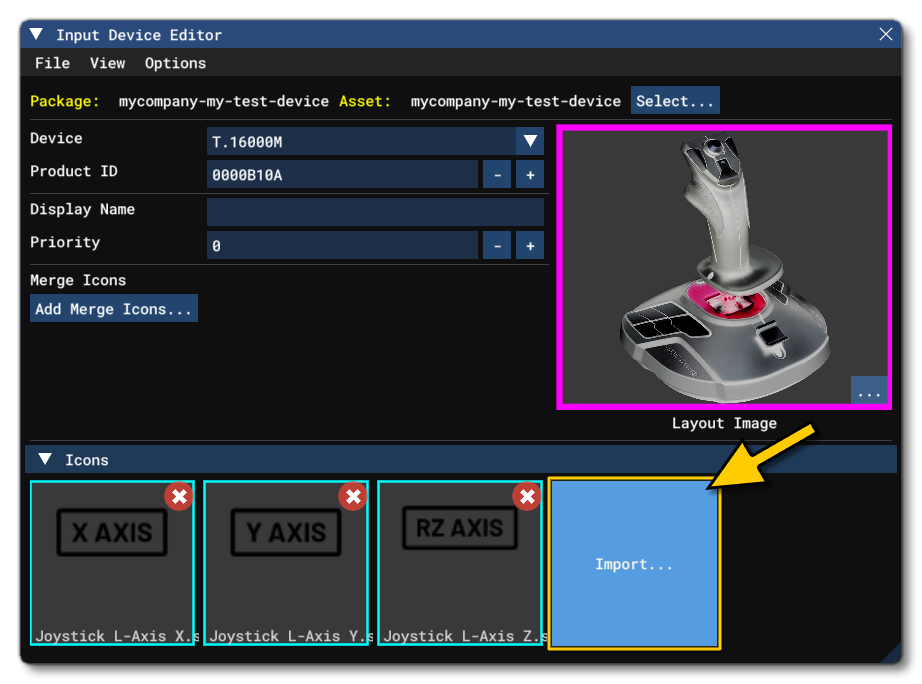
You should also add several icon images for the device. These will be used to symbolise the device controls in context specific interface messages in the simulation. The images should be authored as *.svg files, and they should be flat white only. For example (images are rendered with a chequered background to show the images and transparencies):

These images can also be imported directly into the Device Editor using the Icons section at the bottom:
Linking Icons With Inputs
Having created and added the images required for the device, you need to link them with the device inputs themselves. This too is done through the Device Editor, using the Merge Icons section. In this section you will be adding a single Merge Icon entry per icon, and each icon can be linked to one or more inputs (for example, if you have an icon for the stick up/left, then you would link it to the inputs for Stick -X and Stick -Y.
To start with you need to click the Add Merge Icons button, which will add the first merge icon group. Expanding the group will show the following:
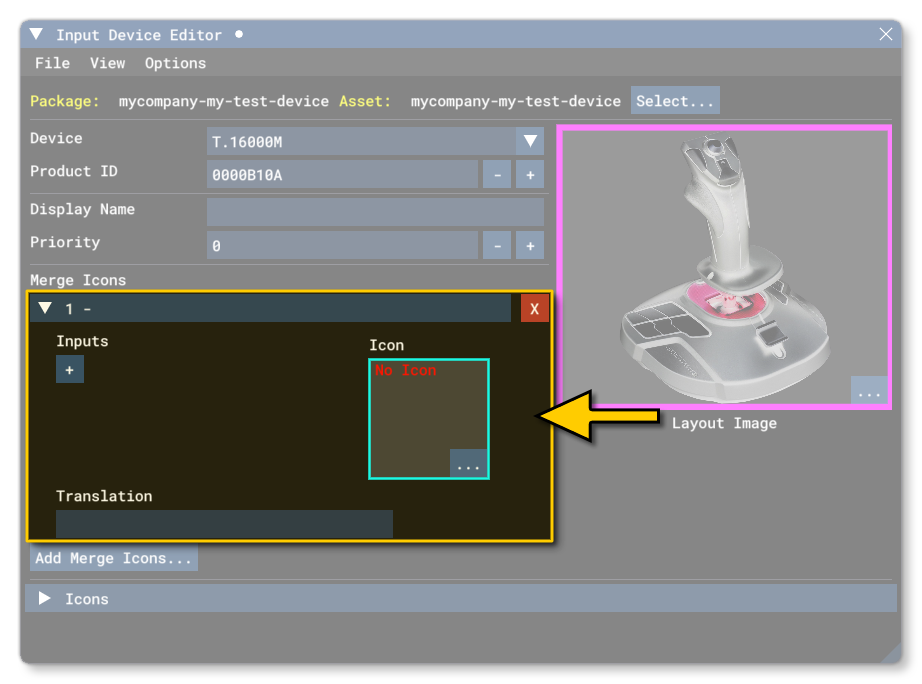
The first thing to do is select the icon to use from one of the ones that you added previously. This is done by clicking the ... button on the icon image and selecting whatever is appropriate from the pop-up window. After that you can click the + button to add the first input to associate with the icon. For the input you have two options, either:
- take the input directly from the device by clicking the Get Input button (
 ) and then moving the device joystick or pressing one of the device buttons.
Or:
- use the drop down list button (
 ) and select the input manually.
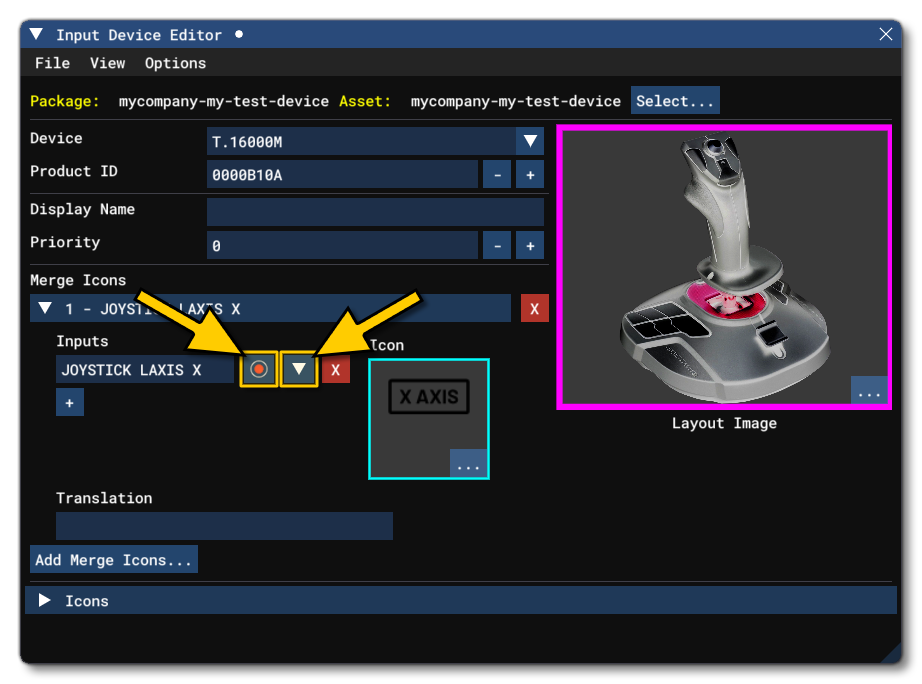
NOTE: If you require separate values for axis / POV / Hats - for example: -X and +X instead of just any X - then this can be setup from the Options menu of the Device Editor. There you can select to separate the axis, POV, and Hat inputs (this is only used for the Get Input option, as the list of inputs shows all available inputs for the device, regardless).
Finally, you have the option to add in a translation for the input, which is a localisable string used to describe the action/icon in certain cases. If you do not have a *.loc File for the device, then this can be left blank, or simply give a description in English. If you do have a *.loc file, then the input here should be formatted as follows:
TT:<INPUT_DESCRIPTION>
For example:
TT:INPUT.MYDEVICE.UPLEFT
Once you have set up the first merge icon, you can then repeat this process and add in further icons for all the different device inputs. Keep in mind that the concept here is to link inputs (often multiple) to an icon and a translation text, for example: You can have a single "D-Pad" icon for the D-Pad on a gamepad, and assign it all four D-Pad inputs (up / down / left / right) to this icon and supply a localised text saying "D-Pad Input".
Button Translations
The button translations section will be empty initially, and you will have to click the Add Button Translation button to get started:
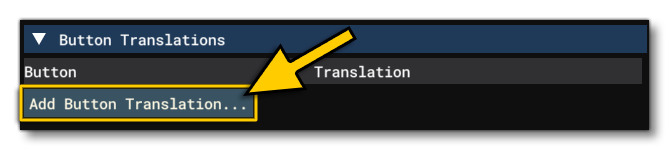
This will add a blank entry with an option to select an input "button" and then assign it a "translation". Inputs can be added by either clicking the  button and then moving the device or clicking a button to auto-detect the input, or by clicking the
 ▼ button to open a list of available inputs and then selecting one. As with the MergeIcons translations you can then give the input a localisable string to describe the action/icon. If you do not have a *.loc File for the device, then you should simply give a description in English. If you do have a *.loc file, then the input here should be formatted as follows:
TT:<INPUT_DESCRIPTION>
For example:
TT:INPUT.MYDEVICE.UPLEFT
It is recommended that you do this for every button, axis, and hat of the device as these strings will be used by the simulation when specific inputs are required as part of the accessibility features (and in other places).
Testing The Device Profile Package
At this point, you can go ahead and build and mount the package. When finished, you can open the Controls menu in the simulation, and you should be able to see the device in the UI:
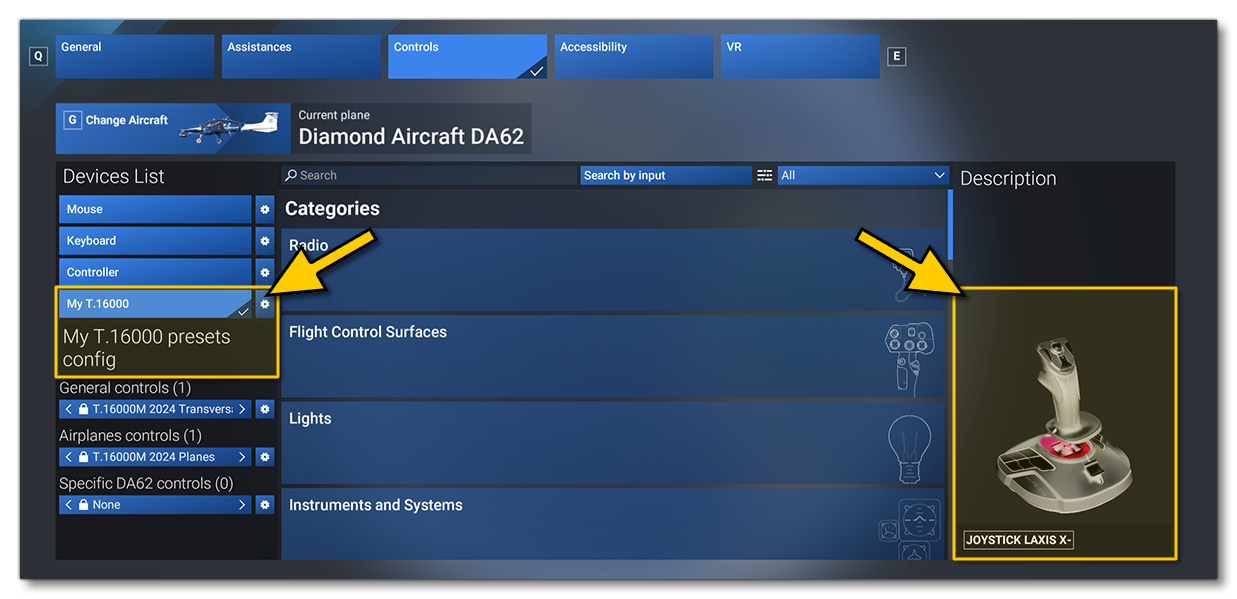
If everything is set up correctly, the device name should be showing in the list on the left, and when selected, you should see the image of the device on the right. Additionally, moving the device joysticks and sliders and pressing its buttons will show the corresponding icon underneath the image. At this point, we recommend you create a base transversal profile for the device, which is described here: