DEBUG PLATFORM DISPATCHER
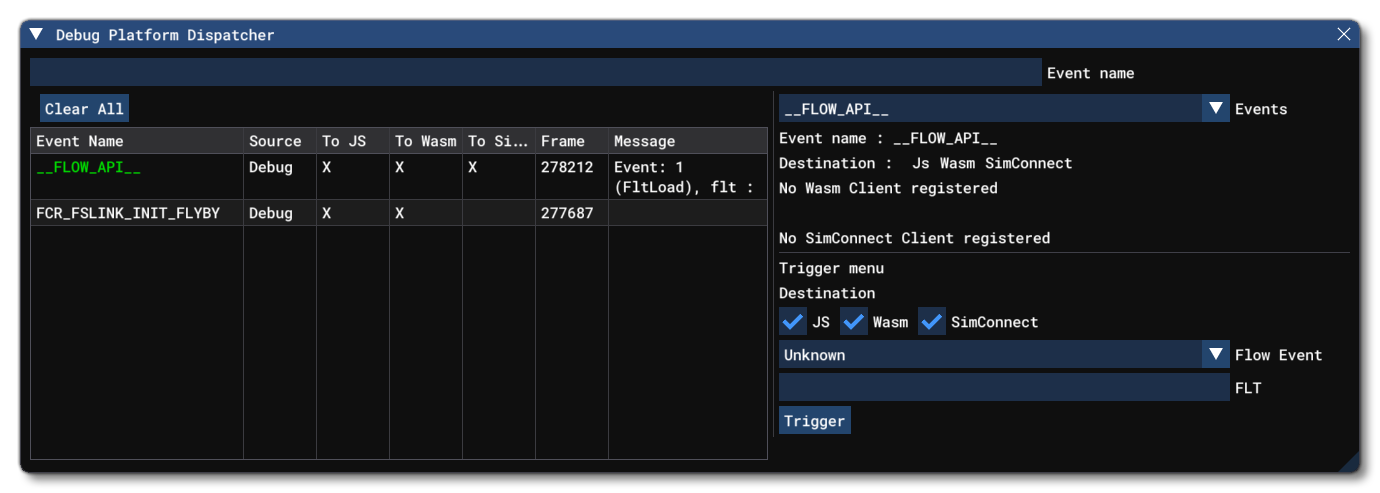
This window is opened from the DevMode Debug menu, and can be used to help debug the different APIs that transfer messages between the different programming platforms used by add-ons, ie: WebAssembly, JavaScript, and the SimConnect SDK. Currently the APIs that this window supports are:
This window is essentially split into two parts, the Message section - on the left - and the Event Selection section and Triggers, on the right.
Outside of these two sections, at the top of the window, you have the Event Name filter input box, which can be used to filter the different events that are shown in the message section of the window. You can clear this filter at any time using the Clear All button.
Messages
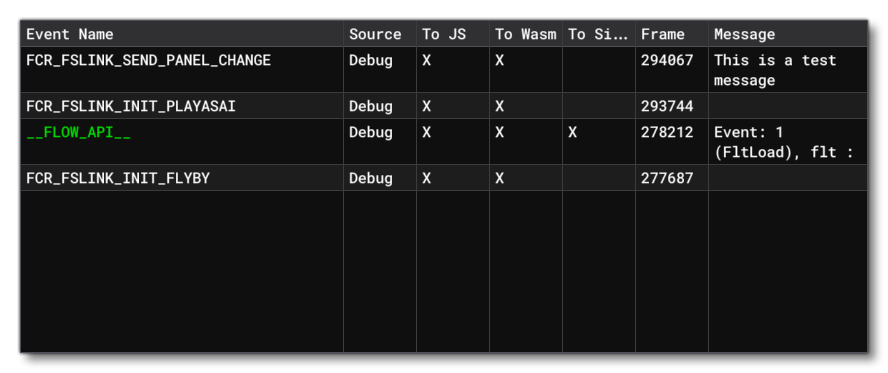 The message section of the Platform Dispatcher window is comprised of a table with the following columns:
-
Event Name
This shows the name of the events that have been dispatched. If the name is shown in green then it is a reserved name (eg: the Flow API), otherwise the name is a custom name.
-
Source
This column shows the source of the message, which can be one of the following:- Wasm - The event came from a WebAssembly module.
- JS - The event came from a JavaScript module.
- SimConnect - The event was generated by a SimConnect SDK function.
- Sim - The event was generated by the simulation.
- Debug - The event was generated by the Debug Platform Dispatcher itself.
-
To JS
This shows whether the destination of the event is a JavaScript module. Some messages might be addressed to a specific platform only, in which case only the "clients" of this platform who have registered this event will receive it.
-
To WASM
This shows whether the destination of the event is a WebAssembly module. Some messages might be addressed to a specific platform only, in which case only the "clients" of this platform who have registered this event will receive it.
-
To SimConnect
This shows whether the destination of the event is SimConnect. Some messages might be addressed to a specific platform only, in which case only the "clients" of this platform who have registered this event will receive it.
-
Frame
This simply shows the simulation frame of the event being dispatched.
-
Message
This column shows the content of the message (note that not all events send a message).
Event Selection
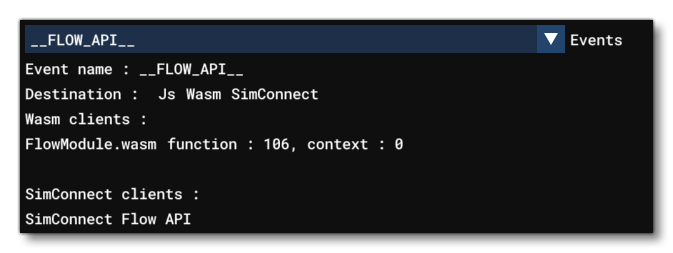
The events section of the Platform Dispatcher window permits you to select from the available Events from a drop down list, and then see information related to those events in the parts below. You can also select an event from the messages section and see information about those as well. The data shown is as follows:
-
Event Name
Here you can see the name of the event currently being inspected or selected.
-
Destination
In this section you can see which platform(s) can receive the triggered event. This does not meant that all platforms will recieve the event, as it could be configured to only target one of them. For example, if an event targets WASM and JavaScript, you can decide to trigger it but send the message to WASM only. See the section on Triggers, below, for more information.
-
Wasm Clients
The list of WASM modules which are registered to this event, and which will receive messages if this event is triggered
-
SimConnect Clients
The list of SimConnect clients which are registered to this event, and which will receive messages if this event is triggered
Triggers
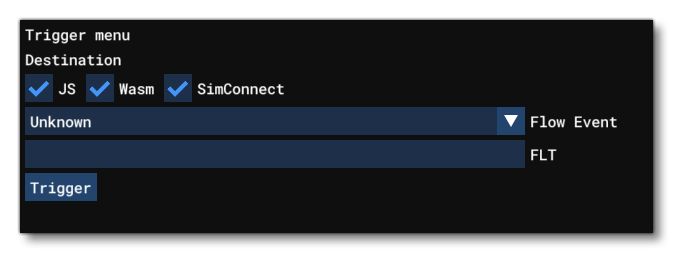 In this section, you can find the Trigger Menu which allows you to send messages to a specific event. The options available here will depend in part on the event selected in the Event Selection section, but you will always be able to select a destination for the triggered event, one of JS, WASM, or SimConnect. Note that some of these options may be unavailable depending on the API event that has been selected.
Having selected the destination, you can then fill in fields associated with the event. This can include a text message, opening an FLT file, or selecting a specific flow event, but the options will change based on the selected event. Once you have filled in the required fields, you can click the Trigger button to emit the event.
Related Topics