BEHAVIOR VIEWER
The Behavior Viewer window is used to view any model behaviour XML file, regardless of the package that is currently being inspected in the Behaviors Debug window. The viewer will normally open automatically when you open the Behaviors Debug window however, if it is closed it can be re-opened from the Behavior Viewer button in the main debug window.

Once open, you will need to go to the File menu and select a behavior file to view. Once opened the window will change to show a number of additional tabs, as well as an Edit menu and an Options menu.

-
Edit

The options here are as follows:
-
Compile - Selecting this option will trigger a (re-)compile of the selected behavior file. Note that if the file belongs to the current aircraft, then this option will not rebuild the aircraft package, meaning any changes made to the selected file will not persist. You will need to rebuild the package to see any changes.
-
Abort On Error - When checked, this will abort the (re-)compilation if there are any errors. Disabling this will allow the file (re-)compilation to continue and attempt to generate some partial results even though there have been errors.
-
-
Options

Here you can select an interaction model, which can be one of the following:
-
Lock - This uses the Microsoft Flight Simulator 2024 interaction model which can handle a variety of peripherals (controllers, keyboard, joystick, etc...).
-
Legacy - This uses the legacy interaction model, which is exclusively checking for interactions with the mouse.
-
The following tabs shown in this window are the exact same as those shown in the Behaviors Debug window:
Components
Animations
Mouserects
Material
Visibility
Updates
VFX
Input Events
Variables
Tooltips
In addition, there is the Log tab and the Parameters tab, which are both explained in detail below.
Logs
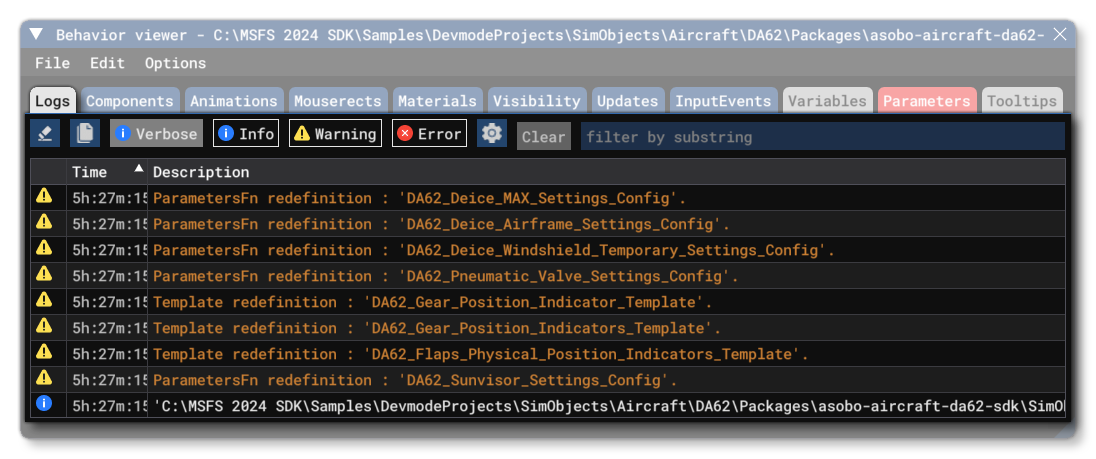
The top of this tab is taken up with the filter options for the list of logged information. You have a Clear All button, a Copy button, and then 4 buttons to control the level of information shown:
- Verbose: contains all the logs classified as being secondary, not very informational but useful in some instances
- Info: contains logs about the status of a requested action, such as the compilation success, etc...
- Warning: contains logs about an issue which doesn't require an immediate action but should be considered nonetheless
- Error: contains logs reporting an error, such as compilation failure, etc...
Beside these buttons you can find the Settings , and clicking on this will give you the following option:
- Clear On Compile: When this is checked (which is the default) the console will be cleared every time you (re-)compile the current behavior file.
Finally you have the filter input, where you can supply a string to filter the logs listed in the main part of the tab, which you can clear using the Clear button beside the filter. It should be noted that you can right-click on any logged event in the window to bring up a small window containing the full message with text wrapping (making it easier to read long logs), and any important secondary information will also be shown in this sub-window. You can even copy this using the Copy button at the top of the window.

Parameters
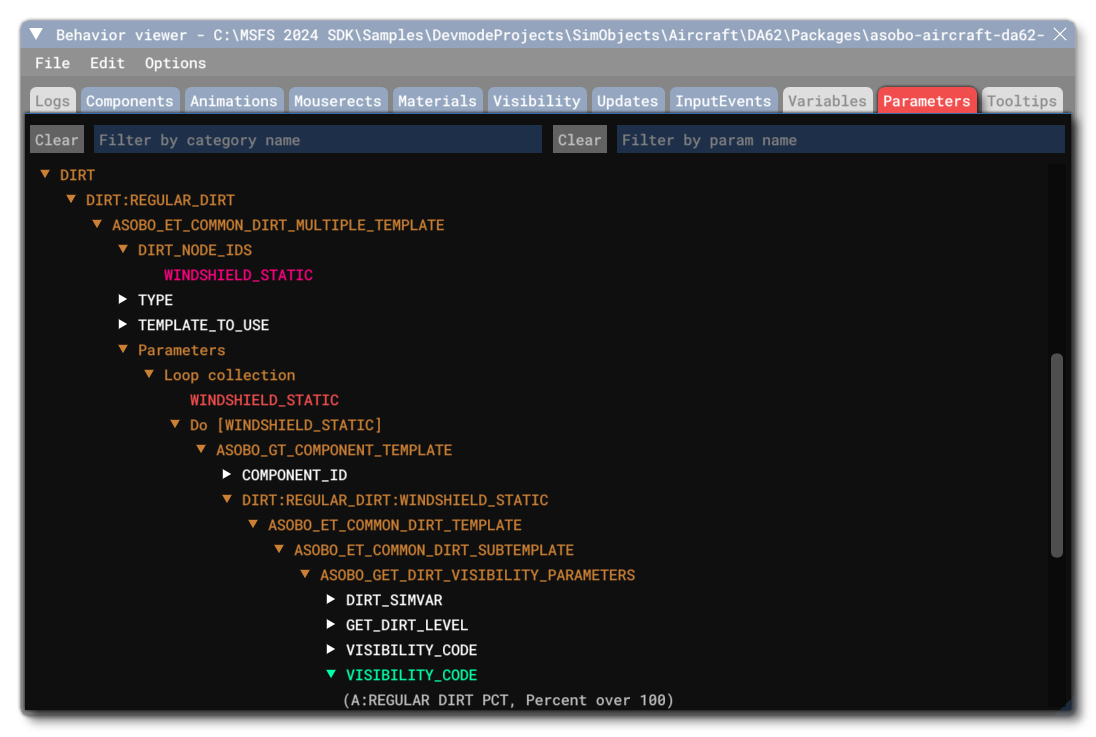
The parameters tab shows all the parameters defined in the currently loaded model behavor file. This list is colour coded and can be filtered either by category or by name using the input fields at the top of the tab. The colour coding used for parameters is as follows:
- White: This the default and denotes a parameter created in place within a given scope.
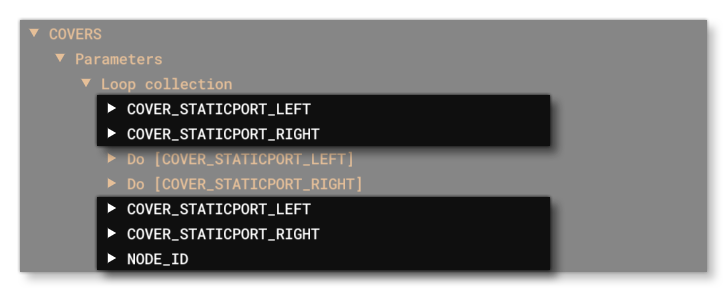
- Grey: This is the value of the parameter.

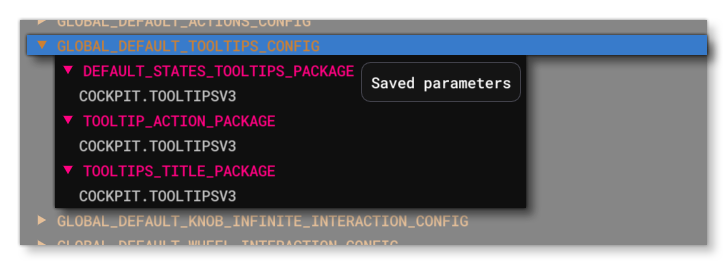
- Orange: These entries correspond to the different parameter scopes. To see what type of scope the parameter name refers to, you can hover the mouse over it:
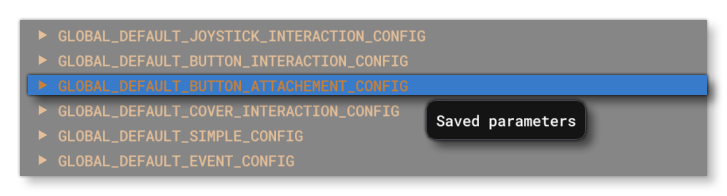
- Magenta: This is for a parameter which has been saved in the corresponding scope, and will only ever be visible inside of
<SaveParameters>scopes.
- Red: This is a parameter which has been loaded from a save.

- Green: This denotes a parameter returned by a
<ParametersFn>.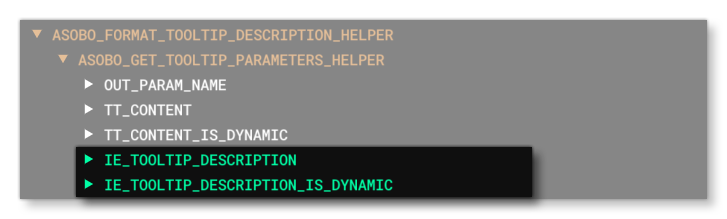
Related Topics