THE RULER TOOL
The ruler tool is opened from the Tools menu. This tool is used to measure distances within the simulation and will require you to have started a free-flight for you to use it.
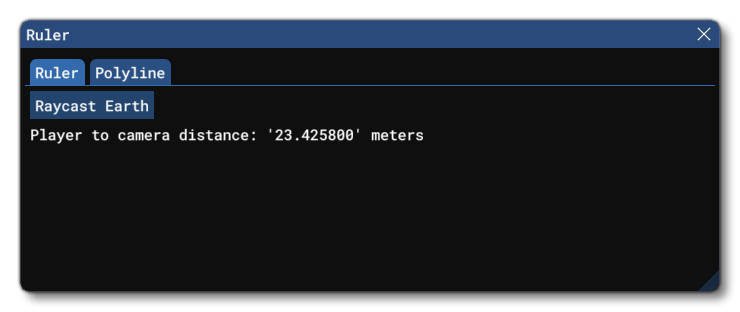
This tool has two different tabs which are explained below.
Ruler
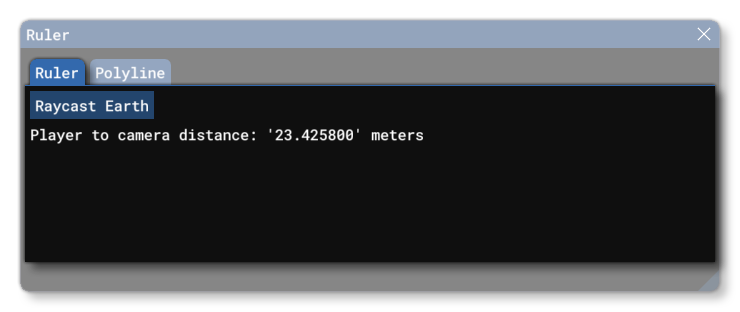
This tab, by default, shows the straight-line distance from the camera position to the "player", which is the user aircraft SimObject. However, if you click on the Raycast Earth button, a cross-hair will be displayed in the simulation and the button will change to Capture:
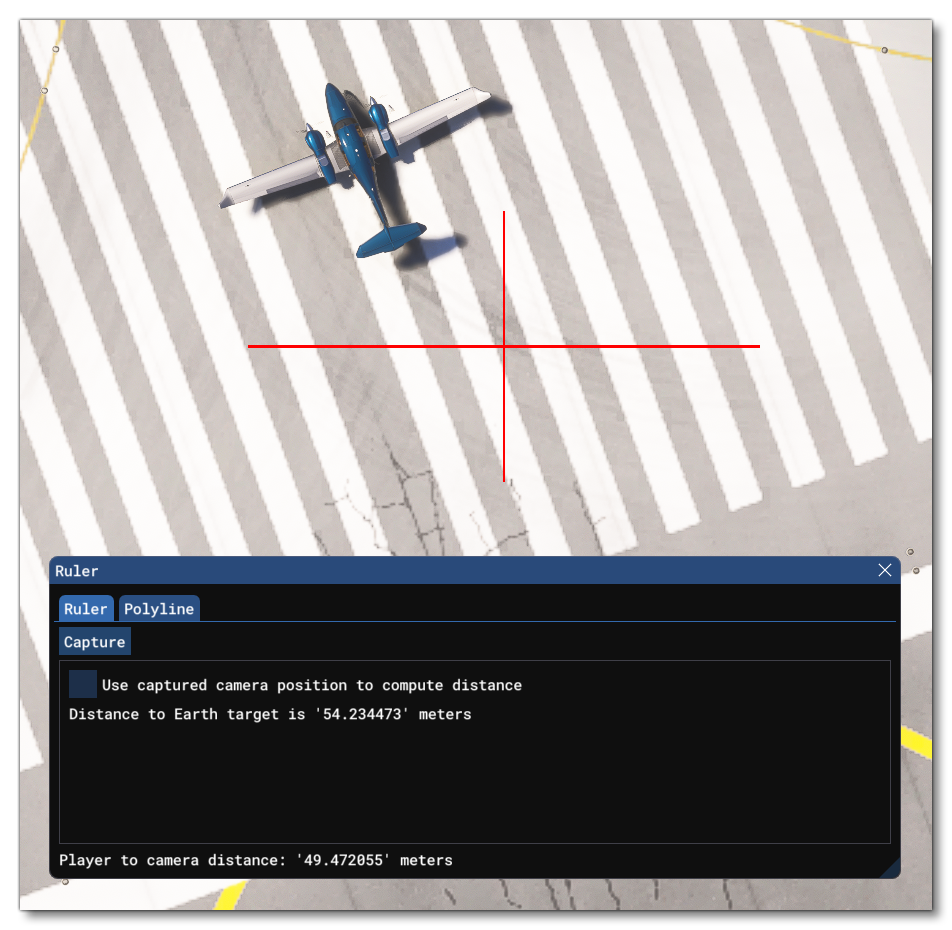
In this mode, you can use the Camera Controls to position the camera at any point facing the earth, then press the Capture button to generate a raytrace between the position of the camera and the surface of the Earth. Once you have done this, you will see the option "Use captured camera position to compute distance" along with the currently computed distance from the camera to the earth. Selecting the "Use captured camera..." option will show the two following additional options:
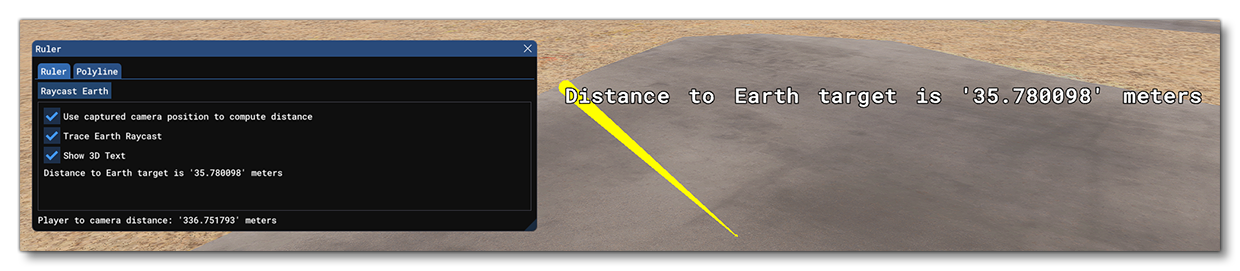
- Trace Earth Raycast: Show the raycast as a yellow line in-sim, where the length and angle of the line show the point from which it was captured.
- Show 3D Text: Display the distance text at the initial position of the raycast.
To change the current capture point, simply use the Raycast Earth button again.
Polyline
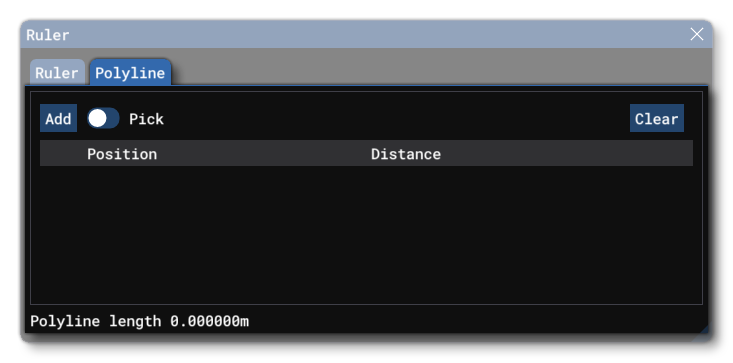
This tab is used to generate a "polyline" consisting of various capture positions, and then show the distances between them. The default behavior is to move the camera to the position to measure from and then click the Add button, then move the camera again and click Add again, repeating this until you have all the points added that you want to get the distances between:
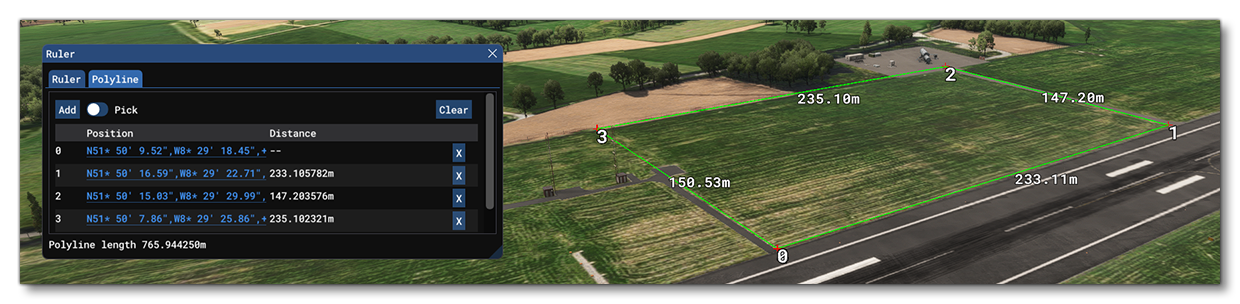
Alternatively, you can toggle the Pick option, which means that instead of the camera being used to position the points to measure between, you can use the mouse. Just position the mouse anywhere in the view and click to add a point.
Each point is displayed on-screen in the world, along with the lines and distances (in meters) between them. The points are also listed in the Ruler window itself, and you can click on each one to have the camera pan to that point, and take a top-down view of it. You can also remove a point at any time by clicking the X button beside it, or you can click on the Clear button to remove all points.
Related Topics