Back-On-Track
The back on track system is used by the simulation to re-orient and prepare the aircraft, as well as place it in a "safe" and logical position, after a crash event, a reset event, or a skip event. The back-on-track system is mainly opaque to the user, and requires very little setup from developers when making your aircraft, with the following being the only real requirements:
- The correct FLT files should be present and correctly configured for the type of flight being performed.
- Any external systems (ie: WebAssembly, JavaScript, SimConnect) should stop writing data during a back on track event.
- Any external systems (ie: WebAssembly, JavaScript, SimConnect) should re-sync data after a back on track event to prevent issues with inertia, mismatching data, etc...
When it comes to the FLT file setup, you generally want to ensure that the file has values and sections that correspond to the stage of the flight the file is designed for, so that trim, throttle, flaps, etc... are what would be expected for the aircraft it it reaches that stage of the flight normally (you may find it useful to use the FLT Files Debug Window which lets you start flights and test the various FLT files in real-time). That said, there are two [SimVars.N] parameters that must be set correctly at all times. These are:
ZVelBodyAxis_IAS- This is used to set the forward speed of the aircraft, and must be set to an appropriate value for each stage of the flight. You can get an approximate value for this that is good enough for the back on track system by doing the following:- Start a free-flight in clear weather.
- Get the aircraft to the correct height and speed for the FLT you wish to complete.
- Read the value of the
AIRSPEED INDICATEDSimVar (you can use the SimvarWatcher for this). - Set the
ZVelBodyAxis_IASto this value in the FLT. - Repeat for the other FLT files as necessary.
max_indicated_speedafter a teleport event, then it will be set to 75% of that value. There is no check for underspeed.
SimOnGround- This is used to position the aircraft in the air or on the ground, and should always be set appropriately.
For external systems, you should be using the Flow API to listen for (at least) the following events:
BackOnTrackStart- This is sent the moment a back-on-track event happens, for example, when the aircraft crashes. The aircraft will then be teleported back into a relevant position for the stage of the flight.
FltLoad- This happens after teleportation and is used to inform you that the appropriate FLT file is being loaded. You should have no external systems running at this point, as the FLT load and back-on-track system can interfere with these.
FltLoaded- This lets you know that the FLT file has been loaded for the flight stage, and so you can start any paused systems again. You should also make sure to synchronise any values taken from SimVars at this point as they may have changed.
BackOnTrackDone- The back-on-track event is finished and the user is back in control.
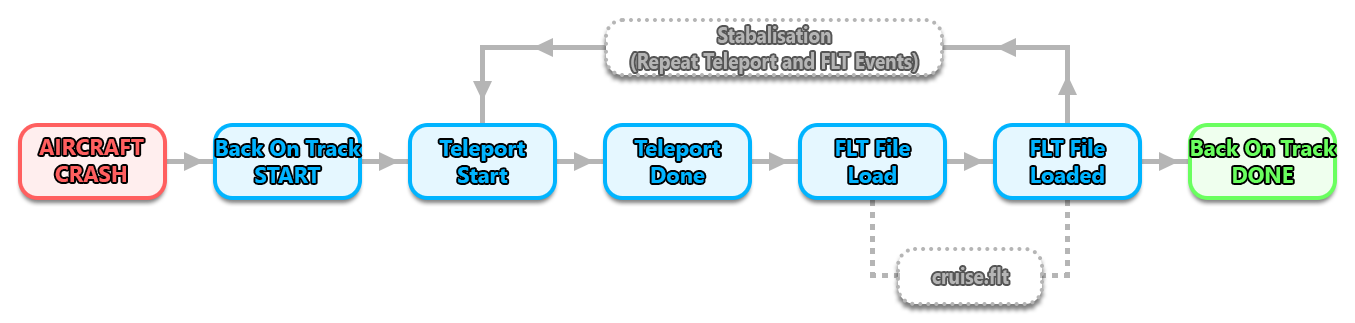
Note that for some flight scenarios the teleport events and the FLT load events may be triggered twice, as the first iteration is used to position the aircraft and load the FLT values, then a few frames are allowed to pass to stabalise the aircraft, and then the second batch of teleport + FLT events are performed to finalise the calibration and stablisation. As such, it's really recommended that you listen for the BackOnTrackStart and BackOnTrackDone events rather than the others.
For more information on the Flow API for the different platforms, please see:
The charts below outline the timelines of the back-on-track events for the different types of flights available to users.
FreeFlight
When a user is in free flight, a back-on-track can only be triggered by the aircraft crashing, generating a FsFlowEvent_PlaneCrash event, and then a series of other events as the aircraft is teleported, stabalised and the cruise.flt is loaded. The full flow is as follows:
World Photographer
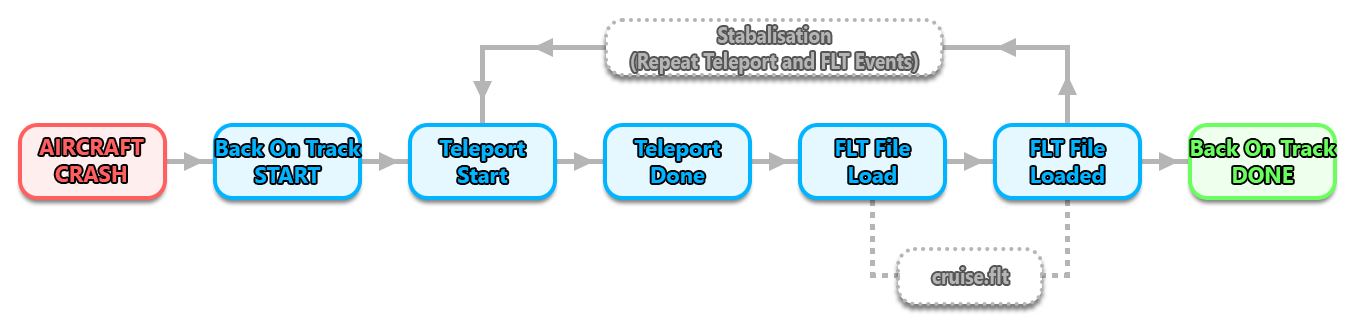
As with free flight, World Photographer missions can only trigger a back-on-track if the aircraft crashes which will generate a FsFlowEvent_PlaneCrash event, and then a series of other events as the aircraft is teleported, stabalised and the cruise.flt is loaded. The full flow is as follows:
Challenges
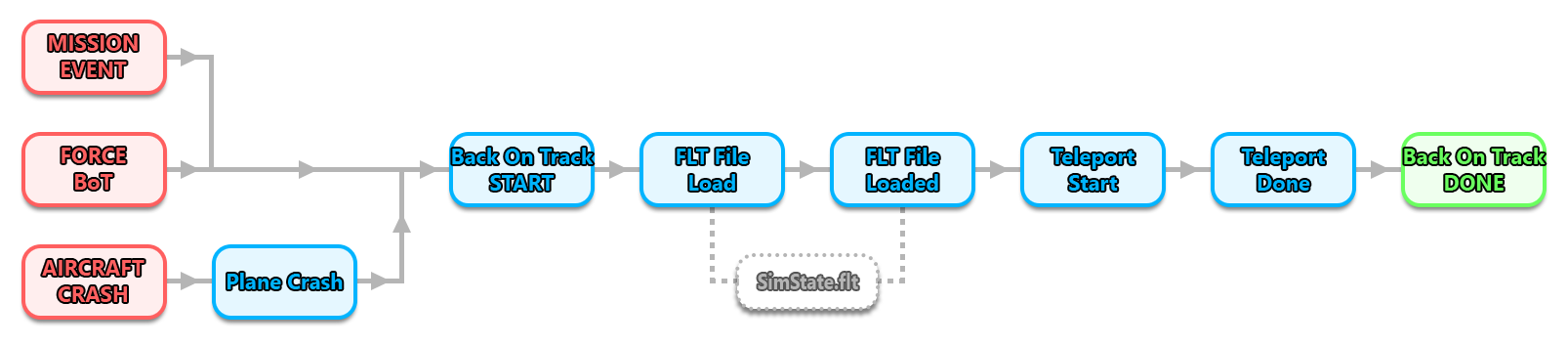
When it comes to challenge missions, back-on-track can be triggered by the following:
- A mission event, for example, a missed gate, or flying out of bounds, etc...
- A forced back-on-track event generated by the user.
- A crash event, in which case an additional
FsFlowEvent_PlaneCrashevent will be generated.
It should also be noted that the FLT file used for the aircraft will not come from the aircraft package, but will instead come from the mission itself (the SimState.flt file).
Careers
Career missions only trigger back-on-track through the aircraft crashing, triggering a FsFlowEvent_PlaneCrash event, and then the other events in the flow. When it loads an FLT file, this file will be taken from the aircraft package, and will depend on the point in the flight at which the crash happened. Therefor, you must ensure that the package has all the appropriate FLT files (taxi.flt, takeoff.flt, cruise.flt, etc...) and that these are correctly configured, as explained here:
