SIMPLE PROJECTED MESH
The SimpleProjectedMesh sample project illustrates a very simple project that uses ProjectedMesh Objects. Essentially a projected mesh is a 3D scenery object that has been projected onto the ground and then "flattened" to be rendered in 2D as part of the terrain texture.
You can expand the link below to see the SimpleProjectedMesh file and folder structure:
|---+ SimpleProjectedMesh
    |---+ PackageDefinitions
    |   |---- mycompany-scenery-projected-mesh.xml
    |---+ PackageSources
    |   |---+ modelLib
    |   |   |---+ EXPORT
    |   |   |   |---- PlaneAsphalt.bin
    |   |   |   |---- PlaneAsphalt.gltf
    |   |   |   |---- PlaneAsphalt.xml
    |   |   |---+ texture
    |   |       |---- Tile_Asphalt05_Albedo.png
    |   |       |---- Tile_Asphalt05_COMP.png
    |   |       |---- Tile_Asphalt05_Normal.png
    |   |---+ scene
    |       |---- objects.xml
    |---- ProjectedMeshProject.xml
Loading And Building The Project
In order to load and build the project in Microsoft Flight Simulator 2024, you must have previously enabled Developer Mode (see here for more information). Once enabled, simply follow these steps:
- Use the Open project... command from the File menu.

- Select the file
ProjectedMeshProject.xmlfrom theSimpleProjectedMeshsample project.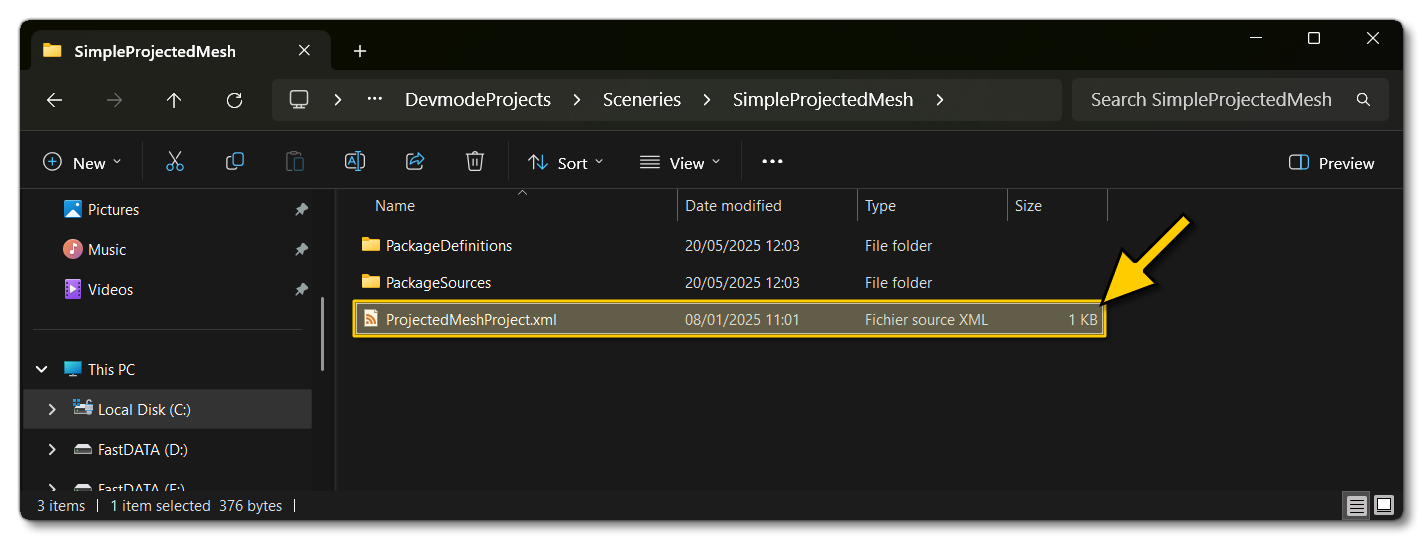
- The Project Editor should open automatically and show you the project
mycompany-scenery-projected-mesh(if the Project Editor doesn't open, then you can open it from the Developer Mode Tools menu)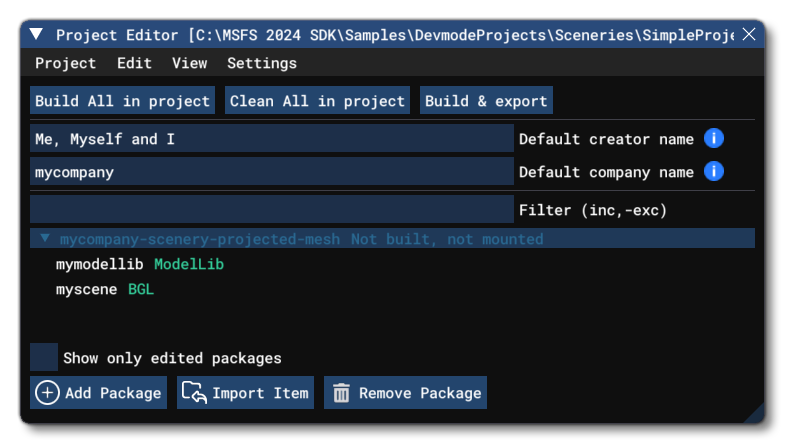
- Selecting the project and then right-clicking will open a menu where you can select the Build and Mount option to build the project and mount the created package in the VFS:
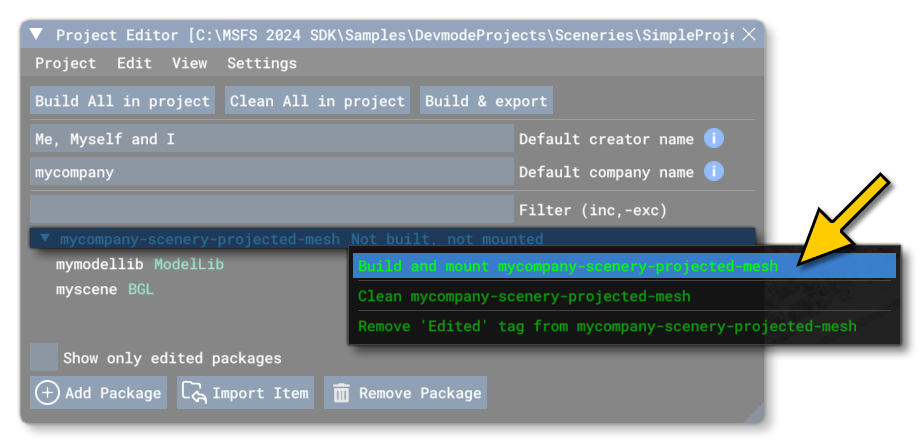
- This will build a package from the files specified in your project. This package will be named
mycompany-scenery-projected-meshand will be output in the Packages folder created in the same directory asProjectedMeshProject.xml: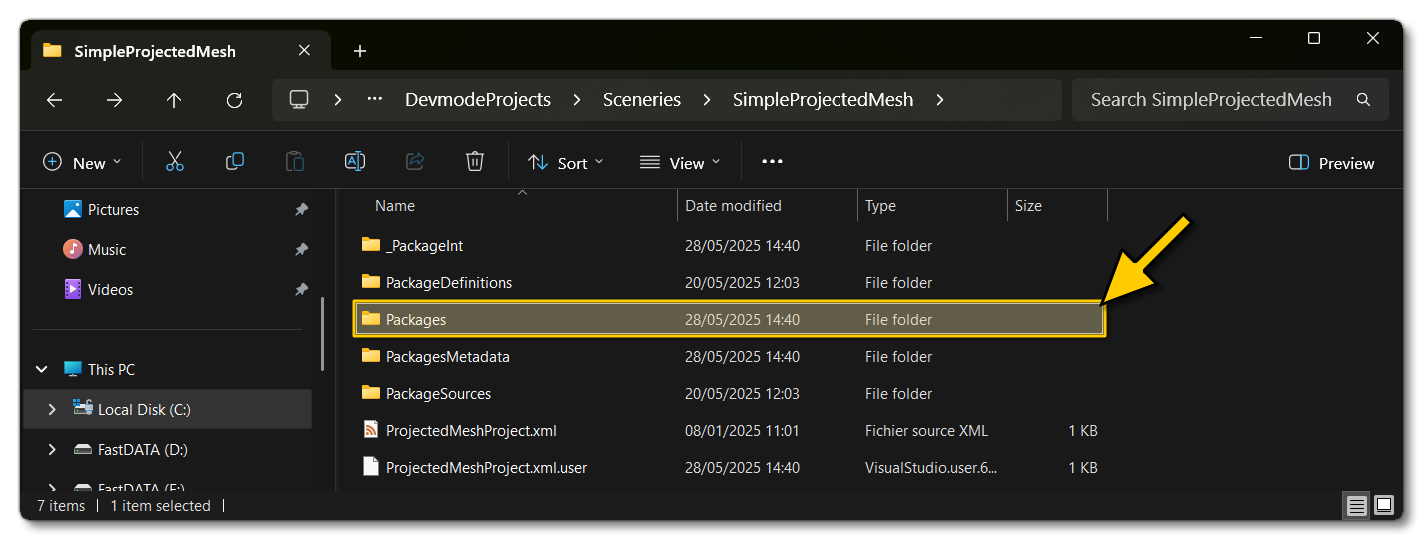
- With the package built, you can now see the projected mesh in the world. To get to it, you need to first need to open the
myscene (BGL)Asset Group by simply right-clicking on it and selecting Load In Editor: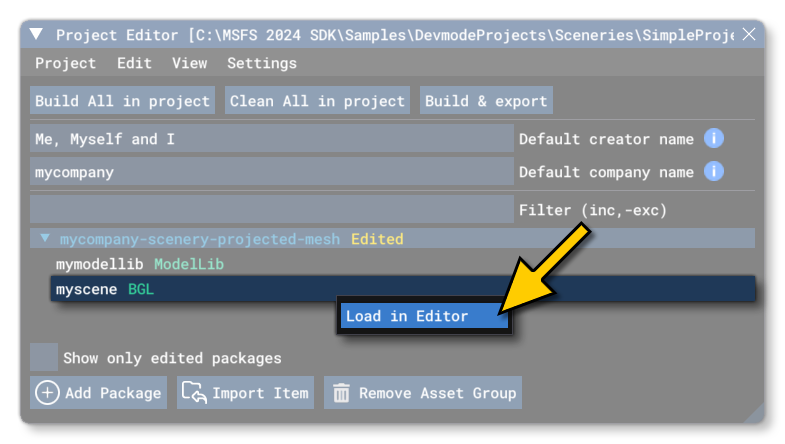
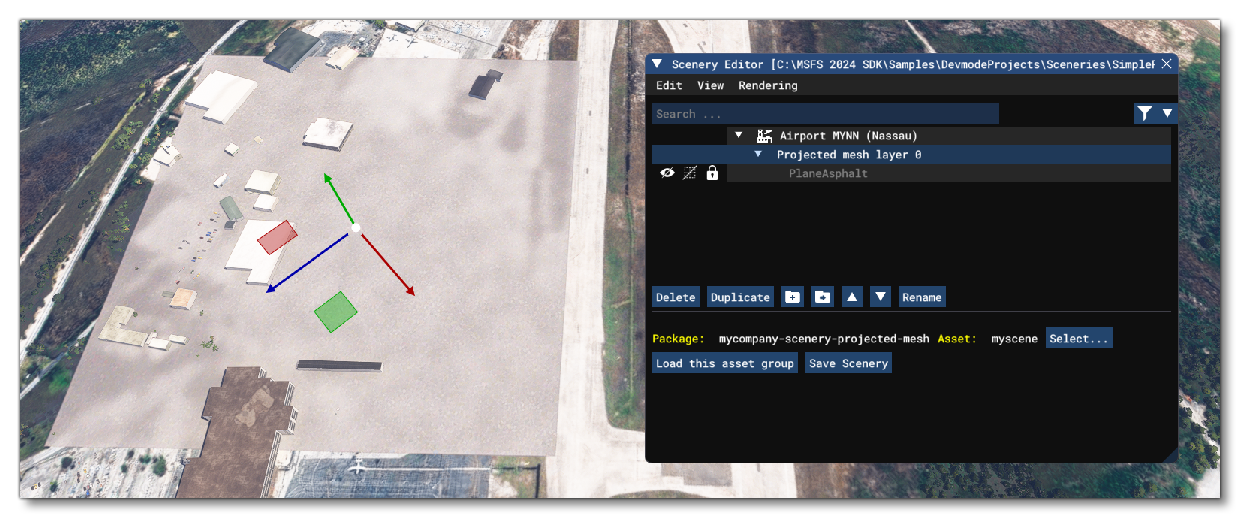
- Clicking this will load the airport with the projected mesh into The Scenery Editor and there you can double-click on the Projected Mesh Layer group to be taken to the object:
Related Topics
0/255