MAPVIEW AIRCRAFT
The MapViewAircraft aircraft is a preset of the WASMAircraft modular aircraft, which shows three different screens created using the MapView API, and each one is focused on a different type of weather map. Once the WASM Aircraft package has been built, this module will be available for flying from the aircraft selection screen:
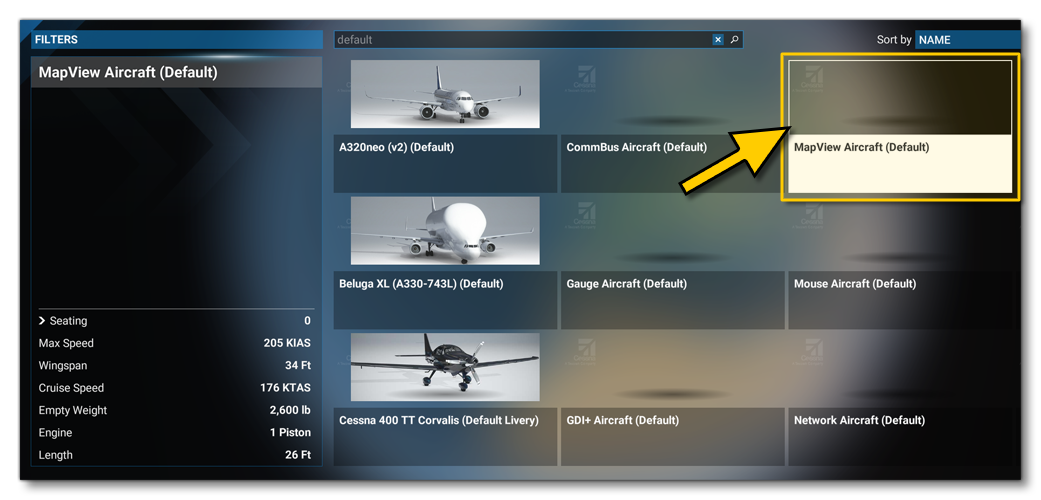
The WasmModules.sln file (found in the Sources folder of the project) will allow you to compile the source-code with Microsoft Visual Studio (2019 or 2022) in order to create the MapViewModule.wasm WebAssembly module which will then be loaded by the simulation. Once compiled, the module will automatically be copied into the following folder:
[ROOT]\PackageSources\SimObjects\Airplanes\MyCompany_Wasm_Aircraft\presets\mycompany\MapViewAircraft\panel
Note that if you make changes to the C++ code and recompile the MapView WASM module, you will have to build your package again. This can be done while the plane is used within the simulation.
Testing
Once you have built the WASM aircraft and selected the MapView module, you can go into a Free Flight and see three panels in the cockpit. These three panels all follow the same format, with a main view and a number of buttons across the top. However, each panel shows off a specific feature created using the MapView API Functions:
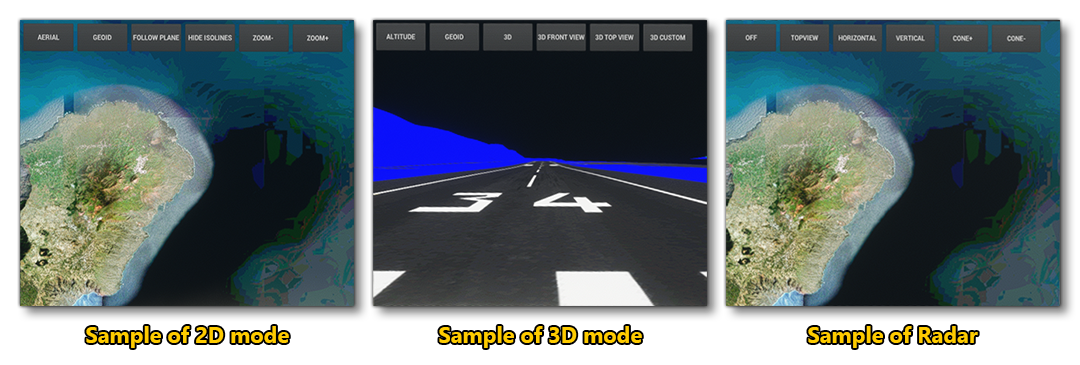
These screens showcase the following functions:
- 2D Mode - 2D mode shows the world from a "top down" 2D view. The buttons on this screen are as follows:
Aerial/Altitude- This button toggles between the aerial display and the altitude display.Plane/Geoid- This button toggles the way that Altitude view colours are displayed. When it's set to plane, altitude colours will be applied with reference to the current aircraft altitude, otherwise colours will be applied with reference to the height from the Geoid (MSL).Follow Plane/Random Coord- This button toggles the view between the aircraft and a random position in the world.Show Isolines/Hide Isolines- This toggles the visibilit of isolines on the altitude display.Zoom +/Zoom -- Zooms the display in or out
- 3D Mode - 3D mode shows the world from a "camera" 3D view. The buttons on this screen are as follows:
Aerial/Altitude- This button toggles between the aerial display and the altitude display.Plane/Geoid- This button toggles the way that Altitude view colours are displayed. When it's set to plane, altitude colours will be applied with reference to the current aircraft altitude, otherwise colours will be applied with reference to the height from the Geoid (MSL).3D/2D- This button toggles the display between 3D and 2D (top down).3D Front View- Switches the 3D view to face the front of the aircraft.3D Top View- Switches the 3D view to look down from the aircraft.3D Custom- Switches the 3D view to use a custom view (in this case facing the back of the aircraft).
- Radar Mode - Radar mode is used to show the radar display, used to determine the state of the weather/clouds around the aircraft. The buttons on this screen are as follows:
Off- This button can be used to switch the radar view on/off (when off, the default view is aerial).Top View- This button switches the radar to show a top-down view of the area, where a low-resolution display of the cloud coverage for the whole area is shown.Horizontal-This button switches the display to show the radar return from "above" the aircraft. This is a cone facing the direction of travel and can be expanded/contracted using theCone+andCone-buttons.Vertical- This button switches the display to show the front facing radar return.Cone+- Expands the cone of radar returns whenHorizontalradar is enabled.Cone-- Expands the cone of radar returns whenHorizontalradar is enabled.