CONTROL PRESET CREATION GUIDE
This guide provides instructions on how to create custom control presets for Microsoft Flight Simulator 2024. It covers using the Input Application tool, and also provides a guide to understanding contexts and profiles, mapping actions, using input overrides, exporting profiles, and then finally creating the controls package using the Project Editor.
Before continuing with the different aspects of this guide, it is a good idea to familiarise yourself with some of the terms that will be used throughout and what these terms mean in the context of the input application and making control profiles:
-
Context
The context determines when a particular control mapping is active within the simulator. See Understanding Contexts And Profiles for more information.
-
Profile
A profile is simply a set of control mappings. See Understanding Contexts And Profiles for more information.
-
Preset
A preset is a named configuration within a profile.
-
PID (Product ID)
This is the unique identifier given to a hardware device.
-
Input Override
This defines the special settings that modify the default behavior of an action.
-
Curve
A curve is a graph that defines the relationship between the physical input and the simulation control response. There are both hardware-level and action-specific curves.
Understanding Contexts And Profiles
In MSFS 2024, a context determines when a particular control mapping is active. For example, some controls are only relevant in the cockpit view, while others are used on the ground or in the simulation menus. For this reason, all contexts are predefined and cannot be created or modified by developers.
On the other-hand we have profiles, which are collections of control mappings, which are configurable by developers, within the limits of the context. The simulation uses the following hierarchical system for profiles:
-
The General Profile
This profile contains the mappings that apply across all aircraft types.
-
Aircraft Category Profiles
These profiles contains mappings specific to a category of aircraft (Airplane, Helicopter, Glider, Balloon, Airship, or Other).
-
Aircraft Specific Profiles
These profiles contain mappings for a particular aircraft model, for example the DA62 has two profiles: scientific and passenger.
Each profile types listed above is associated with a specific set of allowed contexts. This means that you can only map actions from those allowed contexts to a given profile type. If you attempt to map an action from a disallowed context, the mapping will not be recognised by the simulator. For example: You cannot map a COCKPIT_CAMERA action to an Airplane profile because the COCKPIT_CAMERA context is not allowed for the Airplane profile. You can see the different contexts in the Input Application, as shown below:
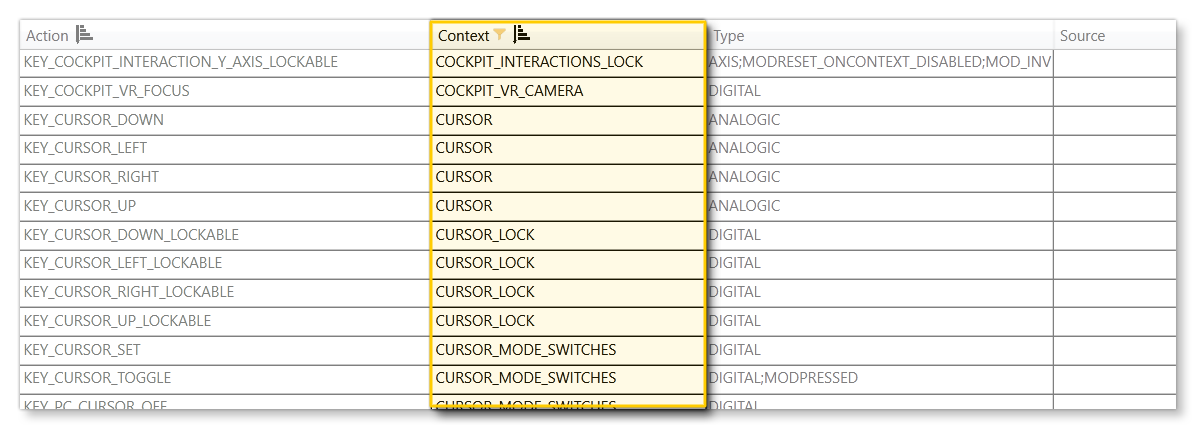
Available Contexts
To further help you with the available contexts and what is allowed for them, we have prepared the following table:
| Context | General | Airplane | Helicopter | Glider | Lighter Than Air | Other |
|---|---|---|---|---|---|---|
3RD_PARTY |
||||||
ACTION_CAMERA |
||||||
AIRCRAFT |
||||||
ALWAYS |
||||||
ATC |
||||||
BASIC_CONTROL |
||||||
BASIC_CONTROL_HELICOPTER |
||||||
BASIC_CONTROL_LIGHTER_THAN_AIR |
||||||
COCKPIT_CAMERA |
||||||
COCKPIT_GLOBAL_CAMERA |
||||||
COCKPIT_GLOBAL_CAMERA_TRANSLATE |
||||||
COCKPIT_INTERACTIONS |
||||||
COCKPIT_INTERACTIONS_LOCK |
||||||
COCKPIT_VR_CAMERA |
||||||
CURSOR |
||||||
CURSOR_LOCK |
||||||
CURSOR_MODE_SWITCHES |
||||||
DEBUG |
||||||
DEVMODE |
||||||
DEVMODECAMERA |
||||||
DRONE |
||||||
DRONE_GLOBAL |
||||||
EXTERNAL_CAMERA |
||||||
FIXED_CAMERA |
||||||
GAME |
||||||
GLIDER |
||||||
HANGAR_CAMERA |
||||||
HELICOPTER |
||||||
INGAME_UI |
||||||
INPUT_EVENTS |
||||||
INSTRUMENTS_CAMERA |
||||||
INSTRUMENTS_CONTROL |
||||||
LIGHTER_THAN_AIR |
||||||
MENU |
||||||
MENU_CORE |
||||||
MENU_GLOBAL |
||||||
MENU_MOUSE |
||||||
MISSION_FLOW_TOOLS |
||||||
MODE_INTERACTION |
||||||
MODE_PAUSE |
||||||
MODES |
||||||
PC_MODE_SWITCHES |
||||||
PHOTO_MODE_ACTIONS |
||||||
PHOTO_MODE_ROTATION |
||||||
PHOTO_MODE_SWITCHES |
||||||
PHOTO_MODE_TRANSLATION |
||||||
PLANE |
||||||
PLAYER_CHARACTER_FPV |
||||||
PLAYER_CHARACTER_INTERACTION |
||||||
PLAYER_CHARACTER_MOVEMENT |
||||||
REPLAY |
||||||
RTC |
||||||
RUDDER_AXIS |
||||||
SIM_SHORTCUT |
||||||
SLEW |
||||||
SMART_CAMERA |
||||||
SPECTATOR |
||||||
SURFACES |
||||||
SURFACES_HELICOPTER |
||||||
SURFACES_LIGHTER_THAN_AIR |
||||||
THROTTLE |
||||||
TOOLBAR |
||||||
TRUE_COCKPIT |
||||||
USER_CAMERA |
||||||
WORLDMAP_COMMON |
||||||
WORLDMAP_PAD |
Creating Profiles
When it comes to actually creating your profiles, the process will largely depend on what kind of profile you are making. As such we have split the documentation into two sections to cover the different profile types:
- For general device profiles or profiles that target a specific aircraft category please see here: General And Aircraft Category Profiles
- For profiles that are to be used on a specific aircraft based on its control setup, please see here: Aircraft Specific Profiles