AIRCRAFT CATEGORY INPUT PROFILES
The purpose of an aircraft category input profile, is to create input mappings for a specific device that permit that device to work with most aircraft of any given category.
To set up this kind of profile we recommend having the device itself at hand, and ensuring that it has a device profile already present in the simulation. This can be one already included by the simulation or one supplied by third parties. On the occaision where you have the device yourself but there is no profile for it, you can create your own device profile following the instructions here:
Setting Up The Category Input Profile Package
To set up your chosen aircraft category controls, we will be using the Input Profile Editor, which has a list of all the input actions used in the simulation, and permits you to bind the different controller inputs to them. However, first:
- If this is a new project you will need to create a new package for the aircraft category profiles (see Adding A New Package).
- If this is an existing device profile project then you will need to add a new package for the input profile (see Adding A New Package).
- If you have already created a transversal profile, then you can simply add a new input configuration XML file to the existing input profile asset group (see Adding A New Configuration XML).
Adding A New Package
For the first two of the above-mentioned situations, the approach is the same and starts with adding a package and an asset group specifically for the aircraft category profile using the Project Editor. For this example we'll be adding a new package and asset group to an existing project that already has a device profile, which starts by clicking the Add Package button in the Project Editor, and selecting Input Profile:

On clicking Next, you will be taken to the Input Profile Wizard (see below) where you can select the device to use for the profile, and set what kind of profile it's going to be.
Adding A New Configuration XML
If you already have a package with an input profile asset group - for example after creating a Transversal profile - then you can simply add another file to that asset group using the Input Profile Editor. This is done by clicking the + button beside the existing File path in the editor:
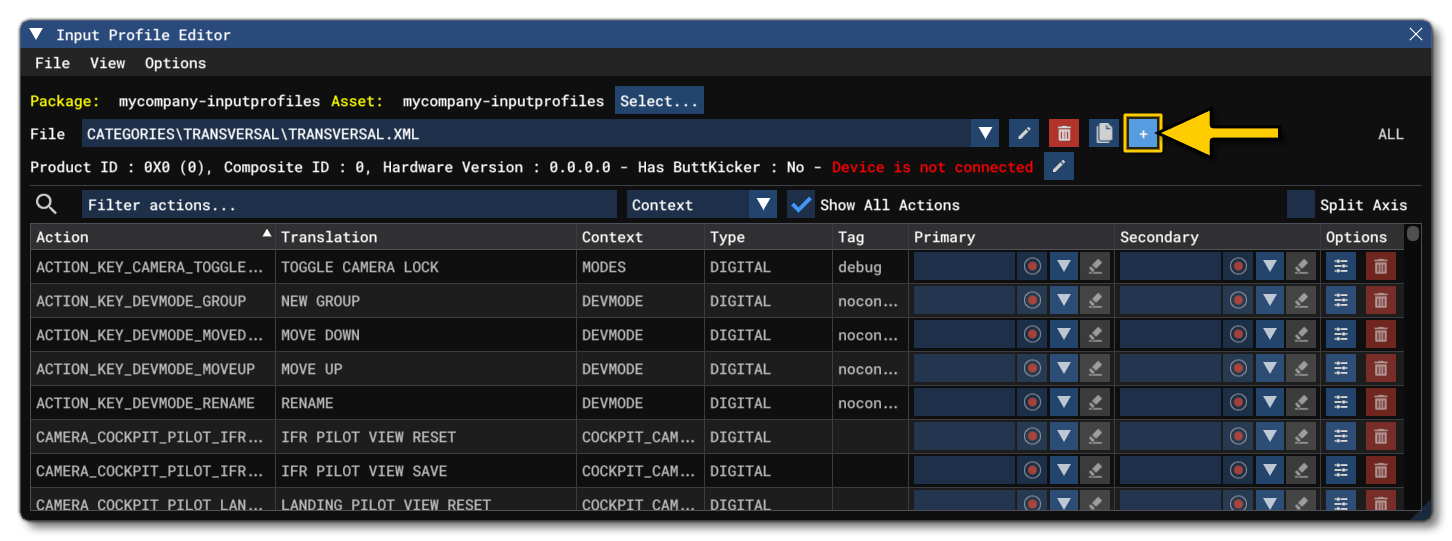
This will then open the Input Profile Wizard (see below) where you can select the device to use for the profile, and set what kind of profile it's going to be.
The Profile Wizard
In the input profile wizard you will want to select the platform for the profile, and then select the category that you want to make the profile for. The assumption here is that you will be creating custom controls for the device that are specific to the aircraft category. For this example, we'll be selecting the Helicopter category.
Having selected the platform and the device, you need to give the device details. This starts with the Product ID, and - if you have the device available - you can simply plug it into your PC then select Use A Device Connected To Your Computer to select the device from the drop-down list.

If you don't have the device then you will have to supply the following:
- Product ID - This is the unique product ID, expressed as a hexadecimal value, format
0x0000. - Composite ID - The composite ID is an integer value used to link multiple parts of a single product to a unique product ID (e.g. HOTAS…)
- Hardware Version - Similar to the composite ID, the hardware ID is used to link multiple parts together when they do not all belong to a single product ID.
Once you have this information, you should give the profile an appropriate name, and then click the Validate button. This will save the profile XML to the package and it can now be edited in the Input Profile Editor.
Setting Up Category Bindings
The Input Profile Editor is what will be used for setting up the bindings between device inputs and the simulation actions, which - in this case - is the device you wish to use for the aircraft category controls (in this example, helicopters), and it should be plugged into the PC if possible. If you do not have the device present, you can still set up the profile, but it may feel a little more complicated.
Having set up the package/asset group/XML for the input profile already, you should have the Input Editor open (but if not, you can open it from the Editors menu, or by right-clicking on the package asset group and selecting Load In Editor), and it will look like this:

In general, the bindings you will need to set up are only those that are specific to the aircraft category you selected (in this case, helicopters). All bindings that are not specific to the aircraft category - ie: UI, cameras, user avatar, etc... - should have been set up using a transversal profile, as explained here:
To set up these inputs, we recommend that start by checking the Show All Actions checkbox, and then in the filter type the category you require - in this example HELICOPTER - which will populate the action list with all actions associated with that category across the various category-specific contexts:

NOTE: It is also worth exploring the AIRCRAFT contexts, since there are some controls that will be applicable for multiple aircraft categories available under the contexts that show up when using that filter.
To add the bindings you have the following two methods:
- take the inputs directly from the device by clicking the Get Input button (
 ) and then moving the device joystick and/or pressing the device buttons.
Or:
- use the drop down list button (
 ) and select one or more inputs manually.
Note that regardless of the method chosen to add the device input, you can "group" inputs on a single action to have two or more device inputs required for it, for example: press A and joystick UP to raise the landing gear.
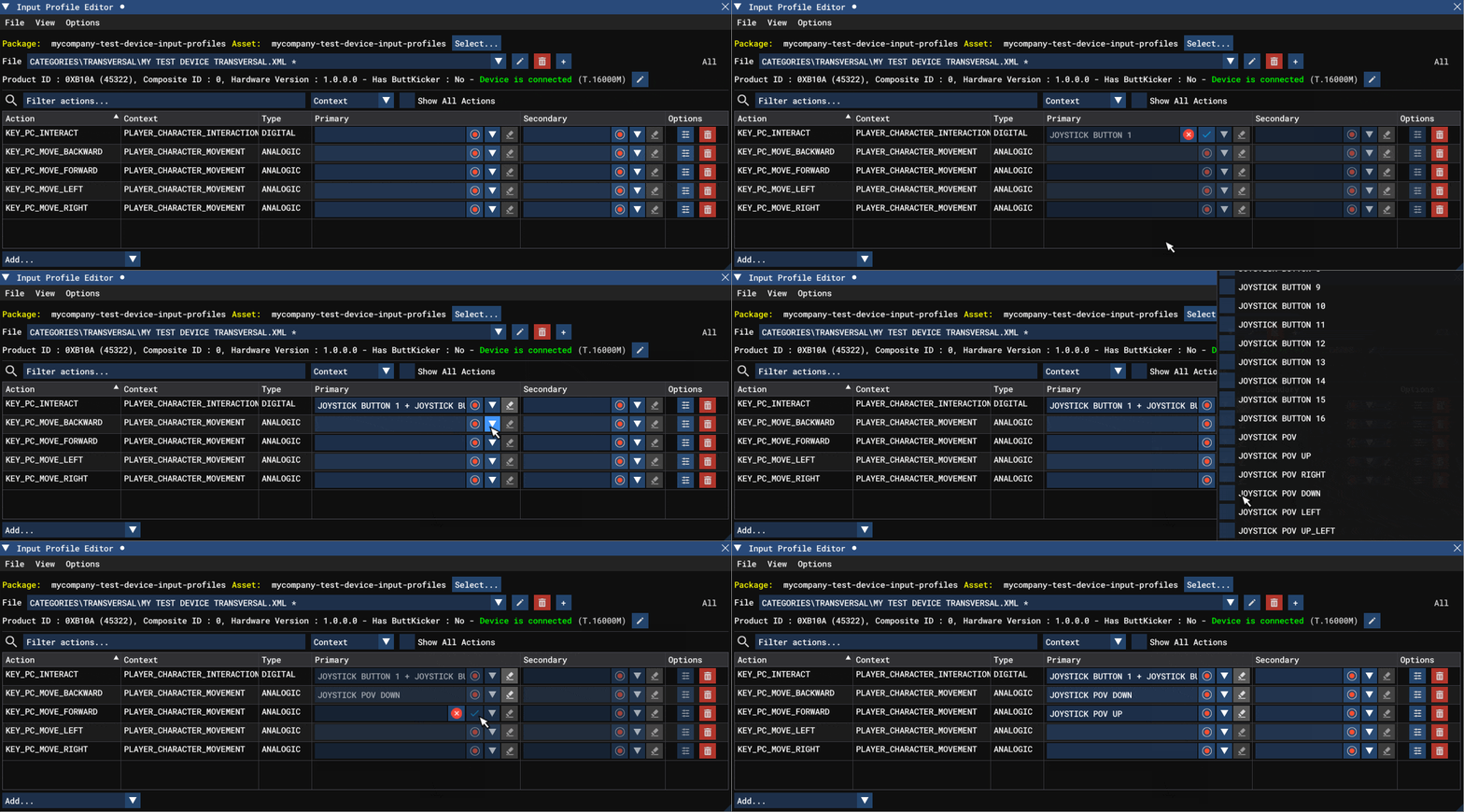
It should be noted that there are certain options available to you for each binding, and these can be accessed using the  button, which will open the Action Options window:
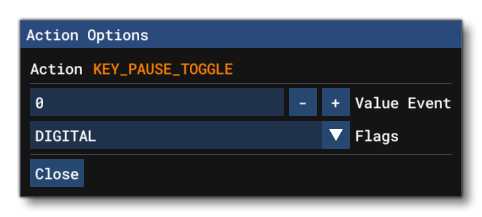
From here you can choose from the various different type flags to use to modify the input. These type flags are all explained in detail here: Type Flags. Note that if you have checked the MOD VALUE type flag, you will have another option - Value Event - which allows you to change the value sent when the input is received (by default this is 0 / 1 or between 0 and 1 depending on the input), or if you are editing an Analogue or Axis input, then you will also have the Override Axis option.
For further aircraft categories, simply Add A New Configuration XML and then repeat the process outlined above.
Saving And Exporting The Project
Once we have set up all the aircraft category bindings, you can save the Input Configuration XML to the package using the Save option from the File menu. Once you've saved the bindings you can go ahead and build the package (see Building A Package) and then test the bindings in the simulation (ie: select the controller in the simulation UI and then start a flight using an aircraft of the chosen category, testing the different inputs that you have defined).