TRAVELBOOK OBJECTIVE XML PROPERTIES
The <objective_name>.xml file goes in the objectives asset group that makes up the TravelBook package. Within this file you must define a main objective for the associated travel book page (defined using the Travelbook Page XML Properties), and - optionally - include additional bonus objectives. The nature of these optional bonus objectives will depend on the aircraft being used and the theme of the travel book page.
This file is formatted using XML and can be edited by using any text editor. The general format for the file is as follows:
<?xml version="1.0" encoding="UTF-8"?>
<SimBase.Document Type="Photo Objective" version="1,0">
    <TravelBook.Objective InstanceId="{6FAC1D5D-5DE8-4DBD-B389-E0C80C62911F}">

        <!-- Objective Meta Data-->
        <Title>[TITLE]</Title>
        <Descr>[DESCRIPTION]</Descr>
        <Trivia>[ADDITIONAL INFORMATION</Trivia>
        <Picture>[IMAGE]</Picture>
        <PageId>[TRAVELBOOK PAGE ID]</PageId>

        <!-- Objective Location Data -->
        <ObjectiveWorldData>
            <ObjectiveWorldPosition>
                <!-- Objective Location Data -->
            </ObjectiveWorldPosition>
            <ObjectiveSubjectWorldData>
                <!-- Objective Location Data -->
            </ObjectiveSubjectWorldData>
            <ObjectiveRecommendedDeparture>
                <!-- Objective Location Data -->
            </ObjectiveRecommendedDeparture>
        </ObjectiveWorldData>

        <!-- Objective Weather -->
        <WeatherPreset>
            <File>[WEATHER PRESET]</File>
        </WeatherPreset>
        <DateRecommended Day="1" Month="9" />
        <TimeOfDayRecommended Hour="08" Minute="49" />

        <!-- Objective Aircraft -->
        <AircraftRecommended>
            <Name>[NAME]</Name>
            <Livery>[LIVERY]</Livery>
        </AircraftRecommended>

        <!-- Objectives -->
        <Requirements>
            <!-- Main Objective -->
            <Requirement>
                <IsMandatory>TRUE</IsMandatory>
                <Title>[MAIN OBJECTIVE TITLE]</Title>
                <Descr>[Additional Information]</Descr>
                <Subjects>
                    <!-- Model/POI/etc... Data -->
                </Subjects>
                <Contexts>
                    <!-- Objective Contexts -->
                </Contexts>
             </Requirement>

            <!-- Bonus Objectives -->
            <Requirement>
                <!-- Bonus Objective 1 -->
            </Requirement>
            <Requirement>
                <!-- Bonus Objective 2 -->
            </Requirement>
            <Requirement>
                <!-- Bonus Objective 3 -->
            </Requirement>
        </Requirements>
    </TravelBook.Objective>
</SimBase.Document>
Here you must include the <SimBase.Document> element and it's type needs to be "Photo Objective". You would then add the <TravelBook.Objective> element and everything required for defining the objectives within that element. Below you can find information on the different sections used in the <objective_name>.xml file as well as what parameters and values are expected within them.
For more information on how this file should be used, please see here:
<SimBase.Document>
This is the main parent element that is used to contain the travelbook page objective data. This element must have the following sub-element:
This element also has the following attributes:
| Attribute | Description | Type | Required |
|---|---|---|---|
type |
The type of SimBase file. Should always be "Photo Objective" for the world photography objectives. | String | Yes |
version |
The file version, must be 1.0. | Float | No |
<TravelBook.Objective>
This is the main container element for all the sub-elements required to define the travelbook main and bonus objectives. The element has the following attribute:
| Attribute | Description | Type | Required |
|---|---|---|---|
InstanceId |
The unique ID for the objective, as a GUID enclosed in {}. You can find more information on GUID's here: GUIDs |
String | Yes |
This element can contain the following sub-elements:
<Title><Descr><Trivia><Picture><PageId><ObjectiveType><ObjectiveWorldData><WeatherPreset><DateRecommended><TimeOfDayRecommended><AircraftRecommended><Requirements>
<Title>
This is a sub-element of <TravelBook.Objective> and <Requirement>, has no attributes, and is used to either:
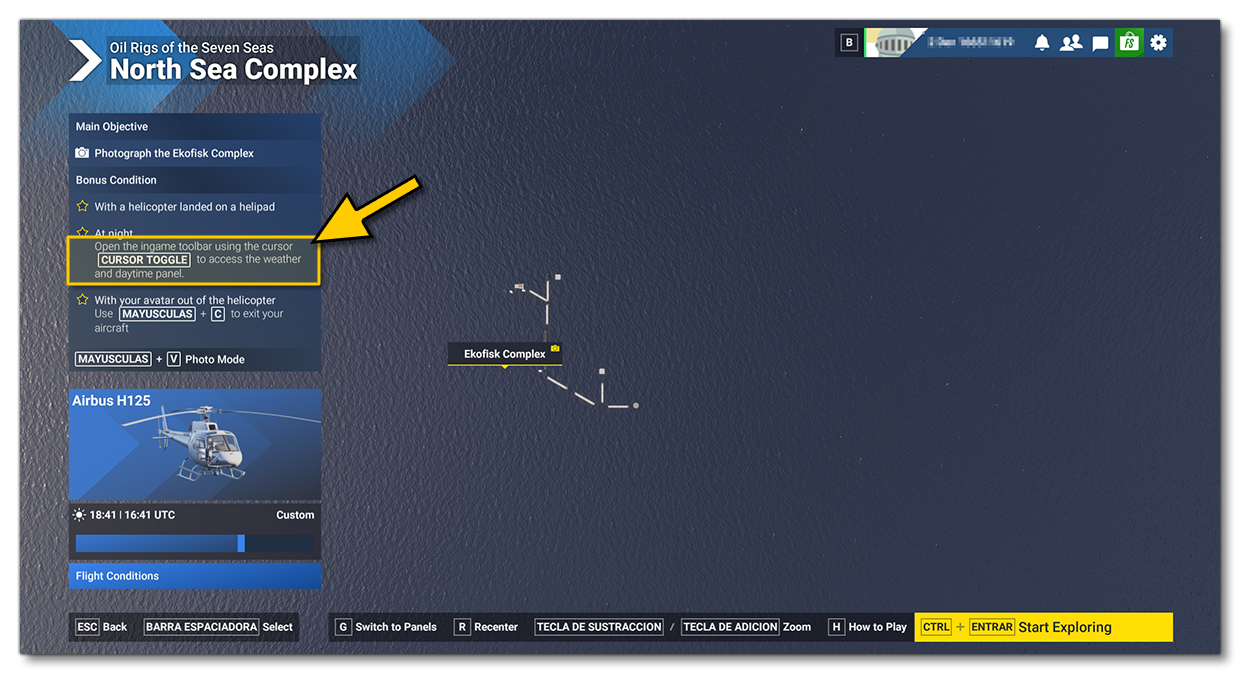
- Give the title of the Travelbook page. It will be used in the simulation UI for the page, as shown in the images below, and can be localised:
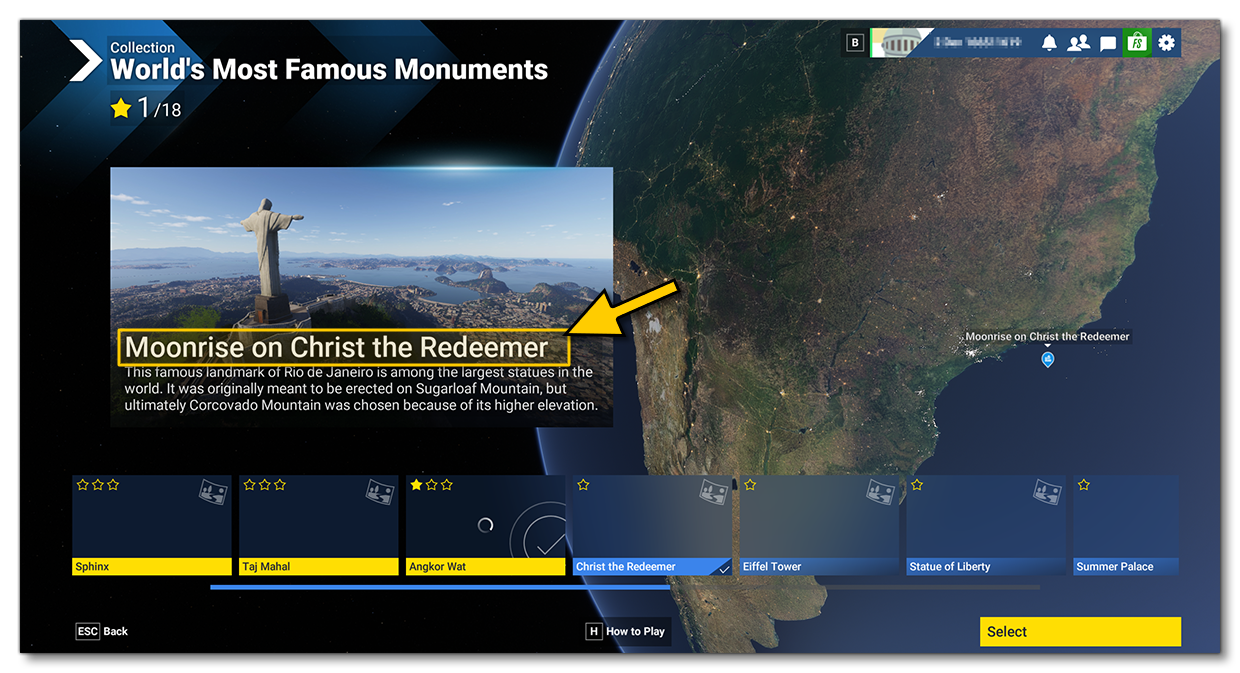
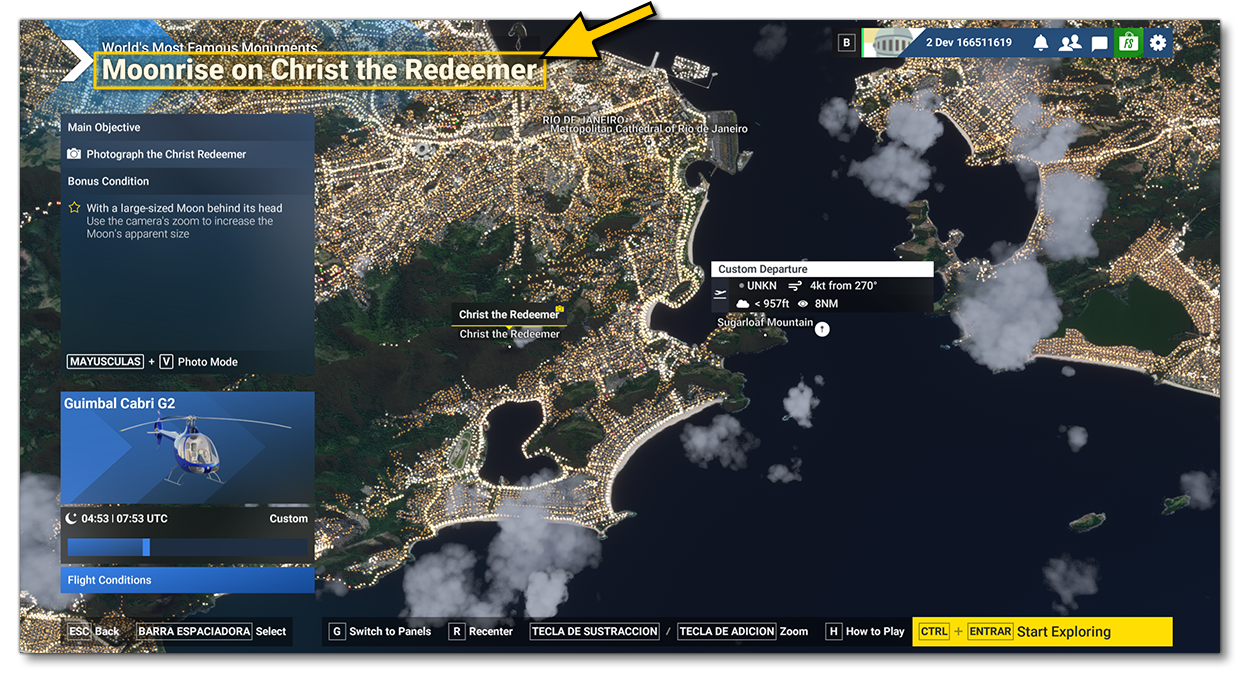
- Give the title of an objective or bonus objective. It will be used in the simulation UI for the Objective, as shown in the images below, and can be localised:
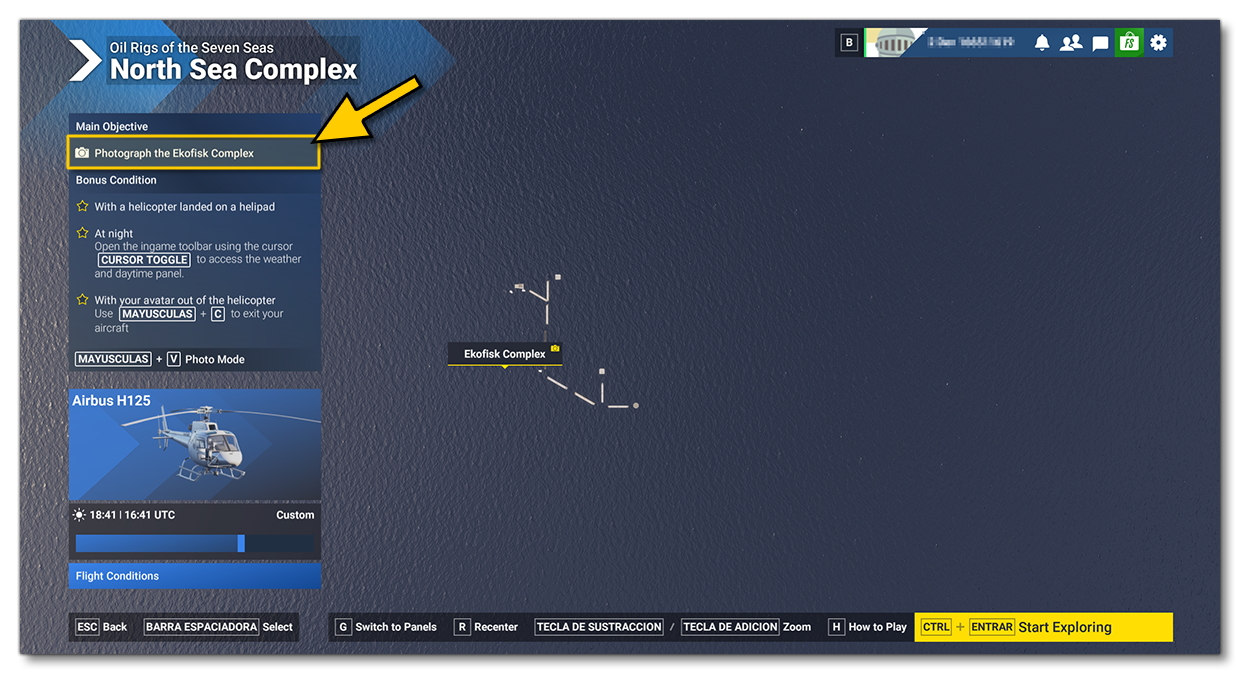
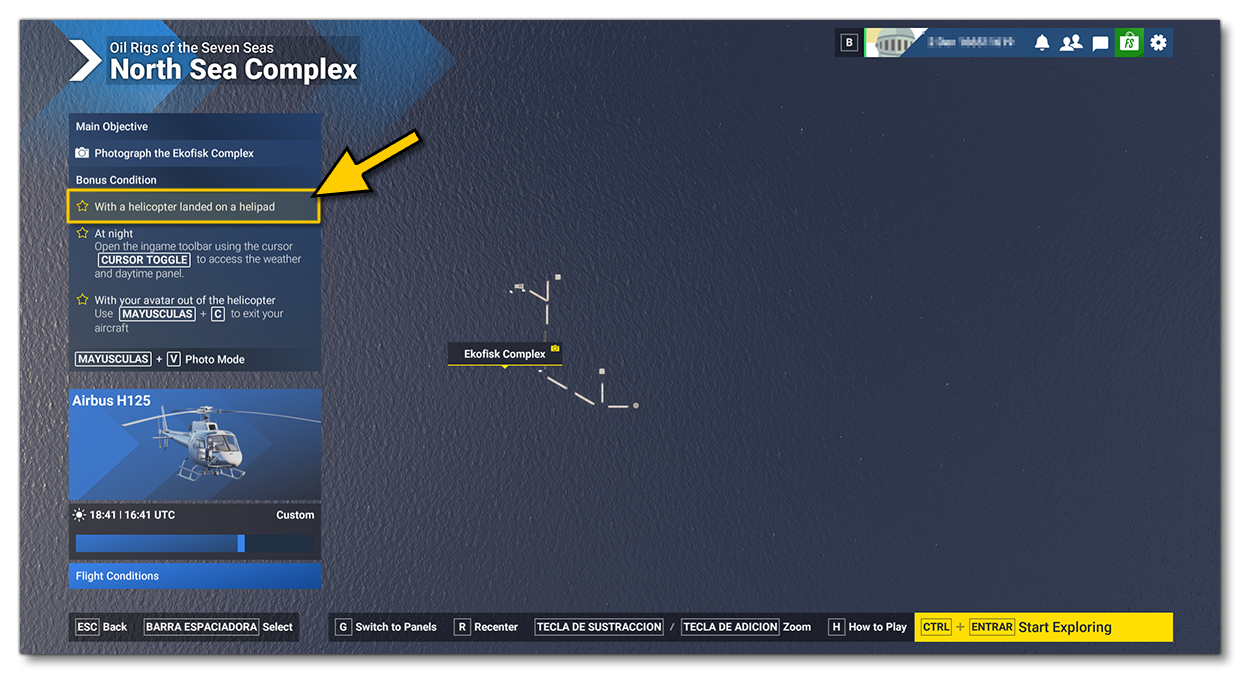
For example:
<Title>Moonrise On Christ The Redeemer</Title>
<Descr>
This is a sub-element of <TravelBook.Objective> and <Requirement>, has no attributes, and is used to either:
- Provide a description for the objective page. This is not shown in the simulation, but should still be included as a way to identify what the objective is.
- Provide a description of a bonus objective (this is not used for the mandatory objective, but should still be included). This text is usually used to provide helpful information that tells the user how the bonus objective may be achieved.
<Trivia>
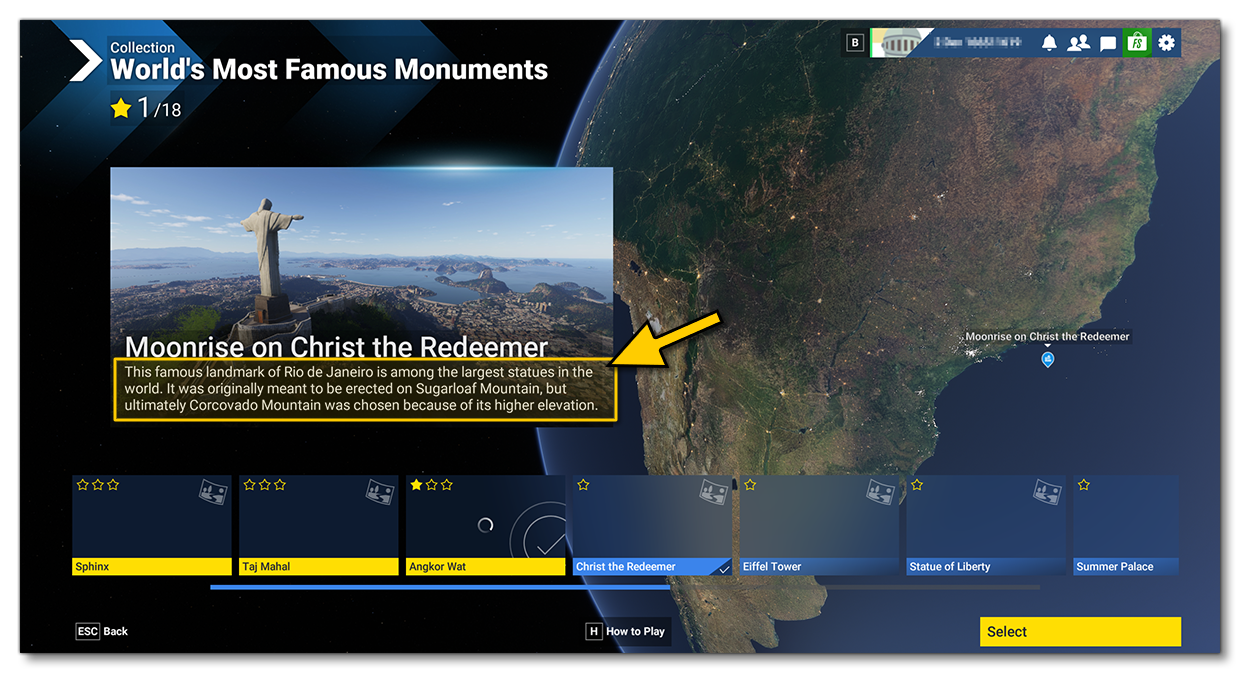
This is a sub-element of <TravelBook.Objective> and is used to provide a brief bit of information and trivia about the location/object that is the objective, and it can be localised. It will be shown on the main screen for the objective, as shown in the image below:
For example:
<Trivia>This was once a pilgrimage location for worshiping pagan divinities, but now it's a popular tourist location surrounded by lush forests and tranquil lakes.</Trivia>
<Picture>
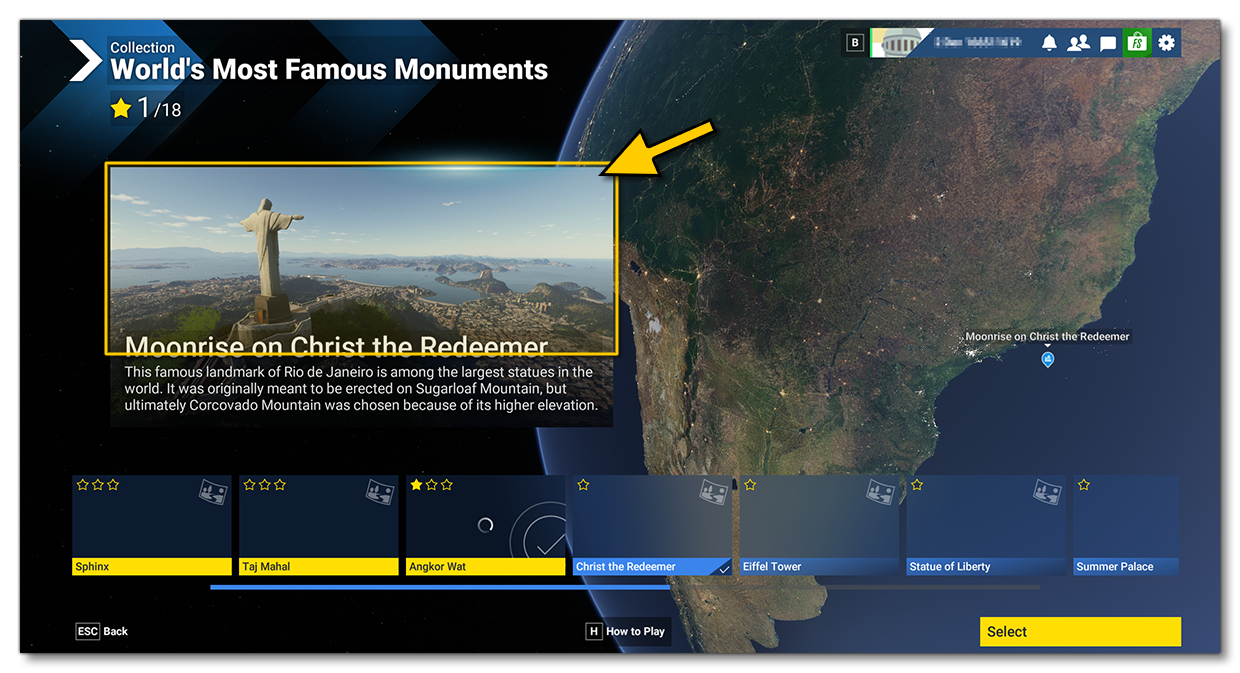
This is a sub-element of <TravelBook.Objective> and is used to define a picture that will be used to illustrate the objective. It should be representative of what the user will be doing or where the user will be going, and is a *.jpg image authored using a 16:9 aspect ratio (recommended size is 2560x1440px). Note that the path you supply here - much like for the page Picture attribute - should start from the top level of the built package, not the sources folder.
In the simulation it will be used here:
For example:
<Picture>TravelBook\Objectives\MyCompany\Objectives\Pictures\Objective_1.jpg</Picture>
<PageId>
This is a sub-element of <TravelBook.Objective> and is used to identify the travelbook page that the objective belongs to. This is supplied as a GUID enclosed in {} and comes from the page InstanceID attribute.
For example:
<PageId>{35BC559B-E4C3-6F02-871C-A144BECEA03A}</PageId>
<ObjectiveType>
This is a sub-element of <TravelBook.Objective> and is used to set what type of objective is being defined. There are three to choose from, and each one will modify the sub-elements used in the objective, as well as the "flow" of the travelbook mission:
- Position - Used for objectives with a main subject in a fixed position in the world. Displays a “subject” card on the world map. Requires the
<ObjectiveSubjectWorldData>element to be defined if used. If no<ObjectiveType>element is used, then this will be the default type. - Traffic - The Objective will use the flow for plane spotting, and display defined airplanes on the worldmap. Requires at least 1
<ObjectiveFilter>to be defined in the world data to be able to work. - Polygon - The Objective will use the flow for fauna objectives and display spawning areas for the defined species on the world. Requires at least 1
<ObjectiveFilter>to be defined in the world data to be able to work.
For example:
<ObjectiveType>Traffic</ObjectiveType>
<ObjectiveWorldData>
This is a sub-element of <TravelBook.Objective> and is used to supply data related to the location of the travelbook objective. The element has no attributes, and can take the following sub-elements.
<ObjectiveWorldPosition><ObjectiveSubjectWorldData><ObjectiveRecommendedDeparture><ObjectiveFilter>
<ObjectiveWorldPosition>
This is a sub-element of <ObjectiveWorldData> and is a container element used to set the general position of the main objective in the world. This element has no attributes and requires the following sub-elements:
For example:
<ObjectiveWorldPosition>
    <WorldPosition>S34* 44' 19.44",E167* 33' 55.21",+16063761.21</WorldPosition>
    <WorldMapZoomRatio>0.0001</WorldMapZoomRatio>
    <WorldMapZoomRatio>0.01</WorldMapZoomRatio>
</ObjectiveWorldPosition>
<WorldPosition>
This is a sub-element of <ObjectiveWorldPosition>, <ObjectiveSubjectWorldData>, <ObjectiveRecommendedDeparture>, <InBox>, and <InSphere>. It defines a position in the world where:
- When used in
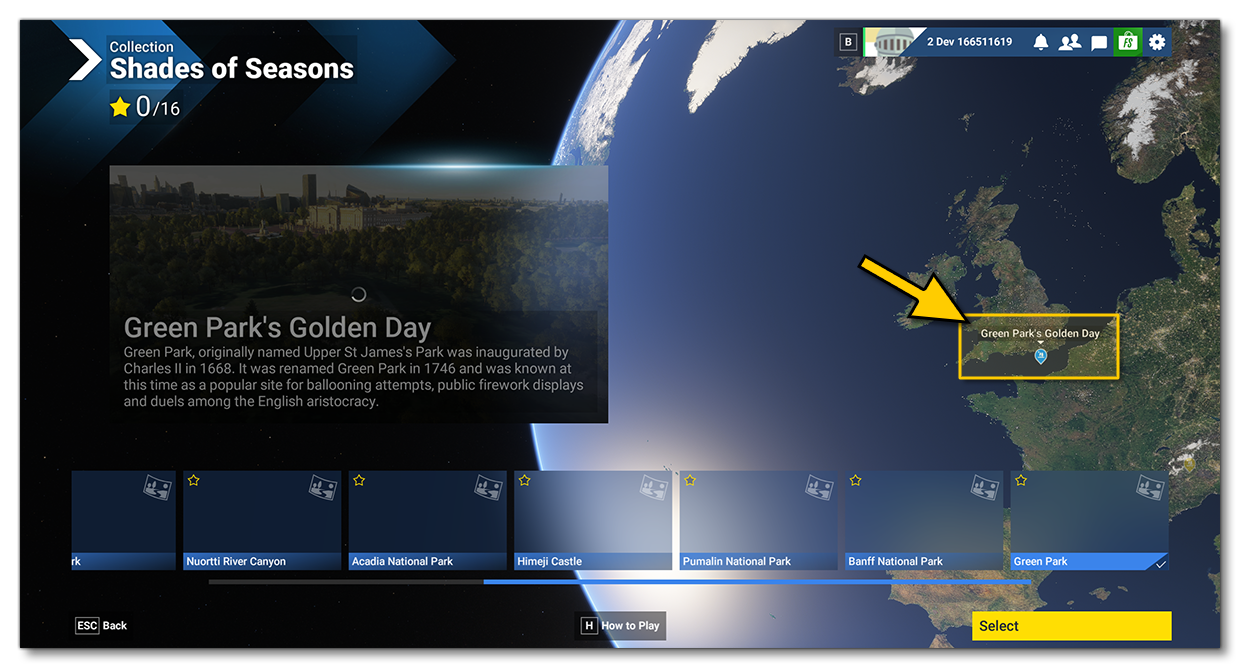
<ObjectiveWorldPosition>and the<ObjectiveType>is set to Location, it is the general location for the objective, normally somewhere between the location of the photographic subject and the location where the flight starts. It is shown on the main world map with a marker, as shown in the image below:
- When used in
<ObjectiveSubjectWorldData>it is the exact location of the subject to be photographed, and is also where the subject title card will be placed, as shown in the image below.
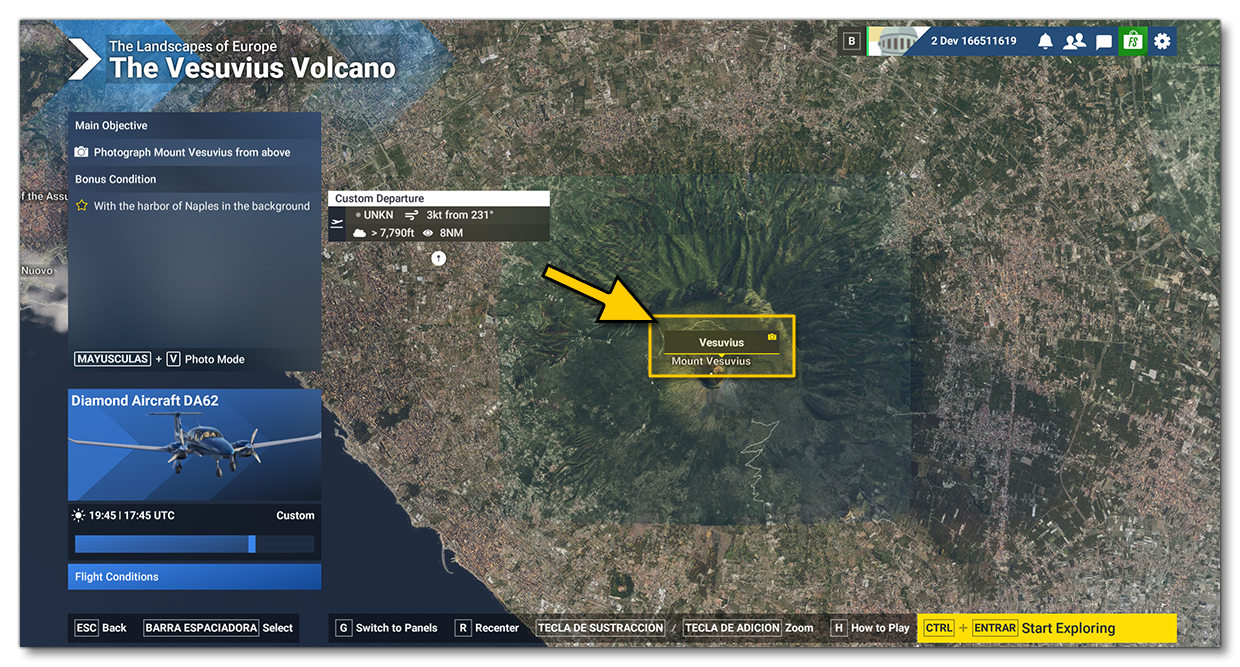
- When used in
<ObjectiveRecommendedDeparture>it is the initial location for the user when they start the flight, which will be shown the first time the select an objective, as shown in the image below.
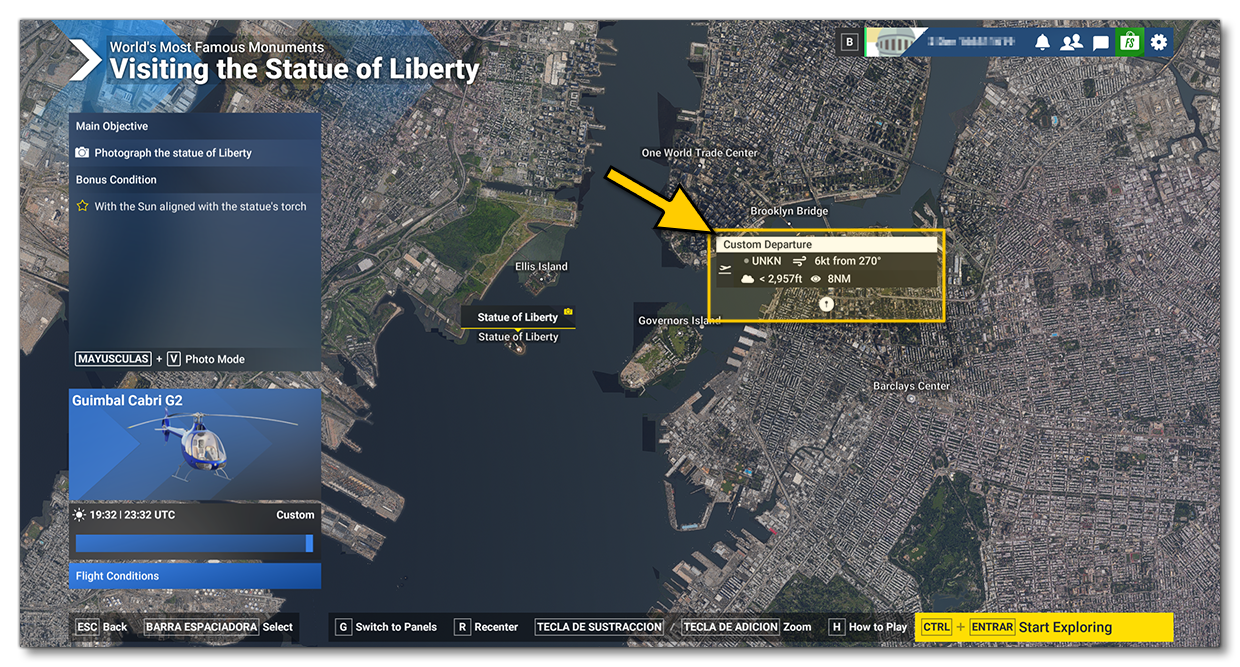
- When used with the
<InBox>element, it defines the center of the box.
- When used with the
<InSphere>element, it defines the center of the sphere.
The element has no attributes, and it takes a string of data using the format:
<Latitude [CompassDirection][Degrees*][Minutes'][Seconds"]>, <Longitude [CompassDirection][Degrees*][Minutes'][Seconds"]>, <Altitude+/->
For example:
<WorldPosition>N35* 11' 48.42",W106* 35' 53.15",+00200.05</WorldPosition>
Note that the altitude value can be modified for AGL or MSL with the <AltitudeIsAGL> element.
<WorldMapZoomRatio>
This is a sub-element of <ObjectiveWorldPosition> and defines the zoom level for the camera when the objective is selected (between 0 and 1). However, this is not used by the simulation but the element is still required. For example:
<WorldMapZoomRatio>0.01</WorldMapZoomRatio>
<AltitudeIsAGL>
This is a sub-element of <ObjectiveWorldPosition> and <ObjectiveRecommendedDeparture> and defines whether the <WorldPosition> altitude should be based on AGL (True) or MSL (False). For example:
<AltitudeIsAGL>True</AltitudeIsAGL>
<ObjectiveSubjectWorldData>
This is a sub-element of <ObjectiveWorldData> and is used to and is only used when the <ObjectiveType> is set to Location. This is used to set the location of the "subject" card in the world, ie: the exact location of the subject to be photographed. This can be achieved using two different methods:
- Using the
<Name>and<WorldPosition>sub-elements. - Using the
<WorldLocationName>sub-element.
For example:
<ObjectiveSubjectWorldData>
    <Name>SUBJECT TITLE</Name>
    <WorldPosition>N35* 5' 17.95",W106* 38' 28.91", 000</WorldPosition>
</ObjectiveSubjectWorldData>

<!-- or -->

<ObjectiveSubjectWorldData>
    <WorldLocationName>{1DBD3AD9-7104-49E2-9BA3-6506235112A0}</WorldLocationName>
</ObjectiveSubjectWorldData>
<Name>
This is a sub-element of various other objective XML elements, and has no attributes and can be localised. It can be used in the following:
<ObjectiveSubjectWorldData>- Give the location subject a name string.<ObjectiveFilter>- Give a filter criteria from:- a species GUID for Animal filters (see the Animal GUIDs And Container Titles section).
- an aircraft type ICAO for Aircraft filters (listed here: Aircraft Variations And Liveries).
<AircraftRecommended>- Give the name of an aircraft variation as the recommended aircraft (see the Aircraft Variations And Liveries section).<SimObject>- Give the name of the SimObject that forms the subject of the objective, so it can be displayed in the simulation.
<WorldLocationName>
This is a sub-element of <ObjectiveSubjectWorldData> and is used to define a subject marker using either the GUID (enclosed in {}) of POI in the world, or an ICAO code. The subject card name will then be extracted from this for display.
<ObjectiveRecommendedDeparture>
This is a sub-element of <ObjectiveWorldData> and is used to define a recommended departure point for the objective (the user can change this if they wish). This should be somewhere near the subject, but still require some flying and positioning to get to the location and get the photograph. The element has no attributes and requires the following sub-elements:
For example:
<ObjectiveRecommendedDeparture>
    <WorldPosition>N36* 58' 31.58",W110* 4' 45.85",+006212.00</WorldPosition>
    <AltitudeIsAGL>FALSE</AltitudeIsAGL>
    <LocalOrientation>0,0,-11</LocalOrientation>
    <LocalOffsetXYZ>0,0,0</LocalOffsetXYZ>
</ObjectiveRecommendedDeparture>
<LocalOrientation>
This is a sub-element of <ObjectiveRecommendedDeparture> and is used to set the orientation of the aircraft. The element has no attributes and requires three values - pitch, bank, heading - separated by commas.
<LocalOffsetXYZ>
This is a sub-element of <ObjectiveRecommendedDeparture> and is used to offset the aircraft starting location relative to the recommended departure position. The element has no attributes and requires three values - X-axis, Y-axis, Z-axis - separated by commas.
<ObjectiveFilter>
This is a sub-element of <ObjectiveWorldData> and is required if the <ObjectiveType> is set to Polygon or Traffic. Filters are used to narrow down locations in the world where you can find the objective of the mission. The element has no attributes but requires the following sub-elements:
For example:
<ObjectiveFilter>
    <FilterType>Animal</FilterType>
    <Name>{2FEA1AE1-1B3A-483E-B4B9-E9043AFF3BDA}</Name>
</ObjectiveFilter>
<FilterType>
This is a sub-element of <ObjectiveFilter> and is used to set one or more filters to be used when the <ObjectiveType> is set to Polygon or Traffic. If more than one filter is supplied, then multiple areas in the world may be highlighted, as long as they match the given filter. The element has no attributes and can be one of the following strings:
- Animal - Used with the polygon objective type to define areas where a given animal can be found. Animals should be defined in the accompanying
<Name>element using their GUID (see Animal GUIDs And Container Titles). - Aircraft - Used with the traffic objective type to define an aircraft to be spotted. You should use the aircraft ICAO in the accompanying
<Name>element to identify the aircraft (see Aircraft Variations And Liveries).
<WeatherPreset>
This is a sub-element of <TravelBook.Objective> and is used to define the weather preset XML to use as default for the objective. The element has no attributes and requires the <File> sub-element. For example:
<WeatherPreset>
    <File>TravelBook\Objectives\MyCompany\Objectives\WeatherPresets\ThisObjectiveWeather.wpr</File>
</WeatherPreset>
Note that if this element is omitted, the objective will use the current Live Weather for the objective location.
<File>
This is a sub-element of <WeatherPreset> and is used to assign a Weather XML (*.WPR) to the objective to set up the default weather (this can be changed by the user). Note that the path you supply here - much like for the page Picture attribute - should start from the top level of the built package, not the sources folder.
<DateRecommended>
This is a sub-element of <TravelBook.Objective> and is used to define the default date on which the objective flight takes place (this can be changed by the user). This element requires no sub-elements, and has the following attributes:
| Attribute | Description | Type | Required |
|---|---|---|---|
Day |
This is the day of the month that the flight starts on, expressed as an integer value between 1 and 31 (inclusive). | Integer | Yes |
Month |
This is the day of the month that the flight starts on, expressed as an integer value between 1 and 12 (inclusive). | Integer | Yes |
Year |
Thisis the year that the flight takes place on. | Integer | No |
Note that if this element is omitted, the objective will use the current date.
<TimeOfDayRecommended>
This is a sub-element of <TravelBook.Objective> and is used to define the default time at which the objective flight takes place (this can be changed by the user). This element requires no sub-elements, and has the following attributes:
| Attribute | Description | Type | Required |
|---|---|---|---|
Hour |
This is the hour of the day at which the objective takes place, expressed as an integer from 1 to 24 (inclusive). | Integer | Yes |
Minute |
This is the minute at which the objective takes place, expressed as an integer from 0 to 59 (inclusive). | Integer | Yes |
Second |
This is the second at which the objective takes place, expressed as an integer from 0 to 59 (inclusive). | Integer | No |
Note that if this element is omitted, the objective will use the current time.
<AircraftRecommended>
This is a sub-element of <TravelBook.Objective> and is used to define the recommended aircraft for a specific objective (this can be changed by the user). The element has no attributes and uses the following sub-tags to define the aircraft variation and (optionally) the livery it should use:
For example:
<AircraftRecommended>
    <Name>XCub Passengers</Name>
    <Livery>OFFICIAL_STATIC_01</Livery>
</AircraftRecommended>
<Livery>
This is a sub-element of <AircraftRecommended> and is used to define the livery used by the recommended aircraft. This is an optional element and if it's not included, then the default livery will be used. If you do include it, then the name supplied here is the livery ID, which can be found using either the Aircraft Selector or the table on the Travelbook Lists page.
<Requirements>
This is a sub-element of <TravelBook.Objective> and is a container element used to hold the definitions of the different mission requirements. For each objective there must be at least one requirement, which is the main objective, and then you can add additional bonus requirements. This element has no attributes and acts as a container element for one or more <Requirement> sub-elements.
<Requirement>
This is a sub-element of <Requirements> and is used to define a specific requirement for an objective or a bonus objective. You must have at least one mandatory requirement, which is the main objective, and then you may have additional requirements for the bonus objectives. This element has no attributes and can contain the following sub-elements:
For example:
<Requirement>
    <IsMandatory>TRUE</IsMandatory>
    <Title>TT:OBJECTIVE.GENERIC.TIMEOFDAY.DESC</Descr>
    <Subjects>
        <Weather Id="Sun">
            <WeatherSubject>Sun</WeatherSubject>
        </Weather>
    </Subjects>
    <Contexts>
        <Conditions>
            <Period Id="Winter">
                <From day="21" month="12" />
                <To day="31" month="12" />
            </Period>
            <Period Id="Winter2">
                <From day="1" month="1" />
                <To day="21" month="3" />
            </Period>
            <TimeOfDay>
                <Id>Time Dusk</Id>
                <TimeOfDayType>Dusk</TimeOfDayType>
            </TimeOfDay>
            <RotationConstraint Id="FacingWest">
                <RelativeAxis>
                    <ZMin>225</ZMin>
                    <ZMax>315</ZMax>
                </RelativeAxis>
            </RotationConstraint>
        </Conditions>
        <Formula>
            (X:Winter) (X:Winter2) or (X:Time Dusk) and (X:FacingWest) and
        </Formula>
    </Contexts>
</Requirement>
<IsMandatory>
This is a sub-element of <Requirement> and has no attributes. It is used to define whether the objective is mandatory or not. Every objective page requires one mandatory objective, which is set using this element set to "TRUE" (this element can be set to "FALSE" or omitted for bonus objectives), for example:
<IsMandatory>TRUE</IsMandatory>
<Subjects>
This is a container sub-element of <Requirement> and is used to define one or more subjects to be used as part of the requirements for an objective. This element is mandatory for the main objective, but may not be necessary for the bonus objectives. This element has no attributes, and can have the following sub-elements:
<User>
This is a sub-element of <Subjects> and has the following attribute:
| Attribute | Description | Type | Required |
|---|---|---|---|
Id |
This is a string used to identify the subject elsewhere in the XML. | String | Yes |
It is used to detect the user as a subject for the photograph objective (whether it's the avatar or the aircraft), and can have the following sub-elements:
For example:
<User Id="PlayerCharacter">
    <ScreenSize MinSize="0.05"/>
    <Conditions>
        <InBox>
            <Id>IsOverSouthRidge</Id>
            <SizeXYZ>700, 30000, 6000</SizeXYZ>
            <Orientation>0, 0, -13.670</Orientation>
            <WorldPosition>N36* 39' 23.36",W108* 49' 54.40",+006921.54</WorldPosition>
        </InBox>
    </Conditions>
</User>
<Count />
This is a self-closing sub-element of the subject elements (<User>, <SimObject>, <Airport>, <Location>, <POI>, <Weather>, and <SubSubject>), and is used to define how many instances of this subject must be visible on screen. The element has the following attributes:
| Attribute | Description | Type | Required |
|---|---|---|---|
MinCount |
The minimum number of this subject required to validate the objective. | Integer | No |
MaxCount |
The maximum number of this subject required to validate the objective. | Integer | No |
It should be noted that if this element is not included in the subject definition, then it will default to a minimum count of 1, and that neither of the attributes is required (if a minimum is supplied and no maximum, then any number over the minimum will validate, and if a maximum is supplied and no minimum, then any number from 1 to the maximum will validate).
For example:
<Count MinCount="1" MaxCount="5" />
<ScreenSize />
This is a self-closing sub-element of the subject elements (<User>, <SimObject>, <Airport>, <Location>, <POI>, <Weather>, and <SubSubject>), and is used to define the minimum size the subject should be on screen. It has the following attribute:
| Attribute | Description | Type | Required |
|---|---|---|---|
MinSize |
This is the minimum size that the subject should be when it's being displayed on the screen for it to be validated. | Float | Yes |
For example:
<ScreenSize MinSize="10"/>
<Formula>
This element has no attributes and can be used as a sub-element of the following:
It is used to define a Reverse Polish Notation formula that will validate the subject or context. For example:
<Formula>
    (X:Plane1) (X:RaquetteLake_Polygon) and
</Formula>
Note that if no formula is defined, the subject will require all parameters of the subject (and/or any conditions) to be true.
<SimObject>
This is a sub-element of <Subjects> and has the following attribute:
| Attribute | Description | Type | Required |
|---|---|---|---|
Id |
This is a string used to identify the subject elsewhere in the XML. | String | Yes |
It is used to detect a SimObject as a subject for the photograph objective, and can have the following sub-elements:
<Name><Count /><ScreenSize /><UnicIdentifier><PartialIdentifier><AIType><Conditions><Formula>
For example:
<SimObject Id="PassivePlane-1">
    <AIType>Airplane</AIType>
    <ScreenSize MinSize="0.5"/>
    <Count MinCount="1"/>
    <UnicIdentifier>Asobo Passive B717 200</UnicIdentifier>
</SimObject>
<UnicIdentifier>
This is a sub-element of <SimObject> and is used to give the title of the SimObject to be used as the subject (You can find a list of aircraft titles that can be used in this element for aircraft-spotting objectives here: Passive Aircraft Titles. You can find a list of animal titles that can be used in this element for animal-spotting objectives here: Animal GUIDs And Container Titles). For example:
<UnicIdentifier>Asobo Passive B717 200</UnicIdentifier>Note that if you do not know the full title, or wish to include multiple possible SimObjects as the subject, you can include only a part of the container title - eg: "giraffe" - and then use the <PartialIdentifier> element, set to "TRUE".
<PartialIdentifier>
This is a sub-element of <SimObject> and - when set to "TRUE" - is used to tell the simulation that the container title given in the <UnicIdentifier> element is a partial title. In this way you can target multiple SImObjects as the subject, as long as they all share the text given in the identifier element. For example:
<UnicIdentifier>A350</UnicIdentifier>
<PartialIdentifier>True</PartialIdentifier>
<AIType>
This is a sub-element of <SimObject> and is used to define the type of AI that the SimObject subject should have. The AI Types available are:
Aircraft_Pilot
Airplane
AirplanePlayback
AirportAmbient
Airship
Animal
ApronControlVehicle
BaggageCart
BaggageLoader
BoardingRamp
Boat
CateringTruck
Container
ControlTower
FakeSim
FlyingAnimal
FuelTruck
GroundPowerUnit
GroundVehicle
GroundVehicle_Pilot
Helicopter
HotAirBalloon
Human
IdleWorker
Jetway
Linked_Object
Liquid
LivingWorld
Marshaller
Mast
OLSA
ParachuteObject
PushBack
Server
SimpleObjectSim
SmallPushBack
TowPlane
Train
VehicleFollower
WanderBoat
WaterTraffic
Winch
WingRunner
For example:
<AIType>Airplane</AIType>
<Airport>
This is a sub-element of <Subjects> and has the following attributes:
| Attribute | Description | Type | Required |
|---|---|---|---|
Id |
This is a string used to identify the subject elsewhere in the XML. | String | Yes |
|
|
This is the ICAO of the subject airport. | String | Yes |
ControlTowerCount |
This is the minumum number of control towers that should be in the frame for the objective. | Integer | No |
RunwayCount |
This is the minumum number of runways that should be in the frame for the objective. | Integer | No |
HelipadCount |
This is the minumum number of helipads that should be in the frame for the objective. | Integer | No |
ParkingCount |
This is the minumum number of parking spots that should be in the frame for the objective. | Integer | No |
It is used to detect an airport as the subject for the photograph objective, and it can have the following sub-elements:
For example:
<Airport Id="PohnpeiAirport" ICAO="PTPN" RunwayCount="1">
<Name>@asobo-travelbook-airportspotting-pacific,TT:POHNPEI.SUBJECT1</Name>
<ScreenSize MinSize="0.05"/>
<Conditions>
<PercentageVisible Id="PercentageAirportVisible"/>
</Conditions>
<Formula>
(X:PercentageAirportVisible) 15 >
</Formula>
</Airport>
<POI>
This is a sub-element of <Subjects> and has the following attribute:
| Attribute | Description | Type | Required |
|---|---|---|---|
Id |
This is a string used to identify the subject elsewhere in the XML. | String | Yes |
It is used to detect one or more POI as the subject for the objective, and can have the following sub-elements:
For example:
<POI Id="Desert">
    <InstanceId>{4A8ED5B9-C6EC-409A-BFEF-BD9D232F9DB1}</InstanceId>
    <ScreenSize MinSize="5"/>
</POI>
<InstanceId>
This is a sub-element of <POI>, has no attributes, and is used to supply the GUID of a point of interest in the world (enclosed in {}). For example:
<InstanceId>{C94C574F-0603-458A-BE91-B2686A0111EC}</InstanceId>
<Weather>
This is a sub-element of <Subjects> and has the following attribute:
| Attribute | Description | Type | Required |
|---|---|---|---|
Id |
This is a string used to identify the subject elsewhere in the XML. | String | Yes |
It is used to detect the a weather phenomenon as a subject for the frame of an abjective, and can have the following sub-elements:
For example:
<Weather Id="Sun">
    <WeatherSubject>Sun</WeatherSubject>
    <Conditions>
        <PositionScreenConstraint Id="PlaneAndSunAligned">
            <RelativeAxis>
                <XMin>-8</XMin>
                <XMax>8</XMax>
                <YMin>-8</YMin>
                <YMax>8</YMax>
            </RelativeAxis>
            <ListName>A330TakingOff</ListName>
        </PositionScreenConstraint>
    </Conditions>
</Weather>
<WeatherSubject>
This is a sub-element of <Weather> and is used to give the name of the weather phenomenon that should be included as part of the frame for the objective. It can be one of the following strings:
- Sun
- Moon
- Tornado
<SubSubject>
This is a sub-element of <Subjects> and has the following attribute:
| Attribute | Description | Type | Required |
|---|---|---|---|
Id |
This is a string used to identify the sub-subject elsewhere in the XML. | String | Yes |
SubjectReference |
This is a reference string that takes the IMPORTANT! This reference must be for a subject that has already been declared in the XML, ie: You can’t link a subject that is declared after this element in the XML file. |
String | Yes |
It is used to reference a pre-existing subject and adds or modifies detection parameters for the objective using conditions and/or formulas. for example, if you have an animal subject in the main objective for "photograph animal", you can have the same animal subject as sub-subject for the bonus objective "photograph the same animal, but in close-up". It can have the ifollowing sub-elements:
For example:
<Subjects>
<SubSubject Id="AnimalSubject01_x1" SubjectReference="AnimalSubject01">
<Count MinCount="1"/>
</SubSubject>
<SubSubject Id="AnimalSubject02_x1" SubjectReference="AnimalSubject02">
<Count MinCount="1"/>
</SubSubject>
<SubSubject Id="AnimalSubject03_x1" SubjectReference="AnimalSubject03">
<Count MinCount="1"/>
</SubSubject>
<Formula>
(X:AnimalSubject01_x1) + (X:AnimalSubject02_x1) + (X:AnimalSubject03_x1) 1 >
</Formula>
</Subjects>
<Contexts>
This is a sub-element of <Requirement> and is used to add specific context details to the objective, regardless of the subject. For example, if you require the objective to be framed during a specific time of day or during a specific weather event, or even from a specific altitude. This element has no attributes and can have the following sub-elements:
For example:
<Contexts>
    <Conditions>
        <RotationConstraint Id="TopDown">
            <RelativeAxis>
                <XMin>50</XMin>
            </RelativeAxis>
        </RotationConstraint>
    </Conditions>
    <Formula>
        (X:TopDown)
    </Formula>
</Contexts>
<Constraints>
This is a sub-element of <Requirement> which has no attributes and is used to define some very specific constraints for the objective, regardless of the subject. Constraints are defined using the following sub-elements:
For example:
<Constraints>
    <BufferedTime>TRUE</BufferedTime>
</Constraints>
<BufferedTime>
This is a sub-element of <Constraints>, has no attributes, and is used to constrain the time settings to be within the simulation buffered time, which is 24hours. If used, then it should be set to "TRUE" to use buffered time, or "FALSE" to not use it (which is the default behaviour if the element is omitted).
<LiveWeather>
This is a sub-element of <Constraints>, has no attributes, and is used to set the live weather constraint. If set to "TRUE" then the objective should be performed using Live Weather, and if set to "FALSE" then it shouldn't (this is the default behaviour if the element is omitted).
<LiveTime>
This is a sub-element of <Constraints>, has no attributes, and is used to set the live time constraint. If set to "TRUE" then the objective should be performed using Live Time, and if set to "FALSE" then it shouldn't (this is the default behaviour if the element is omitted).
<Conditions>
This element has no attributes and can be used as a sub-element of the following:
This element is used to define additional parameters that can be assigned to either subjects or contexts which can then be used in their formulas, where:
- if assigned to a subject, the condition typically applies to the subject itself
- If assigned to a context, the condition applies to something that isn't the subject (most commonly the camera).
For example, the <InBox> condition applied to a subject will require the subject itself to be in the defined box, with the camera can be outside of it. If <InBox> is applied to a context, then it's the camera that needs to be in the box. The available sub-elements that can be used in conditions are listed below, grouped by which parent element they can be applied to:
- Subject Only
- Context And Subject
<TimeOfDay>
This is a sub-element of <Conditions> (context only) and is used to check if the time of day for the objective falls within one of the given day phases. The element has no attributes and requires the following two elements:
For example:
<TimeOfDay>
    <Id>Time Dusk</Id>
    <TimeOfDayType>Dusk</TimeOfDayType>
</TimeOfDay>
<TimeOfDayType>
This is a sub-element of <TimeOfDay> and simply checks the time of day to see if it falls within one of the the given general phases. The possible strings that can be used for the phases of the day are as follows:
- Day
- Dusk
- Dawn
- Night
<WeatherContext>
This is a sub-element of <Conditions> (context only), has no attributes, and is used to detect if the weather for the flight falls within one of the given general categories. The element requires the following two sub-elements:
For example:
<WeatherContext>
    <Id>WeatherClear</Id>
    <WeatherConditionType>WEATHER_CLEAR_SKY</WeatherConditionType>
</WeatherContext>
<WeatherConditionType>
This is a sub-element of <WeatherContext>, has no attributes, and simply checks the current weather to see if it falls within one of the the given general categories. The possible strings that can be used are as follows:
- WEATHER_CLEAR_SKY
- WEATHER_FEW_CLOUDS
- WEATHER_BROKEN_CLOUDS
- WEATHER_SCATTERED
- WEATHER_OVERCAST
- WEATHER_HIGH_CLOUDS
- WEATHER_RAIN
- WEATHER_STORM
<CameraPointOfView>
This is a sub-element of <Conditions> (context only) and is used to check if the camera point of view is correct for the objective. The element has no attributes and requires the following two elements:
For example:
<CameraPointOfView>
    <Id>Point Of View</Id>
    <PointOfView>Drone</PointOfView>
</CameraPointOfView>
<PointOfView>
This is a sub-element of <CameraPointOfView>, has no attributes, and simply checks the current camera setting to see if it falls within one of the given camera types. The possible strings that can be used are as follows:
- Cockpit
- Drone
<WindSpeedKTS>
This is a sub-element of <Conditions> (context only) and is used to retrieve the current windspeed, in Knots. The element has no attributes and requires the following element:
For example:
<WindSpeedKTS>
    <Id>Time Dusk</Id>
</WindSpeedKTS>
<Period>
This is a sub-element of <Conditions> (context only) and is used to check if the time of day for the objective falls within one of the given day phases. Note that the date period can be only from, or only to, or be a range between the to and from dates given, and you do not have to supply a year or a month for the period (in those cases the check will be done yearly/monthly).
IMPORTANT! These checks are constrained to be between Jan 1st to Dec 31. If you want to check a period that spans accross the New Year, you’ll need to set up 2 period conditions - one ending at the end of the year, and the other one starting at the start of the next year.
The element has no attributes and requires the following three sub-elements:
For example:
<Contexts>
    <Conditions>
        <Period>
            <Id>Winter</Id>
            <From day="20" month="12" />
            <To day="31" month="12" />
        </Period>
        <Period>
            <Id>Winter2</Id>
            <From day="01" month="1" />
            <To day="20" month="3" />
        </Period>
    </Conditions>
    <Formula>
        (X:Winter) (X:Winter2) or
    </Formula>
</Contexts>
<From>
This is a sub-element of <Period> and is used to define the from date of the period. It has the following attributes:
| Attribute | Description | Type | Required |
|---|---|---|---|
| day | The day of the month to use (from 1 to 31). | Integer | Yes |
| month | The month of the year to use (from 1 to 12). | Integer | No |
| year | The year to use. | Integer | No |
<To>
This is a sub-element of <Period> and is used to define the to date of the period. It has the following attributes:
| Attribute | Description | Type | Required |
|---|---|---|---|
| day | The day of the month to use (from 1 to 31). | Integer | Yes |
| month | The month of the year to use (from 1 to 12). | Integer | No |
| year | The year to use. | Integer | No |
<LocalTime>
This is a sub-element of <Conditions> (context only) and is used to get the local time (in seconds) of the flight to be used in a formula. The element has no attributes and requires the following sub-element:
For example:
<Conditions>
<LocalTime>
<Id>TimeOfDay</Id>
</LocalTime>
</Conditions>
<Formula>
(X:TimeOfDay) 43200 < <!-- this correspond to "before noon" -->
</Formula>
<PercentageVisible>
This is a sub-element of <Conditions> (subject only) and is used to retrieve the amount of the subject currently visible on-screen, expressed as a percentage. The element has no attributes and requires the following sub-element:
For example:
<Conditions>
<PercentageVisible>
<Id>PADKVisible</Id>
<PercentageVisible>
</Conditions>
<Formula>
(X:PADKVisible) 50 >
</Formula>
<Aircraft>
This is a sub-element of <Conditions> (subject only) and is used to check specific details related to an aircraft. It should be noted that when using this, the <Id> element is obligatory, and there must be at least one other element included to setup the condition. Additionally, you can only check aircraft that are of the following Object_Class types: Airplane, Helicopter, Glider, Balloon, Airship, Gyroplane, TiltRotor.
The element has no attributes and has the following possible sub-elements:
<Id><Cabin><AtcId><TypeRole><IcaoType><IcaoManufacturer><IcaoModel><IcaoEngineType><IcaoEngineCount><IcaoEWTC><IcaoAirline><IsGeneric>
For example:
<Conditions>
    <Aircraft>
        <Id>Plane-1</Id>
        <IcaoType>B38M</IcaoType>
        <Cabin>
            <Tag Value="COF-PCC"/>
        </Cabin>
    </Aircraft>
</Conditions>
<Formula>(X:Plane-1) </Formula>
<AtcId>
This is a sub-element of <Aircraft>, with no attributes, which is used to help filter the aircraft being targeted using the registration number of the aircraft, as defined in the atc_id parameter. For example:
<AtcId>F-JACF</AtcId>
<TypeRole>
This is a sub-element of <Aircraft>, with no attributes, which is used to help filter the aircraft being targeted using the typical aircraft role assigned to the aircraft, as defined in the ui_typerole parameter. For example:
<TypeRole>Single Engine Prop</TypeRole>
<IcaoType>
This is a sub-element of <Aircraft>, with no attributes, which is used to help filter the aircraft being targeted using the ICAO type designator of the aircraft (all possible values are available from the ICAO official database, and those recognised by the simulation can be found on the Aircraft Variations And Liveries page). The value checked here is that defined in the icao_type_designator parameter. For example:
<IcaoType>F-JACF</IcaoType>
<IcaoManufacturer>
This is a sub-element of <Aircraft>, with no attributes, which is used to help filter the aircraft being targeted using the ICAO designated manufacturer of the aircraft, as defined in the icao_manufacturer parameter. For example:
<IcaoManufacturer>CESSNA</IcaoManufacturer>
<IcaoModel>
This is a sub-element of <Aircraft>, with no attributes, which is used to help filter the aircraft being targeted using the ICAO designated model name of the aircraft, as defined in the icao_model parameter. For example:
<IcaoModel>208 Grand Caravan</IcaoModel>
<IcaoEngineType>
This is a sub-element of <Aircraft>, with no attributes, which is used to help filter the aircraft being targeted using the ICAO designated engine type of the aircraft, as defined in the icao_engine_type parameter. For example:
<AtcId>Turboprop/Turboshaft</AtcId>
<IcaoEngineCount>
This is a sub-element of <Aircraft>, with no attributes, which is used to help filter the aircraft being targeted using the ICAO designated engine count of the aircraft, as defined in the icao_engine_count parameter. For example:
<IcaoEngineCount>2</IcaoEngineCount>
<IcaoEWTC>
This is a sub-element of <Aircraft>, with no attributes, which is used to help filter the aircraft being targeted using the ICAO designated weight category of the aircraft, as defined in the icao_WTC parameter. For example:
<IcaoEWTC>L</IcaoEWTC>
<IcaoAirline>
This is a sub-element of <Aircraft>, with no attributes, which is used to help filter the aircraft being targeted using the ICAO designator of the airline for aircraft variation/livery, as defined in the icao_airline parameter. For example:
<IcaoAirline>Wizzair</IcaoAirline>
<IsGeneric>
This is a sub-element of <Aircraft>, with no attributes, which is used to help filter the aircraft being targeted based on whether it's a "generic" - ie: passive - aircraft (TRUE) or not (FALSE), as defined in the icao_generic parameter. For example:
<IsGeneric>TRUE</IsGeneric>
<AltitudeAGLMeter>
This is a sub-element of <Conditions> (subject or context) and is used to retrieve either:
- The height of the subject AGL(when the reference is a subject).
- The height of the camera AGL (when the reference is a context).
The element has no attributes and requires the following sub-element:
For example:
<Conditions>
<AltitudeAGLMeter>
<Id>AGL</Id>
</AltitudeAGLMeter>
</Conditions>
<Formula>
(X:AGL) 120 <
</Formula>
<AltitudeMeter>
This is a sub-element of <Conditions> (subject or context) and is used to retrieve either:
- The height of the subject above MSL (when the reference is a subject).
- The height of the camera above MSL (when the reference is a context).
The element has no attributes and requires the following sub-element:
For example:
<Conditions>
<AltitudeMeter>
<Id>MSLAlt</Id>
</AltitudeMeter>
</Conditions>
<Formula>(X:MSLAlt) 5000 ></Formula>
<InBox>
This is a sub-element of <Conditions> (subject or context) and is used to check either:
- The subject is inside the box being defined (when the reference is a subject).
- The camera is inside the box being defined (when the reference is a context).
The element has no attributes and requires the following sub-elements:
For example:
<InBox>
    <Id>Box</Id>
    <SizeXYZ>50, 10, 50</SizeXYZ>
    <Orientation>0, 0, 0</Orientation>
    <WorldPosition>N48° 51' 30.132", E2° 17' 40.132", +000220.00</WorldPosition>
</InBox>
<SizeXYZ>
This is a sub-element of <InBox> and is used to define the dimensions of the box area that is being used for the check. Requires three values, separated by a comma, expressed in meters. The element has no attributes.
<Orientation>
This is a sub-element of <InBox> and is used to define the orientation of the box area that is being used for the check. Requires three values, separated by a comma, expressed in degrees (pitch, bank, heading). The element has no attributes.
<InSphere>
This is a sub-element of <Conditions> (subject or context) and is used to check if the time of day for the objective falls within one of the given day phases. The element has no attributes and requires the following two elements:
For example:
<InSphere>
    <Id>Sphere</Id>
    <Radius>50</SizeXYZ>
    <WorldPosition>N48° 51' 30.132", E2° 17' 40.132", +000220.00</WorldPosition>
</InSphere>
<Radius>
This is a sub-element of <InSphere> and is used to define the radius of the sphere to be used for the checks, expressed in meters. The element has no attributes.
<InAirport>
This is a sub-element of <Conditions> (subject or context) and is used to check either:
- The subject is inside the area of the given airport (when the reference is a subject).
- The camera is inside the area of the given airport (when the reference is a context).
The element has no attributes and requires the following sub-elements:
For example:
<InAirport>
    <Id>InAirportCondition</Id>
    <Icao>PADK</Icao>
</InAirport>
<Icao>
This is a sub-element of <InAirport> and is used to define the ICAO of the airport that you want to use in the check. The element has no attributes.
<Cabin>
This is a sub-element of <Conditions> (subject or context) and <Aircraft> and is used to check if the SimObject has one or more of the specified cabin elements. The element has no attributes and requires the following two sub-elements:
For example:
<Cabin>
    <Id>CabinTags</Id>
    <Tag>CAR-PSO</Tag>
    <Tag>CAR-PLC</Tag>
    <Tag>CAR-PCC</Tag>
    <Tag>CAR-PVO</Tag>
</Cabin>
<Tag>
This is a sub-element of <Cabin> and is used to define a cabin tag to check for. You can have multiple of these sub-elements, with each one giving a separate tag to use, and this tag will be checked against the targeted_specializations defined for the aircraft.
<PositionScreenConstraint>
This is a sub-element of <Conditions> and is used to check the relative position of two objects within the screen space. The element has no attributes and requires the following sub-elements:
The following is an explicit example of how this element can be used to check two different objects are on the screen, using a specific set of bounding boxes (in this case the "sun" object and the "tori gate" object bounding boxes):
<Weather Id="Sun">
    <WeatherSubject>Sun</WeatherSubject>
    <Conditions>
        <!-- The following two constraints check if the sun is framed within the tori gate, from the front side  -->
        <PositionScreenConstraint>
            <Id>FrontAlignedwithBoudingBoxLeft</Id>
            <RelativeAxis>
                <!-- is the sun below the top bounding box on the screen ? -->
                <YMax>0.75</YMax>
                <!-- is the sun to the right of left bounding box on the screen ? -->
                <XMax>0.75</XMax>
            </RelativeAxis>
            <ListName>Isukushima_ToriGate_TopLeft_BoundingBox</ListName>
        </PositionScreenConstraint>
        <PositionScreenConstraint>
            <Id>FrontAlignedwithBoudingBoxRight</Id>
            <RelativeAxis>
                <!-- is the sun to the left of the right bounding box on the screen ? -->
                <XMin>0.75</XMin>
            </RelativeAxis>
            <ListName>Isukushima_ToriGate_BottomRight_BoundingBox</ListName>
        </PositionScreenConstraint>

        <!-- The following two constraints check if the sun is framed within the tori gate, from the back side  -->
        <PositionScreenConstraint
            <Id>BackAlignedwithBoudingBoxRight</Id>
            <RelativeAxis>
                <XMin>-0.75</XMin>
                <YMax>0.75</YMax>
            </RelativeAxis>
            <ListName>Isukushima_ToriGate_TopLeft_BoundingBox</ListName>
        </PositionScreenConstraint>
        <PositionScreenConstraint>
            <Id>BackAlignedwithBoudingBoxLeft</Id>
            <RelativeAxis>
                <XMax>0.75</XMax>
            </RelativeAxis>
            <ListName>Isukushima_ToriGate_BottomRight_BoundingBox</ListName>
        </PositionScreenConstraint>
    </Conditions>

    <!-- formula checks whether both "from front" constraints or both "from back" constraints are validated  -->
    <Formula>
        (X:FrontAlignedwithBoudingBoxLeft) (X:FrontAlignedwithBoudingBoxRight) and
        (X:BackAlignedwithBoudingBoxLeft) (X:BackAlignedwithBoudingBoxRight) and
        or
    </Formula>
</Weather>
<ListName>
This is a sub-element of <PositionScreenConstraint>, <PositionConstraint>, and <RotationConstraint>, and is used to give the ID name of a previously defined reference subject (ie: the reference subject must have been defined above this in the XML). It has no attributes.
<RelativeAxis>
This is a sub-element of <PositionScreenConstraint>, <PositionConstraint>, and <RotationConstraint>, and is a container element for the various offset values used to define the constraint. The constraint being setup and the sub-elements required will depend on the parent elements, where:
<PositionScreenConstraint>- With this parent element, it compares the position of two subjects on the X and Y axis, then yields an offset value (expressed as a Percent Over 100 of screen), where:- The value for the offset on the X-axis is positive when the subject is on the right of the reference subject.
- The value for the offset on the X-axis is negative when the subject is on the left of the reference subject.
- The value for the offset on the Y-axis is positive when the subject is above the reference subject.
- The value for the offset on the Y-axis is negative when the subject is below the reference subject.
It requires at least one of the following sub-elements:
<PositionConstraint>- With this parent element, it compares the position of the subjects on the X, Y and Z axis, yielding an offset value (in meters). When relative to the camera:- the X offset value is positive when the subject is on the right of the reference subject.
- the X offset value is negative when the subject is on the left of the reference subject.
- the Y offset value is positive when the subject is above the reference subject.
- the Y offset value is negative when the subject is below the reference subject.
- the Z offset value is positive when the subject is further away from the camera than the reference subject.
- the Z offset value is negative when the subject is closer to the camera than the reference subject.
- the A offset is the value of the angle formed by the Subject, the Camera, and the Reference subject.
When not relative to the camera, the comparisons will be relative to the Default world axis, where the Z-axis is the vertical axis. It requires at least one the following sub-elements:
<RotationConstraint>- With this parent element, it compares the orientation of the subject / camera to a reference point. It requires at least one the following sub-elements:
Note that at least one sub-element is mandatory in all cases, and if one boundary (along each axis) is not set, then the following will happen:
- up to the maximum with no minimum set
- up from the minimum with no maximum set
<XMin>
This is a sub element of <RelativeAxis>, and has no attributes. The value required will depend on the parent elements, where:
<PositionScreenConstraint>- It defines the minimal value of the X-axis offset value for the constraint to validate (expressed as a Percent Over 100).<PositionConstraint>- It defines the minimal value of the X-axis offset value for the constraint to validate (expressed in meters).<RotationConstraint>- It defines the minimal angle for the X-axis for the constraint to validate (expressed in degrees).
<XMax>
This is a sub element of <RelativeAxis>, and has no attributes. The value required will depend on the parent elements, where:
<PositionScreenConstraint>- It defines the maximal value of the X-axis offset value for the constraint to validate (expressed as a Percent Over 100).<PositionConstraint>- It defines the maximal value of the X-axis offset value for the constraint to validate (expressed in meters).<RotationConstraint>- It defines the maximal angle for the X-axis for the constraint to validate (expressed in degrees).
<YMin>
This is a sub element of <RelativeAxis>, and has no attributes. The value required will depend on the parent elements, where:
<PositionScreenConstraint>- It defines the minimal value of the Y-axis offset value for the constraint to validate (expressed as a Percent Over 100).<PositionConstraint>- It defines the minimal value of the Y-axis offset value for the constraint to validate (expressed in meters).<RotationConstraint>- It defines the minimal angle for the Y-axis for the constraint to validate (expressed in degrees).
<YMax>
This is a sub element of <RelativeAxis>, and has no attributes. The value required will depend on the parent elements, where:
<PositionScreenConstraint>- It defines the maximal value of the Y-axis offset value for the constraint to validate (expressed as a Percent Over 100).<PositionConstraint>- It defines the maximal value of the Y-axis offset value for the constraint to validate (expressed in meters).<RotationConstraint>- It defines the maximal angle for the Y-axis for the constraint to validate (expressed in degrees).
<ZMin>
This is a sub element of <RelativeAxis>, and has no attributes. The value required will depend on the parent elements, where:
<PositionConstraint>- It defines the minimal value of the Z-axis offset value for the constraint to validate (expressed in meters).<RotationConstraint>- It defines the minimal angle for the Z-axis for the constraint to validate (expressed in degrees).
<ZMax>
This is a sub element of <RelativeAxis>, and has no attributes. The value required will depend on the parent elements, where:
<PositionConstraint>- It defines the maximal value of the Z-axis offset value for the constraint to validate (expressed in meters).<RotationConstraint>- It defines the maximal angle for the Z-axis for the constraint to validate (expressed in degrees).
<AMin>
This is a sub element of <RelativeAxis>, and has no attributes. It is only used with the <PositionConstraint> parent element and defines the minimal value of the angle offset for the constraint to validate (expressed in degrees).
<AMax>
This is a sub element of <RelativeAxis>, and has no attributes. It is only used with the <PositionConstraint> parent element and defines the maximal value of the angle offset for the constraint to validate (expressed in degrees).
<PositionConstraint>
This is a sub-element of <Conditions> and is used to check the relative position of two objects within the world. The element has no attributes and requires the following sub-elements:
For example:
<Weather Id="Sun">
    <WeatherSubject>Sun</WeatherSubject>
    <Conditions>
        <PositionConstraint Id="AlignedwithSphinx_RightShoulder">
            <RelativeAxis>
                <AMax>1.5</AMax>
            </RelativeAxis>
            <ListName>Sphinx_RightShoulder_Boundingbox</ListName>
        </PositionConstraint>
    </Conditions>
    <Formula>(X:AlignedwithSphinx_RightShoulder)</Formula>
</Weather>
<RelativeToCamera>
This is a sub element of <PositionScreenConstraint>, <PositionConstraint>, and <RotationConstraint>, and has no attributes. It will work as follows, depending on the parent-element:
<PositionConstraint>- Indicates that this condition is relative to the camera position. If "TRUE", offset positions are calculated relative to the camera position. If "FALSE" (the default value), they will be calculated relative to the world axis, where Z is vertical.<RotationConstraint>- Indicates that this condition is relative to the camera angle. If "TRUE", the orientation will be calculated relative to the camera orientation. If "FALSE" (the default value), it will be calculated relative to the world.
<RotationConstraint>
This is a sub-element of <Conditions> and is used to detect the orientation of the subject or camera compared to a reference point. The element has no attributes and requires the following two elements:
For example:
<Conditions>
    <RotationConstraint>
        <Id>LowAngle</Id>
        <RelativeAxis>
            <XMin>190</XMin>
            <XMax>350</XMax>
        </RelativeAxis>
    </RotationConstraint>
</Conditions>
<Formula>
    (X:LowAngle)
</Formula>
<Id>
This element is used to assign an ID string to a condition. This ID string is then used in the <Formula> element RPN code as a parameter. This element can be used in the following:
<TimeOfDay>
<WeatherContext>
<CameraPointOfView>
<WindSpeedKTS>
<Period>
<LocalTime>
<PercentageVisible>
<Aircraft>
<AltitudeAGLMeter>
<AltitudeMeter>
<InBox>
<InSphere>
<InAirport>
<InPolygon>
<Cabin>
<PositionScreenConstraint>
<PositionConstraint>
<RotationConstraint>
For example:
<Subjects>
    <SimObject Id="PassivePlane-1">
        <AIType>Airplane</AIType>
        <ScreenSize MinSize="0.5"/>
        <Count MinCount="1"/>
        <UnicIdentifier>Asobo Passive B717 200</UnicIdentifier>
    </SimObject>
    <SimObject Id="PassivePlane-2">
        <AIType>Airplane</AIType>
        <ScreenSize MinSize="2.1"/>
        <ScreenSize MinSize="0.5"/>
        <Conditions>
            <Aircraft>
                <Id>Plane-1</Id>
                <IcaoType>B712</IcaoType>
            </Aircraft>
        </Conditions>
    </SimObject>
    <Formula>(X:PassivePlane-1) (X:PassivePlane-2) or </Formula>
</Subjects>
Related Topics