THE BIOMES EDITOR
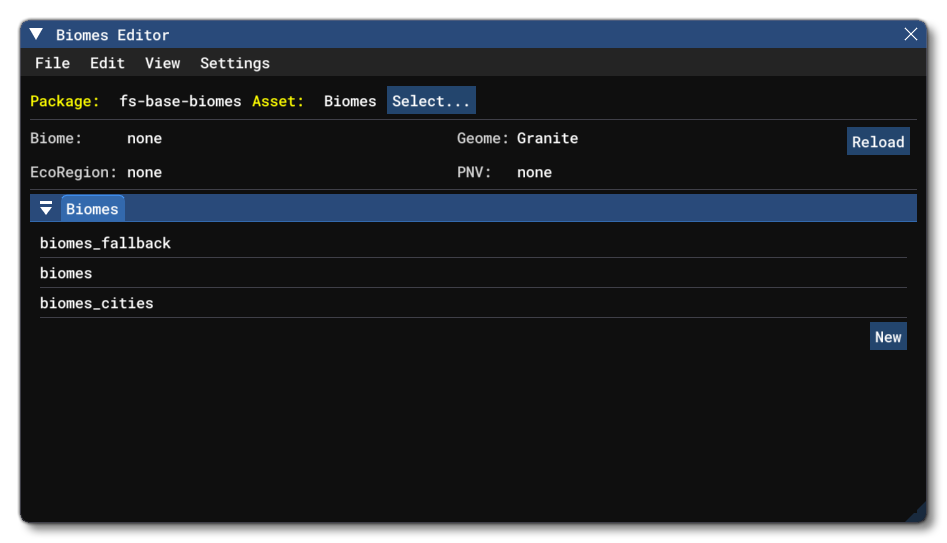
The Biomes Editor is used to create and edit biomes that can then be used in the simulation. On this page you can find information on the editor and it's sub windows and menus, but for information on how to use the editor, please see here:
The main window is split into two parts, with general information at the top. This includes the current package (with a Select button to change the package if there is more than one in the project), as well as the Biome, Geome, EcoRegion, and PNV for the area where the user camera is currently located (this will require that a flight has been started for this information to be visible). Finally, the top section has a Reload button which you can use to reload the files from disk. This button will overwrite any unsaved information in the editor.
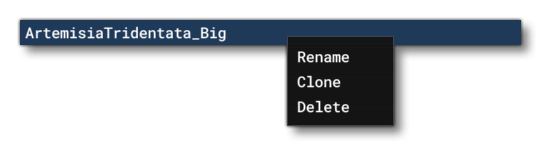
The second half of the editor is comprised of a list of biome rules, and you can right-click on any listed rule item to get the following menu:
-
Rename
With this option you can rename the selected item.
-
Clone
With this option you can clone the selected item. When you use this option you will be asked to give the new, cloned, biome a name.
-
Delete
With this option you can delete the selected biome.
You can add a new biome ruleset by clicking the New button at the bottom, which will open a window for you to name the rulset - something like biome-cities-north, for example - and then, after clicking Ok, the new biomes ruleset will be shown in the The Biomes Inspector, where you can start to add different biome rules to be used in the world.
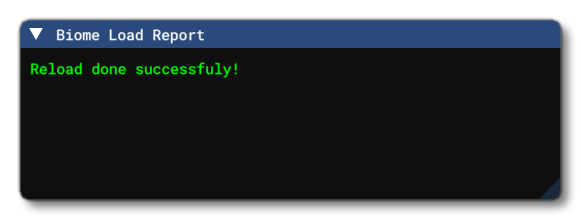
Note that there is an additional debug window will be created when you open the editor: the Biome Load Report window. This is a kind of "lite" console, which will display messages related to the biomes being edited whenever they are loaded/reloaded.
Menus
The following menus are shown at the top of the Biome Editor window.
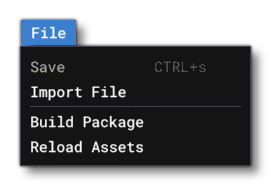
File
-
Save
This will save the set of biome files being edited.
-
Import File
This will open a file explorer where you can select a biome XML file to import.
-
Build Package
This will build the currently loaded package.
-
Reload Assets
This will reload the biome data from the source files, overwriting any changes that have been made and not saved.
Edit
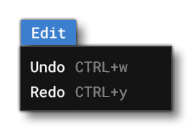
-
Undo
This will undo the last action performed in the editor. You may useCtrl+Zas a shortcut.
-
Redo
This will redo the last action that was undone in the editor (if an action exists to redo). You may useCtrl+Yas a shortcut.
View
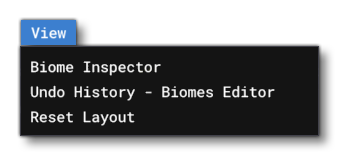
-
Biome Inspector
This will open the The Biomes Inspector.
-
Undo History
This will open the Undo History window where you can quickly move between undo/redo states.
-
Reset Layout
This will simply reset the layout of the Biome Editor back to its default state.
Settings
-
Auto Reload Biomes
When this is activated it will auto reload all the biome files every time you use the Save option.