THE BIOMES INSPECTOR
The Biomes Inspector will be opened automatically when you click on any one of the items listed in the biomes tab in the main editor, or it can be opened from the View menu if closed accidentally.
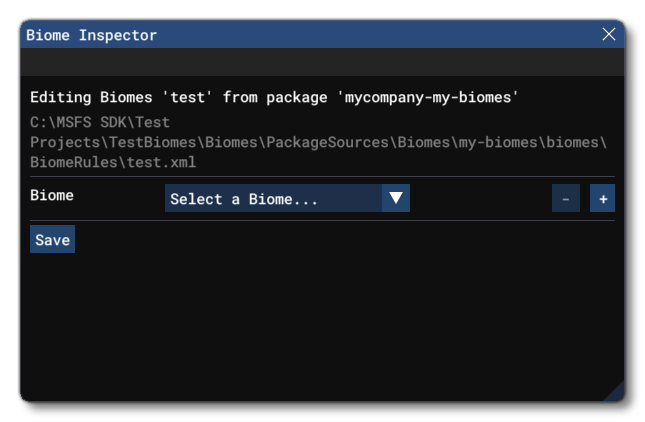
When this window is first opened after creating a new biome package and ruleset, it will be "blank" as shown in the image above. This is because there have been no biome rulesets defined, in which case you can click on the + button to add the first one to the biome group. This will change the editor to show further options:
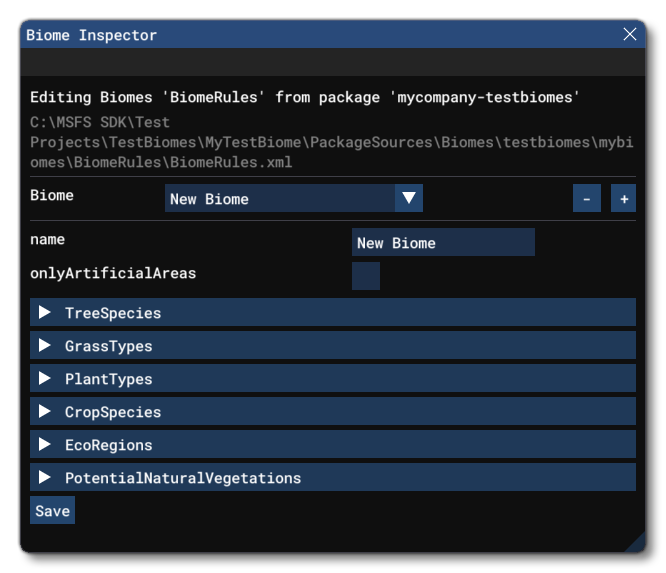
Here you can name the biome, and you can check the Is Artificial checkbox - if required - which will set a global biome rule that all defined biome data is only to be used on artificial surfaces. These surfaces are as follows (see Grass Types for a list of all the available surface types):
- ASPHALT
- URBAN
- BITUMINUS
- BRICK
- MACADAM
- TARMAC
You can also choose to flag using Is Default, in which case you are telling the simulation to use this biome as the default one to use when there is no other biome found for any given eco-region.
There is also a menu option showing all the currently mounted biomes, and when you are creating a new biome, any conflicts with the mounted biomes will be flagged with the following colours and messages:
- Biome Is Mounted (green) - The biome exists in the current package and has been mounted in the VFS.
- Biome Is Mounted From Another Package (yellow) - The biome already exists in another package and has been mounted in the VFS.
- Biome Is Not Mounted (grey) - The biome is not registered as mounted in the VFS.
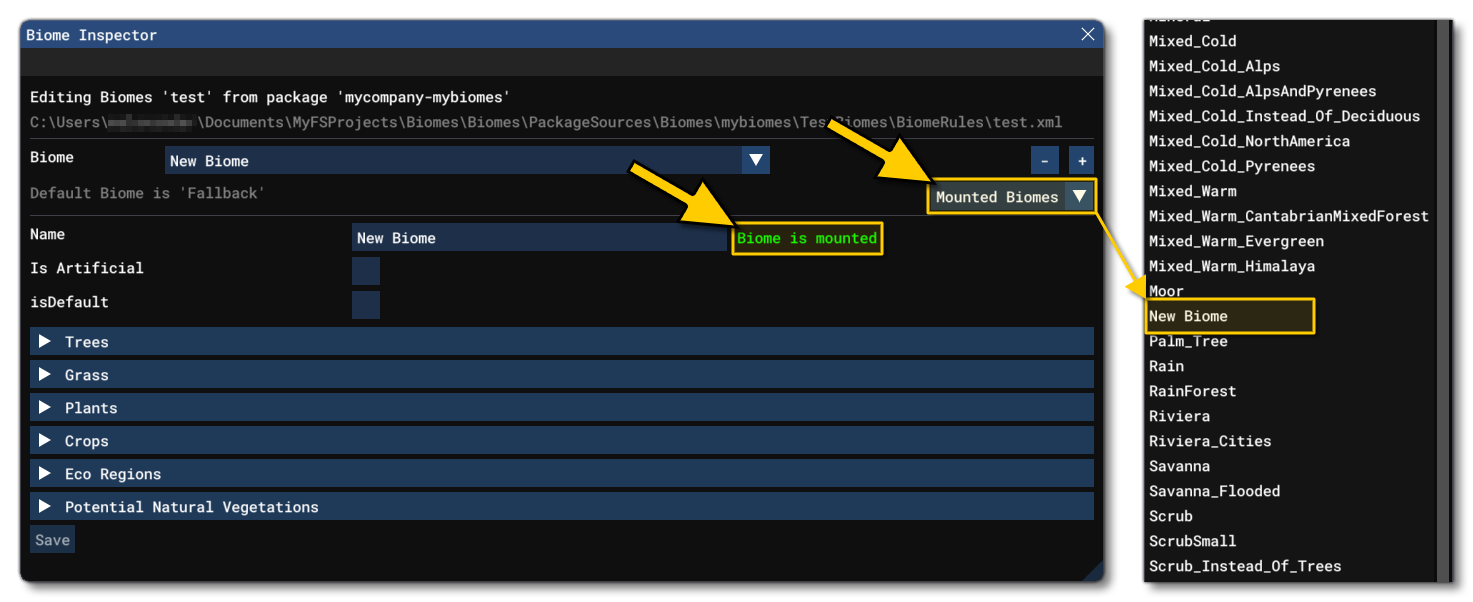
When finished setting up all the different rules for the biome, you can click the Save button at the bottom of this window to save the entire biome ruleset to the package.
Tree Species
Expanding the tree species section will show the following:
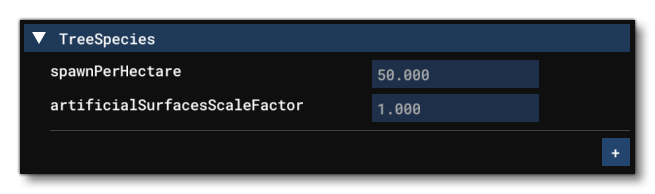
The options shown here are global and will affect all the different tree types included in this section of rules:
- Spawn Per Hectare - This sets the total number of trees that will be spawned per hectare of land covered.
- Artificial Surface Scale Factor - This is a scaling factor that will change the size of the trees if the biome is used on an artificial surface like bitumen or tarmac.
You can then define one or more tree types to be used in the biome by clicking on the + button, and you can remove a tree type from the biome by using the - button beside the type name. This will then show options for the tree types themselves:
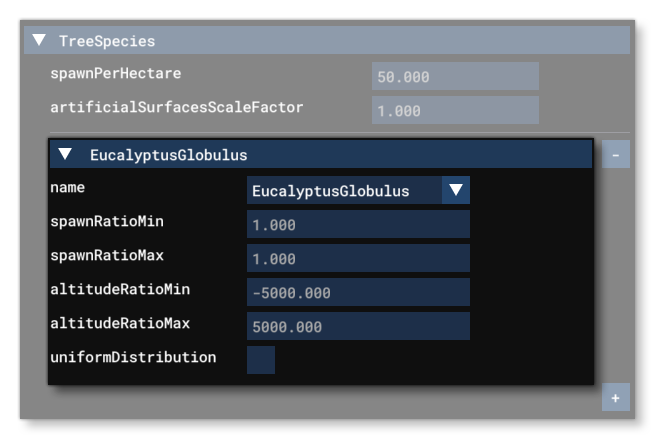
- Name: Here you can select the tree species to be included in the biome. The name comes from a predefined list of all the trees that exist by default in the simulation.
- Spawn Ratio Min: This defines the minimum spawn ratio to use, as a value from 0 to 1, where 0 is no trees being spawned and 1 is all the trees being spawned. This is used to set the amount of trees being spawned according to the minimum altitude of the biome, as defined by Altitude Ratio Min. For example, if this is set to 0.5 and the minimum altitude is set to 2000m then there will be 50% of the Spawn Per Hectare value spawned at 2000m.
- Spawn Ratio Max: This defines the maximum spawn ratio to use, as a value from 0 to 1, where 0 is no trees being spawned and 1 is all the trees being spawned. This is used to set the amount of trees being spawned according to the maximum altitude of the biome, as defined by Altitude Ratio Max. For example, if this is set to 0.5 and the maximum altitude is set to 5000m then there will be 50% of the Spawn Per Hectare value spawned at 5000m.
- Altitude Ratio Min: This defines a minimum altitude in meters, relative to MSL, at which trees will be spawned. The amount of trees being spawned will depend on the Spawn Ratio Min and the global Spawn Per Hectare value.
- Altitude Ratio Max: This defines a minimum altitude in meters, relative to MSL, at which trees will be spawned. The amount of trees being spawned will depend on the Spawn Ratio Max and the global Spawn Per Hectare value.
- Uniform Distribution: When checked, trees will be placed using a uniform distribution algorithm. If un-checked then a different random algorithm will be used that can produce "clumping" and voids in the placement.
Grass Types
Expanding the grass types section you'll see that there are no global parameters, and you simply click on the + button to add a new grass type, which will then show the following options (you can use the - button to remove a plant type if required later):
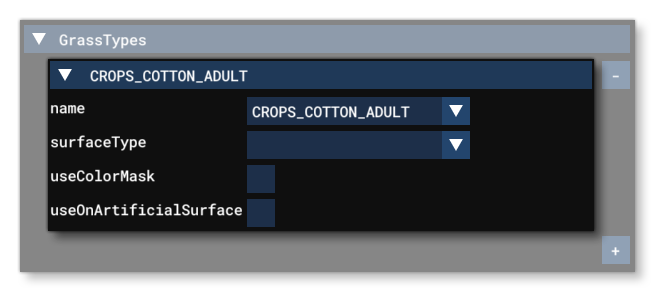
- Name: Here you can select the grass species to be included in the biome. The name comes from a predefined list of all the grass types that exist by default in the simulation.
- Surface Type: This defines the type of surface that the grass can be found on. Possible options are listed below.
- ML_DIRT_AND_MUD
- ML_ROCK_SURFACE
- ML_DUST_AND_GRAVEL
- ML_SCREE_AND_BOULDER
- ML_SAND
- ML_LOW_VEGETATION
- ML_HIGH_VEGETATION
- ML_BUILDING_AND_CONCRETE
- ML_WATER
- ML_ASPHALT
- ML_SNOW
- ML_CLOUD
- ML_EXT_PLOUGHED
- Use Colour Mask: When this is checked, the grass albedo texture will be blended with a color mask derived from the aerial texture for the world.
- Use On Artificial Surface: When checked, the grass type can also appear on the following artificial surfaces:
- ASPHALT
- URBAN
- BITUMINUS
- BRICK
- MACADAM
- TARMAC
Plant Types
Expanding the plant types section you'll see that there are no global parameters, and you simply click on the + button to add a new plant type, which will then show the following options (you can use the - button to remove a plant type if required later):
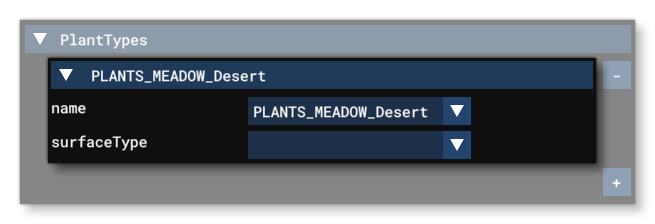
- Name: Here you can select the plant species to be included in the biome. The name comes from a predefined list of all the plant types that exist by default in the simulation.
- Surface Type: This defines the type of surface that the grass can be found on. Possible options are listed below.
String:
"ASPHALT"
"BITUMINUS"
"BRICK"
"CONCRETE"
"CORAL"
"DIRT"
"ERASE_GRASS"
"FOREST"
"GRASS"
"GRASS_BUMPY"
"GRAVEL"
"ICE"
"LONG_GRASS"
"MACADAM"
"OIL_TREATED"
"PLANKS"
"ROCK"
"SAND"
"SHALE"
"SHORT_GRASS"
"SNOW"
"STEEL_MATS"
"TARMAC"
"UNDEFINED"
"UNKNOWN"
"URBAN"
"WATER"
Crop Species
Expanding the crop species section you'll see that there are no global parameters, and you simply click on the + button to add a new crop type, which will then show the following options (you can use the - button to remove a crop type if required later):
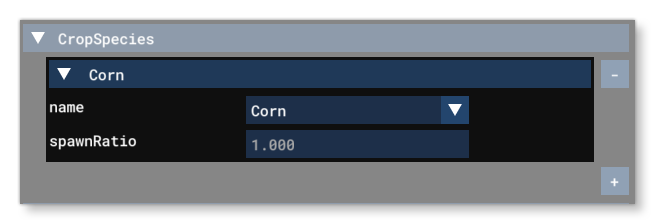
- Name: Here you can select the crop species to be included in the biome. The name comes from a predefined list of all the crop species that exist by default in the simulation.
- Spawn Ratio: This defines the spawn ratio for the crop, from 0 to 1 where 0 is no crops spawned and 1 is the full number of crops spawned. The amount of crops being spawned will depend on the global Spawn Per Hectare value.
Eco Regions
Expanding the eco region section you'll see that there are no global parameters, and you simply click on the + button to add a new eco region type (you can use the - button to remove a eco region type if required later).
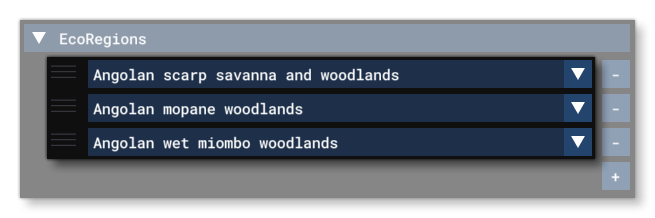
Setting one or more eco-region is telling the simulation to use the ruleset being defined in those areas (you can see a visual representation of the different eco regions here). Eco regions have no additional parameters, although they can be ordered by clicking and dragging on the ☰ button to the left of each eco region in the list, with the ordering defining the priority of the given eco-region to use biome ruleset from top (high priority) to bottom (low priority).
NOTE: If the biome is to be used in a Polygon Object, then no eco-region should be defined.
Potential Natural Vegetation (PNV)
Expanding the potential natural vegetation section you'll see that there are no global parameters, and you simply click on the + button to add a new PNV type (you can use the - button to remove a PNV type if required later).
Potential natural vegetation is to define the type of fallback vegetation should there be an issue with the vegetation types defined in the ruleset. PNV's have no additional parameters, although they can be ordered by clicking and dragging on the ☰ button to the left of each PNV in the list, with the ordering defining the priority of the vegetation type to be spawned from top (high priority) to bottom (low priority).
NOTE: If the biome is to be used in a Polygon Object, then no PNV should be defined.