CREATING A BIOME
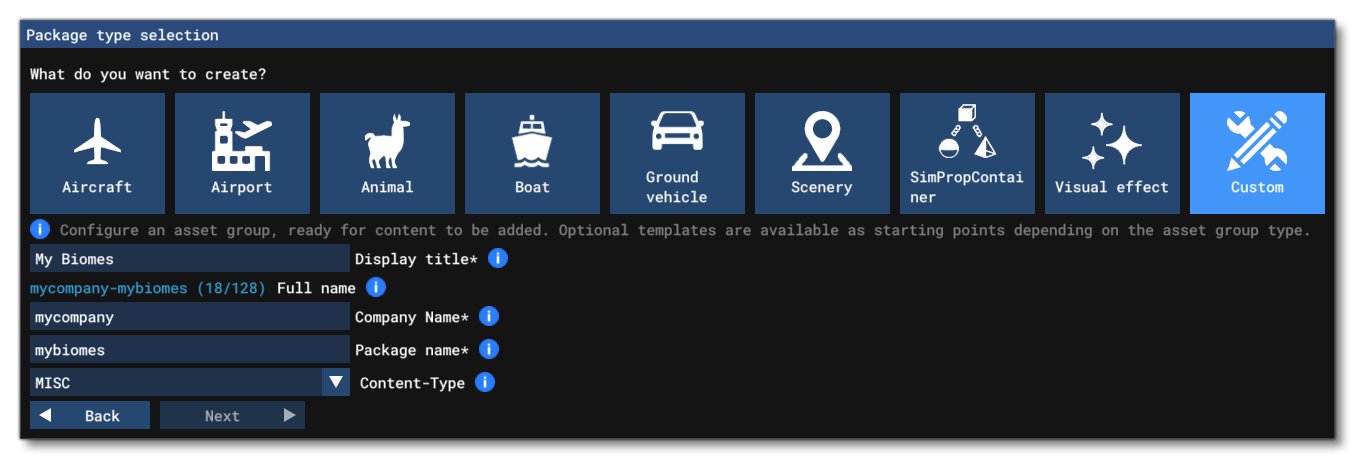
In this example, we will be adding a biome package to the Airport KALO sample project, and then using the biome rulesets we define in the airport itself. Once you have this project open in The Project Editor, we will start by creating the package, selecting the custom option in the wizard and then filling in the details, ensuring that the Content-type is set to MISC:
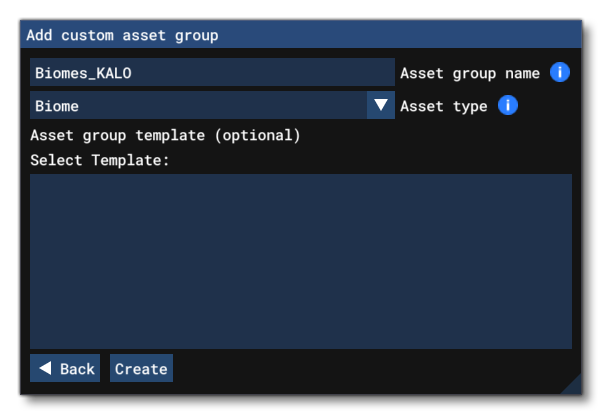
After clicking the Next button, we need to name the biome asset group and make sure that the asset type is set to Biomes, then click on Create:
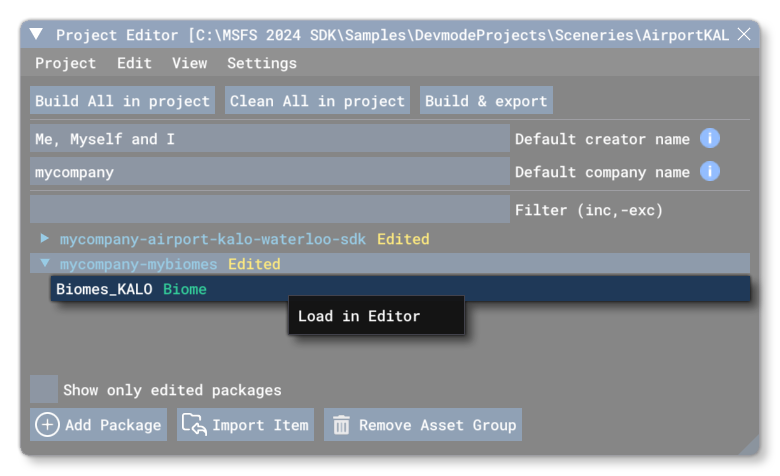
With that done, we should click on the Build All In Project button, and then start a free flight at the Waterloo Regional Airport (KALO), where the sample airport project is located. Once the flight has started we can then right-click on the new biome asset group and select Load In Editor to begin to edit the biome asset:
Creating A Biome Rulset
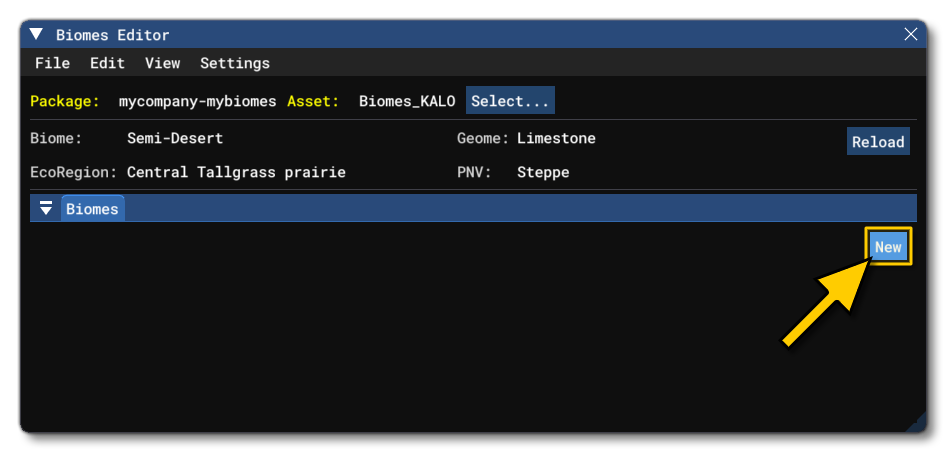
In The Biomes Editor the first thing to do is click on the New button to create a new ruleset:
We will be prompted to give a name, and then after clicking on the Ok button - it will be added to the list of rulesets in the editor:
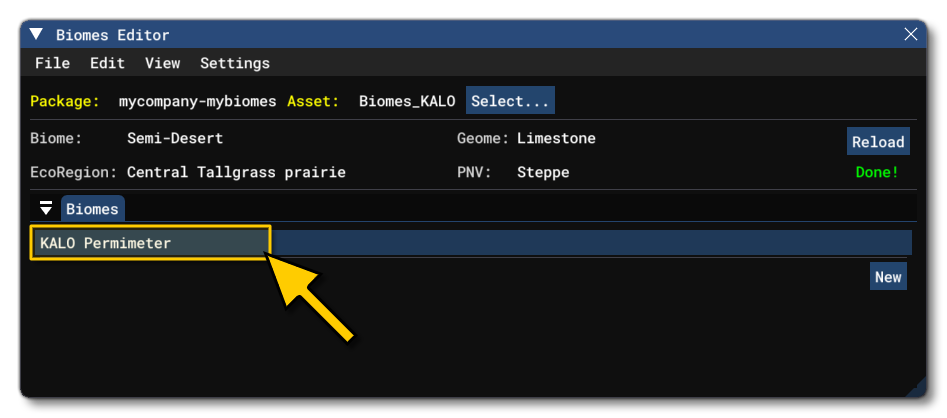
Clicking on this will open the ruleset in The Biomes Inspector, where we will need to click on the + button to create the first biome rule and name it:
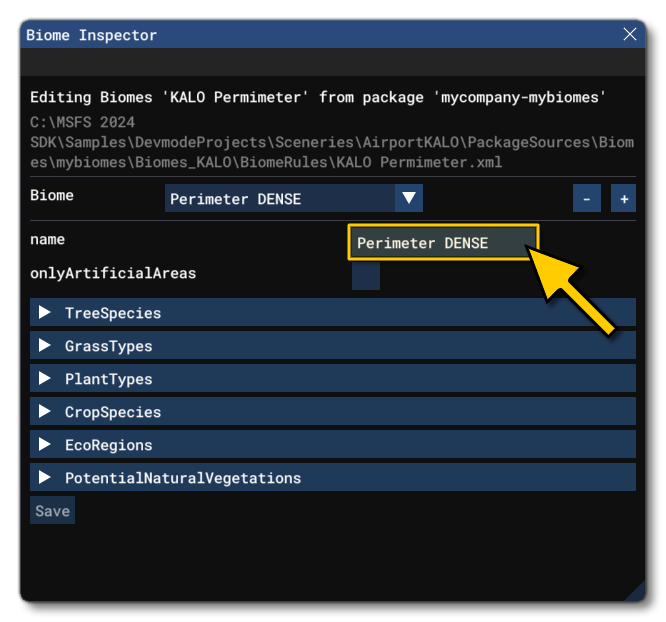
We can then go about setting up the different plant and eco-region sections for the rule by editing the different sections (each one is fully described on The Biomes Inspector page). When finished, we can then repeat the process to add further biome rules to the ruleset, or even further rulesets, as needed.
Applying A Biome
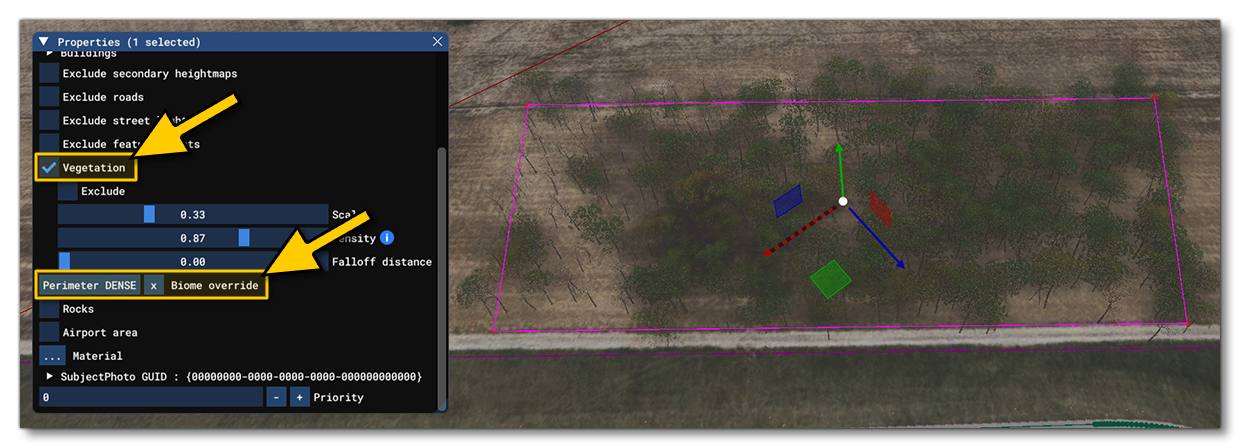
Having created one or more biome rulesets, we can then use it in the simulation. In this example we're using the KALO sample, and so we can open this in the scenery editor for editing. In this case we'll be adding in a Polygon Object and then checking the Vegetation option and using one of the new biome rulesets in the Biome Override option:
It should be noted that if you wish to create biomes appropriate to a specific zone, you can go to the zone in the simulation by starting a free-flight and then using the Teleport Window to go to the required part of the world. Once in the required zone, you can open the Biomes Editor and see the region details at the top of the editor:
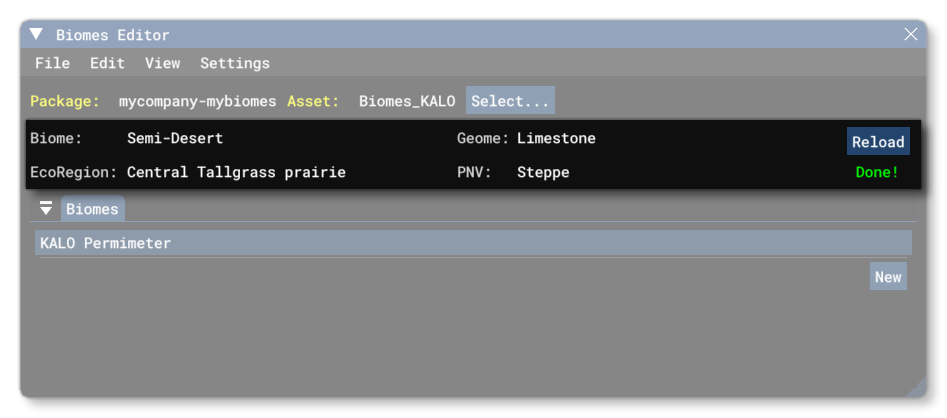
In this way you can create biomes that integrate correctly with the part of the world where you want them to be used. Note that if the biome is to be used as part of an airport or scenery within a Polygon Object, then it should not have an Eco Region or PNV defined.