FUEL SYSTEM DEBUG
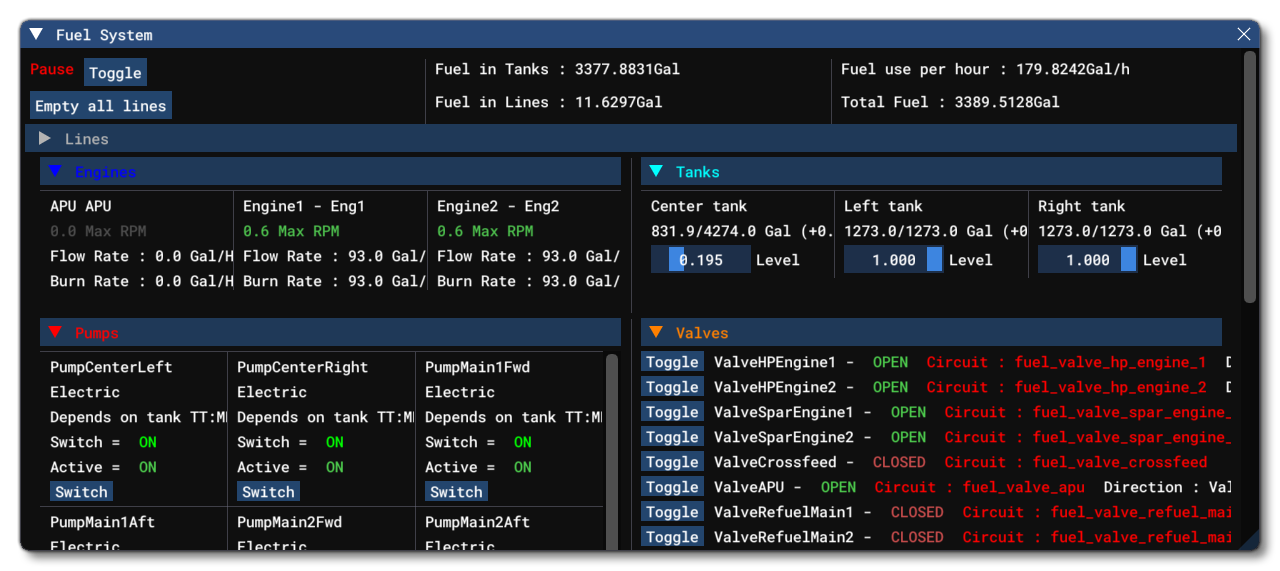
The Fuel System debug window is opened from the Debug menu of the Behaviors Debug window or from the SimObject Debug Menu itself. From this window you can get an overview of the components that make up the Modular Fuel System, as well as debug and edit them. The top of this window is taken up with some global information about the total fuel quantity in the tanks and lines, as well as how much of it is being used. You also have the following two buttons:
Toggle- This button can be used to pause and unpause the fuel system simulation. When paused, a new button will be visible -Next Frame- which can be used to advance the fuel simulation by one frame at a time.Empty All Lines- This button will empty all fuel lines of fluids. Note that if the fuel simulation is not paused, then they will immediately start to fill again.
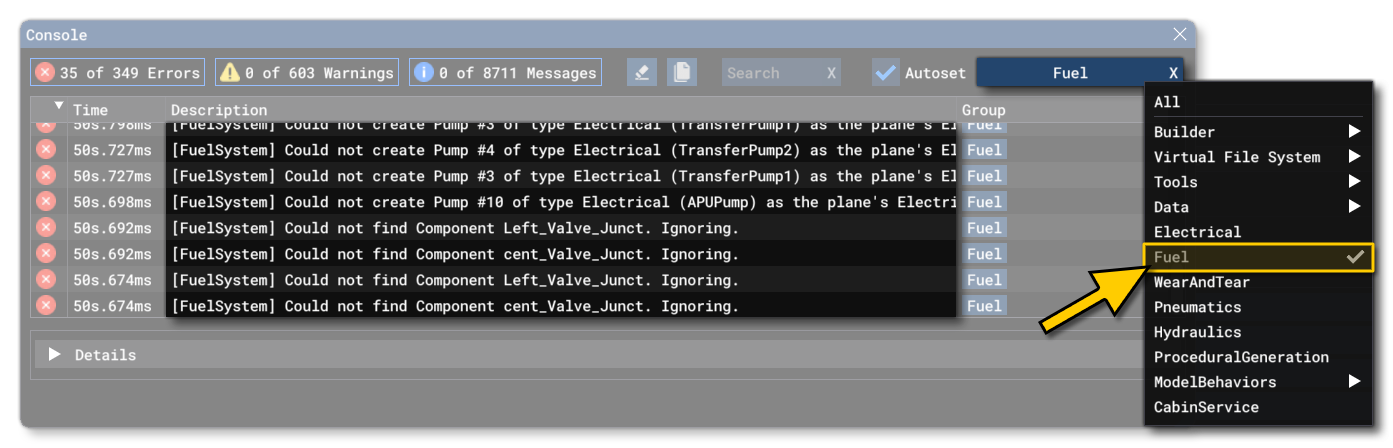
The rest of this window is taken up with information about the different components that make up the fuel system. Note that in addition to this debug window, there will be messages logged in the Console which will signal problems, warnings, and changes as they are detected by the simulation. The console can be filtered using the Message group filter to show only the fuel system output, making it easier to find the corresponding messages:
Lines
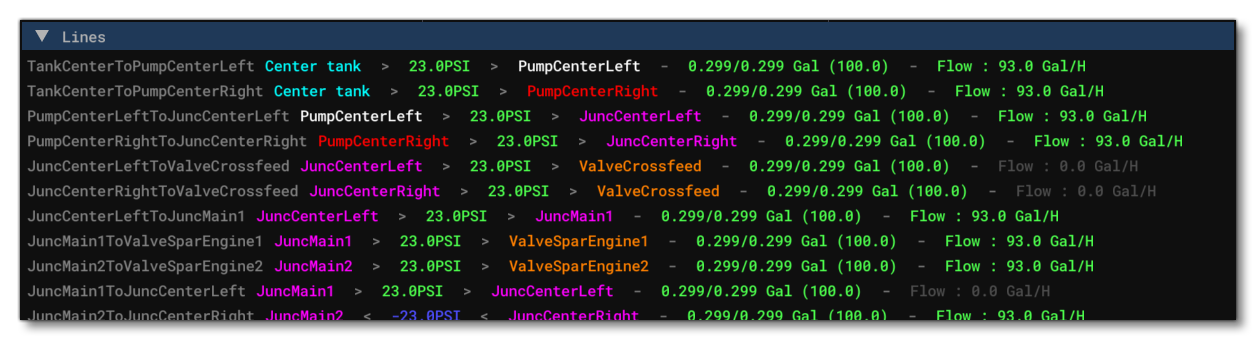
This section of the debug window lists every line defined, along with:
- the line name.
- the input component.
- the line pressure - in psi.
- the output component.
- the current amount of fuel in the line - in Gallons - expressed as the current line fuel / maximum line capacity (along with the percentage of fuel in the line).
- the current fuel flow for the line - in Gallons per hour.
Note that if you mouse over the input / ouput components, they will turn white and any corresponding connection to that component will also be highlighted
Engines
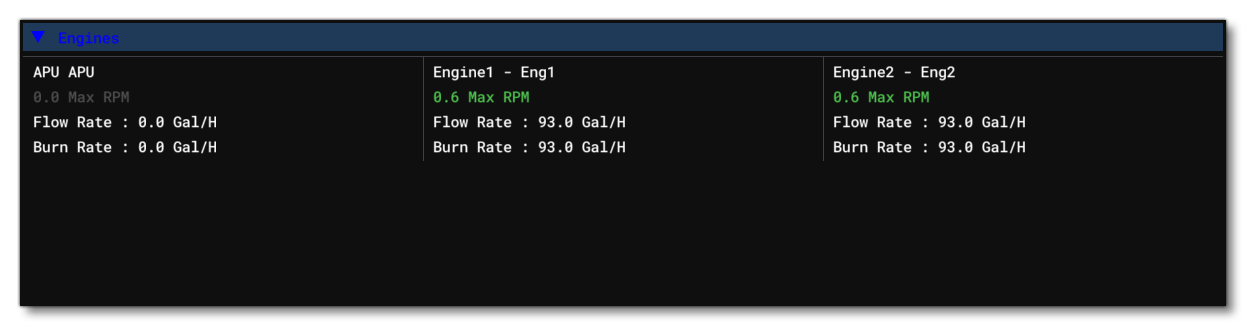
In this section you can find the aircraft engine information (including any APU's or burners). The information shown here is simply:
- the engine name.
- the percentage RPM of maximum RPM for the engine (expressed as a Percent Over 100).
- the rate of flow of fuel into the engine - in Gallons per hour.
- the rate at which fuel is being burnt by the engine - in Gallons per hour.
Tanks
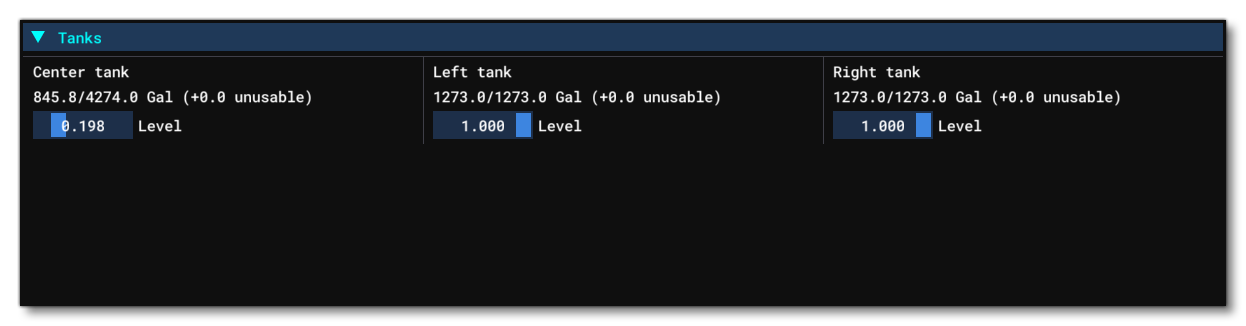
From this section you can find information about each tank defined in the fuel system. This section shows the following for each one:
- the tank name.
- the amount of fuel / maximum fuel capacity - in Gallons. You can also find in brackets the amount of unuseable fuel in the tank.
- the level of fuel in the tank expressed as a Percent Over 100 with a slider. The slider lets you change the fuel quantity in the tank while in a flight to test / debug the fuel system.
Pumps
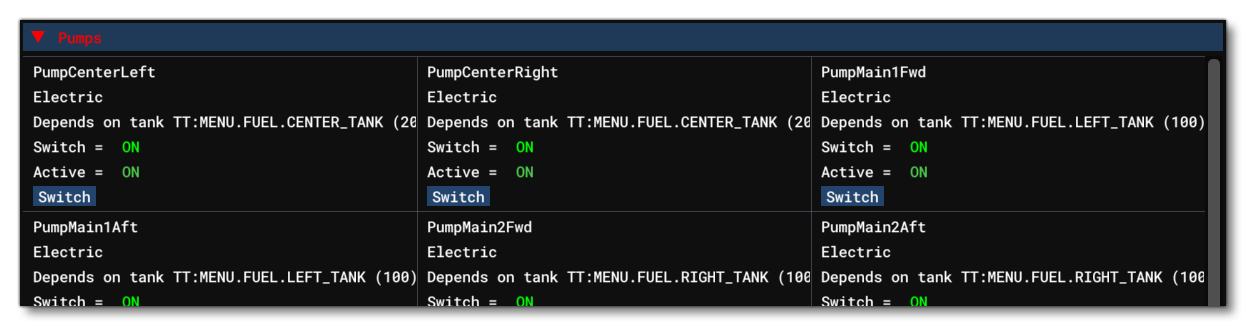
Here you can find information on each pump defined for the fuel system. Each pump will show the following data:
- the pump name.
- the pump type, either electric, engine-driven, or APU-driven.
- the tank dependency of the pump, as defined by the TankFuelRequired parameter (only for electric pumps).
- the current powered state of the pump - ON means it has power, and OFF means it has no power.
- the current active state of the pump - ON means the pumo is active (in use), and OFF means the pump is inactive (not in use).
Switch- this can be used to switch the pump power on / off. Note that this may only work for one frame, as certain behaviors may reset the pump state automatically.
Valves
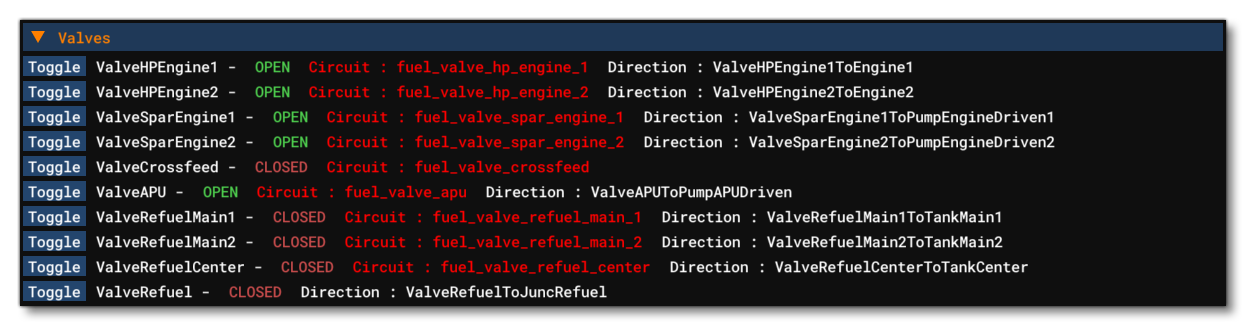
This section of the debug window lists every line defined, along with:
Toggle- this button can be used to toggle the valve between OPEN and CLOSED states. Note that this may only work for one frame, as certain behaviors may reset the valve state automatically.- the valve name.
- the valve state, either OPEN, OPENING, CLOSED or CLOSING.
- the name of the electical Circuit that is controlling the valve (if there is one).
- the direction of the valve, ie: which component will fuel flow to when the valve is OPEN.
Triggers
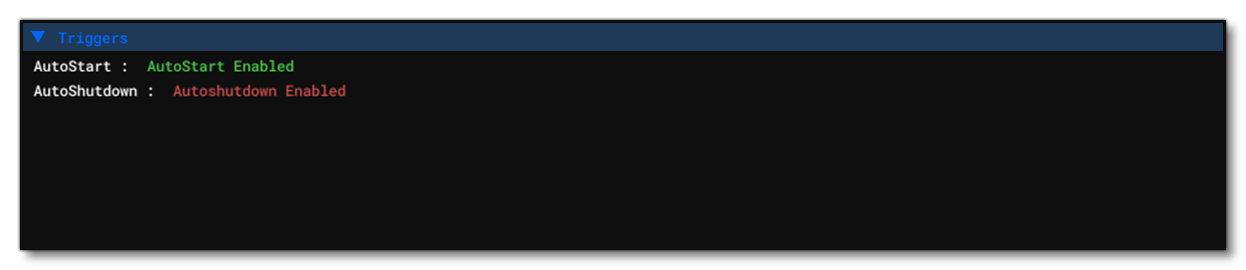
Here you can find information on each trigger defined for the fuel system. Each trigger simply shows the trigger name, and the Trigger Conditions And Events.
Junctions
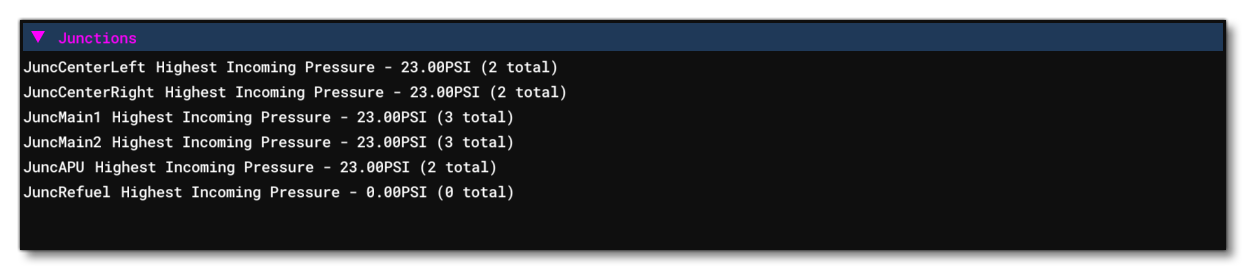
Here you can find information on each junction defined for the fuel system. For each junction you will see its name, along with the highest incoming pressure - in psi - which is the highest fuel pressure generated by one of the incoming lines to the junction. In brackets you can also find how many lines are connected to it.
Related Topics