LABELS
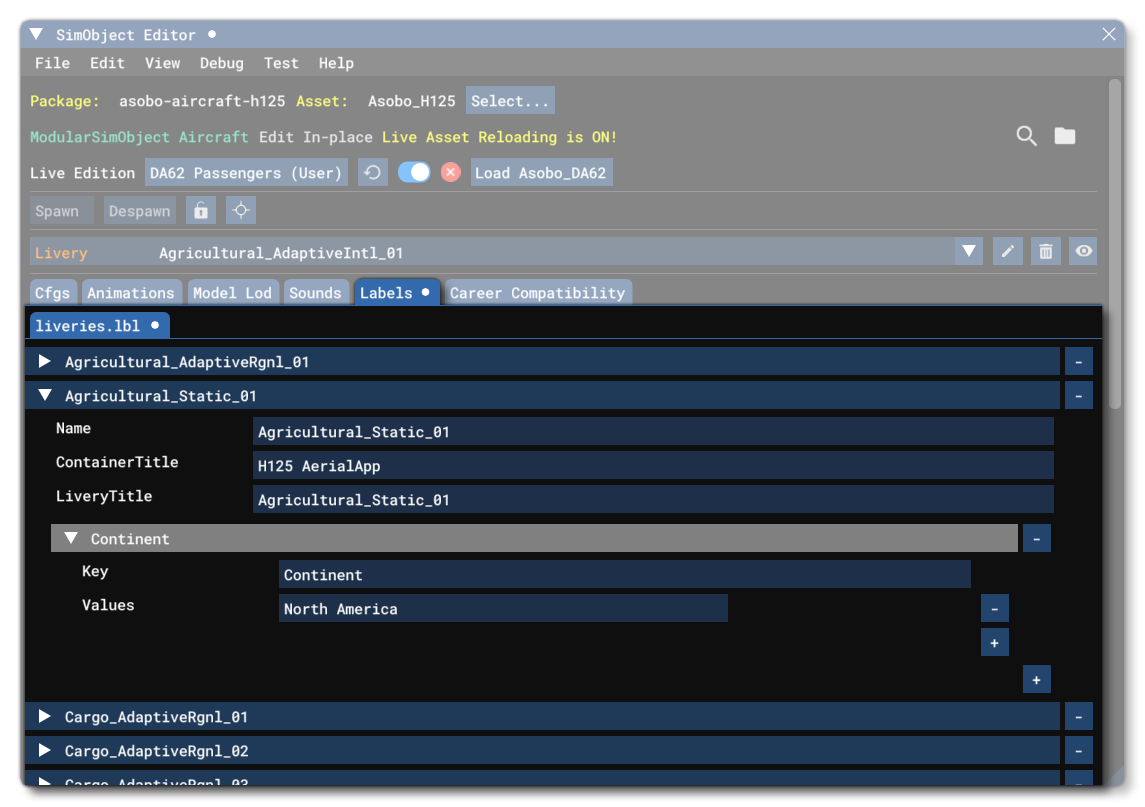
The labels tab will only be visible when the modular part being edited has access to specific LBL Files (Dynamic Libraries). These will be when editing a preset or attachment so that you can define the loads.lbl, or when creating liveries so you can access the liveries.lbl. If neither of these options are applicable to the modualr part being edited then the labels tab will not be visible. For further information on setting up aircraft loads and liveries, please see the following pages:
Within the editor, when you create a new preset or livery and wish to add one of these files, you can click the + button to add the file and an entry:
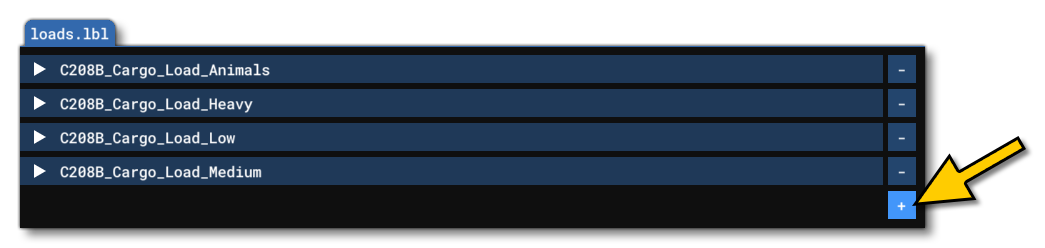
When you add a new entry to the loads or liveries LBL files, you will have the following options:
-
loads.lbl
- Name - This is the "common" name of the load and is what will be displayed in the editor (but nowhere else).
- ContainerTitle - This parameter is a GUID which comes from a pre-created SimProp Container Object. You can find this from the
<GUID>element in the SimProp Container XML file.
-
liveries.lbl
- Name - This is the "common" name of the livery and is what will be displayed in the editor (but nowhere else).
- ContainerTitle - This parameter expects a single value, which is a string defining the container title of the Preset that the livery will be applied to. This acts as an initial filter on the available liveries and permits you to "group" one or more liveries to be used for specific activities. The actual title string you should give is the one used in the
titleparameter of the aircraft.cfg in the preset - LiveryTitle - This parameter expects a single value, which is a string defining the folder name of the livery. Livery folders should be in the same location as the
liveries.lblfile for the reference to find them.
Within each added entry to the file, you can then add additional key / value pairs by using the + buttons. These keys and values are used by the simulation to decide which one of the entries to apply to the aircraft. For example, in the image below, the cargo load entry "C208BCargo_Load_Low" entry has three additional label keys:
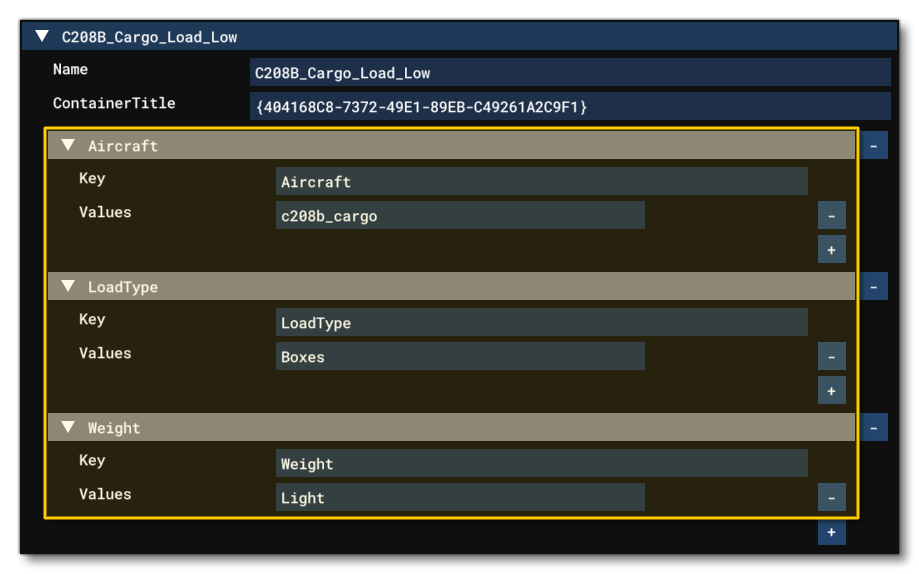
Note that each key you add, can have multiple values, which - again - can be added with the appropriate + button. If you need to remove a value, a key, or an entry, you can click on the - button for the respective section.