THE SIMOBJECT EDITOR GRAPH VIEW
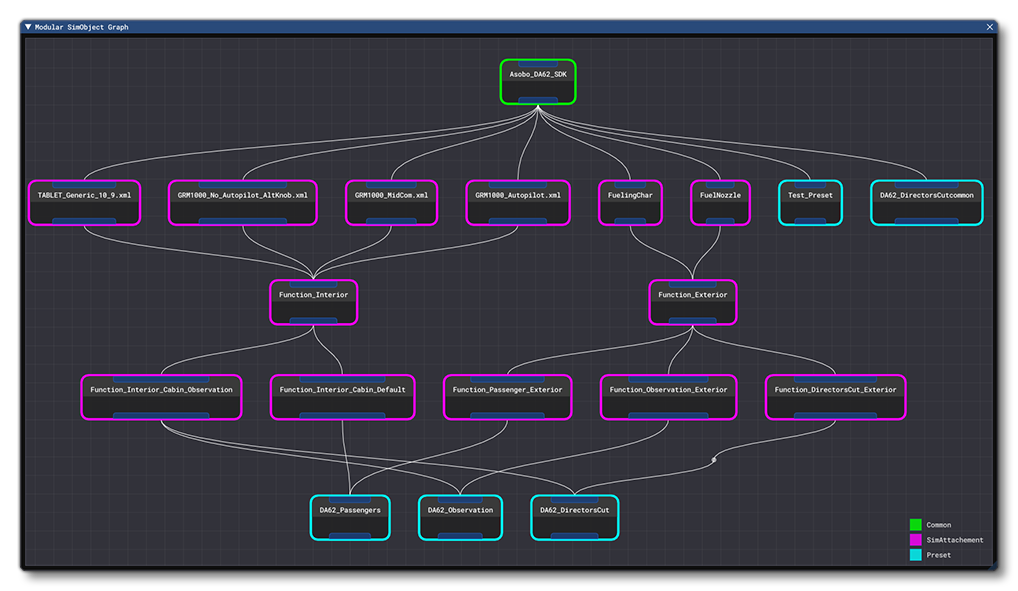
This window will open automatically when you open or create a modular SimObject. The window will show the hierarchy of nodes and how they will be compiled together when one of the SimObject presets is loaded into the simulation. If this window is not visible, you can open it from the View menu of the SimObject Editor.
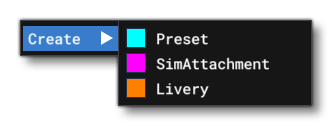
Within this window you can left-click on any node then drag it around to re-position it, or you can left-click in the window and drag to select multiple nodes at once. You may left-click on any of them and drag to move them all together. If you right-click on an empty part of the graph, you will be shown the following menu where you can choose to create a new node:
If you right-click on a node then the menu will change to show the following:
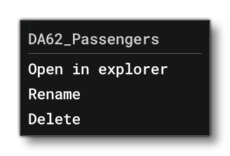
Here you will be shown the name of the node you clicked on, and then have the following options:
- Open In Explorer - Open the file explorer on the location of the node that was clicked-on.
- Rename - Rename the node.
- Delete - Delete the node.
You can also right-click on any edges to open a small menu where you have the option to delete the edge.
After adding a node to the aircraft, it will automatically be connected with the common node, and then you can click on the blue-bar and then drag to create an edge between the new node and one of the existing nodes.
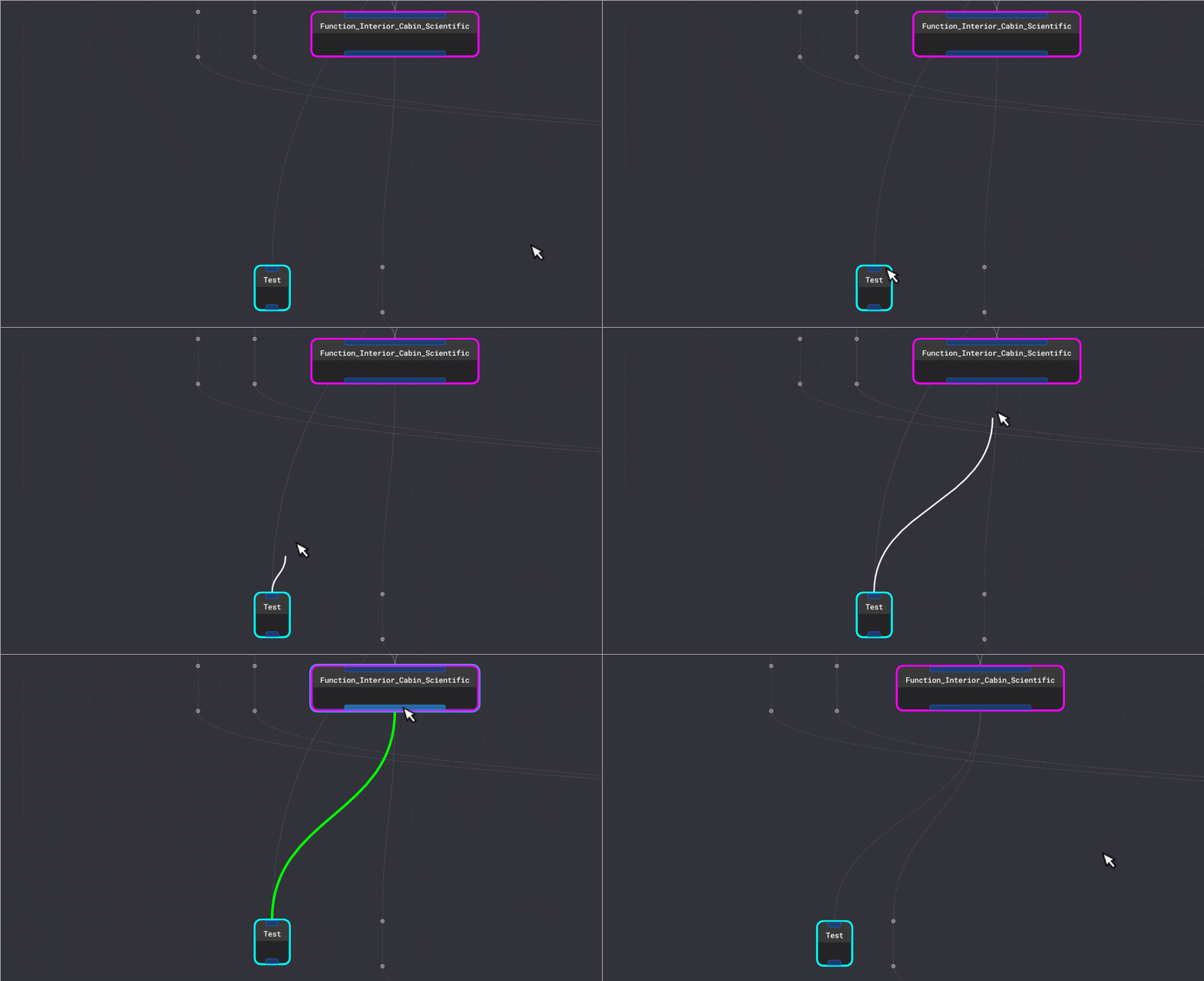
To help with the visual layout, edges can also be split so that they can be arranged to "fit" the available nodes. This may be done automatically if you use the Reset menu option, or you can do it yourself by clicking and holding the left mouse button on an edge and simply dragging. This will create a control point which can then be moved around to reposition the path of the edge between two nodes:
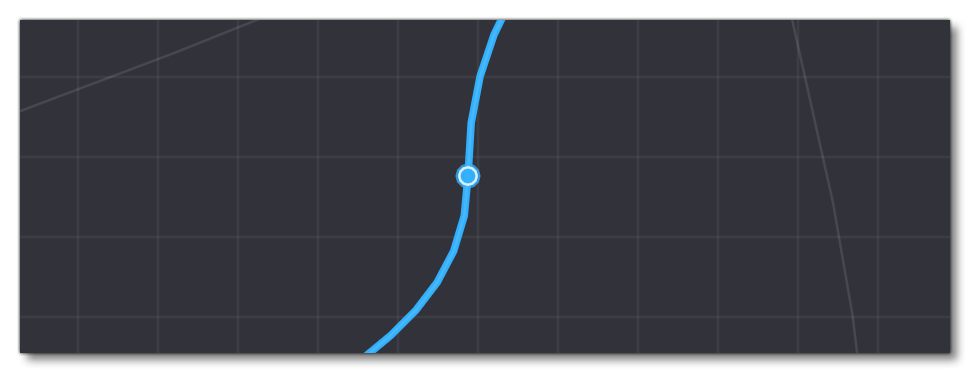
If you need to remove a control point then simply double-click on it and it will be deleted.
Menu
There are a number of menus available at the top of the graph view window. These are explained below.
Create
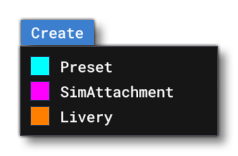
From this menu you can create new Preset, SimAttachment, or Livery nodes.
View
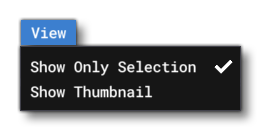
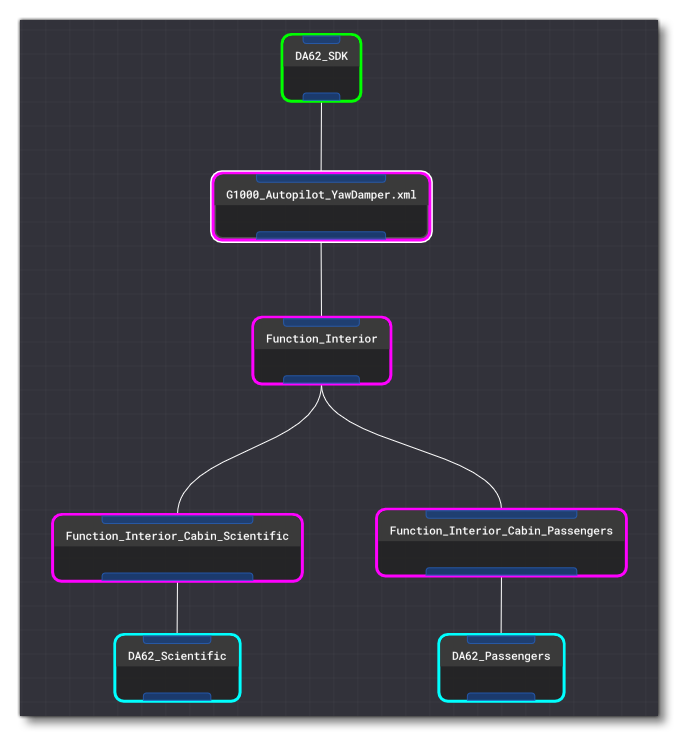
From this menu you can choose the Show Only Selection option, which will "isolate" nodes that you left-click on. When a node is clicked with this option, you will see only that node and its direct connections in the hierarchy:
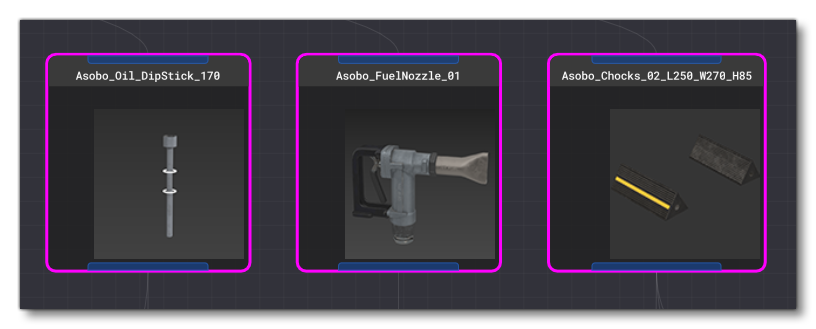
Additionally, this menu has the option to Show Thumbnails. WHen this is active, nodes will also show the thumbnail image associated with them (when appropriate):
Layout
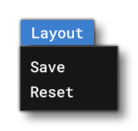
From this window you can Save the current window layout so that it will be loaded the next time the editor is opened. You also have an option to reset the layout, which will reset all node and edge positions to their default positions.